Rārangi kōnae
Create a table from text with AI
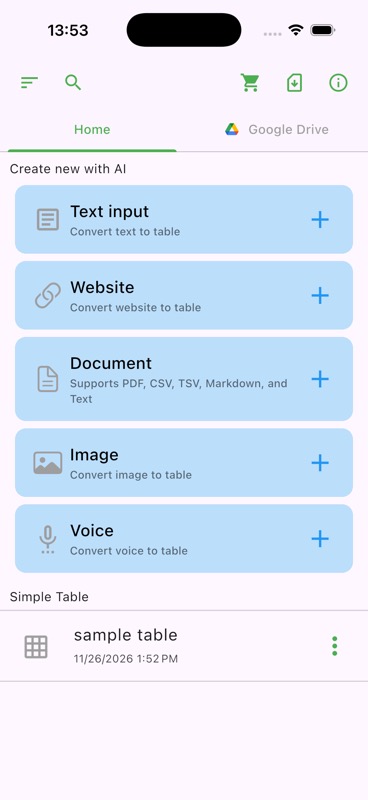
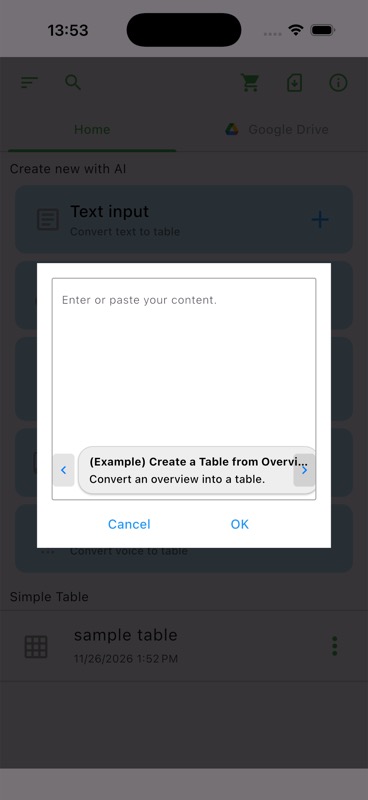
- In the file list, select Text input under Create new with AI.
- Describe the columns and information you need, such as “Create an inventory with columns for item, quantity, and storage location,” then select OK.
- Check that the generated headings and numbers match the information you provided.
Create a table from a document, image, website, or voice input
- Under Create new with AI in the file list, choose Document, Image, Website, or Voice.
- Select the file or image, enter the page URL, or provide voice input. Compare the resulting table with the source material.
Huri i te raupapa kōmaka kōnae
- Whakamahia te mana kōmaka kei runga ake i te rārangi kōnae. Ki te iti te mata, whakatuwheratia te tahua kōmaka.
- Kōwhiria te kōmaka mā te rā i whakarerekētia ai, mā te ingoa kōnae rānei.
Search for a file by name
- Open Home or Google Drive, depending on where the file is stored, and select the Search icon.
- Enter part of the name in Search by file name. Select Close to see the full list again.
Tāruatia he kōnae
- Whakatuwheratia te tahua ira-toru o te kōnae, ka kōwhiri i te Tārua.
- Whakatuwheratia te kape kua tāpirihia ki te rārangi hei whakatika, me te pupuri tonu i te kōnae taketake.
Mukua he kōnae
- Whakatuwheratia te tahua ira-toru o te kōnae, ka kōwhiri i te Muku.
- Tirohia te karere whakaū, ka kōwhiri i te OK.
Mō tētahi kōnae kua tiria ki a koe, tērā pea he kōwhiringa kei te tahua hei tango i te tiritanga.
Whakaingoa anō i te kōnae
- Whakatuwheratia te tahua ira-toru o te kōnae, ka kōwhiri i te Whakaingoa anō.
- Tāurutia te ingoa hou, ka whakaū.
Me whai whakaaetanga whakatika koe hei whakaingoa anō i tētahi kōnae Google Drive kua tiria ki a koe.
Import an existing table into Simple Table AI
- Select Import in the file list and select OK to open the file picker.
- Select a CSV, TSV, TXT, or Simple Table (.simpletable) file.
Save an AI-generated file to Google Drive
- Choose Google Drive in the file list and sign in to your Google Account if prompted.
- With the Google Drive tab open, create a file using Create new with AI. To move a local file, select Move to Google Drive from its three-dot menu if the option is available.
Hei whakatuwhera i te kōnae ki tētahi atu pūrere, honoa te pūkete Google i whakamahia e koe hei tiaki i taua kōnae.
Nuku kōnae i waenga i tō pūrere me Google Drive
- I te taupānga kua tāutatia, honoa tō pūkete Google, ka whakatuwhera i te tahua ira-toru o te kōnae.
- I runga i te wāhi i tiakina ai te kōnae, kōwhiria te Nuku ki Google Drive, te Nuku ki te Kāinga (Home) rānei, ka whakaū.
Whakatika kōnae
Revise a table with AI
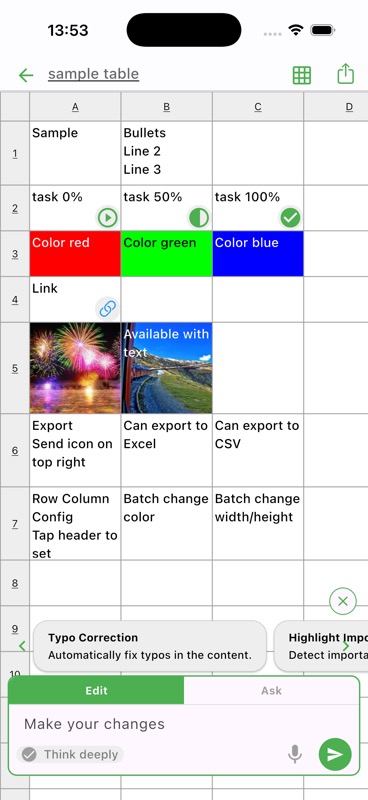
- Tap the input field below the table and choose Edit.
- Enter a change such as “Add an Owner column on the right” and select Send. Review the updated cells or headings.
Ask AI a question about the table
- Tap the input field below the table and choose Ask.
- Send a question such as “Which items are running low?” and read the reply in the chat window.
Whakatika pūtau, tāpiri haupae, tīwae rānei
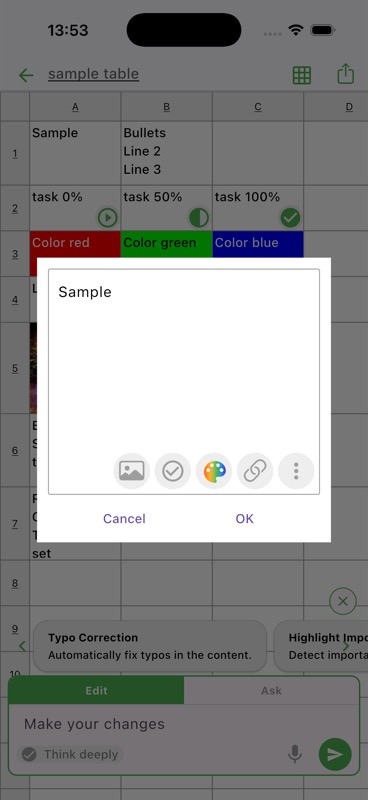
- Kōwhiria te pūtau e hiahia ana koe ki te whakarerekē hei whakatuwhera i te ētita pūtau.
- Tāurutia ngā ihirangi, ka whakaū hei whakahou i te ripanga.
- Whakamahia te + kei raro, kei te taha rānei o te ripanga hei tāpiri haupae, tīwae rānei.
Tāpiri atahanga ki te pūtau
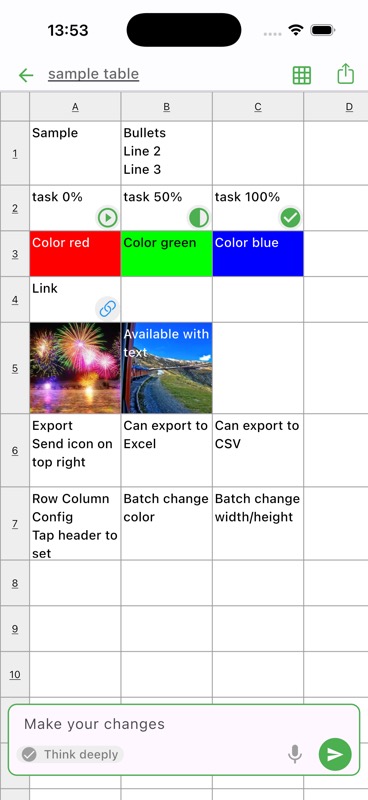
- Huakina he pūtau, tīpakohia te ata atahanga, ka kōwhiri i tētahi atahanga mai i tō pūrere.
- Hei tango i te atahanga o nāianei, tīpakohia anō taua ata.
He āhuatanga utu te tāpiri atahanga.
Kaweake ripanga
- Huakina te tahua kaweake i te ētita ripanga.
- Kōwhiria he atahanga, he PDF rānei hei pupuri i te āhua, he CSV, he Excel rānei hei whakamahi i ngā raraunga ripanga ki tētahi atu taupānga, te hōputu taupānga rānei hei whakatika anō ā muri ake.
Kei tō tūāpapa me tō mahere ngā hōputu e wātea ana.
Ngā hokonga
Hoko mahere utu
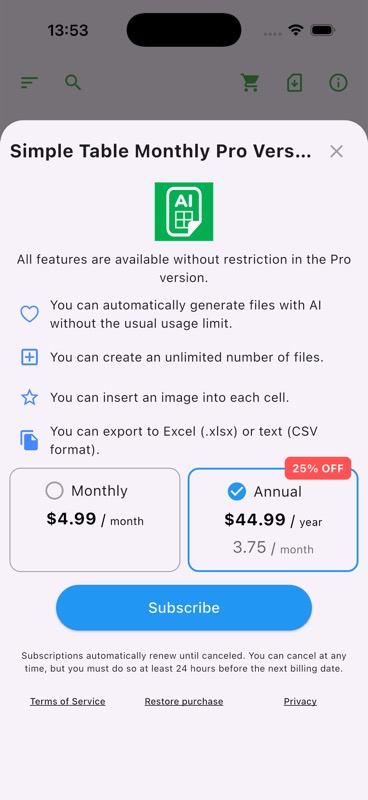
- Tīpakohia te ata kāta hokohoko i te rārangi kōnae.
- Arotakengia ngā mahere me ngā utu i te mata hoko, kātahi ka tīpako i te mahere e hiahia ana koe ki te hoko.
Whakaora i te hokonga
- Mēnā i hoko koe i te toa taupānga, takiuru mā te pūkete toa i whakamahia e koe ki te hoko i te mahere.
- Whakatuwheratia te mata hoko i te taupānga, tīpakohia te kōwhiringa «Whakaora i ngā hokonga», ka tirohia te hua.
Whakahaere i te hokonga, i te ohaurunga rānei
- Mēnā he kōwhiringa whakahaere hokonga kei te tahua mōhiohio o te rārangi kōnae, whakatuwheratia taua kōwhiringa.
- Whakamahia te toa, te ratonga rānei i hokona ai e koe te mahere hei arotake, hei whakakore rānei i tō ohaurunga.
Pūkete utu
Hono i tō hokonga ki tētahi pūkete Google
- Takiuru ki tō pūkete Google i runga i te pūrere e whai hokonga hohe ana koe.
- Mēnā ka puta te kōwhiringa hei hono i tō hokonga ki tētahi pūkete Google i te tahua, tīpakohia, ka whakaū i te pūkete.
- Hei whakamahi i tō mahere utu i tētahi atu pūrere e tautokona ana, takiuru mā te pūkete Google kua honoa.
Huri i te pūkete Google
- Tirohia i te tahua mōhiohio o te rārangi kōnae ko tēhea pūkete Google e hohe ana.
- Mēnā e wātea ana te kōwhiringa takiputa, tīpakohia, kātahi ka whakatuwhera i a Google Drive, ka takiuru ki te pūkete e hiahia ana koe ki te whakamahi.
I tētahi atu pūrere, whakamahia te pūkete e hono ana ki te hokonga, ki ngā kōnae Drive rānei e hiahia ana koe ki te uru atu.