Rārangi kōnae
Create an HTML file
- Select + Create new in the file list.
- Enter a name for the page, then select OK to open the editor.
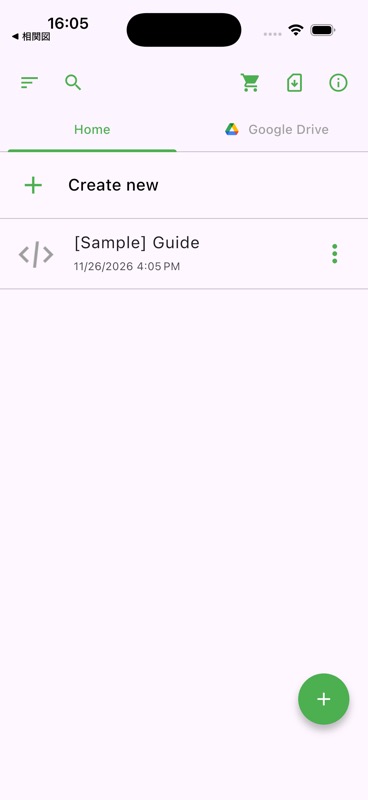
Huri i te raupapa kōmaka kōnae
- Whakamahia te mana kōmaka kei runga ake i te rārangi kōnae. Ki te iti te mata, whakatuwheratia te tahua kōmaka.
- Kōwhiria te kōmaka mā te rā i whakarerekētia ai, mā te ingoa kōnae rānei.
Search for a file by name
- Open Home or Google Drive, depending on where the file is stored, and select the Search icon.
- Enter part of the name in Search by file name. Select Close to see the full list again.
Tāruatia he kōnae
- Whakatuwheratia te tahua ira-toru o te kōnae, ka kōwhiri i te Tārua.
- Whakatuwheratia te kape kua tāpirihia ki te rārangi hei whakatika, me te pupuri tonu i te kōnae taketake.
Mukua he kōnae
- Whakatuwheratia te tahua ira-toru o te kōnae, ka kōwhiri i te Muku.
- Tirohia te karere whakaū, ka kōwhiri i te OK.
Mō tētahi kōnae kua tiria ki a koe, tērā pea he kōwhiringa kei te tahua hei tango i te tiritanga.
Whakaingoa anō i te kōnae
- Whakatuwheratia te tahua ira-toru o te kōnae, ka kōwhiri i te Whakaingoa anō.
- Tāurutia te ingoa hou, ka whakaū.
Me whai whakaaetanga whakatika koe hei whakaingoa anō i tētahi kōnae Google Drive kua tiria ki a koe.
Import an existing HTML file
- Select Import in the file list, then select OK to open the file picker.
- Choose an HTML file (.html or .htm) and open it from the list.
Tiaki ki Google Drive
- Kōwhiria a Google Drive i te rārangi kōnae, ka whai i ngā tohutohu hei hono i tō pūkete Google.
- Waihangatia he kōnae hou mai i te rārangi Google Drive. Mēnā e wātea ana taua kōwhiringa, ka taea hoki te nuku i tētahi kōnae ā-pūrere ki Google Drive mā tōna tahua ira-toru.
Hei whakatuwhera i te kōnae ki tētahi atu pūrere, honoa te pūkete Google i whakamahia e koe hei tiaki i taua kōnae.
Nuku kōnae i waenga i tō pūrere me Google Drive
- I te taupānga kua tāutatia, honoa tō pūkete Google, ka whakatuwhera i te tahua ira-toru o te kōnae.
- I runga i te wāhi i tiakina ai te kōnae, kōwhiria te Nuku ki Google Drive, te Nuku ki te Kāinga (Home) rānei, ka whakaū.
Whakatika kōnae
Edit HTML and preview the page
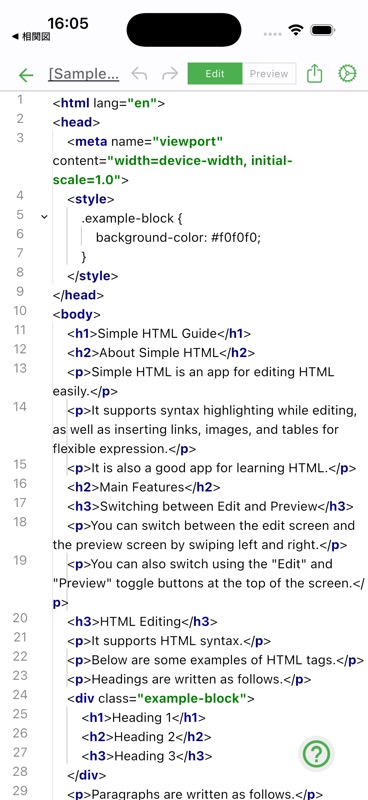
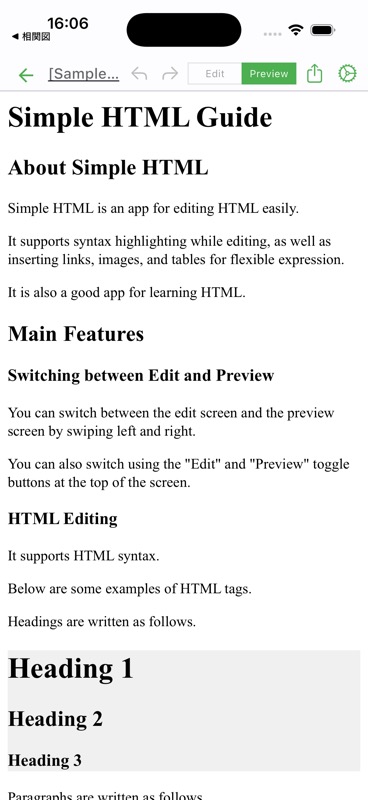
- Select Edit at the top and change the page text or markup. Try changing a heading or paragraph first.
- Switch to Preview to check the headings, links, and layout. Return to Edit to make more changes.
Find and replace text in HTML
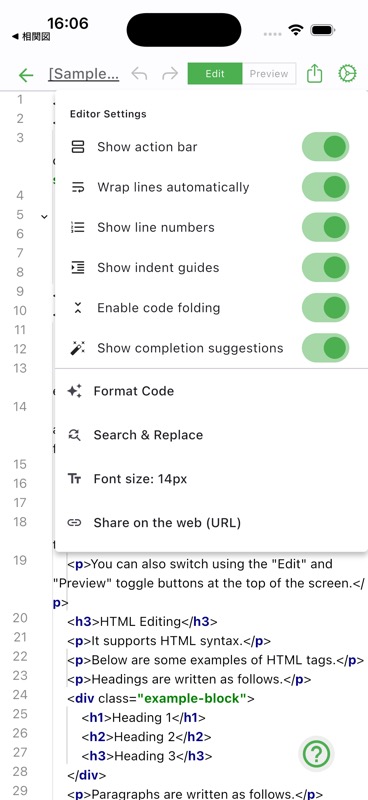
- While in Edit, select the gear icon in the top-right corner and choose Search & Replace in Editor Settings.
- Enter the text to find and move to the previous or next match. Use the Replace icon to open the replacement field, enter the new text, and choose Replace or Replace All.
Format HTML and adjust how lines are displayed
- Open the gear menu in the editor and select Format Code to tidy up indentation.
- Use the word wrap and line number settings to adjust how the code is displayed.
Share the HTML page by URL
- Open the gear menu in the top-right corner and choose Share on the web (URL).
- Copy the generated URL and send it to the recipient. The link shows the page as it was when the URL was created.
A shared URL cannot be revoked. Check what it contains before sending it.
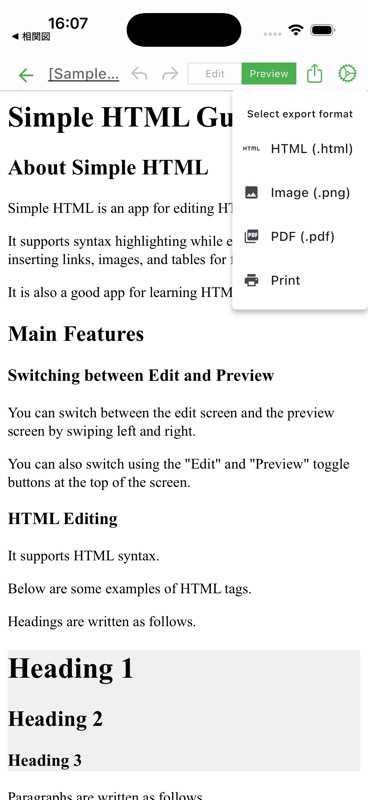
Export a page as HTML, an image, or PDF
- Select the share icon at the top of the screen. Choose HTML (.html) to reopen the file in a browser or edit it later.
- On a phone, choose PNG or PDF to preserve the page’s appearance.
Ngā hokonga
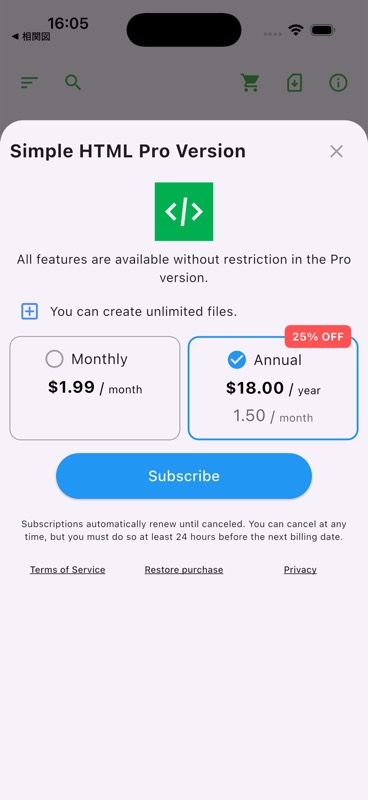
Hoko mahere utu
- Tīpakohia te ata kāta hokohoko i te rārangi kōnae.
- Arotakengia ngā mahere me ngā utu i te mata hoko, kātahi ka tīpako i te mahere e hiahia ana koe ki te hoko.
Whakaora i te hokonga
- Mēnā i hoko koe i te toa taupānga, takiuru mā te pūkete toa i whakamahia e koe ki te hoko i te mahere.
- Whakatuwheratia te mata hoko i te taupānga, tīpakohia te kōwhiringa «Whakaora i ngā hokonga», ka tirohia te hua.
Whakahaere i te hokonga, i te ohaurunga rānei
- Mēnā he kōwhiringa whakahaere hokonga kei te tahua mōhiohio o te rārangi kōnae, whakatuwheratia taua kōwhiringa.
- Whakamahia te toa, te ratonga rānei i hokona ai e koe te mahere hei arotake, hei whakakore rānei i tō ohaurunga.
Pūkete utu
Hono i tō hokonga ki tētahi pūkete Google
- Takiuru ki tō pūkete Google i runga i te pūrere e whai hokonga hohe ana koe.
- Mēnā ka puta te kōwhiringa hei hono i tō hokonga ki tētahi pūkete Google i te tahua, tīpakohia, ka whakaū i te pūkete.
- Hei whakamahi i tō mahere utu i tētahi atu pūrere e tautokona ana, takiuru mā te pūkete Google kua honoa.
Huri i te pūkete Google
- Tirohia i te tahua mōhiohio o te rārangi kōnae ko tēhea pūkete Google e hohe ana.
- Mēnā e wātea ana te kōwhiringa takiputa, tīpakohia, kātahi ka whakatuwhera i a Google Drive, ka takiuru ki te pūkete e hiahia ana koe ki te whakamahi.
I tētahi atu pūrere, whakamahia te pūkete e hono ana ki te hokonga, ki ngā kōnae Drive rānei e hiahia ana koe ki te uru atu.