Cafe drink menu
Discuss the information and wording for cafe drink menu, then ask for a link to open and review the result in Menu.
 Simple Menu Maker / AI Skill
Tell your assistant what you want to make in Menu. Discuss the content and refine it together, then open the resulting URL in the app. Paste the instructions URL to get started, or install the Skill for repeat use.
Read the instructions and linked data reference at this URL, and use the URL tool to create content I can open in Menu.
https://github.com/y-tanaike/public_skills/blob/main/menu/SKILL.md
Help me create a cafe menu with a drinks heading and JPY 450 coffee. Ask questions about missing information and refine the content through conversation. Use English for display text, then return an app-opening URL.
English instructions, your language
Discuss the information and wording for cafe drink menu, then ask for a link to open and review the result in Menu.
Discuss the information and wording for lunch menu, then ask for a link to open and review the result in Menu.
Discuss the information and wording for event menu, then ask for a link to open and review the result in Menu.
YouI want to create a cafe menu with a drinks heading and JPY 450 coffee. Can you help me organize it?
AssistantWhat are the shop name, menu items, descriptions, and prices?
YouLet us start with fictional sample details. Please ask if any important information is missing.
Read this instructions URL and its linked reference files, then use the URL tool to create a cafe menu with a drinks heading and JPY 450 coffee in Menu. Use the following fictional sample details and English display text. Return an app-opening URL.
https://github.com/y-tanaike/public_skills/blob/main/menu/SKILL.md

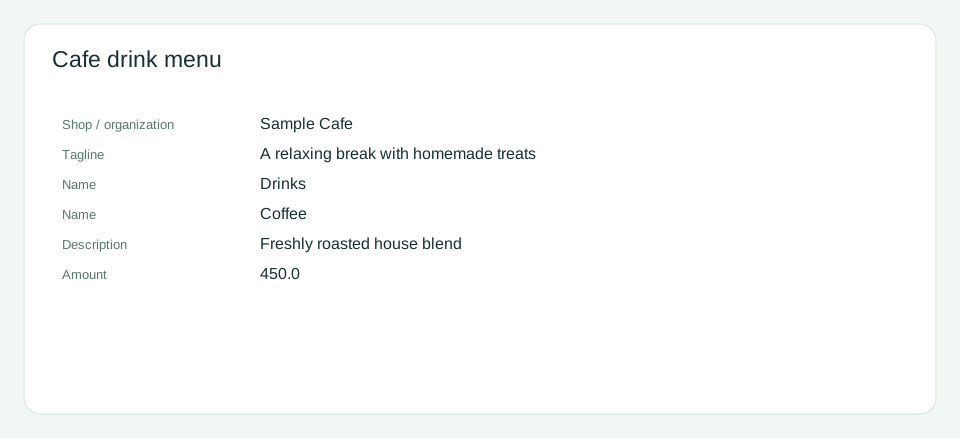
Shop / organization / Sample Cafe
Tagline / A relaxing break with homemade treats
Name / Drinks
Name / Coffee
Description / Freshly roasted house blend
Amount / 450.0
| Item | Content |
|---|---|
| Shop / organization | Sample Cafe |
| Tagline | A relaxing break with homemade treats |
| Name | Drinks |
| Name | Coffee |
| Description | Freshly roasted house blend |
| Amount | 450.0 |
You can copy the prompt above into your assistant, or open the prepared sample to explore it first.
Open this sample in the appStart with a rough idea. You can ask the assistant to organize it, answer its questions, and refine wording or add details before generating an app-opening URL.
Paste the instructions URL and your request into the prompt, as in the example above. Ask the assistant to read the linked reference and use the URL tool too. You can also paste the instructions themselves. This gives it the same workflow for the current conversation without installing a Skill.
Add the entire menu folder, including scripts, references, and examples, to an AI environment that supports Skills. Then ask it to use the menu Skill. You no longer need to paste the full instructions or URL each time. Installation depends on the environment.
Use an AI environment that can read external URLs and run Python or equivalent code to generate the link. If it cannot open the URL, provide the instructions and referenced files directly. Pasting a URL alone does not give the assistant browsing or code-execution capabilities.
Use the menu Skill to help me create a cafe menu with a drinks heading and JPY 450 coffee. Ask about anything missing and return a URL I can open in Menu.
Explain who the content is for and what you want to communicate. The assistant can help identify missing information.
Ask for clearer wording, extra items, or a different structure. Review the content before asking for a new URL.
Open the returned URL in Menu, review the preview, and edit the details in the app as needed.
For example, ask for a cafe menu with a drinks heading and JPY 450 coffee. Give any details you already know and discuss the rest as you go.
Answer follow-up questions and ask for changes. When the content is ready, ask the assistant to generate the app-opening URL.
Check the preview in the app. Import it using the available save actions if you want to keep it.
The Skill instructions are in English, but the assistant can respond and create content in your requested language. Both Japanese and English examples are included.
The link opens an unsaved preview. If you want to keep it, import it in the app using the available save options.
Anyone with the URL can recover the content. Leave out information you do not want to share. Split large content if needed; a new URL does not update an earlier link.
Yes. Paste the instructions URL and your request into a conversation. The assistant needs to access the reference files and run Python or equivalent code to generate the URL. If it cannot read URLs, provide the files directly.
You can ask the assistant to use the menu Skill instead of pasting the full workflow or instructions URL each time. Keep describing what you want and refining it through conversation.
No. The URL opens an unsaved preview. Review it and import it in the app if you want to keep it. Available save actions depend on the environment.
The GitHub folder contains the instructions, URL tool, data reference, and examples. The repository also lists Skills for other apps.