Rārangi kōnae
Create a match table
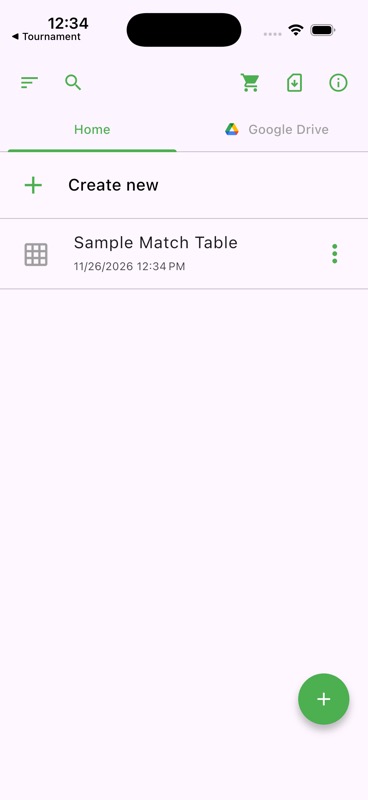
- Select the + Create new row in the file list.
- Enter a name for the match table and select OK.
Huri i te raupapa kōmaka kōnae
- Whakamahia te mana kōmaka kei runga ake i te rārangi kōnae. Ki te iti te mata, whakatuwheratia te tahua kōmaka.
- Kōwhiria te kōmaka mā te rā i whakarerekētia ai, mā te ingoa kōnae rānei.
Search for a file by name
- Open Home or Google Drive, depending on where the file is stored, and select the Search icon.
- Enter part of the name in Search by file name. Select Close to see the full list again.
Tāruatia he kōnae
- Whakatuwheratia te tahua ira-toru o te kōnae, ka kōwhiri i te Tārua.
- Whakatuwheratia te kape kua tāpirihia ki te rārangi hei whakatika, me te pupuri tonu i te kōnae taketake.
Mukua he kōnae
- Whakatuwheratia te tahua ira-toru o te kōnae, ka kōwhiri i te Muku.
- Tirohia te karere whakaū, ka kōwhiri i te OK.
Mō tētahi kōnae kua tiria ki a koe, tērā pea he kōwhiringa kei te tahua hei tango i te tiritanga.
Whakaingoa anō i te kōnae
- Whakatuwheratia te tahua ira-toru o te kōnae, ka kōwhiri i te Whakaingoa anō.
- Tāurutia te ingoa hou, ka whakaū.
Me whai whakaaetanga whakatika koe hei whakaingoa anō i tētahi kōnae Google Drive kua tiria ki a koe.
Import a match table
- Select Import in the file list and select OK to open the file picker.
- Choose a Simple MatchTable file (.matchtable).
Tiaki ki Google Drive
- Kōwhiria a Google Drive i te rārangi kōnae, ka whai i ngā tohutohu hei hono i tō pūkete Google.
- Waihangatia he kōnae hou mai i te rārangi Google Drive. Mēnā e wātea ana taua kōwhiringa, ka taea hoki te nuku i tētahi kōnae ā-pūrere ki Google Drive mā tōna tahua ira-toru.
Hei whakatuwhera i te kōnae ki tētahi atu pūrere, honoa te pūkete Google i whakamahia e koe hei tiaki i taua kōnae.
Nuku kōnae i waenga i tō pūrere me Google Drive
- I te taupānga kua tāutatia, honoa tō pūkete Google, ka whakatuwhera i te tahua ira-toru o te kōnae.
- I runga i te wāhi i tiakina ai te kōnae, kōwhiria te Nuku ki Google Drive, te Nuku ki te Kāinga (Home) rānei, ka whakaū.
Whakatika kōnae
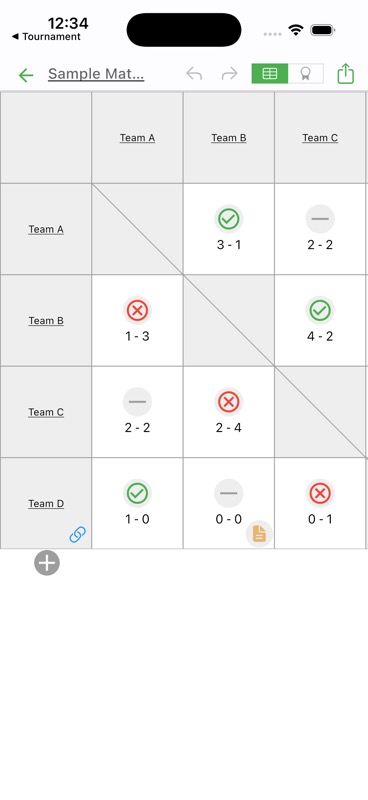
Enter teams or players
- Tap the team name at the top of a column or at the start of a row. Enter a name and select OK.
- To add more participants, use + at the right or bottom edge of the table.
Record scores and match results
- Tap the cell where the two opponents’ row and column intersect.
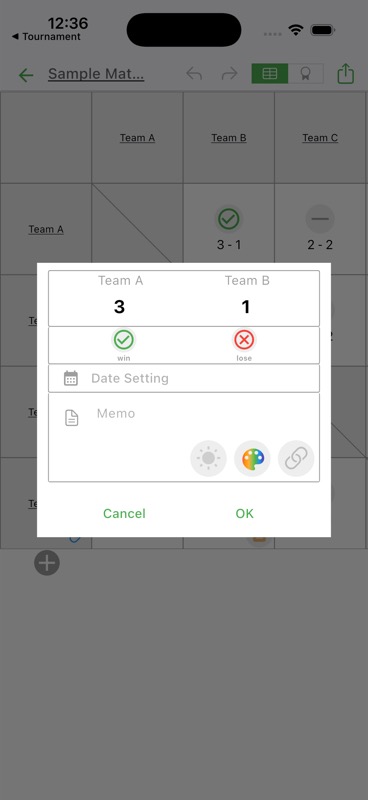
- Enter both scores. Use Win Loss Settings to choose a win, loss, or draw as needed, then select OK.
View team standings
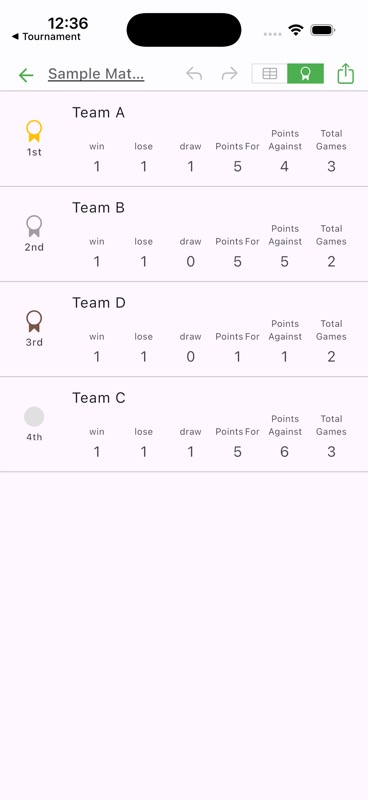
- Select the medal icon at the top of the editor.
- Review the standings and each team’s wins, losses, draws, points scored, points conceded, and total matches. Select the table icon to the left of the medal to return to the match table.
Record the date and a note for a match
- Open the match cell and select Date Setting to choose the date.
- Enter the venue or other details in the note field, then select OK.
Export a match table
- Select the share icon in the top-right corner of the editor.
- Choose CSV or Excel to analyze results in another app, or save the native .matchtable file to edit it again later.
Export formats marked with a lock require Pro.
Ngā hokonga
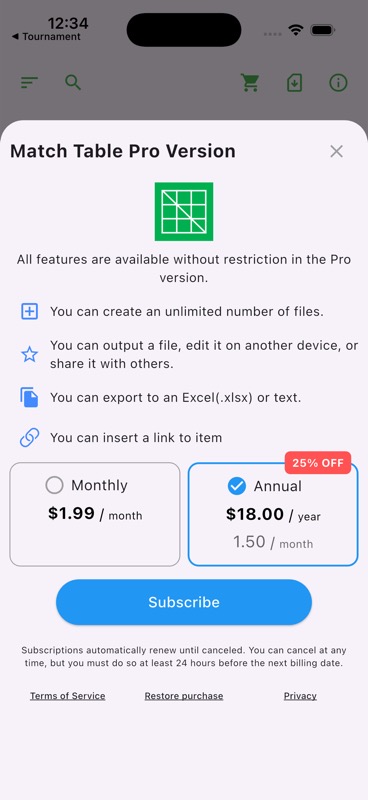
Hoko mahere utu
- Tīpakohia te ata kāta hokohoko i te rārangi kōnae.
- Arotakengia ngā mahere me ngā utu i te mata hoko, kātahi ka tīpako i te mahere e hiahia ana koe ki te hoko.
Whakaora i te hokonga
- Mēnā i hoko koe i te toa taupānga, takiuru mā te pūkete toa i whakamahia e koe ki te hoko i te mahere.
- Whakatuwheratia te mata hoko i te taupānga, tīpakohia te kōwhiringa «Whakaora i ngā hokonga», ka tirohia te hua.
Whakahaere i te hokonga, i te ohaurunga rānei
- Mēnā he kōwhiringa whakahaere hokonga kei te tahua mōhiohio o te rārangi kōnae, whakatuwheratia taua kōwhiringa.
- Whakamahia te toa, te ratonga rānei i hokona ai e koe te mahere hei arotake, hei whakakore rānei i tō ohaurunga.
Pūkete utu
Hono i tō hokonga ki tētahi pūkete Google
- Takiuru ki tō pūkete Google i runga i te pūrere e whai hokonga hohe ana koe.
- Mēnā ka puta te kōwhiringa hei hono i tō hokonga ki tētahi pūkete Google i te tahua, tīpakohia, ka whakaū i te pūkete.
- Hei whakamahi i tō mahere utu i tētahi atu pūrere e tautokona ana, takiuru mā te pūkete Google kua honoa.
Huri i te pūkete Google
- Tirohia i te tahua mōhiohio o te rārangi kōnae ko tēhea pūkete Google e hohe ana.
- Mēnā e wātea ana te kōwhiringa takiputa, tīpakohia, kātahi ka whakatuwhera i a Google Drive, ka takiuru ki te pūkete e hiahia ana koe ki te whakamahi.
I tētahi atu pūrere, whakamahia te pūkete e hono ana ki te hokonga, ki ngā kōnae Drive rānei e hiahia ana koe ki te uru atu.