Rhestr ffeiliau
Create a shift sheet
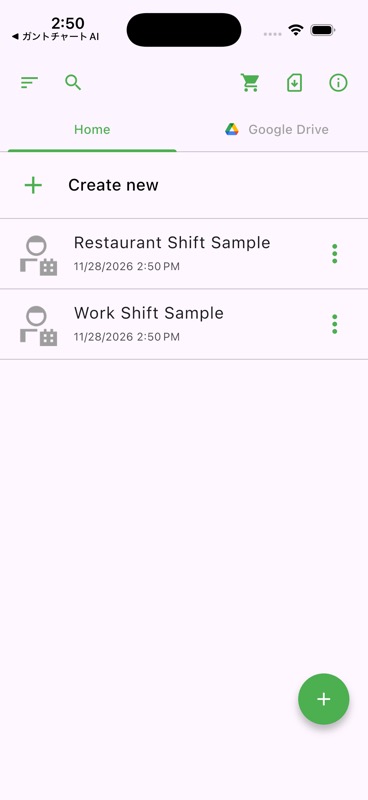
- Tap + Create new in the file list and enter a name, such as the store and month you want to schedule.
- Select OK to open the shift sheet.
Newid trefn didoli ffeiliau
- Defnyddiwch y rheolydd didoli ar frig y rhestr ffeiliau. Ar sgrin gryno, agorwch y ddewislen didoli.
- Dewiswch ddidoli yn ôl dyddiad addasu neu enw ffeil.
Search for a file by name
- Open Home or Google Drive, depending on where the file is stored, and select the Search icon.
- Enter part of the name in Search by file name. Select Close to see the full list again.
Dyblygu ffeil
- Agorwch ddewislen tri dot y ffeil a dewiswch ‘Dyblygu’.
- Agorwch y copi a ychwanegwyd at y rhestr i’w olygu gan gadw’r ffeil wreiddiol.
Dileu ffeil
- Agorwch ddewislen tri dot y ffeil a dewiswch ‘Dileu’.
- Gwiriwch y neges gadarnhau a dewiswch ‘Iawn’.
Ar gyfer ffeil sydd wedi’i rhannu â chi, gall y ddewislen gynnig opsiwn i ddileu’r rhannu.
Ailenwi ffeil
- Agorwch ddewislen tri dot y ffeil a dewiswch ‘Ailenwi’.
- Rhowch yr enw newydd a chadarnhewch.
Mae angen caniatâd golygu arnoch i ailenwi ffeil Google Drive sydd wedi'i rhannu â chi.
Import a saved shift sheet
- Select Import in the file list, then select OK to open the file picker.
- Choose a shift sheet previously exported from this app and open it from the list.
The import prompt shows .sshift. The current version saves native shift sheet files with the .stournament extension.
Cadw i Google Drive
- Dewiswch Google Drive yn y rhestr ffeiliau a dilynwch y cyfarwyddiadau i gysylltu eich Cyfrif Google.
- Crëwch ffeil newydd o restr Google Drive. Os yw'r opsiwn ar gael, gallwch hefyd symud ffeil leol i Google Drive o'i dewislen tri dot.
I agor y ffeil ar ddyfais arall, cysylltwch y Cyfrif Google a ddefnyddiwyd gennych i'w chadw.
Symud ffeiliau rhwng eich dyfais a Google Drive
- Yn yr ap sydd wedi'i osod, cysylltwch eich Cyfrif Google ac agorwch ddewislen tri dot y ffeil.
- Dewiswch ‘Symud i Google Drive’ neu ‘Symud i'r Cartref’, yn ôl lle mae'r ffeil wedi'i chadw, a chadarnhewch.
Golygu ffeiliau
Set the date range for a shift sheet
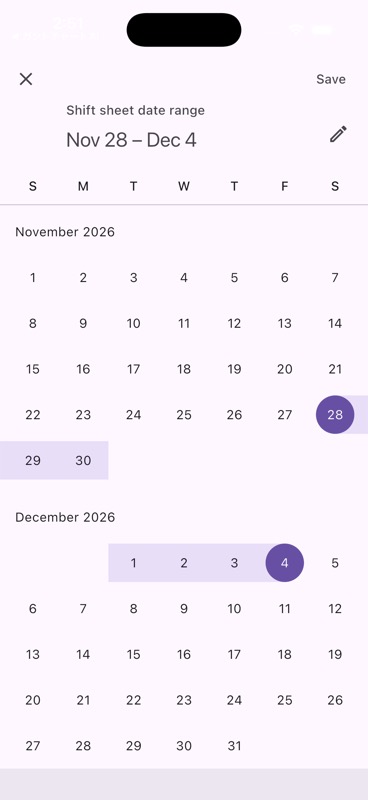
- Tap the date range with the calendar icon at the top of the editor.
- Pick the first and last days in the calendar and save. The sheet displays the selected range.
Add staff members
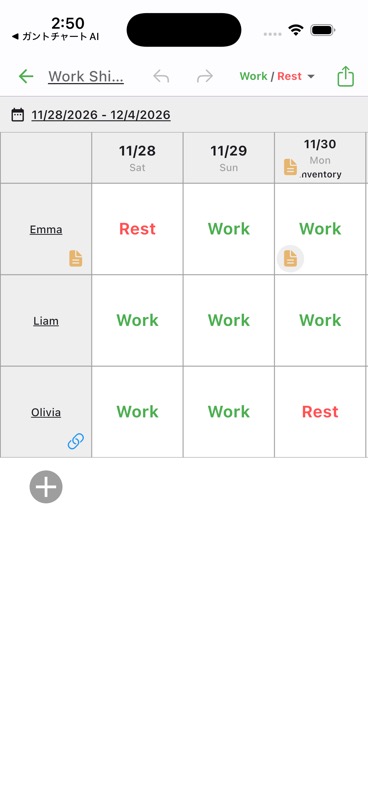
- Choose Add a new person in an empty sheet, or tap + at the end of the staff column in an existing sheet.
- Enter the staff member’s name and select OK. In an empty sheet, you can also import people from another file.
Choose a shift pattern
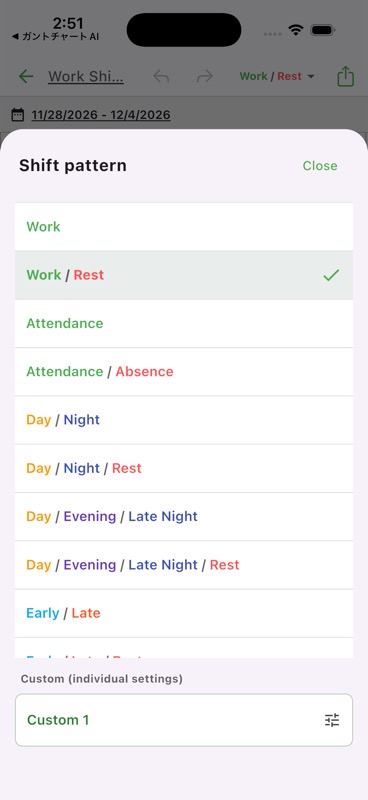
- Tap the current pattern name at the top of the editor to open Shift pattern.
- Choose a set that fits your team, such as work and days off, day and night shifts, or early and late shifts. Use Custom (individual settings) for your own names and colors.
Assign a shift to a person on a date
- Tap the cell where the person’s row and the date column meet. Each tap moves to the next option in the selected shift pattern.
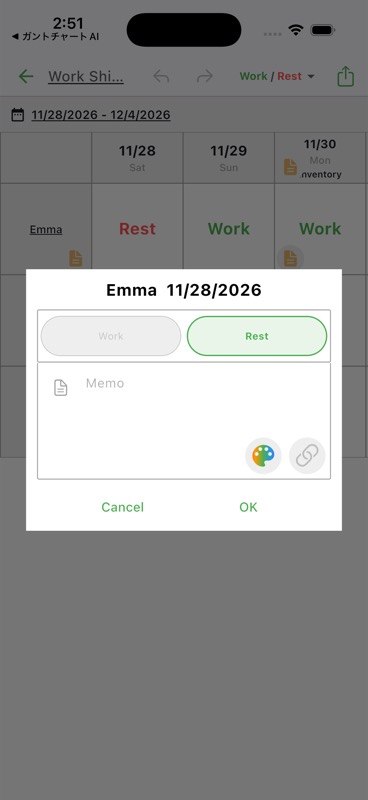
- On a phone, press and hold a cell to open its details and edit a note or color.
Rhannu cynnwys drwy URL
- Agorwch y ddewislen allforio yn y golygydd a dewiswch yr opsiwn rhannu ar y we.
- Copïwch yr URL a gynhyrchwyd a'i anfon at y bobl rydych am ei rannu â nhw.
Mae'r URL yn cynnwys y cynnwys fel yr oedd pan grëwyd y ddolen. Mae cyfyngiadau ar fath a maint y cynnwys y gallwch ei rannu.
Export a shift sheet as an image, CSV, or Excel file
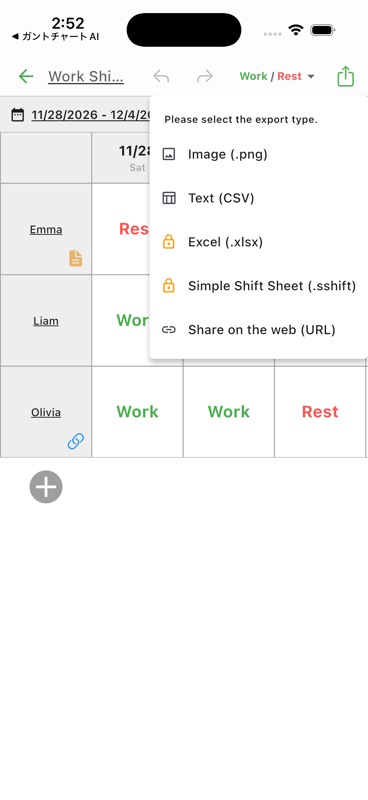
- Open the share menu at the top right. Choose an image to share the layout, or CSV or Excel to open the data in a spreadsheet.
- To reimport the sheet later, choose the menu item labeled Simple Shift Sheet (.sshift) and save the exported file.
The native file is currently saved with the .stournament extension. Export formats marked with a lock require Pro.
Pryniannau
Prynu cynllun taledig
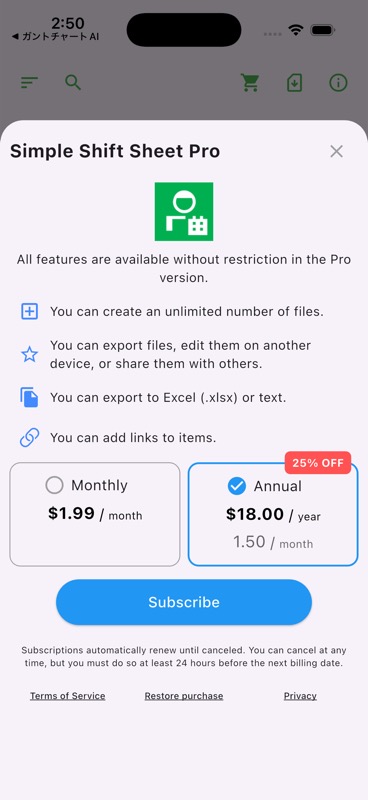
- Dewiswch eicon y drol siopa yn y rhestr ffeiliau.
- Adolygwch y cynlluniau a'r prisiau ar y sgrin brynu, yna dewiswch y cynllun yr hoffech ei brynu.
Adfer pryniant
- Os gwnaethoch y pryniant mewn siop apiau, mewngofnodwch gyda'r cyfrif siop a ddefnyddiwyd gennych i brynu'r cynllun.
- Agorwch y sgrin brynu yn yr ap, dewiswch «Adfer pryniannau» a gwiriwch y canlyniad.
Rheoli pryniant neu danysgrifiad
- Os oes opsiwn i reoli pryniannau yn newislen wybodaeth y rhestr ffeiliau, agorwch ef.
- Defnyddiwch y siop neu'r gwasanaeth lle prynoch y cynllun i adolygu neu ganslo eich tanysgrifiad.
Cyfrif taledig
Cysylltu eich pryniant â chyfrif Google
- Mewngofnodwch i'ch cyfrif Google ar y ddyfais lle mae gennych bryniant gweithredol.
- Os yw'r opsiwn i gysylltu eich pryniant â chyfrif Google yn ymddangos yn y ddewislen, dewiswch ef a chadarnhewch y cyfrif.
- I ddefnyddio'ch cynllun taledig ar ddyfais arall a gefnogir, mewngofnodwch gyda'r cyfrif Google sydd wedi'i gysylltu.
Newid cyfrif Google
- Gwiriwch pa gyfrif Google sy'n weithredol yn newislen wybodaeth y rhestr ffeiliau.
- Os yw'r opsiwn allgofnodi ar gael, dewiswch ef, yna agorwch Google Drive a mewngofnodwch i'r cyfrif yr hoffech ei ddefnyddio.
Ar ddyfais arall, defnyddiwch y cyfrif sy'n gysylltiedig â'r pryniant neu'r ffeiliau Drive yr hoffech gael mynediad atynt.