Rhestr ffeiliau
Create a match table
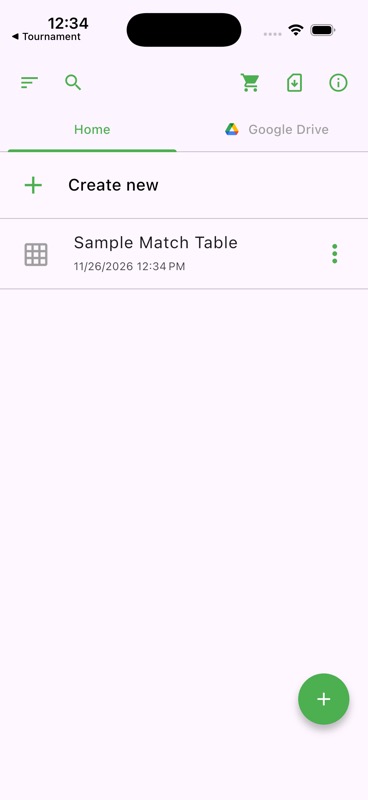
- Select the + Create new row in the file list.
- Enter a name for the match table and select OK.
Newid trefn didoli ffeiliau
- Defnyddiwch y rheolydd didoli ar frig y rhestr ffeiliau. Ar sgrin gryno, agorwch y ddewislen didoli.
- Dewiswch ddidoli yn ôl dyddiad addasu neu enw ffeil.
Search for a file by name
- Open Home or Google Drive, depending on where the file is stored, and select the Search icon.
- Enter part of the name in Search by file name. Select Close to see the full list again.
Dyblygu ffeil
- Agorwch ddewislen tri dot y ffeil a dewiswch ‘Dyblygu’.
- Agorwch y copi a ychwanegwyd at y rhestr i’w olygu gan gadw’r ffeil wreiddiol.
Dileu ffeil
- Agorwch ddewislen tri dot y ffeil a dewiswch ‘Dileu’.
- Gwiriwch y neges gadarnhau a dewiswch ‘Iawn’.
Ar gyfer ffeil sydd wedi’i rhannu â chi, gall y ddewislen gynnig opsiwn i ddileu’r rhannu.
Ailenwi ffeil
- Agorwch ddewislen tri dot y ffeil a dewiswch ‘Ailenwi’.
- Rhowch yr enw newydd a chadarnhewch.
Mae angen caniatâd golygu arnoch i ailenwi ffeil Google Drive sydd wedi'i rhannu â chi.
Import a match table
- Select Import in the file list and select OK to open the file picker.
- Choose a Simple MatchTable file (.matchtable).
Cadw i Google Drive
- Dewiswch Google Drive yn y rhestr ffeiliau a dilynwch y cyfarwyddiadau i gysylltu eich Cyfrif Google.
- Crëwch ffeil newydd o restr Google Drive. Os yw'r opsiwn ar gael, gallwch hefyd symud ffeil leol i Google Drive o'i dewislen tri dot.
I agor y ffeil ar ddyfais arall, cysylltwch y Cyfrif Google a ddefnyddiwyd gennych i'w chadw.
Symud ffeiliau rhwng eich dyfais a Google Drive
- Yn yr ap sydd wedi'i osod, cysylltwch eich Cyfrif Google ac agorwch ddewislen tri dot y ffeil.
- Dewiswch ‘Symud i Google Drive’ neu ‘Symud i'r Cartref’, yn ôl lle mae'r ffeil wedi'i chadw, a chadarnhewch.
Golygu ffeiliau
Enter teams or players
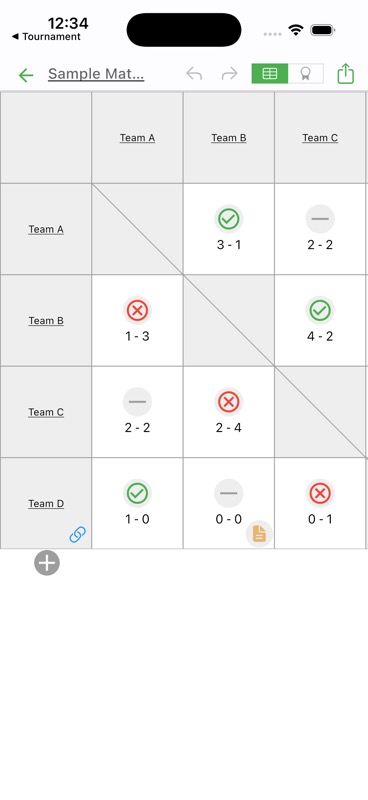
- Tap the team name at the top of a column or at the start of a row. Enter a name and select OK.
- To add more participants, use + at the right or bottom edge of the table.
Record scores and match results
- Tap the cell where the two opponents’ row and column intersect.
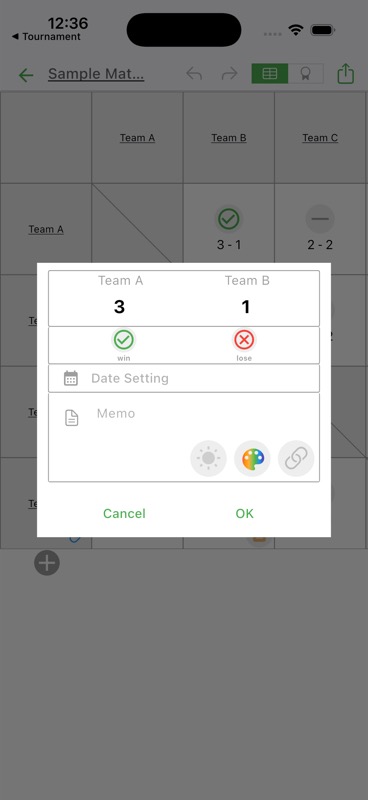
- Enter both scores. Use Win Loss Settings to choose a win, loss, or draw as needed, then select OK.
View team standings
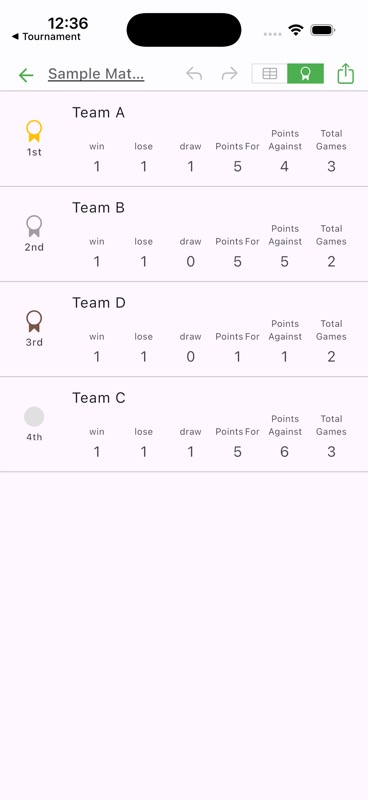
- Select the medal icon at the top of the editor.
- Review the standings and each team’s wins, losses, draws, points scored, points conceded, and total matches. Select the table icon to the left of the medal to return to the match table.
Record the date and a note for a match
- Open the match cell and select Date Setting to choose the date.
- Enter the venue or other details in the note field, then select OK.
Export a match table
- Select the share icon in the top-right corner of the editor.
- Choose CSV or Excel to analyze results in another app, or save the native .matchtable file to edit it again later.
Export formats marked with a lock require Pro.
Pryniannau
Prynu cynllun taledig
- Dewiswch eicon y drol siopa yn y rhestr ffeiliau.
- Adolygwch y cynlluniau a'r prisiau ar y sgrin brynu, yna dewiswch y cynllun yr hoffech ei brynu.
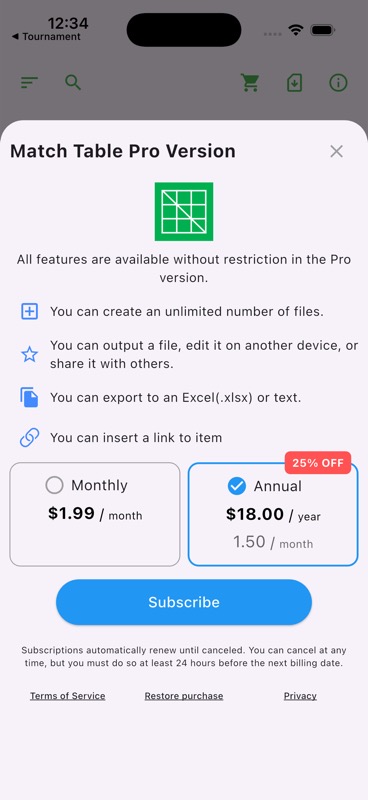
Adfer pryniant
- Os gwnaethoch y pryniant mewn siop apiau, mewngofnodwch gyda'r cyfrif siop a ddefnyddiwyd gennych i brynu'r cynllun.
- Agorwch y sgrin brynu yn yr ap, dewiswch «Adfer pryniannau» a gwiriwch y canlyniad.
Rheoli pryniant neu danysgrifiad
- Os oes opsiwn i reoli pryniannau yn newislen wybodaeth y rhestr ffeiliau, agorwch ef.
- Defnyddiwch y siop neu'r gwasanaeth lle prynoch y cynllun i adolygu neu ganslo eich tanysgrifiad.
Cyfrif taledig
Cysylltu eich pryniant â chyfrif Google
- Mewngofnodwch i'ch cyfrif Google ar y ddyfais lle mae gennych bryniant gweithredol.
- Os yw'r opsiwn i gysylltu eich pryniant â chyfrif Google yn ymddangos yn y ddewislen, dewiswch ef a chadarnhewch y cyfrif.
- I ddefnyddio'ch cynllun taledig ar ddyfais arall a gefnogir, mewngofnodwch gyda'r cyfrif Google sydd wedi'i gysylltu.
Newid cyfrif Google
- Gwiriwch pa gyfrif Google sy'n weithredol yn newislen wybodaeth y rhestr ffeiliau.
- Os yw'r opsiwn allgofnodi ar gael, dewiswch ef, yna agorwch Google Drive a mewngofnodwch i'r cyfrif yr hoffech ei ddefnyddio.
Ar ddyfais arall, defnyddiwch y cyfrif sy'n gysylltiedig â'r pryniant neu'r ffeiliau Drive yr hoffech gael mynediad atynt.