Rondedzero yemafaira
Create a stock list
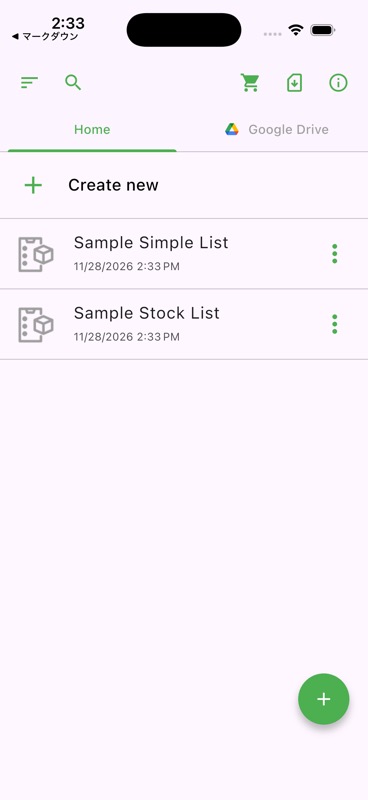
- Select + Create new in the file list and give the list a name, such as the storage location you want to track.
- Select OK to open the stock list.
Chinja marongerwo emafaira
- Shandisa sarudzo yekuronga iri pamusoro perondedzero yemafaira. Pachidzitiro chidiki, vhura menyu yekuronga.
- Sarudza kuronga maererano nezuva rekugadziriswa kana zita refaira.
Search for a file by name
- Open Home or Google Drive, depending on where the file is stored, and select the Search icon.
- Enter part of the name in Search by file name. Select Close to see the full list again.
Gadzira kopi yefaira
- Vhura menyu yemadotsi matatu yefaira uye sarudza Gadzira kopi.
- Vhura kopi yawedzerwa murondedzero kuti uigadzirise uchichengeta faira rekutanga.
Dzima faira
- Vhura menyu yemadotsi matatu yefaira uye sarudza Dzima.
- Tarisa meseji yekusimbisa uye sarudza OK.
Pafaira rawakagoverwa, menyu inogona kuva nesarudzo yekubvisa kugoverwa kwaro.
Chinja zita refaira
- Vhura menyu yemadotsi matatu yefaira wosarudza Chinja zita.
- Isa zita idzva wobva wasimbisa.
Unoda mvumo yekugadzirisa kuti uchinje zita refaira reGoogle Drive rakagoverwa kwauri.
Import a stock list file
- Select Import in the file list and select OK to open the file picker.
- Choose a Simple Stock List file (.sstock). You can also import a JSON file containing data in the same format.
Chengeta muGoogle Drive
- Sarudza Google Drive murondedzero yemafaira wotevera mirayiridzo yekubatanidza akaundi yako yeGoogle.
- Gadzira faira idzva kubva murondedzero yeGoogle Drive. Kana sarudzo yacho iripo, unogonawo kutamisa faira riri pamudziyo kuGoogle Drive uchishandisa menyu yaro yemadotsi matatu.
Kuti uvhure faira pane mumwe mudziyo, batanidza akaundi yeGoogle yawakashandisa kurichengeta.
Tamisa mafaira pakati pemudziyo wako neGoogle Drive
- Muapu yakaiswa pamudziyo, batanidza akaundi yako yeGoogle wovhura menyu yemadotsi matatu yefaira.
- Sarudza Tamisa kuGoogle Drive kana Tamisa kuHOME, zvichienderana nekwakachengetwa faira, wobva wasimbisa.
Kugadzirisa mafaira
Add an item and set its unit
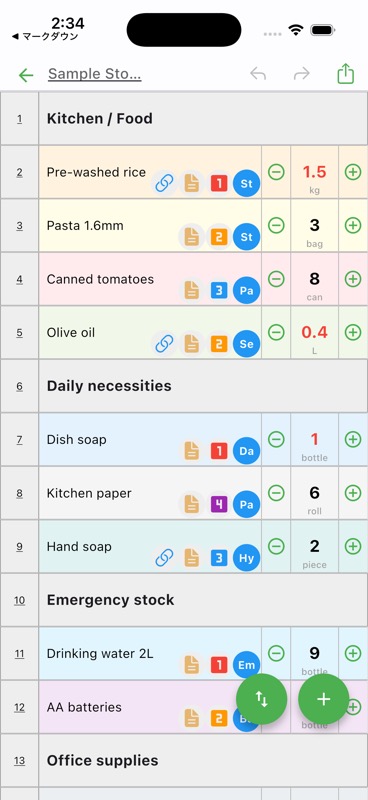
- Tap + in the lower-right corner to add a row at the end of the list. Tap the name in the new row to edit it.
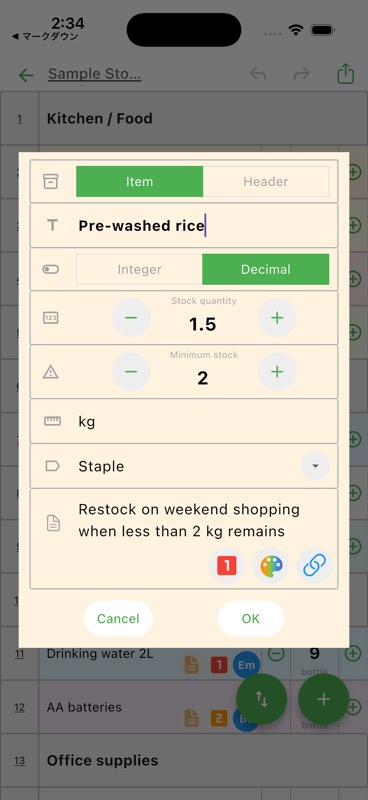
- Enter the item name and a unit such as “pieces” or “boxes,” then select OK. Add a label or note if needed.
Increase, decrease, or enter stock directly
- Use − or + on an item’s row to change its stock quantity by one.
- When you know the exact count, tap the quantity, enter the number in Stock quantity, then select OK.
Set a minimum stock level and spot items to replenish
- Tap an item name or quantity. Enter the threshold in Minimum stock and select OK.
- The quantity turns red when it falls below the threshold, so you can spot items to replenish in the list.
Group and reorder items
- Open the item you want to use as a heading, select Header, and give it a name.
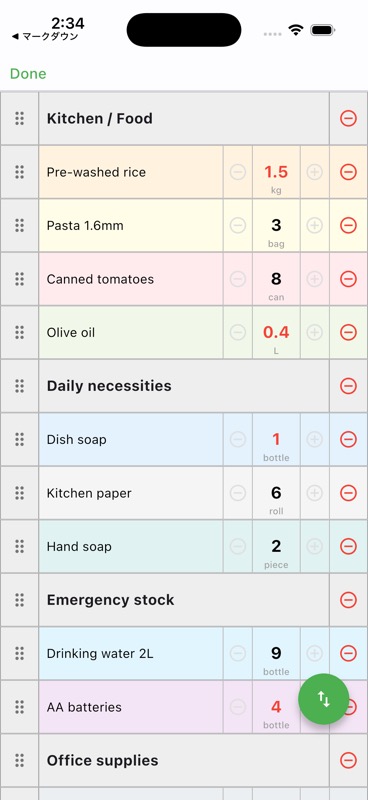
- Tap the up-and-down arrows in the lower-right corner, then drag the handle on the left of a row. Select Done at the top when you finish.
Export a stock list to CSV or Excel
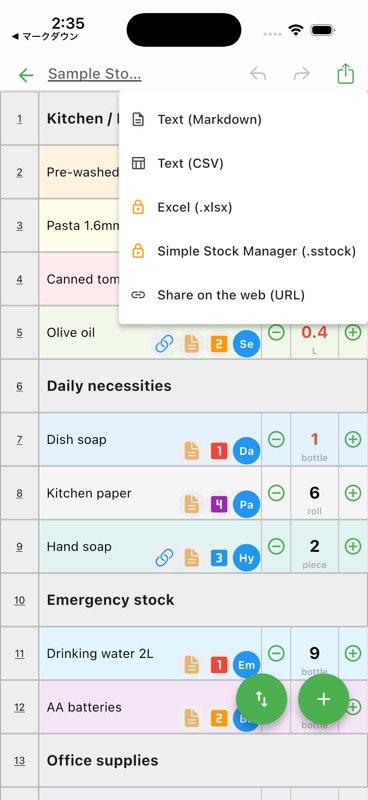
- Open the share menu in the top-right corner. Choose CSV or Excel to work with the quantities in another app.
- Choose the .sstock format if you want to import the file back into the app.
Export formats marked with a lock require Pro.
Kutenga
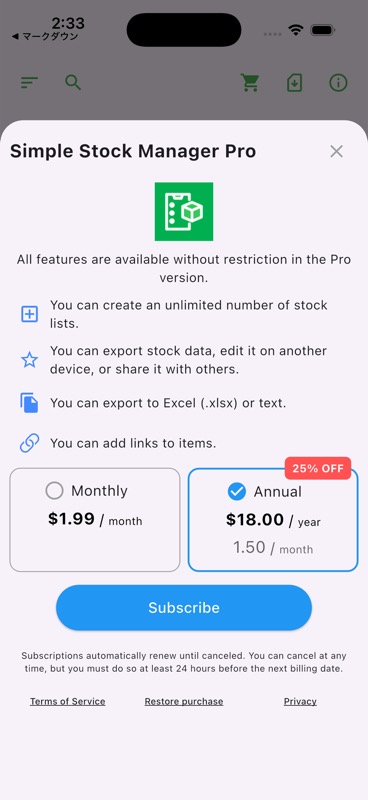
Tenga chirongwa chinobhadharwa
- Sarudza chiratidzo chengoro yekutengera murondedzero yemafaira.
- Ongorora zvirongwa nemitengo pachidzitiro chekutenga, wobva wasarudza chirongwa chaunoda kutenga.
Dzosera zvawakatenga
- Kana wakatenga muchitoro chemaapuro, pinda uchishandisa akaundi yechitoro yawakashandisa kutenga chirongwa.
- Vhura chidzitiro chekutenga muapuro, sarudza “Dzosera zvawakatenga”, wotarisa zvabuda.
Tonga zvawakatenga kana kunyoreswa kwako
- Kana menyu yeruzivo murondedzero yemafaira iine sarudzo yekutonga zvawakatenga, ivhure.
- Shandisa chitoro kana sevhisi yawakatengera chirongwa kuti uongorore kana kukanzura kunyoreswa kwako.
Akaundi inobhadharirwa
Batanidza zvawakatenga neakaundi yeGoogle
- Pinda muakaundi yako yeGoogle pamudziyo une zvawakatenga zvichiri kushanda.
- Kana sarudzo yekubatanidza zvawakatenga neakaundi yeGoogle ikaonekwa mumenu, isarudze uye simbisa akaundi yacho.
- Kuti ushandise chirongwa chako chinobhadharwa pane mumwe mudziyo unotsigirwa, pinda neakaundi yeGoogle yakabatanidzwa.
Chinja maakaundi eGoogle
- Tarisa kuti iakaundi ipi yeGoogle iri kushandiswa mumenu yeruzivo murondedzero yemafaira.
- Kana sarudzo yekubuda muakaundi iripo, isarudze, wobva wavhura Google Drive uye wopinda muakaundi yaunoda kushandisa.
Pane mumwe mudziyo, shandisa akaundi yakabatana nezvawakatenga kana nemafaira eDrive aunoda kuwana.