Rondedzero yemafaira
Create a shift sheet
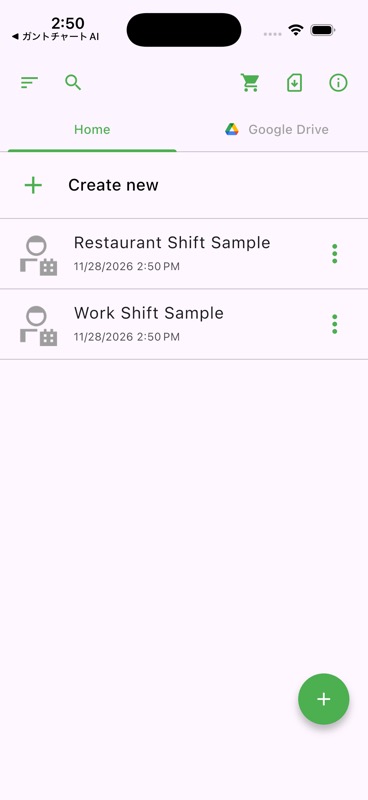
- Tap + Create new in the file list and enter a name, such as the store and month you want to schedule.
- Select OK to open the shift sheet.
Chinja marongerwo emafaira
- Shandisa sarudzo yekuronga iri pamusoro perondedzero yemafaira. Pachidzitiro chidiki, vhura menyu yekuronga.
- Sarudza kuronga maererano nezuva rekugadziriswa kana zita refaira.
Search for a file by name
- Open Home or Google Drive, depending on where the file is stored, and select the Search icon.
- Enter part of the name in Search by file name. Select Close to see the full list again.
Gadzira kopi yefaira
- Vhura menyu yemadotsi matatu yefaira uye sarudza Gadzira kopi.
- Vhura kopi yawedzerwa murondedzero kuti uigadzirise uchichengeta faira rekutanga.
Dzima faira
- Vhura menyu yemadotsi matatu yefaira uye sarudza Dzima.
- Tarisa meseji yekusimbisa uye sarudza OK.
Pafaira rawakagoverwa, menyu inogona kuva nesarudzo yekubvisa kugoverwa kwaro.
Chinja zita refaira
- Vhura menyu yemadotsi matatu yefaira wosarudza Chinja zita.
- Isa zita idzva wobva wasimbisa.
Unoda mvumo yekugadzirisa kuti uchinje zita refaira reGoogle Drive rakagoverwa kwauri.
Import a saved shift sheet
- Select Import in the file list, then select OK to open the file picker.
- Choose a shift sheet previously exported from this app and open it from the list.
The import prompt shows .sshift. The current version saves native shift sheet files with the .stournament extension.
Chengeta muGoogle Drive
- Sarudza Google Drive murondedzero yemafaira wotevera mirayiridzo yekubatanidza akaundi yako yeGoogle.
- Gadzira faira idzva kubva murondedzero yeGoogle Drive. Kana sarudzo yacho iripo, unogonawo kutamisa faira riri pamudziyo kuGoogle Drive uchishandisa menyu yaro yemadotsi matatu.
Kuti uvhure faira pane mumwe mudziyo, batanidza akaundi yeGoogle yawakashandisa kurichengeta.
Tamisa mafaira pakati pemudziyo wako neGoogle Drive
- Muapu yakaiswa pamudziyo, batanidza akaundi yako yeGoogle wovhura menyu yemadotsi matatu yefaira.
- Sarudza Tamisa kuGoogle Drive kana Tamisa kuHOME, zvichienderana nekwakachengetwa faira, wobva wasimbisa.
Kugadzirisa mafaira
Set the date range for a shift sheet
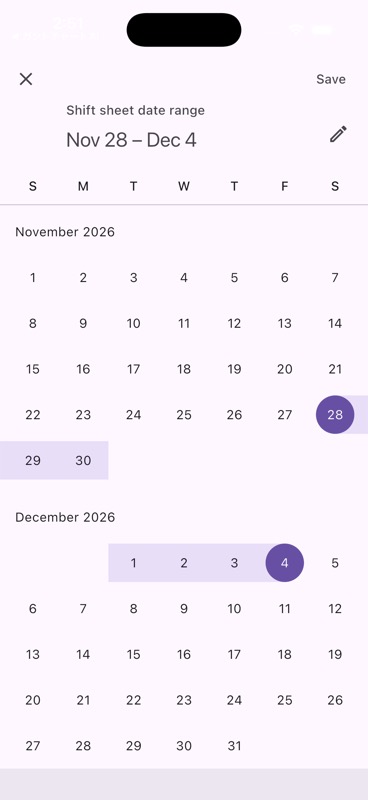
- Tap the date range with the calendar icon at the top of the editor.
- Pick the first and last days in the calendar and save. The sheet displays the selected range.
Add staff members
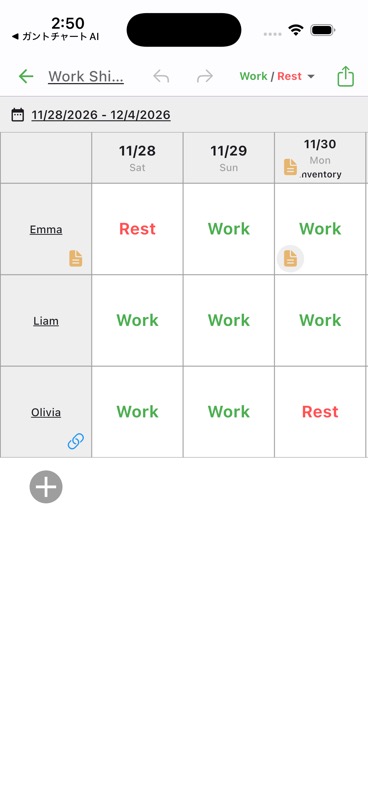
- Choose Add a new person in an empty sheet, or tap + at the end of the staff column in an existing sheet.
- Enter the staff member’s name and select OK. In an empty sheet, you can also import people from another file.
Choose a shift pattern
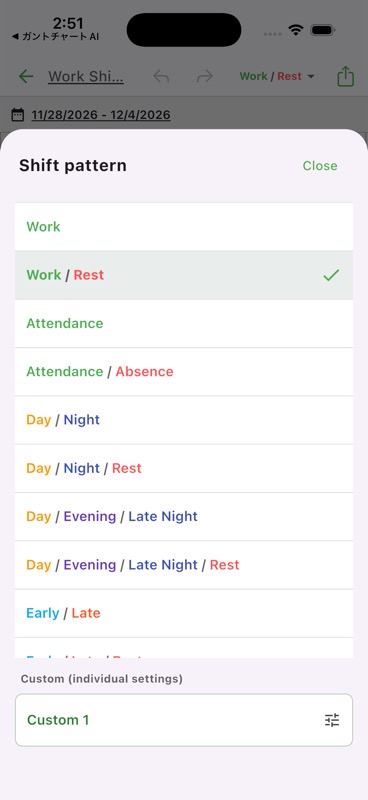
- Tap the current pattern name at the top of the editor to open Shift pattern.
- Choose a set that fits your team, such as work and days off, day and night shifts, or early and late shifts. Use Custom (individual settings) for your own names and colors.
Assign a shift to a person on a date
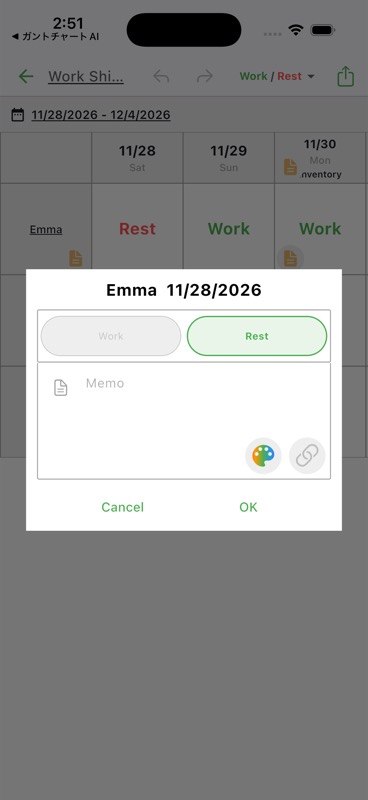
- Tap the cell where the person’s row and the date column meet. Each tap moves to the next option in the selected shift pattern.
- On a phone, press and hold a cell to open its details and edit a note or color.
Govera zviri mukati uchishandisa URL
- Vhura menyu yekutumira kunze mupepeti wosarudza sarudzo yekugovera pawebhu.
- Kopa URL yagadzirwa woitumira kuvanhu vaunoda kugoverana navo.
URL ine zviri mukati sezvazvaive panguva yakagadzirwa chinongedzo. Pane miganhu pamhando nehuwandu hwezvinhu zvaunogona kugovera.
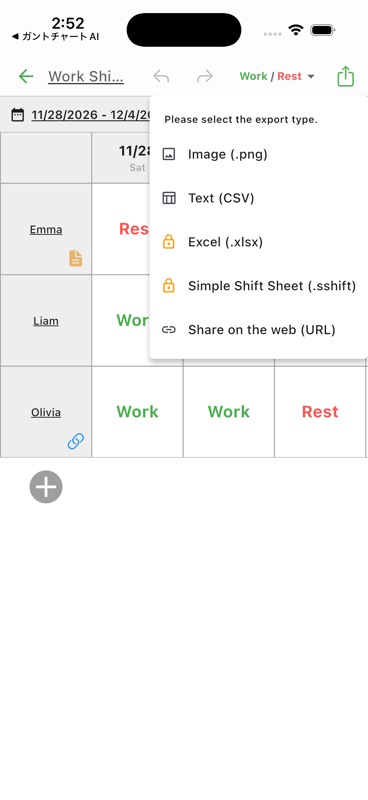
Export a shift sheet as an image, CSV, or Excel file
- Open the share menu at the top right. Choose an image to share the layout, or CSV or Excel to open the data in a spreadsheet.
- To reimport the sheet later, choose the menu item labeled Simple Shift Sheet (.sshift) and save the exported file.
The native file is currently saved with the .stournament extension. Export formats marked with a lock require Pro.
Kutenga
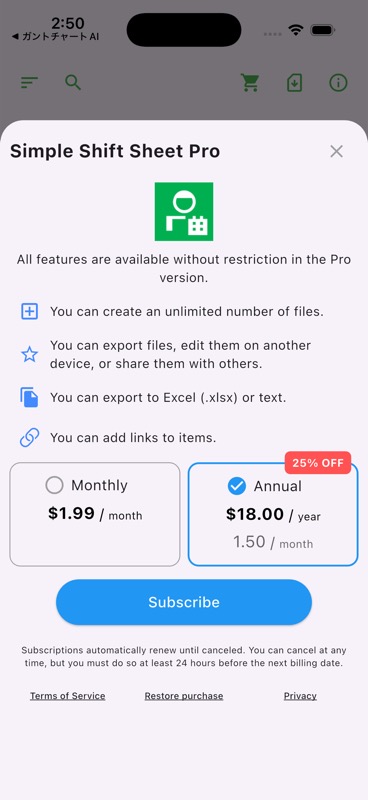
Tenga chirongwa chinobhadharwa
- Sarudza chiratidzo chengoro yekutengera murondedzero yemafaira.
- Ongorora zvirongwa nemitengo pachidzitiro chekutenga, wobva wasarudza chirongwa chaunoda kutenga.
Dzosera zvawakatenga
- Kana wakatenga muchitoro chemaapuro, pinda uchishandisa akaundi yechitoro yawakashandisa kutenga chirongwa.
- Vhura chidzitiro chekutenga muapuro, sarudza “Dzosera zvawakatenga”, wotarisa zvabuda.
Tonga zvawakatenga kana kunyoreswa kwako
- Kana menyu yeruzivo murondedzero yemafaira iine sarudzo yekutonga zvawakatenga, ivhure.
- Shandisa chitoro kana sevhisi yawakatengera chirongwa kuti uongorore kana kukanzura kunyoreswa kwako.
Akaundi inobhadharirwa
Batanidza zvawakatenga neakaundi yeGoogle
- Pinda muakaundi yako yeGoogle pamudziyo une zvawakatenga zvichiri kushanda.
- Kana sarudzo yekubatanidza zvawakatenga neakaundi yeGoogle ikaonekwa mumenu, isarudze uye simbisa akaundi yacho.
- Kuti ushandise chirongwa chako chinobhadharwa pane mumwe mudziyo unotsigirwa, pinda neakaundi yeGoogle yakabatanidzwa.
Chinja maakaundi eGoogle
- Tarisa kuti iakaundi ipi yeGoogle iri kushandiswa mumenu yeruzivo murondedzero yemafaira.
- Kana sarudzo yekubuda muakaundi iripo, isarudze, wobva wavhura Google Drive uye wopinda muakaundi yaunoda kushandisa.
Pane mumwe mudziyo, shandisa akaundi yakabatana nezvawakatenga kana nemafaira eDrive aunoda kuwana.