Faýl sanawy
Create an HTML file
- Select + Create new in the file list.
- Enter a name for the page, then select OK to open the editor.
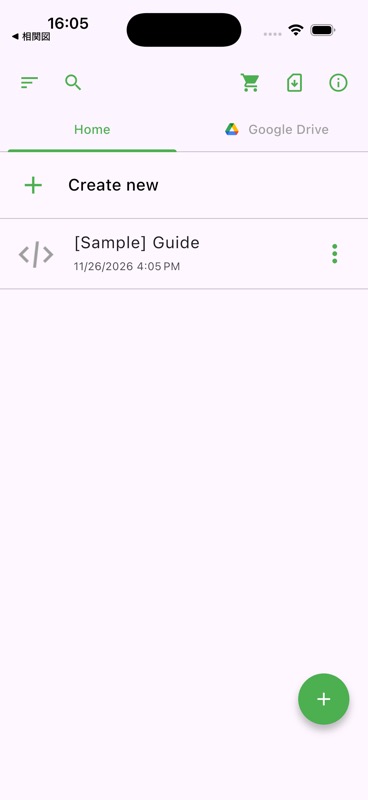
Faýllaryň tertipleme yzygiderliligini üýtgetmek
- Faýl sanawynyň ýokarsyndaky tertipleme dolandyryşyny ulanyň. Kiçi ekranda tertipleme menýusyny açyň.
- Üýtgedilen senesi ýa-da faýlyň ady boýunça tertiplemegi saýlaň.
Search for a file by name
- Open Home or Google Drive, depending on where the file is stored, and select the Search icon.
- Enter part of the name in Search by file name. Select Close to see the full list again.
Faýlyň nusgasyny döretmek
- Faýlyň üç nokatly menýusyny açyň we «Nusgasyny döret» opsiýasyny saýlaň.
- Asyl faýly saklap galmak bilen redaktirlemek üçin sanawa goşulan nusgany açyň.
Faýly pozmak
- Faýlyň üç nokatly menýusyny açyň we «Poz» opsiýasyny saýlaň.
- Tassyklama habaryny barlaň we OK saýlaň.
Siziň bilen paýlaşylan faýl üçin menýuda paýlaşmagy ýatyrmak opsiýasy bolup biler.
Faýlyň adyny üýtgetmek
- Faýlyň üç nokatly menýusyny açyň we Adyny üýtget saýlaň.
- Täze ady giriziň we tassyklaň.
Siziň bilen paýlaşylan Google Drive faýlynyň adyny üýtgetmek üçin redaktirleme rugsady gerek.
Import an existing HTML file
- Select Import in the file list, then select OK to open the file picker.
- Choose an HTML file (.html or .htm) and open it from the list.
Google Drive-da ýatda saklaň
- Faýllaryň sanawynda Google Drive saýlaň we Google hasabyňyzy birikdirmek üçin görkezmelere eýeriň.
- Google Drive sanawyndan täze faýl dörediň. Degişli opsiýa elýeterli bolsa, ýerli faýly onuň üç nokatly menýusyndan Google Drive-a geçirip hem bilersiňiz.
Faýly başga enjamda açmak üçin ony ýatda saklamakda ulanan Google hasabyňyzy birikdiriň.
Faýllary enjamyňyz bilen Google Drive arasynda geçiriň
- Gurnalan programmada Google hasabyňyzy birikdiriň we faýlyň üç nokatly menýusyny açyň.
- Faýlyň saklanýan ýerine baglylykda Google Drive-a geçir ýa-da Baş sahypa geçir saýlaň we tassyklaň.
Faýllary redaktirlemek
Edit HTML and preview the page
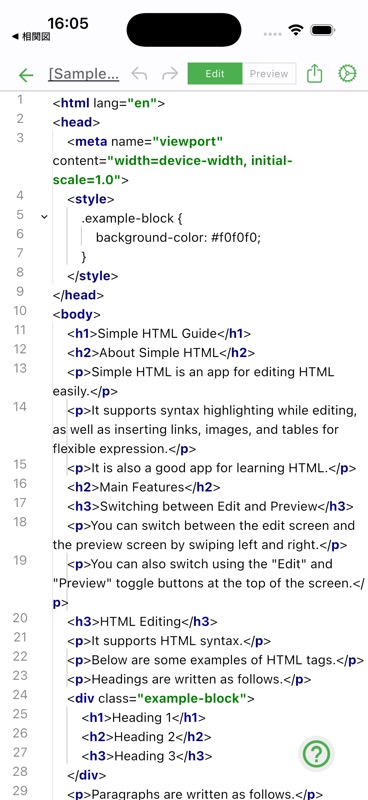
- Select Edit at the top and change the page text or markup. Try changing a heading or paragraph first.
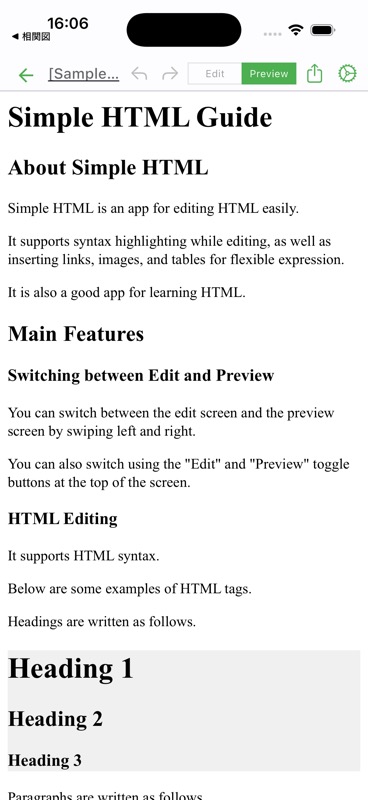
- Switch to Preview to check the headings, links, and layout. Return to Edit to make more changes.
Find and replace text in HTML
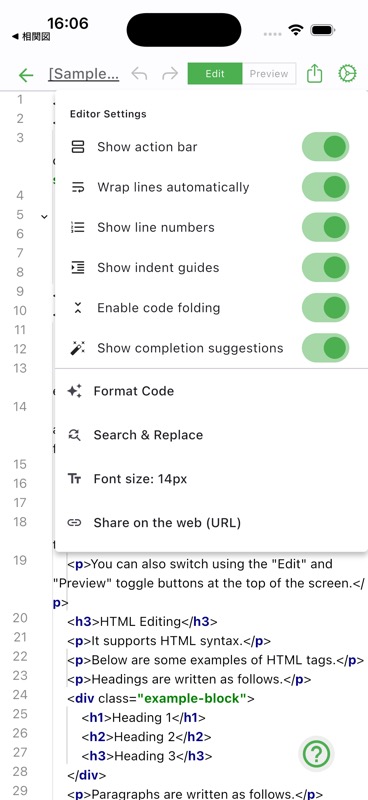
- While in Edit, select the gear icon in the top-right corner and choose Search & Replace in Editor Settings.
- Enter the text to find and move to the previous or next match. Use the Replace icon to open the replacement field, enter the new text, and choose Replace or Replace All.
Format HTML and adjust how lines are displayed
- Open the gear menu in the editor and select Format Code to tidy up indentation.
- Use the word wrap and line number settings to adjust how the code is displayed.
Share the HTML page by URL
- Open the gear menu in the top-right corner and choose Share on the web (URL).
- Copy the generated URL and send it to the recipient. The link shows the page as it was when the URL was created.
A shared URL cannot be revoked. Check what it contains before sending it.
Export a page as HTML, an image, or PDF
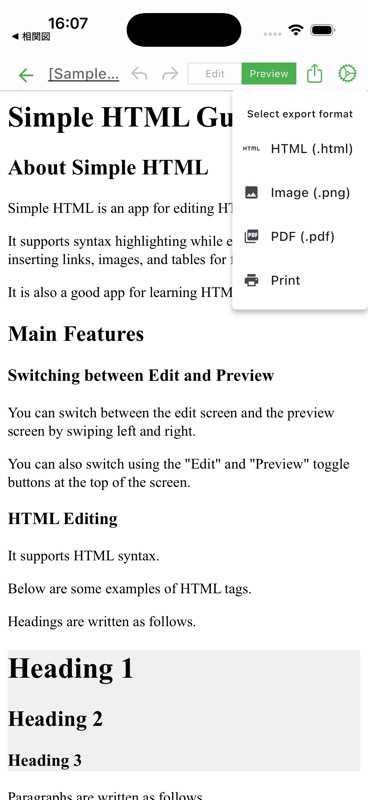
- Select the share icon at the top of the screen. Choose HTML (.html) to reopen the file in a browser or edit it later.
- On a phone, choose PNG or PDF to preserve the page’s appearance.
Satyn almalar
Tölegli meýilnamany satyn almak
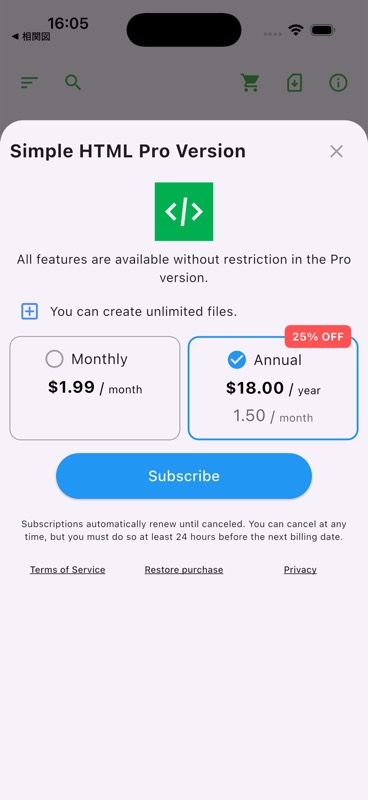
- Faýllaryň sanawyndaky söwda sebediniň nyşanyny saýlaň.
- Satyn alyş ekranyndaky meýilnamalary we bahalary gözden geçiriň, soňra satyn almak isleýän meýilnamaňyzy saýlaň.
Satyn alşy dikeltmek
- Programma dükany arkaly satyn alan bolsaňyz, meýilnamany satyn almak üçin ulanan dükan hasabyňyza giriň.
- Programmadaky satyn alyş ekranyny açyň, «Satyn alyşlary dikeltmek» opsiýasyny saýlaň we netijäni barlaň.
Satyn alşy ýa-da abunalygy dolandyrmak
- Faýllaryň sanawyndaky maglumat menýusynda satyn alşy dolandyrmak opsiýasy bar bolsa, ony açyň.
- Abunalygyňyzy gözden geçirmek ýa-da ýatyrmak üçin meýilnamany satyn alan dükanyňyzy ýa-da hyzmatyňyzy ulanyň.
Tölegli hasap
Satyn alşyňyzy Google hasabyna baglamak
- Satyn alşyňyzyň işjeň bolan enjamynda Google hasabyňyza giriň.
- Menýuda satyn alşyňyzy Google hasabyna baglamak opsiýasy görünse, ony saýlaň we hasaby tassyklaň.
- Tölegli meýilnamaňyzy goldanylýan başga enjamda ulanmak üçin baglanan Google hasabyňyza giriň.
Google hasaplaryny çalyşmak
- Faýllaryň sanawyndaky maglumat menýusyndan haýsy Google hasabynyň işjeňdigini barlaň.
- Hasapdan çykmak opsiýasy bar bolsa, ony saýlaň, soňra Google Drive-y açyň we ulanmak isleýän hasabyňyza giriň.
Başga enjamda satyn alşyňyz ýa-da girmek isleýän Drive faýllaryňyz bilen baglanyşykly hasaby ulanyň.