Faýl sanawy
Create a Gantt chart
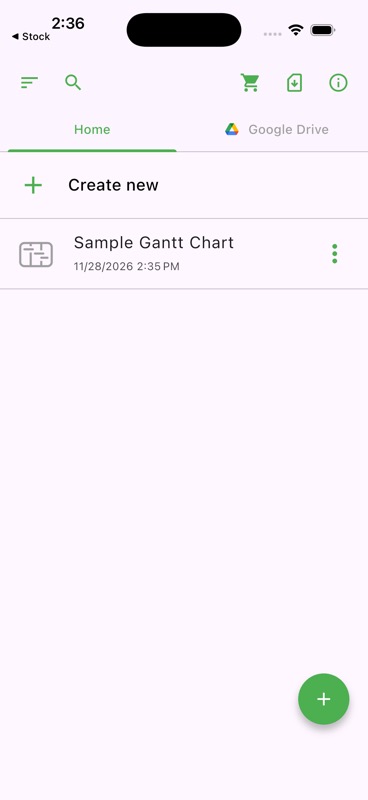
- Tap the + Create new row in the file list.
- Enter a name and select OK to open the chart.
Faýllaryň tertipleme yzygiderliligini üýtgetmek
- Faýl sanawynyň ýokarsyndaky tertipleme dolandyryşyny ulanyň. Kiçi ekranda tertipleme menýusyny açyň.
- Üýtgedilen senesi ýa-da faýlyň ady boýunça tertiplemegi saýlaň.
Search for a file by name
- Open Home or Google Drive, depending on where the file is stored, and select the Search icon.
- Enter part of the name in Search by file name. Select Close to see the full list again.
Faýlyň nusgasyny döretmek
- Faýlyň üç nokatly menýusyny açyň we «Nusgasyny döret» opsiýasyny saýlaň.
- Asyl faýly saklap galmak bilen redaktirlemek üçin sanawa goşulan nusgany açyň.
Faýly pozmak
- Faýlyň üç nokatly menýusyny açyň we «Poz» opsiýasyny saýlaň.
- Tassyklama habaryny barlaň we OK saýlaň.
Siziň bilen paýlaşylan faýl üçin menýuda paýlaşmagy ýatyrmak opsiýasy bolup biler.
Faýlyň adyny üýtgetmek
- Faýlyň üç nokatly menýusyny açyň we Adyny üýtget saýlaň.
- Täze ady giriziň we tassyklaň.
Siziň bilen paýlaşylan Google Drive faýlynyň adyny üýtgetmek üçin redaktirleme rugsady gerek.
Import a Gantt chart
- Select Import in the file list, then select OK to open the file picker.
- Choose an iGanttChart file (.igantt).
Google Drive-da ýatda saklaň
- Faýllaryň sanawynda Google Drive saýlaň we Google hasabyňyzy birikdirmek üçin görkezmelere eýeriň.
- Google Drive sanawyndan täze faýl dörediň. Degişli opsiýa elýeterli bolsa, ýerli faýly onuň üç nokatly menýusyndan Google Drive-a geçirip hem bilersiňiz.
Faýly başga enjamda açmak üçin ony ýatda saklamakda ulanan Google hasabyňyzy birikdiriň.
Faýllary enjamyňyz bilen Google Drive arasynda geçiriň
- Gurnalan programmada Google hasabyňyzy birikdiriň we faýlyň üç nokatly menýusyny açyň.
- Faýlyň saklanýan ýerine baglylykda Google Drive-a geçir ýa-da Baş sahypa geçir saýlaň we tassyklaň.
Faýllary redaktirlemek
Describe work and deadlines to create a Gantt chart with AI
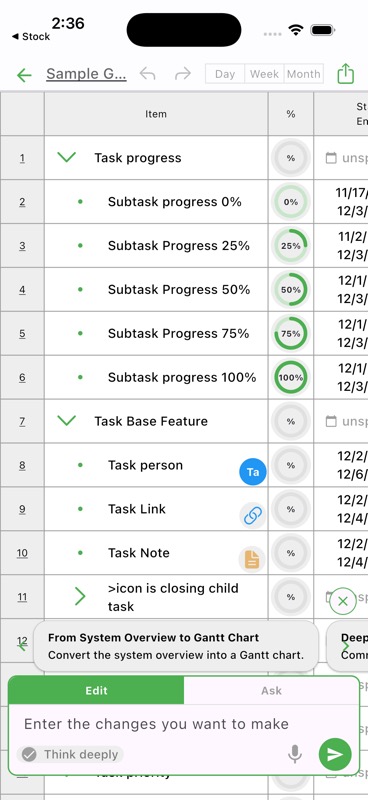
- Open a file, tap the input field at the bottom, and choose Edit.
- Describe the tasks, dates, and order. For example, “Prepare a report from Monday to Friday: outline it on Monday, write on Tuesday and Wednesday, review on Thursday, and submit on Friday.” Then select Send.
- Review the chart. Open the task editor to adjust dates or set predecessor tasks where needed.
Ask AI to revise tasks or dates
- Open an existing chart and choose Edit in the input area at the bottom.
- Name the task and the exact change, such as “Move the review back by one day,” then select Send.
- Check the updated dates and their relationships to other tasks.
Ask AI about the Gantt chart
- Tap the input field at the bottom and choose Ask.
- Send a question such as “What work needs to finish before the review?” and check the reply in the chat window.
Add tasks and subtasks
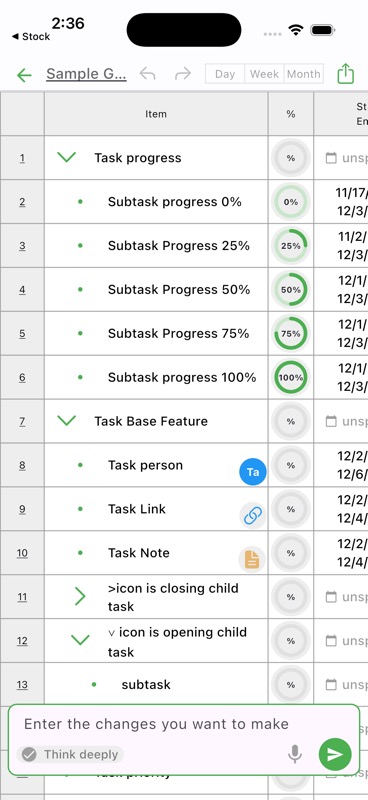
- Tap the row number of an existing task and choose Add Sibling Task or Add Child Task.
- Use a sibling task for work at the same level, or a child task to break the selected task into smaller steps.
Set a task’s dates
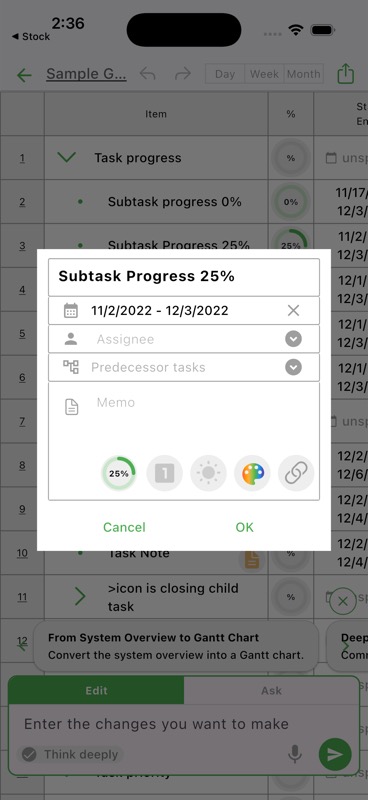
- Tap the task name to open the task editor.
- Tap Date Setting or the displayed date range. Choose the start and end dates, then select OK in the task editor.
Set dependencies with predecessor tasks
- Tap the name of the task that comes later to open its editor.
- Under Predecessor tasks, select the work that needs to finish first. Set dates on both tasks to see the link in the chart.
- To remove the dependencies, select Clear selection.
Update task progress
- In the task editor, tap the leftmost circular icon at the bottom of the note field until it shows the current completion level.
- Update it as work progresses, then review the dates and completion level in the chart.
Export a Gantt chart
- Open Export in the top-right corner of the editor.
- Choose Image (.png) or PDF to share or print the chart. For Excel or for later reimport into iGanttChart, choose the corresponding export format.
Export formats marked with a lock require Pro.
Satyn almalar
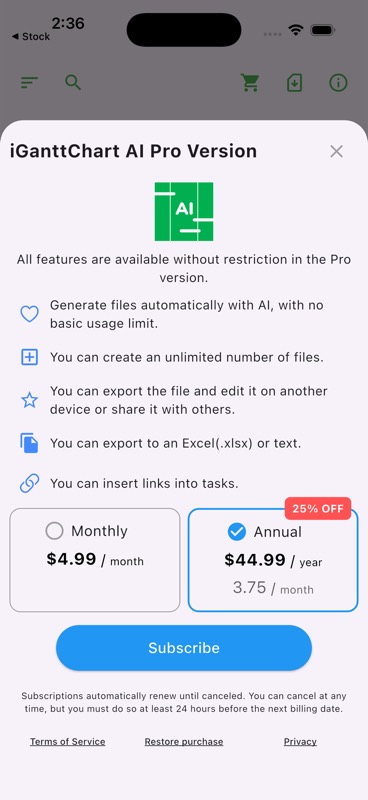
Tölegli meýilnamany satyn almak
- Faýllaryň sanawyndaky söwda sebediniň nyşanyny saýlaň.
- Satyn alyş ekranyndaky meýilnamalary we bahalary gözden geçiriň, soňra satyn almak isleýän meýilnamaňyzy saýlaň.
Satyn alşy dikeltmek
- Programma dükany arkaly satyn alan bolsaňyz, meýilnamany satyn almak üçin ulanan dükan hasabyňyza giriň.
- Programmadaky satyn alyş ekranyny açyň, «Satyn alyşlary dikeltmek» opsiýasyny saýlaň we netijäni barlaň.
Satyn alşy ýa-da abunalygy dolandyrmak
- Faýllaryň sanawyndaky maglumat menýusynda satyn alşy dolandyrmak opsiýasy bar bolsa, ony açyň.
- Abunalygyňyzy gözden geçirmek ýa-da ýatyrmak üçin meýilnamany satyn alan dükanyňyzy ýa-da hyzmatyňyzy ulanyň.
Tölegli hasap
Satyn alşyňyzy Google hasabyna baglamak
- Satyn alşyňyzyň işjeň bolan enjamynda Google hasabyňyza giriň.
- Menýuda satyn alşyňyzy Google hasabyna baglamak opsiýasy görünse, ony saýlaň we hasaby tassyklaň.
- Tölegli meýilnamaňyzy goldanylýan başga enjamda ulanmak üçin baglanan Google hasabyňyza giriň.
Google hasaplaryny çalyşmak
- Faýllaryň sanawyndaky maglumat menýusyndan haýsy Google hasabynyň işjeňdigini barlaň.
- Hasapdan çykmak opsiýasy bar bolsa, ony saýlaň, soňra Google Drive-y açyň we ulanmak isleýän hasabyňyza giriň.
Başga enjamda satyn alşyňyz ýa-da girmek isleýän Drive faýllaryňyz bilen baglanyşykly hasaby ulanyň.