Ndepụta faịlụ
Create an HTML file
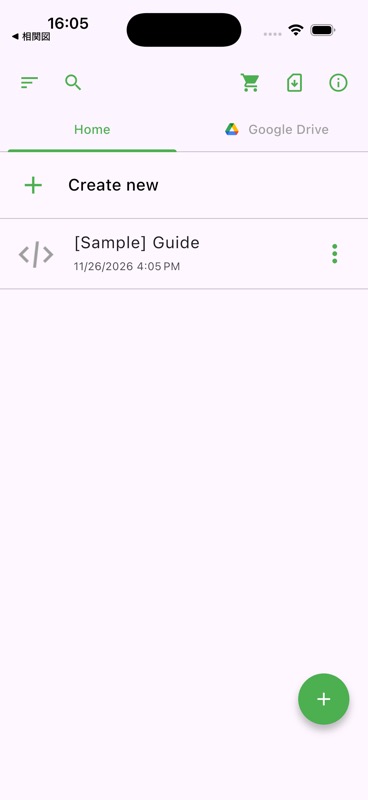
- Select + Create new in the file list.
- Enter a name for the page, then select OK to open the editor.
Ịgbanwe usoro nhazi faịlụ
- Jiri njikwa nhazi dị n'elu ndepụta faịlụ. Na obere ihuenyo, mepee menu nhazi.
- Họrọ ịhazi faịlụ site n'ụbọchị e mezigharịrị ha ma ọ bụ aha faịlụ.
Search for a file by name
- Open Home or Google Drive, depending on where the file is stored, and select the Search icon.
- Enter part of the name in Search by file name. Select Close to see the full list again.
Imegharị faịlụ ka ọ bụrụ oyiri
- Mepee menu ntụpọ atọ nke faịlụ ahụ ma họrọ Mepụta oyiri.
- Mepee oyiri agbakwunyere na ndepụta ahụ ka ị dezie ya ma debe faịlụ mbụ.
Ihichapụ faịlụ
- Mepee menu ntụpọ atọ nke faịlụ ahụ ma họrọ Hichapụ.
- Lelee ozi nkwenye ahụ ma họrọ OK.
Maka faịlụ e kesara gị, menu ahụ nwere ike igosi nhọrọ iwepụ nkekọrịta ahụ.
Ịgbanwe aha faịlụ
- Mepee menu ntụpọ atọ nke faịlụ ahụ, họrọ Gbanwee Aha.
- Tinye aha ọhụrụ ahụ ma kwado ya.
Ị ga-enwerịrị ikike idezi iji gbanwee aha faịlụ Google Drive e kesara gị.
Import an existing HTML file
- Select Import in the file list, then select OK to open the file picker.
- Choose an HTML file (.html or .htm) and open it from the list.
Chekwaa na Google Drive
- Họrọ Google Drive na ndepụta faịlụ ma soro ntụziaka iji jikọọ akaụntụ Google gị.
- Mepụta faịlụ ọhụrụ site na ndepụta Google Drive. Ọ bụrụ na nhọrọ ahụ dị, ị nwekwara ike ibuga faịlụ dị na ngwaọrụ gị gaa na Google Drive site na menu ntụpọ atọ ya.
Iji mepee faịlụ ahụ na ngwaọrụ ọzọ, jikọọ akaụntụ Google i ji chekwaa ya.
Bugharịa faịlụ n'etiti ngwaọrụ gị na Google Drive
- N'ime ngwa arụnyere na ngwaọrụ gị, jikọọ akaụntụ Google gị ma mepee menu ntụpọ atọ nke faịlụ ahụ.
- Họrọ Bugharịa gaa na Google Drive ma ọ bụ Bugharịa gaa na Ụlọ, dabere n'ebe echekwara faịlụ ahụ, ma kwado ya.
Idezi faịlụ
Edit HTML and preview the page
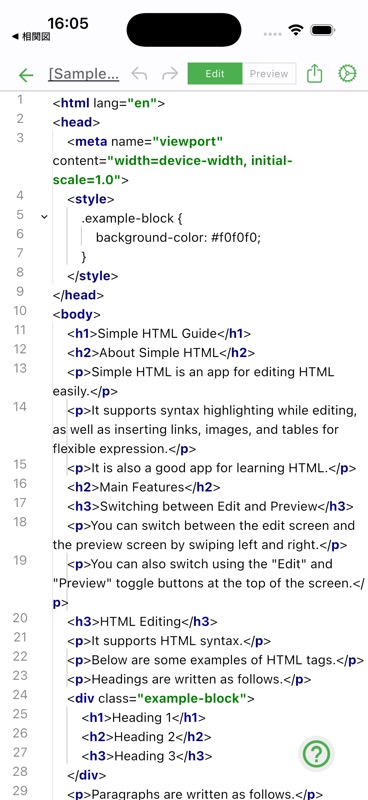
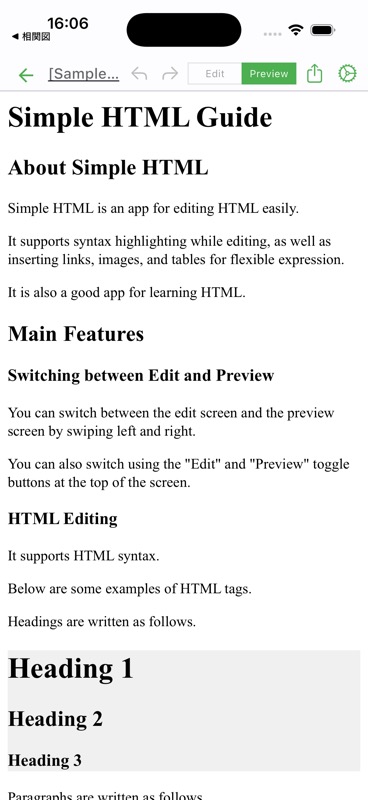
- Select Edit at the top and change the page text or markup. Try changing a heading or paragraph first.
- Switch to Preview to check the headings, links, and layout. Return to Edit to make more changes.
Find and replace text in HTML
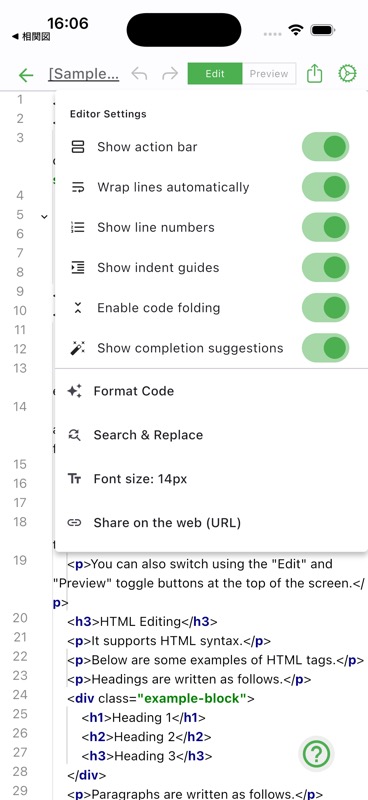
- While in Edit, select the gear icon in the top-right corner and choose Search & Replace in Editor Settings.
- Enter the text to find and move to the previous or next match. Use the Replace icon to open the replacement field, enter the new text, and choose Replace or Replace All.
Format HTML and adjust how lines are displayed
- Open the gear menu in the editor and select Format Code to tidy up indentation.
- Use the word wrap and line number settings to adjust how the code is displayed.
Share the HTML page by URL
- Open the gear menu in the top-right corner and choose Share on the web (URL).
- Copy the generated URL and send it to the recipient. The link shows the page as it was when the URL was created.
A shared URL cannot be revoked. Check what it contains before sending it.
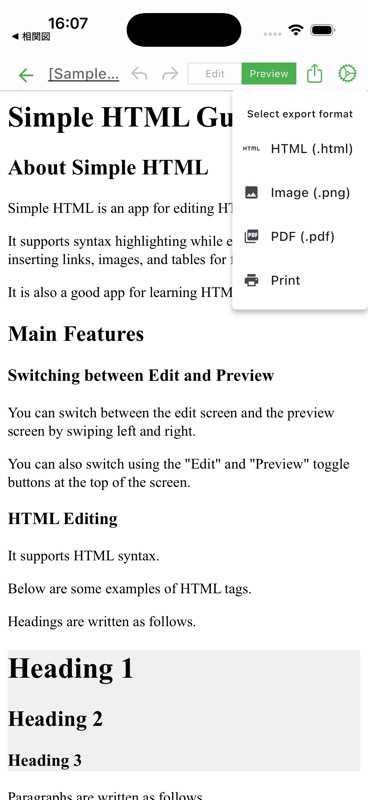
Export a page as HTML, an image, or PDF
- Select the share icon at the top of the screen. Choose HTML (.html) to reopen the file in a browser or edit it later.
- On a phone, choose PNG or PDF to preserve the page’s appearance.
Ịzụ ihe
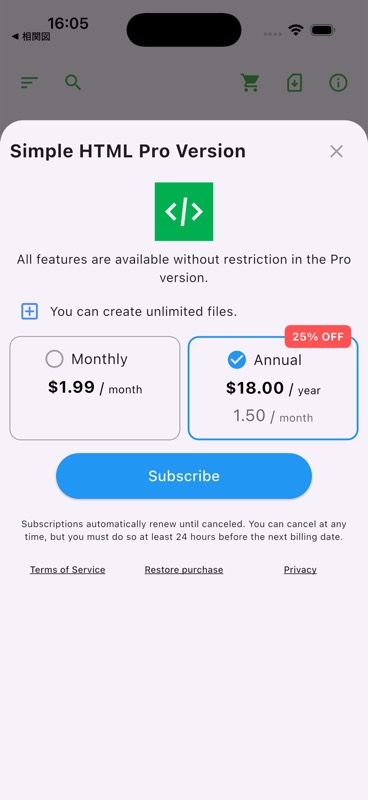
Ịzụta atụmatụ a na-akwụ ụgwọ
- Họrọ akara ngosi ụgbọ ịzụ ahịa na ndepụta faịlụ.
- Lelee atụmatụ na ọnụahịa dị na ihuenyo ịzụta, họrọzie atụmatụ ị chọrọ ịzụta.
Iweghachi ihe a zụtara
- Ọ bụrụ na ị zụtara atụmatụ ahụ n'ụlọ ahịa ngwa, jiri akaụntụ ụlọ ahịa i ji zụta ya banye.
- Mepee ihuenyo ịzụta n'ime ngwa ahụ, họrọ “Weghachi ihe ndị a zụtara”, wee lelee nsonaazụ ya.
Ijikwa ihe a zụtara ma ọ bụ ndenye aha
- Ọ bụrụ na menu ozi dị na ndepụta faịlụ nwere nhọrọ ijikwa ihe a zụtara, mepee ya.
- Jiri ụlọ ahịa ma ọ bụ ọrụ i si zụta atụmatụ ahụ lelee ma ọ bụ kagbuo ndenye aha gị.
Akaụntụ a na-akwụ ụgwọ maka ya
Ijikọ ihe ị zụtara na akaụntụ Google
- Banye n'akaụntụ Google gị na ngwaọrụ ebe ihe ị zụtara ka dị irè.
- Ọ bụrụ na nhọrọ ijikọ ihe ị zụtara na akaụntụ Google pụtara na menu, họrọ ya ma kwado akaụntụ ahụ.
- Iji atụmatụ ị na-akwụ ụgwọ na ngwaọrụ ọzọ a na-akwado, jiri akaụntụ Google ejikọtara banye.
Ịgbanwe akaụntụ Google
- Lelee akaụntụ Google nke na-arụ ọrụ ugbu a na menu ozi dị na ndepụta faịlụ.
- Ọ bụrụ na nhọrọ ịpụ n'akaụntụ dị, họrọ ya, mepee Google Drive, wee banye n'akaụntụ ị chọrọ iji.
Na ngwaọrụ ọzọ, jiri akaụntụ ejikọtara na ihe ị zụtara ma ọ bụ na faịlụ Drive ndị ị chọrọ ịnweta.