Ndepụta faịlụ
Create a flowchart
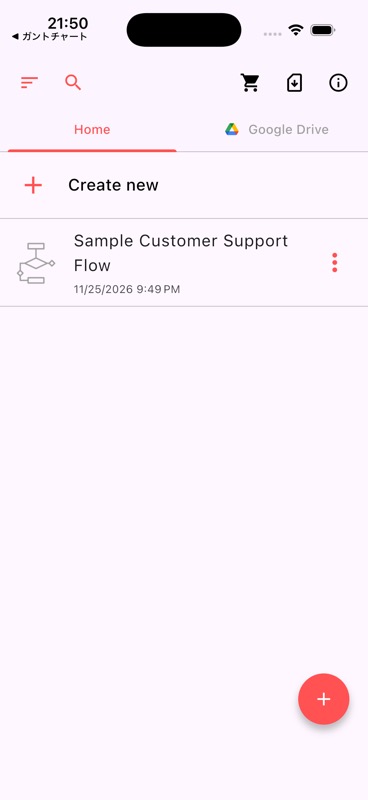
- Tap the + Create new row in the file list.
- Enter a file name and select OK to open the diagram editor.
Ịgbanwe usoro nhazi faịlụ
- Jiri njikwa nhazi dị n'elu ndepụta faịlụ. Na obere ihuenyo, mepee menu nhazi.
- Họrọ ịhazi faịlụ site n'ụbọchị e mezigharịrị ha ma ọ bụ aha faịlụ.
Search for a file by name
- Open Home or Google Drive, depending on where the file is stored, and select the Search icon.
- Enter part of the name in Search by file name. Select Close to see the full list again.
Imegharị faịlụ ka ọ bụrụ oyiri
- Mepee menu ntụpọ atọ nke faịlụ ahụ ma họrọ Mepụta oyiri.
- Mepee oyiri agbakwunyere na ndepụta ahụ ka ị dezie ya ma debe faịlụ mbụ.
Ihichapụ faịlụ
- Mepee menu ntụpọ atọ nke faịlụ ahụ ma họrọ Hichapụ.
- Lelee ozi nkwenye ahụ ma họrọ OK.
Maka faịlụ e kesara gị, menu ahụ nwere ike igosi nhọrọ iwepụ nkekọrịta ahụ.
Ịgbanwe aha faịlụ
- Mepee menu ntụpọ atọ nke faịlụ ahụ, họrọ Gbanwee Aha.
- Tinye aha ọhụrụ ahụ ma kwado ya.
Ị ga-enwerịrị ikike idezi iji gbanwee aha faịlụ Google Drive e kesara gị.
Import a flowchart
- Select Import in the file list, then select OK to open the file picker.
- Choose a Simple Flowchart file (.sflowchart).
Chekwaa na Google Drive
- Họrọ Google Drive na ndepụta faịlụ ma soro ntụziaka iji jikọọ akaụntụ Google gị.
- Mepụta faịlụ ọhụrụ site na ndepụta Google Drive. Ọ bụrụ na nhọrọ ahụ dị, ị nwekwara ike ibuga faịlụ dị na ngwaọrụ gị gaa na Google Drive site na menu ntụpọ atọ ya.
Iji mepee faịlụ ahụ na ngwaọrụ ọzọ, jikọọ akaụntụ Google i ji chekwaa ya.
Bugharịa faịlụ n'etiti ngwaọrụ gị na Google Drive
- N'ime ngwa arụnyere na ngwaọrụ gị, jikọọ akaụntụ Google gị ma mepee menu ntụpọ atọ nke faịlụ ahụ.
- Họrọ Bugharịa gaa na Google Drive ma ọ bụ Bugharịa gaa na Ụlọ, dabere n'ebe echekwara faịlụ ahụ, ma kwado ya.
Idezi faịlụ
Add shapes and edit their text
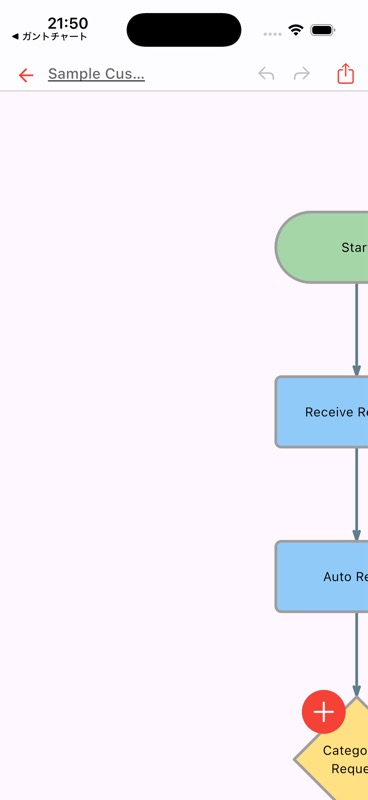
- Tap the red + button to add a shape. If a shape is already selected, the app also connects it to the new shape.
- Select the shape and tap the edit icon at the bottom to change its text.
- Use Change shape in the bottom toolbar to choose a shape for a process, decision, or other step.
Connect shapes with a line
- Tap the shape where the line should start.
- Tap Connection Line. When prompted, tap the destination shape.
- Select the new line to adjust its style or arrow.
Adjust a shape’s position or size
- Select a shape and choose Adjust position or Change size in the bottom toolbar.
- Use the controls that appear to adjust the shape, then confirm the change.
Export a flowchart
- Select the share icon in the top-right corner of the editor.
- Use Image (.png) or PDF to share a visual copy. Select Mermaid (.mermaid) to use the diagram with Mermaid, or SimpleFlowchart(.sflowchart) to reimport it into the app.
Export formats marked with a lock require Pro.
Ịzụ ihe
Ịzụta atụmatụ a na-akwụ ụgwọ
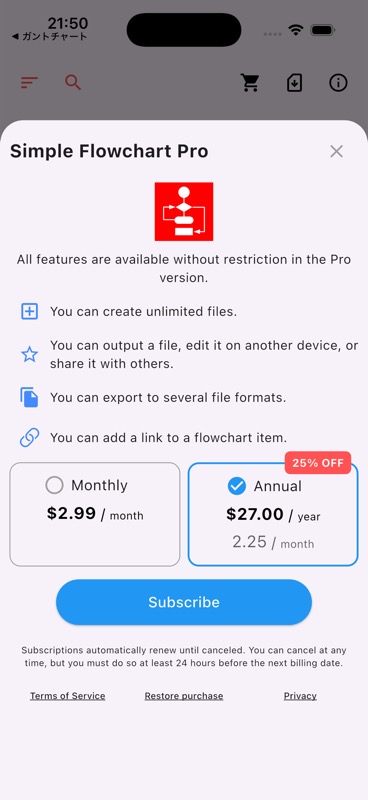
- Họrọ akara ngosi ụgbọ ịzụ ahịa na ndepụta faịlụ.
- Lelee atụmatụ na ọnụahịa dị na ihuenyo ịzụta, họrọzie atụmatụ ị chọrọ ịzụta.
Iweghachi ihe a zụtara
- Ọ bụrụ na ị zụtara atụmatụ ahụ n'ụlọ ahịa ngwa, jiri akaụntụ ụlọ ahịa i ji zụta ya banye.
- Mepee ihuenyo ịzụta n'ime ngwa ahụ, họrọ “Weghachi ihe ndị a zụtara”, wee lelee nsonaazụ ya.
Ijikwa ihe a zụtara ma ọ bụ ndenye aha
- Ọ bụrụ na menu ozi dị na ndepụta faịlụ nwere nhọrọ ijikwa ihe a zụtara, mepee ya.
- Jiri ụlọ ahịa ma ọ bụ ọrụ i si zụta atụmatụ ahụ lelee ma ọ bụ kagbuo ndenye aha gị.
Akaụntụ a na-akwụ ụgwọ maka ya
Ijikọ ihe ị zụtara na akaụntụ Google
- Banye n'akaụntụ Google gị na ngwaọrụ ebe ihe ị zụtara ka dị irè.
- Ọ bụrụ na nhọrọ ijikọ ihe ị zụtara na akaụntụ Google pụtara na menu, họrọ ya ma kwado akaụntụ ahụ.
- Iji atụmatụ ị na-akwụ ụgwọ na ngwaọrụ ọzọ a na-akwado, jiri akaụntụ Google ejikọtara banye.
Ịgbanwe akaụntụ Google
- Lelee akaụntụ Google nke na-arụ ọrụ ugbu a na menu ozi dị na ndepụta faịlụ.
- Ọ bụrụ na nhọrọ ịpụ n'akaụntụ dị, họrọ ya, mepee Google Drive, wee banye n'akaụntụ ị chọrọ iji.
Na ngwaọrụ ọzọ, jiri akaụntụ ejikọtara na ihe ị zụtara ma ọ bụ na faịlụ Drive ndị ị chọrọ ịnweta.