Ndepụta faịlụ
Create a shift sheet
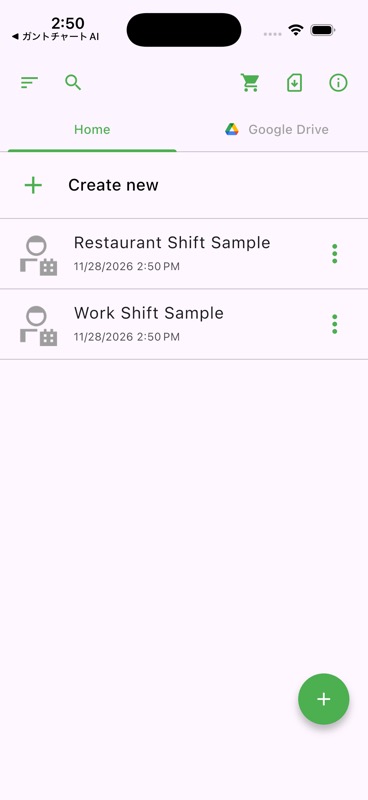
- Tap + Create new in the file list and enter a name, such as the store and month you want to schedule.
- Select OK to open the shift sheet.
Ịgbanwe usoro nhazi faịlụ
- Jiri njikwa nhazi dị n'elu ndepụta faịlụ. Na obere ihuenyo, mepee menu nhazi.
- Họrọ ịhazi faịlụ site n'ụbọchị e mezigharịrị ha ma ọ bụ aha faịlụ.
Search for a file by name
- Open Home or Google Drive, depending on where the file is stored, and select the Search icon.
- Enter part of the name in Search by file name. Select Close to see the full list again.
Imegharị faịlụ ka ọ bụrụ oyiri
- Mepee menu ntụpọ atọ nke faịlụ ahụ ma họrọ Mepụta oyiri.
- Mepee oyiri agbakwunyere na ndepụta ahụ ka ị dezie ya ma debe faịlụ mbụ.
Ihichapụ faịlụ
- Mepee menu ntụpọ atọ nke faịlụ ahụ ma họrọ Hichapụ.
- Lelee ozi nkwenye ahụ ma họrọ OK.
Maka faịlụ e kesara gị, menu ahụ nwere ike igosi nhọrọ iwepụ nkekọrịta ahụ.
Ịgbanwe aha faịlụ
- Mepee menu ntụpọ atọ nke faịlụ ahụ, họrọ Gbanwee Aha.
- Tinye aha ọhụrụ ahụ ma kwado ya.
Ị ga-enwerịrị ikike idezi iji gbanwee aha faịlụ Google Drive e kesara gị.
Import a saved shift sheet
- Select Import in the file list, then select OK to open the file picker.
- Choose a shift sheet previously exported from this app and open it from the list.
The import prompt shows .sshift. The current version saves native shift sheet files with the .stournament extension.
Chekwaa na Google Drive
- Họrọ Google Drive na ndepụta faịlụ ma soro ntụziaka iji jikọọ akaụntụ Google gị.
- Mepụta faịlụ ọhụrụ site na ndepụta Google Drive. Ọ bụrụ na nhọrọ ahụ dị, ị nwekwara ike ibuga faịlụ dị na ngwaọrụ gị gaa na Google Drive site na menu ntụpọ atọ ya.
Iji mepee faịlụ ahụ na ngwaọrụ ọzọ, jikọọ akaụntụ Google i ji chekwaa ya.
Bugharịa faịlụ n'etiti ngwaọrụ gị na Google Drive
- N'ime ngwa arụnyere na ngwaọrụ gị, jikọọ akaụntụ Google gị ma mepee menu ntụpọ atọ nke faịlụ ahụ.
- Họrọ Bugharịa gaa na Google Drive ma ọ bụ Bugharịa gaa na Ụlọ, dabere n'ebe echekwara faịlụ ahụ, ma kwado ya.
Idezi faịlụ
Set the date range for a shift sheet
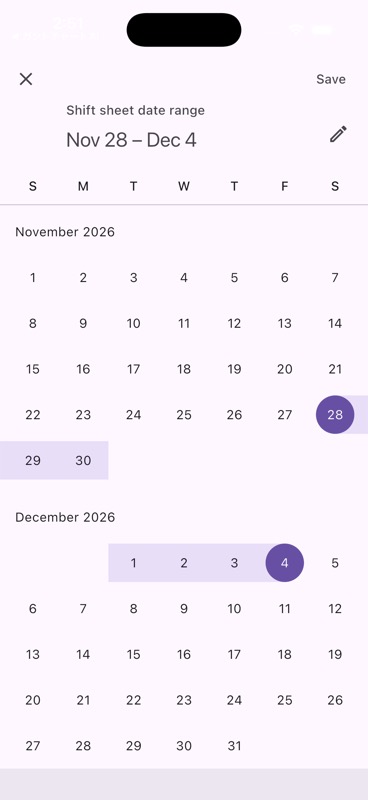
- Tap the date range with the calendar icon at the top of the editor.
- Pick the first and last days in the calendar and save. The sheet displays the selected range.
Add staff members
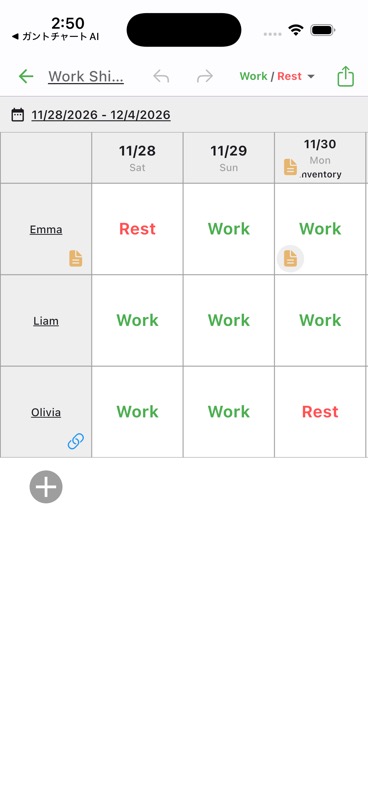
- Choose Add a new person in an empty sheet, or tap + at the end of the staff column in an existing sheet.
- Enter the staff member’s name and select OK. In an empty sheet, you can also import people from another file.
Choose a shift pattern
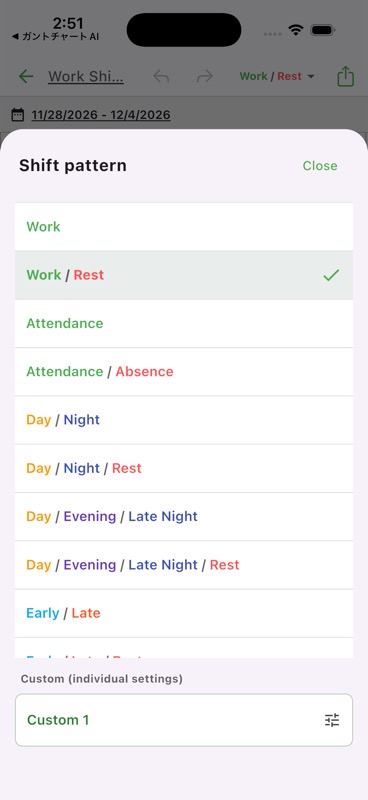
- Tap the current pattern name at the top of the editor to open Shift pattern.
- Choose a set that fits your team, such as work and days off, day and night shifts, or early and late shifts. Use Custom (individual settings) for your own names and colors.
Assign a shift to a person on a date
- Tap the cell where the person’s row and the date column meet. Each tap moves to the next option in the selected shift pattern.
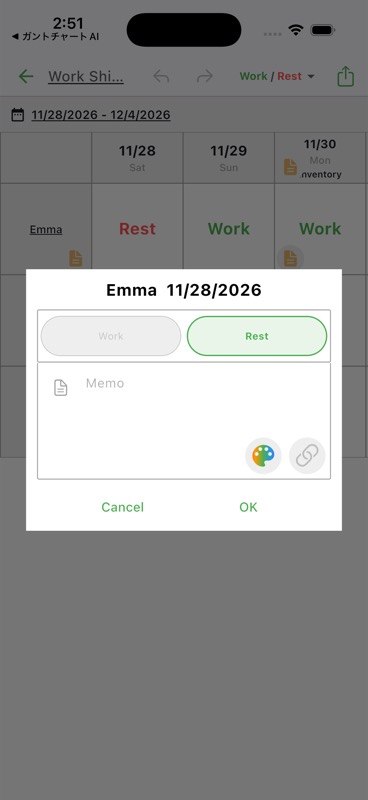
- On a phone, press and hold a cell to open its details and edit a note or color.
Ịkekọrịta ọdịnaya site na URL
- Mepee menu mbupụ dị na ndezi ma họrọ nhọrọ nkekọrịta site na weebụ.
- Detuo URL e mepụtara ma zigara ya ndị ị chọrọ ịkekọrịta ọdịnaya ahụ na ha.
URL ahụ nwere ọdịnaya dị n'oge e mepụtara njikọ ahụ. E nwere oke n'ụdị na ọnụọgụ ọdịnaya ị nwere ike ịkekọrịta.
Export a shift sheet as an image, CSV, or Excel file
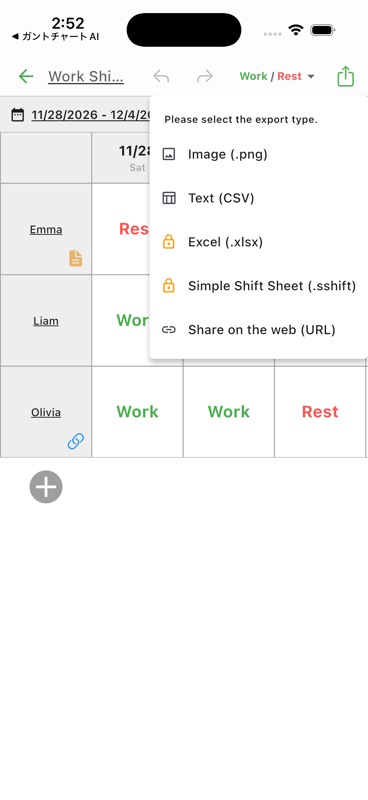
- Open the share menu at the top right. Choose an image to share the layout, or CSV or Excel to open the data in a spreadsheet.
- To reimport the sheet later, choose the menu item labeled Simple Shift Sheet (.sshift) and save the exported file.
The native file is currently saved with the .stournament extension. Export formats marked with a lock require Pro.
Ịzụ ihe
Ịzụta atụmatụ a na-akwụ ụgwọ
- Họrọ akara ngosi ụgbọ ịzụ ahịa na ndepụta faịlụ.
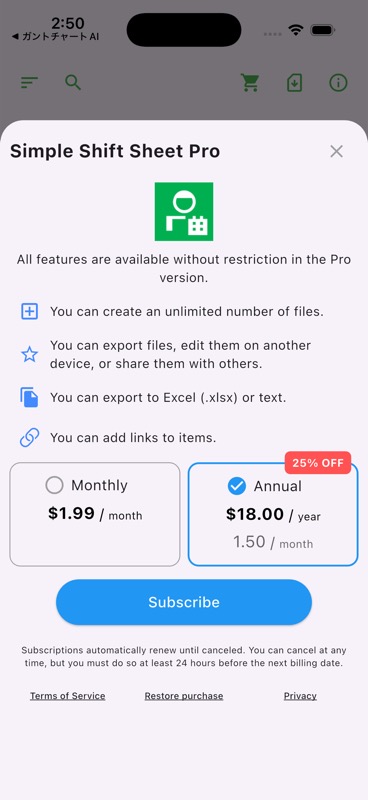
- Lelee atụmatụ na ọnụahịa dị na ihuenyo ịzụta, họrọzie atụmatụ ị chọrọ ịzụta.
Iweghachi ihe a zụtara
- Ọ bụrụ na ị zụtara atụmatụ ahụ n'ụlọ ahịa ngwa, jiri akaụntụ ụlọ ahịa i ji zụta ya banye.
- Mepee ihuenyo ịzụta n'ime ngwa ahụ, họrọ “Weghachi ihe ndị a zụtara”, wee lelee nsonaazụ ya.
Ijikwa ihe a zụtara ma ọ bụ ndenye aha
- Ọ bụrụ na menu ozi dị na ndepụta faịlụ nwere nhọrọ ijikwa ihe a zụtara, mepee ya.
- Jiri ụlọ ahịa ma ọ bụ ọrụ i si zụta atụmatụ ahụ lelee ma ọ bụ kagbuo ndenye aha gị.
Akaụntụ a na-akwụ ụgwọ maka ya
Ijikọ ihe ị zụtara na akaụntụ Google
- Banye n'akaụntụ Google gị na ngwaọrụ ebe ihe ị zụtara ka dị irè.
- Ọ bụrụ na nhọrọ ijikọ ihe ị zụtara na akaụntụ Google pụtara na menu, họrọ ya ma kwado akaụntụ ahụ.
- Iji atụmatụ ị na-akwụ ụgwọ na ngwaọrụ ọzọ a na-akwado, jiri akaụntụ Google ejikọtara banye.
Ịgbanwe akaụntụ Google
- Lelee akaụntụ Google nke na-arụ ọrụ ugbu a na menu ozi dị na ndepụta faịlụ.
- Ọ bụrụ na nhọrọ ịpụ n'akaụntụ dị, họrọ ya, mepee Google Drive, wee banye n'akaụntụ ị chọrọ iji.
Na ngwaọrụ ọzọ, jiri akaụntụ ejikọtara na ihe ị zụtara ma ọ bụ na faịlụ Drive ndị ị chọrọ ịnweta.