Uhlu lwamafayela
Create a shift sheet
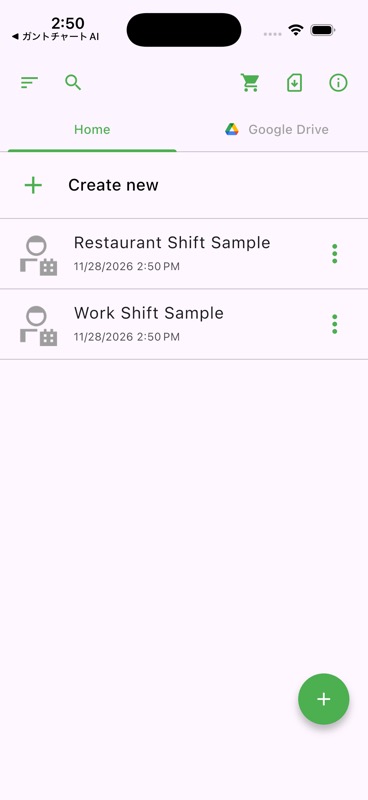
- Tap + Create new in the file list and enter a name, such as the store and month you want to schedule.
- Select OK to open the shift sheet.
Shintsha indlela yokuhlela amafayela ngokulandelana
- Sebenzisa isilawuli sokuhlela esingenhla kohlu lwamafayela. Esikrinini esincane, vula imenyu yokuhlela ngokulandelana.
- Khetha ukuhlela ngokosuku lokugcina lokulungiswa noma ngegama lefayela.
Search for a file by name
- Open Home or Google Drive, depending on where the file is stored, and select the Search icon.
- Enter part of the name in Search by file name. Select Close to see the full list again.
Yenza ikhophi yefayela
- Vula imenyu yamachashazi amathathu yefayela bese ukhetha okuthi Yenza ikhophi.
- Vula ikhophi engezwe ohlwini ukuze uyihlele ngenkathi ugcina ifayela loqobo.
Susa ifayela
- Vula imenyu yamachashazi amathathu yefayela bese ukhetha okuthi Susa.
- Hlola umlayezo wokuqinisekisa bese ukhetha okuthi OK.
Efayeleni elabelwe nawe, imenyu ingase ibe nenketho yokususa ukwabelana.
Qamba kabusha ifayela
- Vula imenyu yamachashazi amathathu yefayela bese ukhetha Qamba kabusha.
- Faka igama elisha bese uqinisekisa.
Udinga imvume yokuhlela ukuze uqambe kabusha ifayela le-Google Drive okwabelwane ngalo nawe.
Import a saved shift sheet
- Select Import in the file list, then select OK to open the file picker.
- Choose a shift sheet previously exported from this app and open it from the list.
The import prompt shows .sshift. The current version saves native shift sheet files with the .stournament extension.
Londoloza ku-Google Drive
- Khetha i-Google Drive ohlwini lwamafayela bese ulandela imiyalelo ukuze uxhume i-akhawunti yakho ye-Google.
- Dala ifayela elisha ohlwini lwe-Google Drive. Uma le nketho itholakala, ungahambisa nefayela eligcinwe kudivayisi yakho liye ku-Google Drive usebenzisa imenyu yalo yamachashazi amathathu.
Ukuvula ifayela kwenye idivayisi, xhuma i-akhawunti ye-Google oyisebenzise ukulilondoloza.
Hambisa amafayela phakathi kwedivayisi yakho ne-Google Drive
- Ohlelweni lokusebenza olufakiwe, xhuma i-akhawunti yakho ye-Google bese uvula imenyu yamachashazi amathathu yefayela.
- Khetha Hambisa ku-Google Drive noma Hambisa Ekhaya, kuye ngokuthi ifayela lilondolozwe kuphi, bese uqinisekisa.
Ukuhlela amafayela
Set the date range for a shift sheet
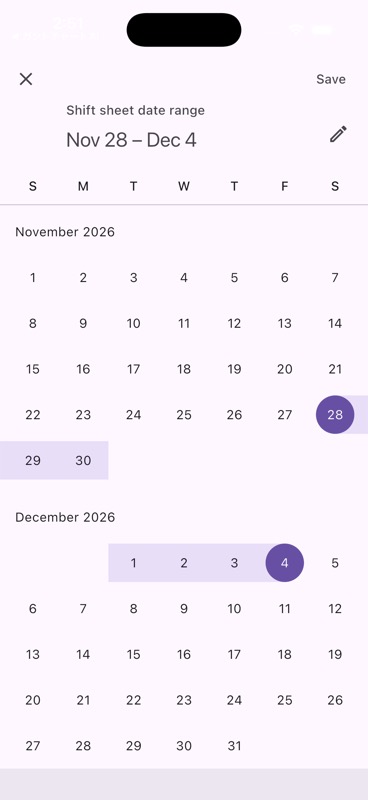
- Tap the date range with the calendar icon at the top of the editor.
- Pick the first and last days in the calendar and save. The sheet displays the selected range.
Add staff members
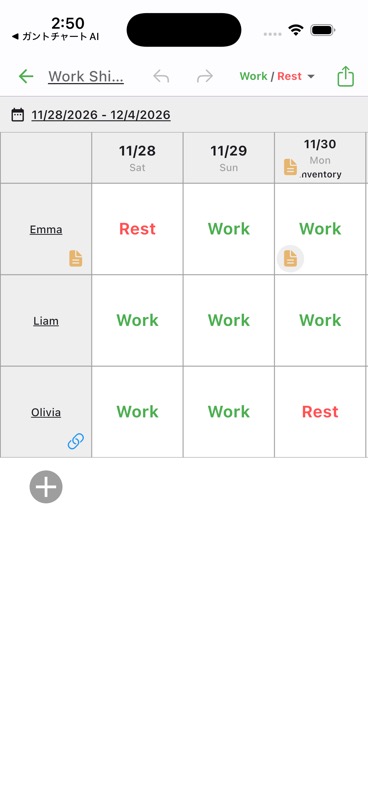
- Choose Add a new person in an empty sheet, or tap + at the end of the staff column in an existing sheet.
- Enter the staff member’s name and select OK. In an empty sheet, you can also import people from another file.
Choose a shift pattern
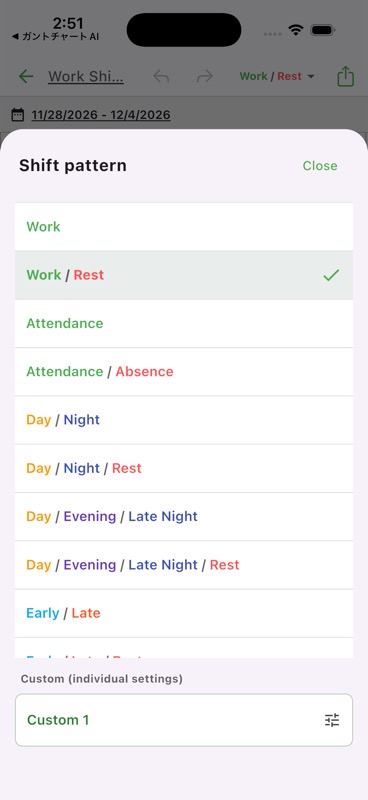
- Tap the current pattern name at the top of the editor to open Shift pattern.
- Choose a set that fits your team, such as work and days off, day and night shifts, or early and late shifts. Use Custom (individual settings) for your own names and colors.
Assign a shift to a person on a date
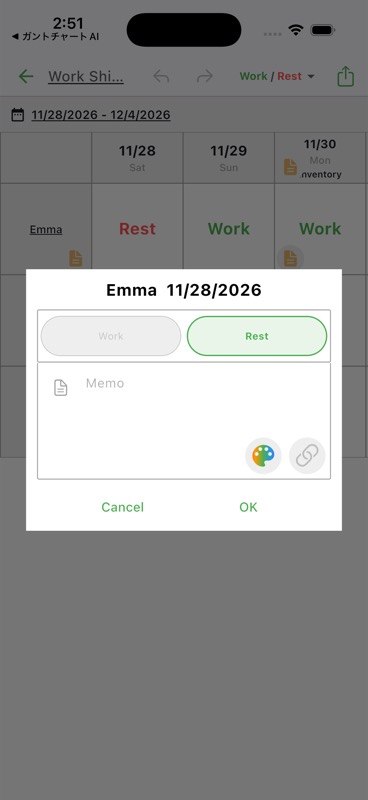
- Tap the cell where the person’s row and the date column meet. Each tap moves to the next option in the selected shift pattern.
- On a phone, press and hold a cell to open its details and edit a note or color.
Yabelana ngokuqukethwe nge-URL
- Vula imenyu yokuthekelisa kusihleli bese ukhetha inketho yokwabelana ngewebhu.
- Kopisha i-URL ekhiqiziwe bese uyithumela kubantu ofuna ukwabelana nabo.
I-URL iqukethe okuqukethwe okwakukhona ngesikhathi kwakhiwa isixhumanisi. Uhlobo nenani lokuqukethwe ongabelana ngakho kunemikhawulo.
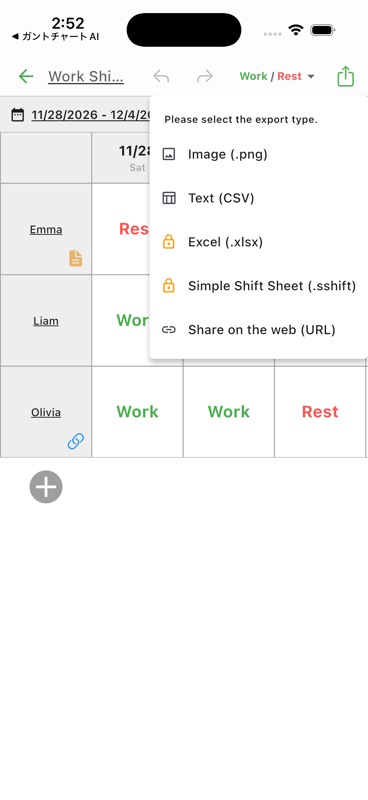
Export a shift sheet as an image, CSV, or Excel file
- Open the share menu at the top right. Choose an image to share the layout, or CSV or Excel to open the data in a spreadsheet.
- To reimport the sheet later, choose the menu item labeled Simple Shift Sheet (.sshift) and save the exported file.
The native file is currently saved with the .stournament extension. Export formats marked with a lock require Pro.
Ukuthenga
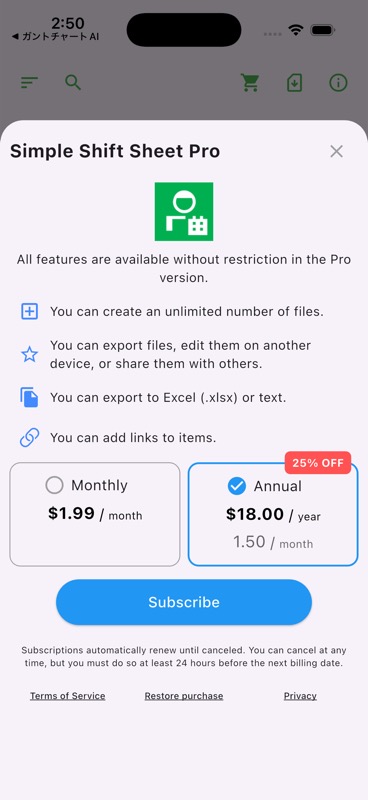
Thenga uhlelo olukhokhelwayo
- Khetha isithonjana senqola yokuthenga ohlwini lwamafayela.
- Hlola izinhlelo namanani azo esikrinini sokuthenga, bese ukhetha uhlelo ofuna ukuluthenga.
Buyisela okuthengile
- Uma uthenge uhlelo esitolo sezinhlelo zokusebenza, ngena nge-akhawunti yesitolo owayisebenzisa ukuthenga uhlelo.
- Vula isikrini sokuthenga kuhlelo lokusebenza, khetha okuthi “Buyisela okuthengile”, bese uhlola umphumela.
Phatha okuthengile noma ukubhalisa kwakho
- Uma imenyu yolwazi ohlwini lwamafayela inenketho yokuphatha okuthengile, yivule.
- Sebenzisa isitolo noma isevisi owathenga kuyo uhlelo ukuze uhlole noma ukhansele ukubhalisa kwakho.
I-akhawunti ekhokhelwayo
Xhumanisa okuthengile ne-akhawunti ye-Google
- Ngena ku-akhawunti yakho ye-Google kudivayisi lapho okuthengile kusasebenza khona.
- Uma inketho yokuxhumanisa okuthengile ne-akhawunti ye-Google ivela kumenyu, yikhethe bese uqinisekisa i-akhawunti.
- Ukuze usebenzise uhlelo lwakho olukhokhelwayo kwenye idivayisi esekelwayo, ngena nge-akhawunti ye-Google exhunywe kokuthengile.
Shintsha i-akhawunti ye-Google
- Hlola ukuthi iyiphi i-akhawunti ye-Google esetshenziswayo njengamanje kumenyu yolwazi yohlu lwamafayela.
- Uma inketho yokuphuma ku-akhawunti ikhona, yikhethe, bese uvula i-Google Drive ungene ku-akhawunti ofuna ukuyisebenzisa.
Kwenye idivayisi, sebenzisa i-akhawunti exhunywe kokuthengile noma kumafayela e-Drive ofuna ukuwafinyelela.