Uhlu lwamafayela
Create a Gantt chart
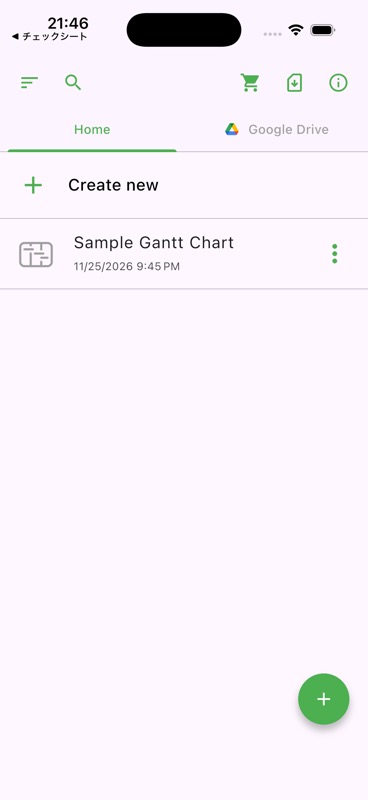
- Tap the + Create new row in the file list.
- Enter a name and select OK to open the chart.
Shintsha indlela yokuhlela amafayela ngokulandelana
- Sebenzisa isilawuli sokuhlela esingenhla kohlu lwamafayela. Esikrinini esincane, vula imenyu yokuhlela ngokulandelana.
- Khetha ukuhlela ngokosuku lokugcina lokulungiswa noma ngegama lefayela.
Search for a file by name
- Open Home or Google Drive, depending on where the file is stored, and select the Search icon.
- Enter part of the name in Search by file name. Select Close to see the full list again.
Yenza ikhophi yefayela
- Vula imenyu yamachashazi amathathu yefayela bese ukhetha okuthi Yenza ikhophi.
- Vula ikhophi engezwe ohlwini ukuze uyihlele ngenkathi ugcina ifayela loqobo.
Susa ifayela
- Vula imenyu yamachashazi amathathu yefayela bese ukhetha okuthi Susa.
- Hlola umlayezo wokuqinisekisa bese ukhetha okuthi OK.
Efayeleni elabelwe nawe, imenyu ingase ibe nenketho yokususa ukwabelana.
Qamba kabusha ifayela
- Vula imenyu yamachashazi amathathu yefayela bese ukhetha Qamba kabusha.
- Faka igama elisha bese uqinisekisa.
Udinga imvume yokuhlela ukuze uqambe kabusha ifayela le-Google Drive okwabelwane ngalo nawe.
Import a Gantt chart
- Select Import in the file list, then select OK to open the file picker.
- Choose an iGanttChart file (.igantt).
Londoloza ku-Google Drive
- Khetha i-Google Drive ohlwini lwamafayela bese ulandela imiyalelo ukuze uxhume i-akhawunti yakho ye-Google.
- Dala ifayela elisha ohlwini lwe-Google Drive. Uma le nketho itholakala, ungahambisa nefayela eligcinwe kudivayisi yakho liye ku-Google Drive usebenzisa imenyu yalo yamachashazi amathathu.
Ukuvula ifayela kwenye idivayisi, xhuma i-akhawunti ye-Google oyisebenzise ukulilondoloza.
Hambisa amafayela phakathi kwedivayisi yakho ne-Google Drive
- Ohlelweni lokusebenza olufakiwe, xhuma i-akhawunti yakho ye-Google bese uvula imenyu yamachashazi amathathu yefayela.
- Khetha Hambisa ku-Google Drive noma Hambisa Ekhaya, kuye ngokuthi ifayela lilondolozwe kuphi, bese uqinisekisa.
Ukuhlela amafayela
Add tasks and subtasks
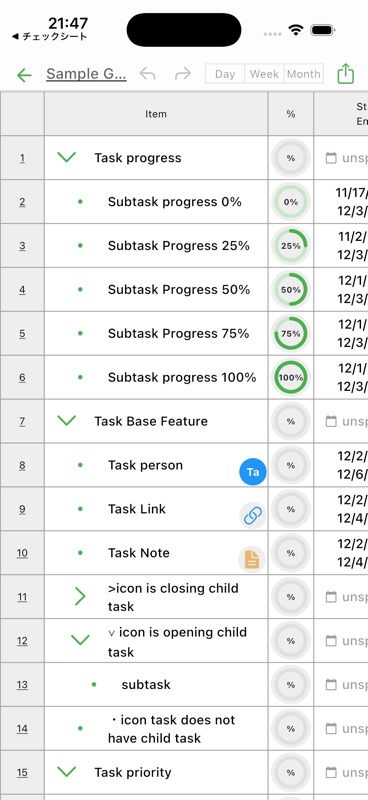
- Tap the row number of an existing task and choose Add Sibling Task or Add Child Task.
- Use a sibling task for work at the same level, or a child task to break the selected task into smaller steps.
Set a task’s dates
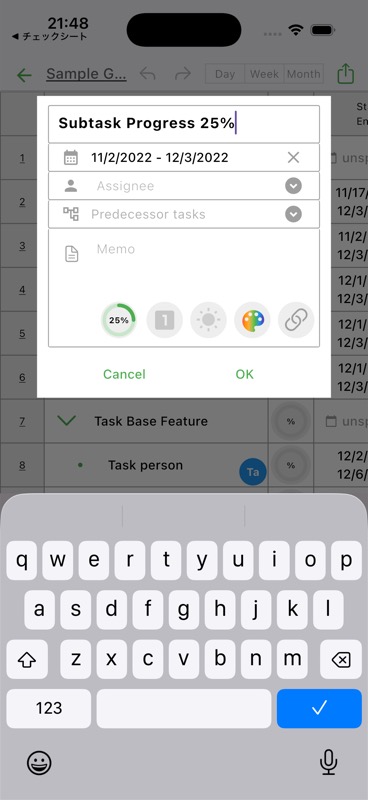
- Tap the task name to open the task editor.
- Tap Date Setting or the displayed date range. Choose the start and end dates, then select OK in the task editor.
Set dependencies with predecessor tasks
- Tap the name of the task that comes later to open its editor.
- Under Predecessor tasks, select the work that needs to finish first. Set dates on both tasks to see the link in the chart.
- To remove the dependencies, select Clear selection.
Update task progress
- In the task editor, tap the circular indicator in the lower-right corner of the note field until it shows the current completion level.
- Update it as work progresses, then review the dates and completion level in the chart.
Export a Gantt chart
- Open Export in the top-right corner of the editor.
- Choose Image (.png) or PDF to share or print the chart. For Excel or for later reimport into iGanttChart, choose the corresponding export format.
Export formats marked with a lock require Pro.
Ukuthenga
Thenga uhlelo olukhokhelwayo
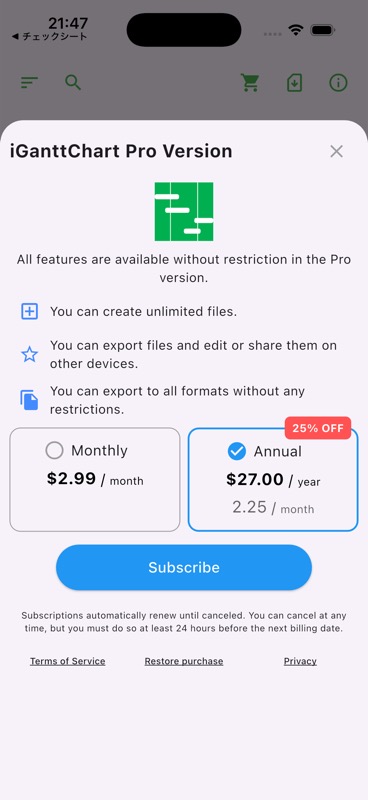
- Khetha isithonjana senqola yokuthenga ohlwini lwamafayela.
- Hlola izinhlelo namanani azo esikrinini sokuthenga, bese ukhetha uhlelo ofuna ukuluthenga.
Buyisela okuthengile
- Uma uthenge uhlelo esitolo sezinhlelo zokusebenza, ngena nge-akhawunti yesitolo owayisebenzisa ukuthenga uhlelo.
- Vula isikrini sokuthenga kuhlelo lokusebenza, khetha okuthi “Buyisela okuthengile”, bese uhlola umphumela.
Phatha okuthengile noma ukubhalisa kwakho
- Uma imenyu yolwazi ohlwini lwamafayela inenketho yokuphatha okuthengile, yivule.
- Sebenzisa isitolo noma isevisi owathenga kuyo uhlelo ukuze uhlole noma ukhansele ukubhalisa kwakho.
I-akhawunti ekhokhelwayo
Xhumanisa okuthengile ne-akhawunti ye-Google
- Ngena ku-akhawunti yakho ye-Google kudivayisi lapho okuthengile kusasebenza khona.
- Uma inketho yokuxhumanisa okuthengile ne-akhawunti ye-Google ivela kumenyu, yikhethe bese uqinisekisa i-akhawunti.
- Ukuze usebenzise uhlelo lwakho olukhokhelwayo kwenye idivayisi esekelwayo, ngena nge-akhawunti ye-Google exhunywe kokuthengile.
Shintsha i-akhawunti ye-Google
- Hlola ukuthi iyiphi i-akhawunti ye-Google esetshenziswayo njengamanje kumenyu yolwazi yohlu lwamafayela.
- Uma inketho yokuphuma ku-akhawunti ikhona, yikhethe, bese uvula i-Google Drive ungene ku-akhawunti ofuna ukuyisebenzisa.
Kwenye idivayisi, sebenzisa i-akhawunti exhunywe kokuthengile noma kumafayela e-Drive ofuna ukuwafinyelela.