Uhlu lwamafayela
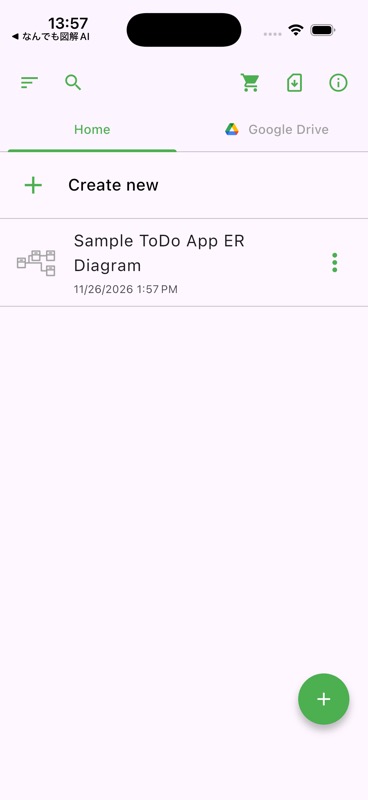
Create a file for an ER diagram
- Select + Create new in the file list and enter a name.
- Select OK to open the editor.
Shintsha indlela yokuhlela amafayela ngokulandelana
- Sebenzisa isilawuli sokuhlela esingenhla kohlu lwamafayela. Esikrinini esincane, vula imenyu yokuhlela ngokulandelana.
- Khetha ukuhlela ngokosuku lokugcina lokulungiswa noma ngegama lefayela.
Search for a file by name
- Open Home or Google Drive, depending on where the file is stored, and select the Search icon.
- Enter part of the name in Search by file name. Select Close to see the full list again.
Yenza ikhophi yefayela
- Vula imenyu yamachashazi amathathu yefayela bese ukhetha okuthi Yenza ikhophi.
- Vula ikhophi engezwe ohlwini ukuze uyihlele ngenkathi ugcina ifayela loqobo.
Susa ifayela
- Vula imenyu yamachashazi amathathu yefayela bese ukhetha okuthi Susa.
- Hlola umlayezo wokuqinisekisa bese ukhetha okuthi OK.
Efayeleni elabelwe nawe, imenyu ingase ibe nenketho yokususa ukwabelana.
Qamba kabusha ifayela
- Vula imenyu yamachashazi amathathu yefayela bese ukhetha Qamba kabusha.
- Faka igama elisha bese uqinisekisa.
Udinga imvume yokuhlela ukuze uqambe kabusha ifayela le-Google Drive okwabelwane ngalo nawe.
Import a Mermaid diagram
- Select Import in the file list and select OK to open the file picker.
- Choose a Mermaid file (.mermaid or .mmd), then open it from the file list.
Londoloza ku-Google Drive
- Khetha i-Google Drive ohlwini lwamafayela bese ulandela imiyalelo ukuze uxhume i-akhawunti yakho ye-Google.
- Dala ifayela elisha ohlwini lwe-Google Drive. Uma le nketho itholakala, ungahambisa nefayela eligcinwe kudivayisi yakho liye ku-Google Drive usebenzisa imenyu yalo yamachashazi amathathu.
Ukuvula ifayela kwenye idivayisi, xhuma i-akhawunti ye-Google oyisebenzise ukulilondoloza.
Hambisa amafayela phakathi kwedivayisi yakho ne-Google Drive
- Ohlelweni lokusebenza olufakiwe, xhuma i-akhawunti yakho ye-Google bese uvula imenyu yamachashazi amathathu yefayela.
- Khetha Hambisa ku-Google Drive noma Hambisa Ekhaya, kuye ngokuthi ifayela lilondolozwe kuphi, bese uqinisekisa.
Ukuhlela amafayela
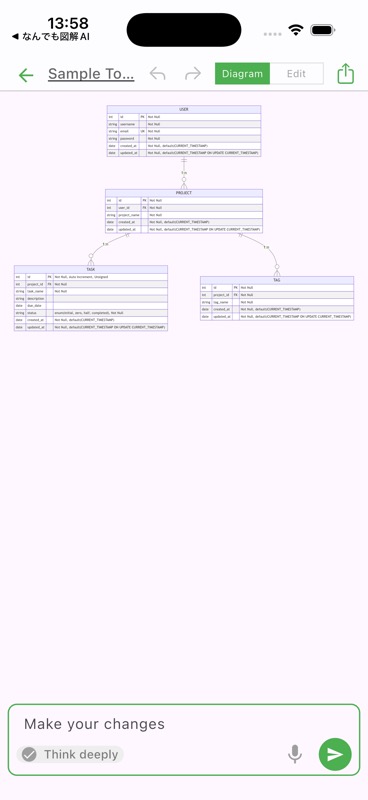
Describe tables and relationships to generate an ER diagram
- Choose Diagram at the top of the editor, tap the field at the bottom, and choose Edit.
- Send a request such as “Create Customer and Order tables. One customer can have many orders. Give each table an ID and have each order reference its customer.”
- Check the tables, keys, and relationships, such as one-to-many. Use the same field to request changes.
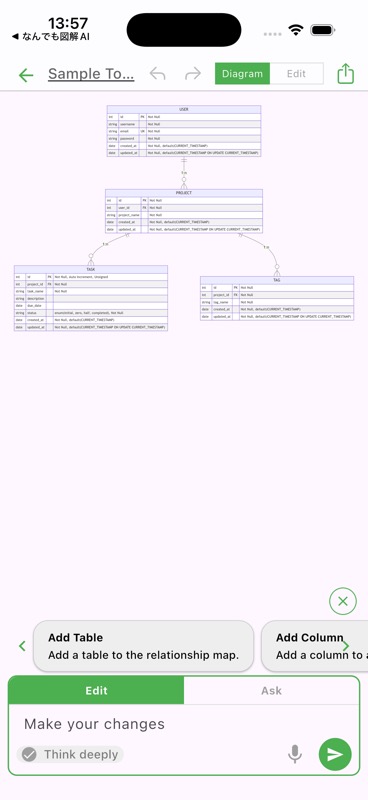
Ask AI a question about the diagram
- Choose Diagram, tap the input field at the bottom, then choose Ask.
- Send a question such as “Explain the relationships in this diagram” and read the reply in the chat window.
Edit attributes and relationships in Mermaid
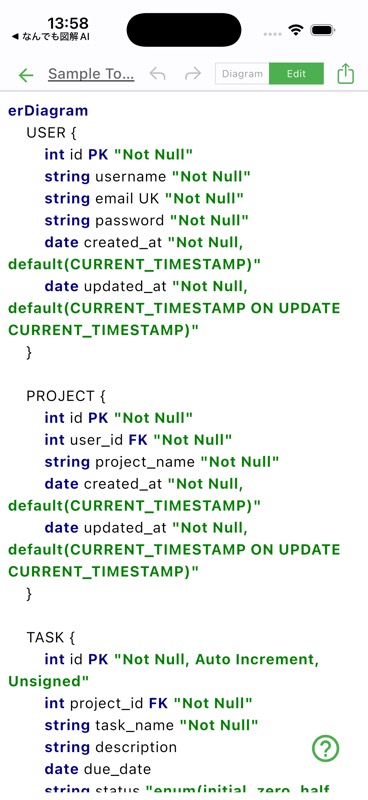
- Choose Edit at the top of the editor to open the ER diagram’s Mermaid source.
- After adding attributes or changing a relationship, switch to Diagram to check the result.
Yabelana ngokuqukethwe nge-URL
- Vula imenyu yokuthekelisa kusihleli bese ukhetha inketho yokwabelana ngewebhu.
- Kopisha i-URL ekhiqiziwe bese uyithumela kubantu ofuna ukwabelana nabo.
I-URL iqukethe okuqukethwe okwakukhona ngesikhathi kwakhiwa isixhumanisi. Uhlobo nenani lokuqukethwe ongabelana ngakho kunemikhawulo.
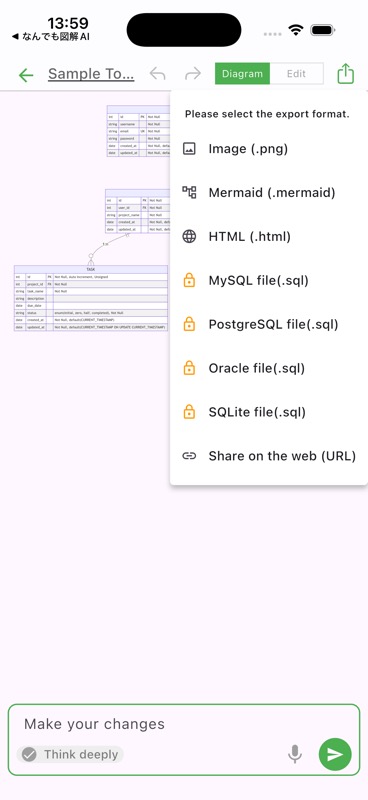
Export the diagram as an image, Mermaid, or HTML
- Select the share icon in the top-right corner of the editor.
- Choose an image to place the diagram in another document, Mermaid (.mermaid) to edit the source later, or HTML to open the file in a browser.
Export an ER diagram as a SQL file
- Select the share icon in the top-right corner of the editor.
- Choose the SQL export for your database: MySQL, PostgreSQL, Oracle, or SQLite.
- Before using the exported SQL, review the data types, primary keys, and foreign keys.
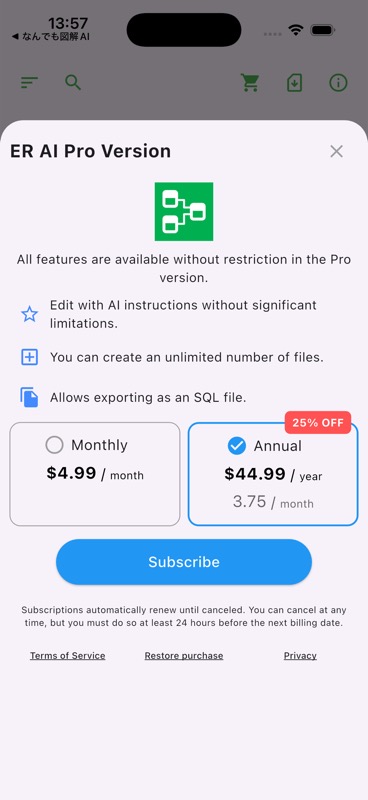
SQL export requires Pro.
Ukuthenga
Thenga uhlelo olukhokhelwayo
- Khetha isithonjana senqola yokuthenga ohlwini lwamafayela.
- Hlola izinhlelo namanani azo esikrinini sokuthenga, bese ukhetha uhlelo ofuna ukuluthenga.
Buyisela okuthengile
- Uma uthenge uhlelo esitolo sezinhlelo zokusebenza, ngena nge-akhawunti yesitolo owayisebenzisa ukuthenga uhlelo.
- Vula isikrini sokuthenga kuhlelo lokusebenza, khetha okuthi “Buyisela okuthengile”, bese uhlola umphumela.
Phatha okuthengile noma ukubhalisa kwakho
- Uma imenyu yolwazi ohlwini lwamafayela inenketho yokuphatha okuthengile, yivule.
- Sebenzisa isitolo noma isevisi owathenga kuyo uhlelo ukuze uhlole noma ukhansele ukubhalisa kwakho.
I-akhawunti ekhokhelwayo
Xhumanisa okuthengile ne-akhawunti ye-Google
- Ngena ku-akhawunti yakho ye-Google kudivayisi lapho okuthengile kusasebenza khona.
- Uma inketho yokuxhumanisa okuthengile ne-akhawunti ye-Google ivela kumenyu, yikhethe bese uqinisekisa i-akhawunti.
- Ukuze usebenzise uhlelo lwakho olukhokhelwayo kwenye idivayisi esekelwayo, ngena nge-akhawunti ye-Google exhunywe kokuthengile.
Shintsha i-akhawunti ye-Google
- Hlola ukuthi iyiphi i-akhawunti ye-Google esetshenziswayo njengamanje kumenyu yolwazi yohlu lwamafayela.
- Uma inketho yokuphuma ku-akhawunti ikhona, yikhethe, bese uvula i-Google Drive ungene ku-akhawunti ofuna ukuyisebenzisa.
Kwenye idivayisi, sebenzisa i-akhawunti exhunywe kokuthengile noma kumafayela e-Drive ofuna ukuwafinyelela.