Lista di i fugliali
Create a shift sheet
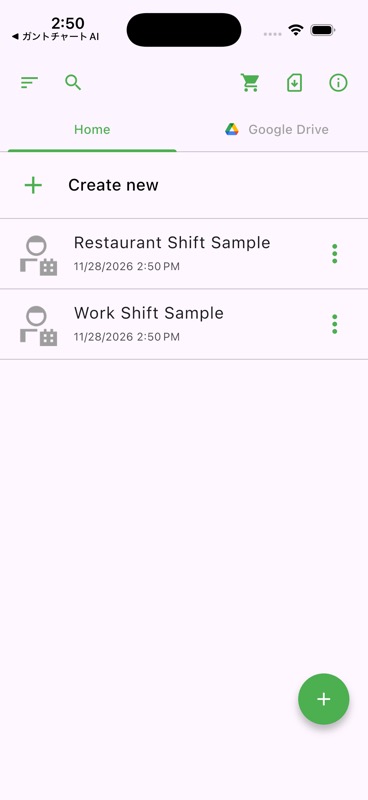
- Tap + Create new in the file list and enter a name, such as the store and month you want to schedule.
- Select OK to open the shift sheet.
Cambià l’ordine di i fugliali
- Aduprà u cumandu d’urdinamentu in cima à a lista di i fugliali. Nant’à un schermu cumpattu, apre u menu d’urdinamentu.
- Sceglie d’urdinà per data di mudificazione o per nome di fugliale.
Search for a file by name
- Open Home or Google Drive, depending on where the file is stored, and select the Search icon.
- Enter part of the name in Search by file name. Select Close to see the full list again.
Duplicà un fugliale
- Apre u menu à trè punti di u fugliale è selezziunà «Duplicà».
- Apre a copia aghjunta à a lista per mudificalla mantenendu l’uriginale.
Sguassà un fugliale
- Apre u menu à trè punti di u fugliale è selezziunà «Sguassà».
- Verificà u messagiu di cunferma è selezziunà «OK».
Per un fugliale spartutu cun tè, u menu pò prupone un’opzione per caccià a spartera.
Rinuminà un fugliale
- Apri u menù à trè punti di u schedariu è selezziuneghja «Rinumà».
- Inserisci u novu nome è cunfirmà.
Ci vole u permessu di mudificazione per rinumà un schedariu di Google Drive spartutu cun tè.
Import a saved shift sheet
- Select Import in the file list, then select OK to open the file picker.
- Choose a shift sheet previously exported from this app and open it from the list.
The import prompt shows .sshift. The current version saves native shift sheet files with the .stournament extension.
Salvà in Google Drive
- Scegli Google Drive in a lista di i schedarii è seguita l'istruzzioni per cunnette u to contu Google.
- Crea un novu schedariu da a lista di Google Drive. S'è l'opzione hè dispunibule, poi dinù spustà un schedariu lucale in Google Drive da u so menù à trè punti.
Per apre u schedariu nant'à un altru dispusitivu, cunnetti u contu Google chì ai adupratu per salvallu.
Spustà i schedarii trà u dispusitivu è Google Drive
- In l'app installata, cunnetti u to contu Google è apri u menù à trè punti di u schedariu.
- Scegli «Spustà in Google Drive» o «Spustà in Accolta», secondu u locu induve u schedariu hè salvatu, è cunfirmà.
Mudificazione di i fugliali
Set the date range for a shift sheet
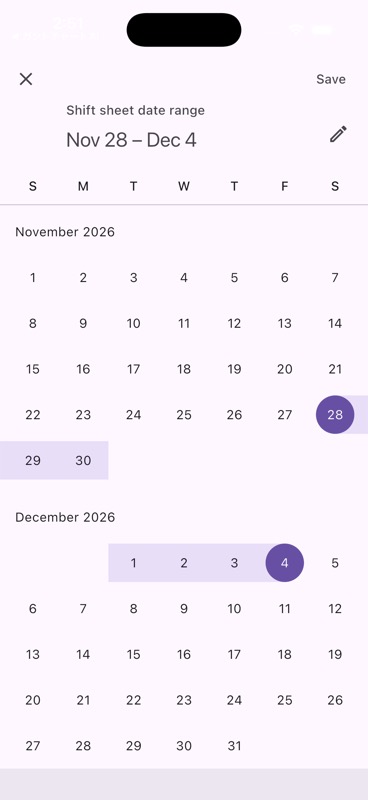
- Tap the date range with the calendar icon at the top of the editor.
- Pick the first and last days in the calendar and save. The sheet displays the selected range.
Add staff members
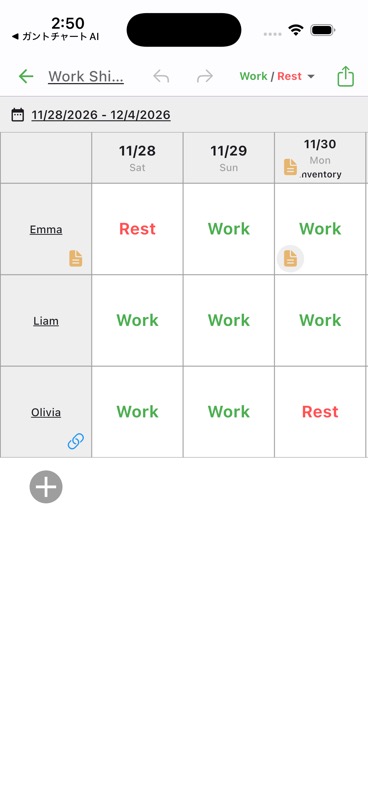
- Choose Add a new person in an empty sheet, or tap + at the end of the staff column in an existing sheet.
- Enter the staff member’s name and select OK. In an empty sheet, you can also import people from another file.
Choose a shift pattern
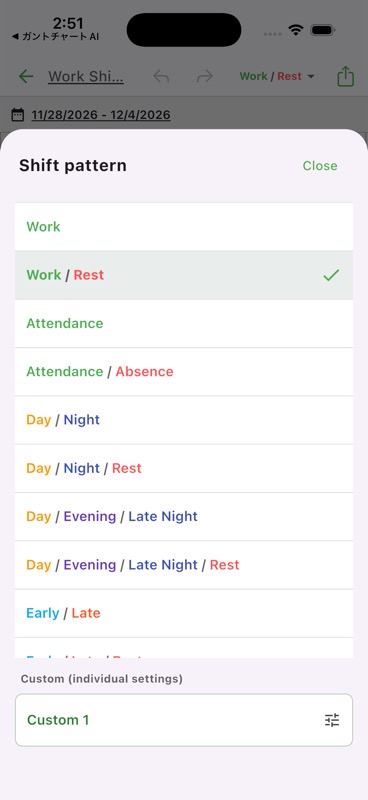
- Tap the current pattern name at the top of the editor to open Shift pattern.
- Choose a set that fits your team, such as work and days off, day and night shifts, or early and late shifts. Use Custom (individual settings) for your own names and colors.
Assign a shift to a person on a date
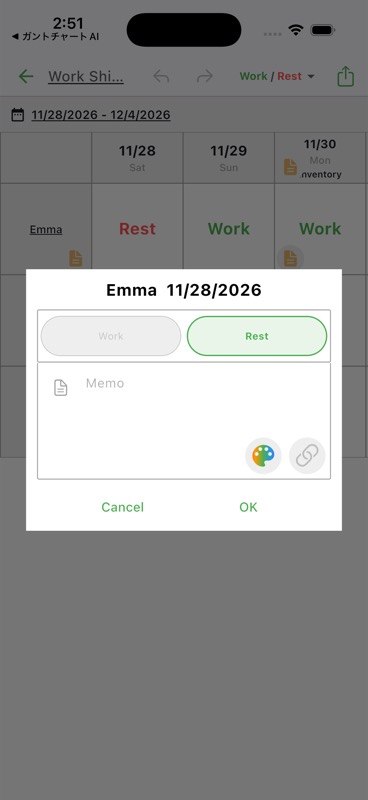
- Tap the cell where the person’s row and the date column meet. Each tap moves to the next option in the selected shift pattern.
- On a phone, press and hold a cell to open its details and edit a note or color.
Sparte u cuntenutu per mezu d'un URL
- Aprite u menù d'esportazione in l'editore è sceglite l'opzione di spartera nant'à u web.
- Cupiate l'URL generatu è mandatelu à e persone cun quale vulete sparte lu.
L'URL cuntene u cuntenutu à u mumentu di a creazione di u ligame. U tipu è a quantità di cuntenutu chì pudete sparte sò limitati.
Export a shift sheet as an image, CSV, or Excel file
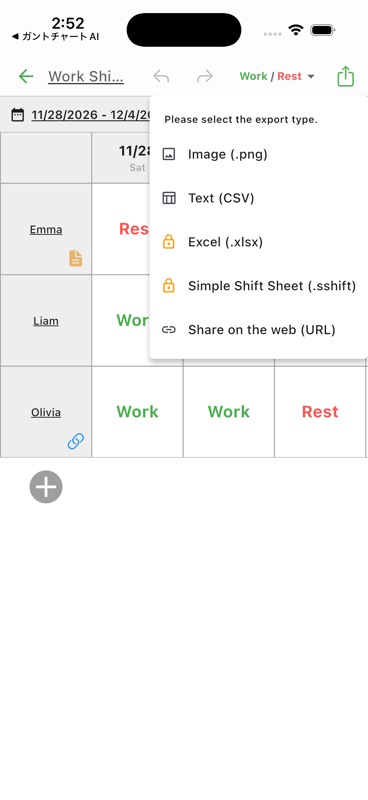
- Open the share menu at the top right. Choose an image to share the layout, or CSV or Excel to open the data in a spreadsheet.
- To reimport the sheet later, choose the menu item labeled Simple Shift Sheet (.sshift) and save the exported file.
The native file is currently saved with the .stournament extension. Export formats marked with a lock require Pro.
Acquisti
Cumprà un pianu à pagamentu
- Sceglite l'icona di u carrettu in a lista di i fugliali.
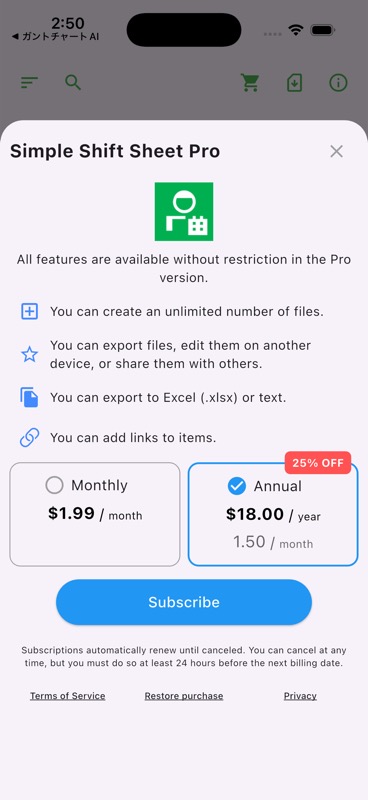
- Verificate i piani è i prezzi nant'à u screnu di compra, po sceglite u pianu chì vulete cumprà.
Ristabilisce una compra
- S'è vo avete fattu a compra in un magazinu d'applicazioni, cunnettitevi cù u contu di u magazinu chì avete adupratu per cumprà u pianu.
- Aprite u screnu di compra in l'applicazione, sceglite «Ristabilisce e compre» è verificate u risultatu.
Gestisce una compra o un abbunamentu
- S'è u menù d'infurmazione di a lista di i fugliali prupone un'opzione per gestisce e compre, apritela.
- Aduprate u magazinu o u serviziu induve avete compru u pianu per cunsultà o annullà u vostru abbunamentu.
Contu à pagamentu
Ligà a vostra compra à un contu Google
- Cunnettitevi à u vostru contu Google nant'à u dispusitivu induve avete una compra attiva.
- S'è l'opzione per ligà a vostra compra à un contu Google apparisce in u menù, sceglitela è cunfirmate u contu.
- Per aduprà u vostru pianu à pagamentu nant'à un altru dispusitivu cumpatibile, cunnettitevi cù u contu Google ligatu.
Cambià contu Google
- Verificate chì contu Google hè attivu in u menù d'infurmazione di a lista di i fugliali.
- S'è l'opzione di scunnessione hè dispunibule, sceglitela, po aprite Google Drive è cunnettitevi à u contu chì vulete aduprà.
Nant'à un altru dispusitivu, aduprate u contu assuciatu à a compra o à i fugliali di Drive à i quali vulete accede.