Lista di i fugliali
Create a file for an ER diagram
- Select + Create new in the file list and enter a name.
- Select OK to open the editor.
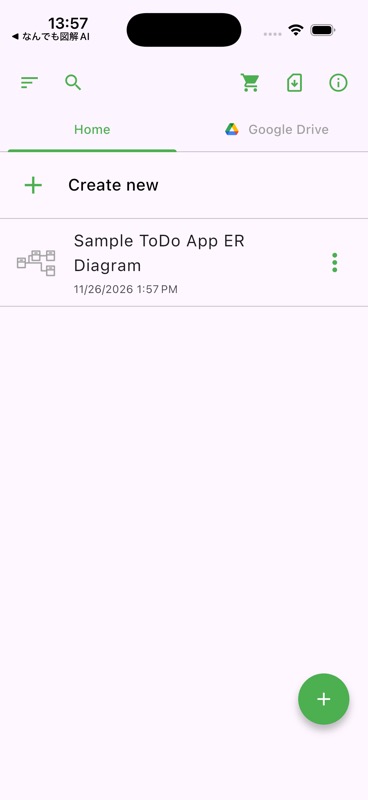
Cambià l’ordine di i fugliali
- Aduprà u cumandu d’urdinamentu in cima à a lista di i fugliali. Nant’à un schermu cumpattu, apre u menu d’urdinamentu.
- Sceglie d’urdinà per data di mudificazione o per nome di fugliale.
Search for a file by name
- Open Home or Google Drive, depending on where the file is stored, and select the Search icon.
- Enter part of the name in Search by file name. Select Close to see the full list again.
Duplicà un fugliale
- Apre u menu à trè punti di u fugliale è selezziunà «Duplicà».
- Apre a copia aghjunta à a lista per mudificalla mantenendu l’uriginale.
Sguassà un fugliale
- Apre u menu à trè punti di u fugliale è selezziunà «Sguassà».
- Verificà u messagiu di cunferma è selezziunà «OK».
Per un fugliale spartutu cun tè, u menu pò prupone un’opzione per caccià a spartera.
Rinuminà un fugliale
- Apri u menù à trè punti di u schedariu è selezziuneghja «Rinumà».
- Inserisci u novu nome è cunfirmà.
Ci vole u permessu di mudificazione per rinumà un schedariu di Google Drive spartutu cun tè.
Import a Mermaid diagram
- Select Import in the file list and select OK to open the file picker.
- Choose a Mermaid file (.mermaid or .mmd), then open it from the file list.
Salvà in Google Drive
- Scegli Google Drive in a lista di i schedarii è seguita l'istruzzioni per cunnette u to contu Google.
- Crea un novu schedariu da a lista di Google Drive. S'è l'opzione hè dispunibule, poi dinù spustà un schedariu lucale in Google Drive da u so menù à trè punti.
Per apre u schedariu nant'à un altru dispusitivu, cunnetti u contu Google chì ai adupratu per salvallu.
Spustà i schedarii trà u dispusitivu è Google Drive
- In l'app installata, cunnetti u to contu Google è apri u menù à trè punti di u schedariu.
- Scegli «Spustà in Google Drive» o «Spustà in Accolta», secondu u locu induve u schedariu hè salvatu, è cunfirmà.
Mudificazione di i fugliali
Describe tables and relationships to generate an ER diagram
- Choose Diagram at the top of the editor, tap the field at the bottom, and choose Edit.
- Send a request such as “Create Customer and Order tables. One customer can have many orders. Give each table an ID and have each order reference its customer.”
- Check the tables, keys, and relationships, such as one-to-many. Use the same field to request changes.
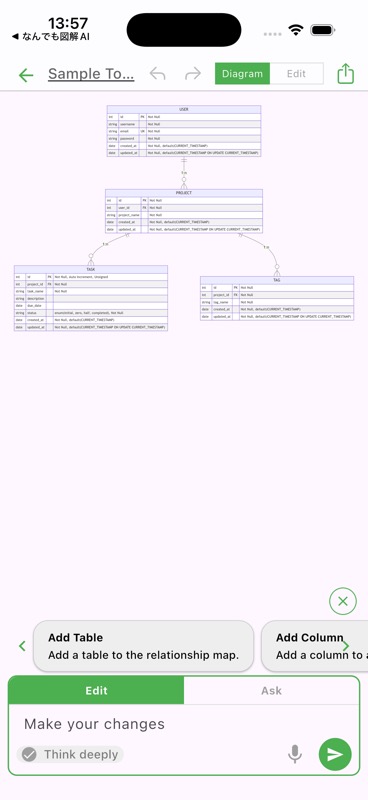
Ask AI a question about the diagram
- Choose Diagram, tap the input field at the bottom, then choose Ask.
- Send a question such as “Explain the relationships in this diagram” and read the reply in the chat window.
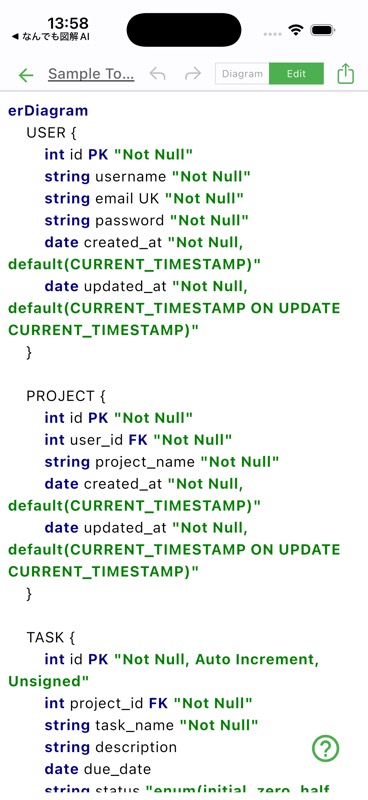
Edit attributes and relationships in Mermaid
- Choose Edit at the top of the editor to open the ER diagram’s Mermaid source.
- After adding attributes or changing a relationship, switch to Diagram to check the result.
Sparte u cuntenutu per mezu d'un URL
- Aprite u menù d'esportazione in l'editore è sceglite l'opzione di spartera nant'à u web.
- Cupiate l'URL generatu è mandatelu à e persone cun quale vulete sparte lu.
L'URL cuntene u cuntenutu à u mumentu di a creazione di u ligame. U tipu è a quantità di cuntenutu chì pudete sparte sò limitati.
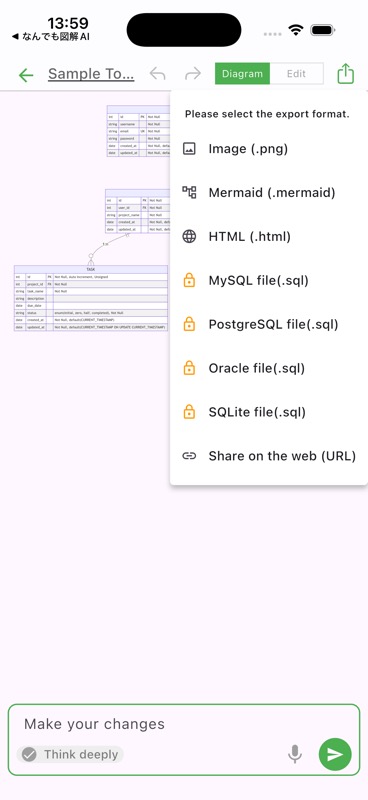
Export the diagram as an image, Mermaid, or HTML
- Select the share icon in the top-right corner of the editor.
- Choose an image to place the diagram in another document, Mermaid (.mermaid) to edit the source later, or HTML to open the file in a browser.
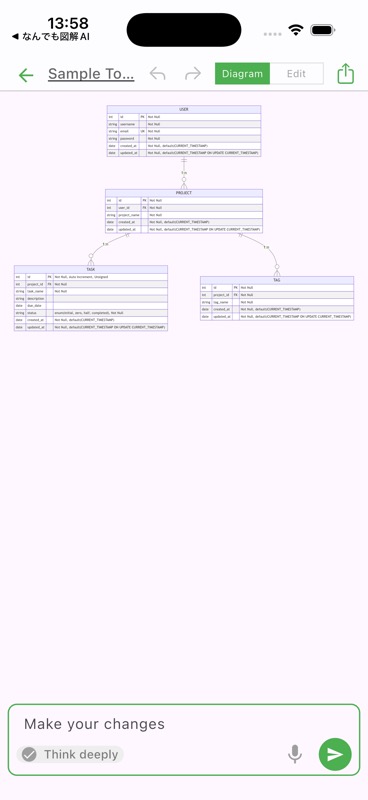
Export an ER diagram as a SQL file
- Select the share icon in the top-right corner of the editor.
- Choose the SQL export for your database: MySQL, PostgreSQL, Oracle, or SQLite.
- Before using the exported SQL, review the data types, primary keys, and foreign keys.
SQL export requires Pro.
Acquisti
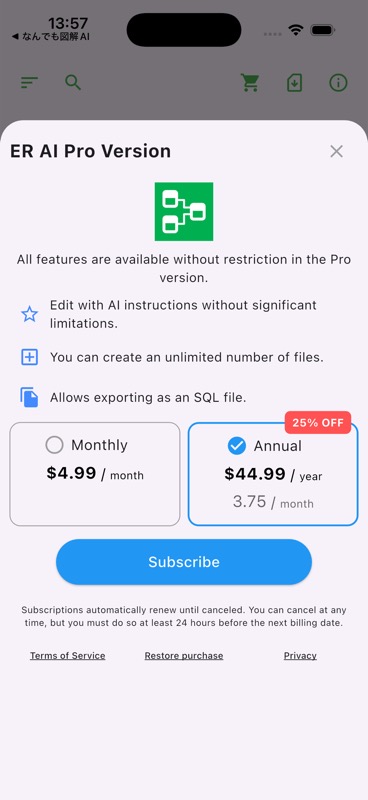
Cumprà un pianu à pagamentu
- Sceglite l'icona di u carrettu in a lista di i fugliali.
- Verificate i piani è i prezzi nant'à u screnu di compra, po sceglite u pianu chì vulete cumprà.
Ristabilisce una compra
- S'è vo avete fattu a compra in un magazinu d'applicazioni, cunnettitevi cù u contu di u magazinu chì avete adupratu per cumprà u pianu.
- Aprite u screnu di compra in l'applicazione, sceglite «Ristabilisce e compre» è verificate u risultatu.
Gestisce una compra o un abbunamentu
- S'è u menù d'infurmazione di a lista di i fugliali prupone un'opzione per gestisce e compre, apritela.
- Aduprate u magazinu o u serviziu induve avete compru u pianu per cunsultà o annullà u vostru abbunamentu.
Contu à pagamentu
Ligà a vostra compra à un contu Google
- Cunnettitevi à u vostru contu Google nant'à u dispusitivu induve avete una compra attiva.
- S'è l'opzione per ligà a vostra compra à un contu Google apparisce in u menù, sceglitela è cunfirmate u contu.
- Per aduprà u vostru pianu à pagamentu nant'à un altru dispusitivu cumpatibile, cunnettitevi cù u contu Google ligatu.
Cambià contu Google
- Verificate chì contu Google hè attivu in u menù d'infurmazione di a lista di i fugliali.
- S'è l'opzione di scunnessione hè dispunibule, sceglitela, po aprite Google Drive è cunnettitevi à u contu chì vulete aduprà.
Nant'à un altru dispusitivu, aduprate u contu assuciatu à a compra o à i fugliali di Drive à i quali vulete accede.