Daptar koropak
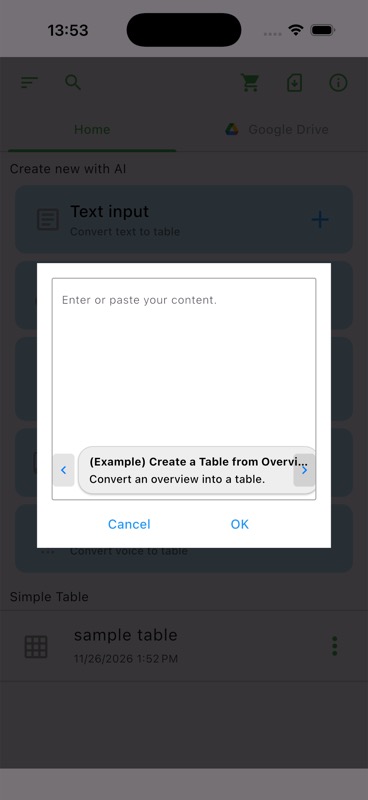
Create a table from text with AI
- In the file list, select Text input under Create new with AI.
- Describe the columns and information you need, such as “Create an inventory with columns for item, quantity, and storage location,” then select OK.
- Check that the generated headings and numbers match the information you provided.
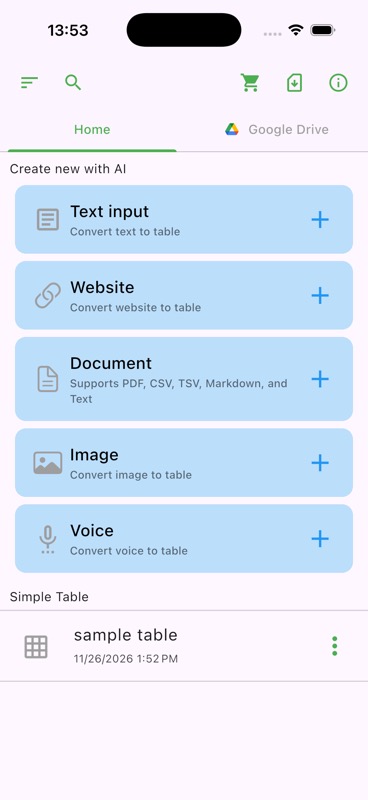
Create a table from a document, image, website, or voice input
- Under Create new with AI in the file list, choose Document, Image, Website, or Voice.
- Select the file or image, enter the page URL, or provide voice input. Compare the resulting table with the source material.
Robah urutan koropak
- Paké kadali pangurutan di luhureun daptar koropak. Dina layar leutik, buka ménu pangurutan.
- Pilih urutan dumasar kana tanggal parobahan atawa ngaran koropak.
Search for a file by name
- Open Home or Google Drive, depending on where the file is stored, and select the Search icon.
- Enter part of the name in Search by file name. Select Close to see the full list again.
Jieun salinan koropak
- Buka ménu tilu titik dina koropak, tuluy pilih Duplikat.
- Buka salinan anu ditambahkeun kana daptar pikeun ngéditna bari tetep nyimpen koropak aslina.
Pupus koropak
- Buka ménu tilu titik dina koropak, tuluy pilih Pupus.
- Pariksa talatah konfirmasi, tuluy pilih OK.
Pikeun koropak anu dibagikeun ka anjeun, ménu bisa nyadiakeun pilihan pikeun ngeureunkeun babagi éta koropak.
Robah ngaran koropak
- Buka ménu tilu titik dina koropak, tuluy pilih Robah ngaran.
- Asupkeun ngaran anyar, tuluy konfirmasi.
Anjeun peryogi idin pikeun ngédit sangkan bisa ngarobah ngaran koropak Google Drive anu dibagikeun ka anjeun.
Import an existing table into Simple Table AI
- Select Import in the file list and select OK to open the file picker.
- Select a CSV, TSV, TXT, or Simple Table (.simpletable) file.
Save an AI-generated file to Google Drive
- Choose Google Drive in the file list and sign in to your Google Account if prompted.
- With the Google Drive tab open, create a file using Create new with AI. To move a local file, select Move to Google Drive from its three-dot menu if the option is available.
Pikeun muka koropak dina alat séjén, sambungkeun akun Google anu dipaké pikeun nyimpen éta koropak.
Pindahkeun koropak antara alat anjeun jeung Google Drive
- Dina aplikasi anu geus dipasang, sambungkeun akun Google anjeun jeung buka ménu tilu titik dina koropak.
- Pilih Pindahkeun ka Google Drive atawa Pindahkeun ka Utama, gumantung kana tempat koropak disimpen, tuluy konfirmasi.
Ngédit koropak
Revise a table with AI
- Tap the input field below the table and choose Edit.
- Enter a change such as “Add an Owner column on the right” and select Send. Review the updated cells or headings.
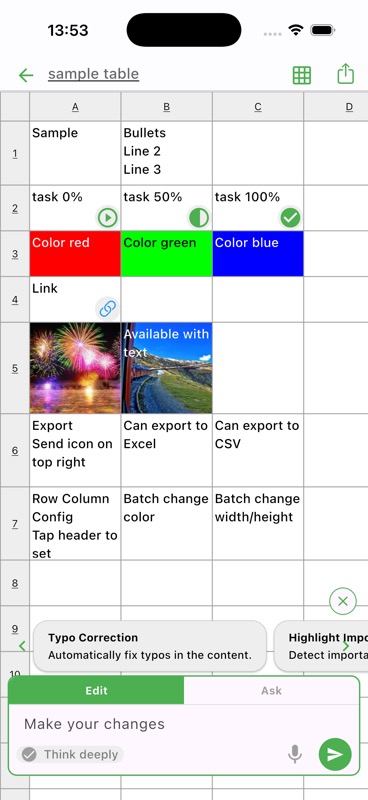
Ask AI a question about the table
- Tap the input field below the table and choose Ask.
- Send a question such as “Which items are running low?” and read the reply in the chat window.
Édit sél jeung tambahkeun baris atawa kolom
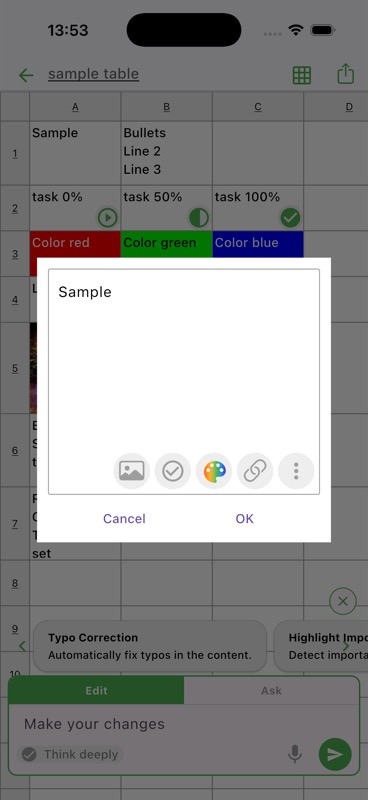
- Pilih sél anu rék dirobah pikeun muka éditor sél.
- Asupkeun eusi, tuluy konfirmasi pikeun ngamutahirkeun tabél.
- Paké + di handap atawa di sisi tabél pikeun nambahkeun baris atawa kolom.
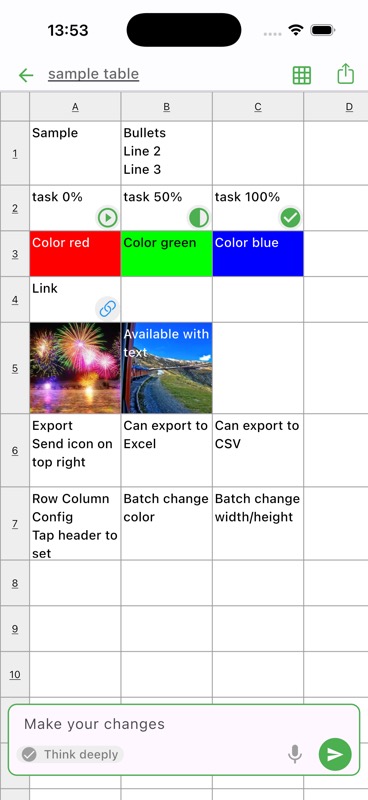
Tambahkeun gambar kana sél
- Buka sél, pilih ikon gambar, tuluy pilih gambar tina alat anjeun.
- Pikeun mupus gambar anu geus aya, pilih deui ikon anu sarua.
Nambahkeun gambar mangrupa fitur mayar.
Ékspor tabél
- Buka ménu ékspor dina éditor tabél.
- Pilih gambar atawa PDF pikeun ngajaga tampilan, CSV atawa Excel pikeun maké data tabél dina aplikasi séjén, atawa format aplikasi pikeun ngédit deui engké.
Format anu sayogi gumantung kana platform sareng pakét anu dianggo.
Pameseran
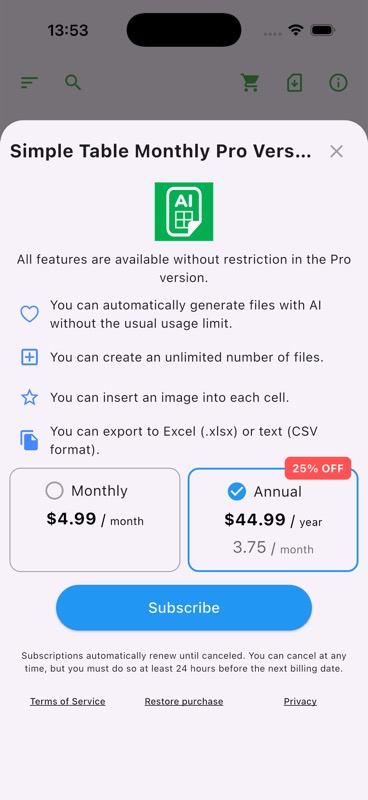
Mésér pakét mayar
- Pilih ikon karanjang balanja dina daptar file.
- Pariksa pakét sareng hargana dina layar pameseran, teras pilih pakét anu badé dipésér.
Mulihkeun pameseran
- Upami mésér pakét di toko aplikasi, lebet nganggo akun toko anu dianggo nalika mésér pakét.
- Buka layar pameseran dina aplikasi, pilih „Mulihkeun pameseran“, teras pariksa hasilna.
Ngatur pameseran atanapi langganan
- Upami aya pilihan pikeun ngatur pameseran dina ménu inpormasi daptar file, buka pilihan éta.
- Anggo toko atanapi layanan tempat anjeun mésér pakét pikeun mariksa atanapi ngabatalkeun langganan.
Akun mayar
Ngaitkeun pameseran kana akun Google
- Lebet kana akun Google dina alat anu gaduh pameseran anu masih aktip.
- Upami pilihan pikeun ngaitkeun pameseran kana akun Google muncul dina ménu, pilih éta sareng konfirmasi akunna.
- Pikeun nganggo pakét mayar dina alat sanés anu dirojong, lebet nganggo akun Google anu parantos dikaitkeun.
Ngaganti akun Google
- Pariksa akun Google anu aktip dina ménu inpormasi daptar file.
- Upami aya pilihan pikeun kaluar tina akun, pilih éta, teras buka Google Drive sareng lebet nganggo akun anu badé dianggo.
Dina alat sanés, anggo akun anu dikaitkeun sareng pameseran atanapi file Drive anu badé diaksés.