Daptar koropak
Create a check sheet
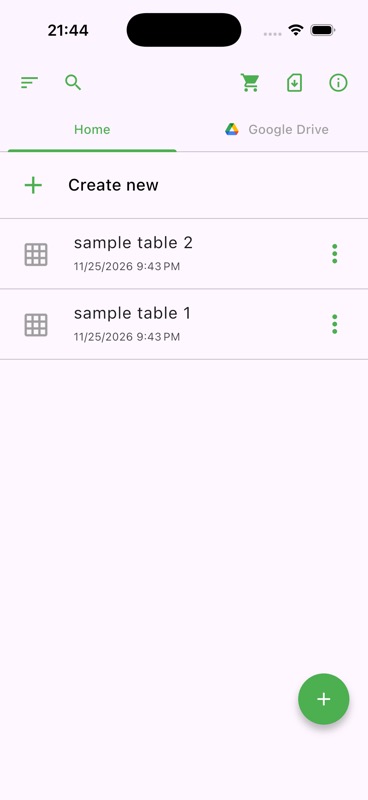
- Tap the + Create new row in the file list.
- Enter a name and select OK to open the editor.
Robah urutan koropak
- Paké kadali pangurutan di luhureun daptar koropak. Dina layar leutik, buka ménu pangurutan.
- Pilih urutan dumasar kana tanggal parobahan atawa ngaran koropak.
Search for a file by name
- Open Home or Google Drive, depending on where the file is stored, and select the Search icon.
- Enter part of the name in Search by file name. Select Close to see the full list again.
Jieun salinan koropak
- Buka ménu tilu titik dina koropak, tuluy pilih Duplikat.
- Buka salinan anu ditambahkeun kana daptar pikeun ngéditna bari tetep nyimpen koropak aslina.
Pupus koropak
- Buka ménu tilu titik dina koropak, tuluy pilih Pupus.
- Pariksa talatah konfirmasi, tuluy pilih OK.
Pikeun koropak anu dibagikeun ka anjeun, ménu bisa nyadiakeun pilihan pikeun ngeureunkeun babagi éta koropak.
Robah ngaran koropak
- Buka ménu tilu titik dina koropak, tuluy pilih Robah ngaran.
- Asupkeun ngaran anyar, tuluy konfirmasi.
Anjeun peryogi idin pikeun ngédit sangkan bisa ngarobah ngaran koropak Google Drive anu dibagikeun ka anjeun.
Import a check sheet
- Select Import in the file list, then select OK to open the file picker.
- Choose a CheckTable file (.scsheet) or a comma-separated CSV file.
Simpen kana Google Drive
- Pilih Google Drive dina daptar koropak, tuluy turutan pituduh pikeun nyambungkeun akun Google anjeun.
- Jieun koropak anyar tina daptar Google Drive. Lamun pilihanna aya, anjeun ogé tiasa mindahkeun koropak lokal ka Google Drive ngaliwatan ménu tilu titikna.
Pikeun muka koropak dina alat séjén, sambungkeun akun Google anu dipaké pikeun nyimpen éta koropak.
Pindahkeun koropak antara alat anjeun jeung Google Drive
- Dina aplikasi anu geus dipasang, sambungkeun akun Google anjeun jeung buka ménu tilu titik dina koropak.
- Pilih Pindahkeun ka Google Drive atawa Pindahkeun ka Utama, gumantung kana tempat koropak disimpen, tuluy konfirmasi.
Ngédit koropak
Tick or clear a cell
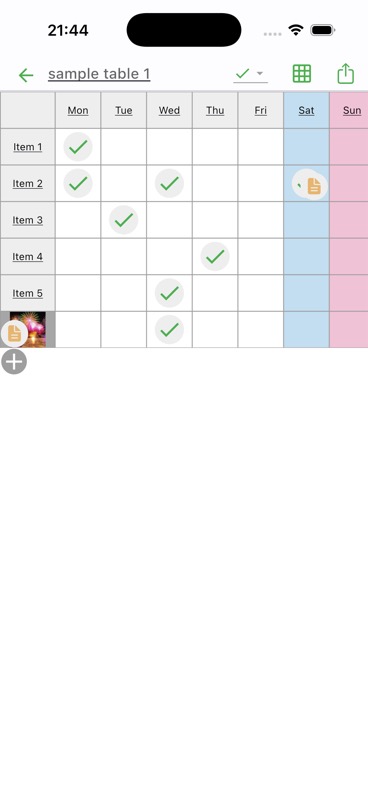
- Tap a cell to cycle through the marks configured for the sheet.
- Where right-click is available, open Change mark from the cell menu to pick a mark directly. Select Clear there to remove the mark.
Choose the marks used in the sheet
- Tap the marks and downward arrow at the top of the editor.
- Choose the set you want to use. Tap a cell to cycle through the selected marks.
Edit row and column labels
- Tap a row or column label.
- Change the label and select OK. Use + at the edge of the sheet to add a row or column.
Add a note, color, or link to a cell
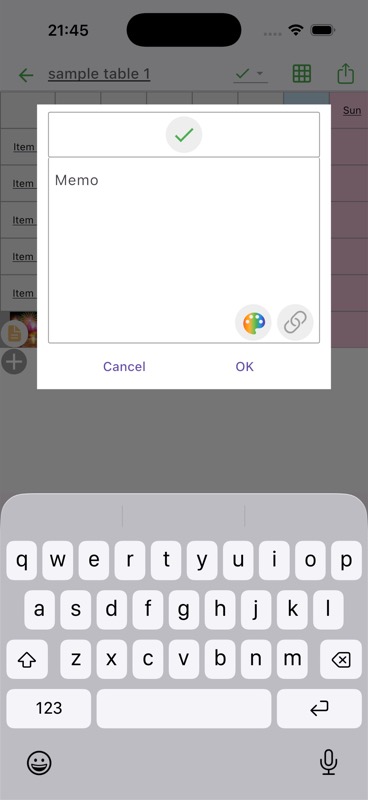
- Press and hold a cell to open the cell editor.
- Enter a note or select the color or link icon. Select OK to apply your changes.
Clear every check mark
- Open the table menu by selecting the grid icon at the top right of the editor.
- Select Clear all checks and then select OK in the confirmation.
This resets the marks while keeping the rows, columns, and cell content.
Export a check sheet
- Select the share icon in the top-right corner of the editor.
- Choose Image (.png) or PDF to preserve the appearance, or CSV or Excel for use in another app. To reimport the file later, select CheckTable (.scsheet).
Export formats marked with a lock require Pro.
Pameseran
Mésér pakét mayar
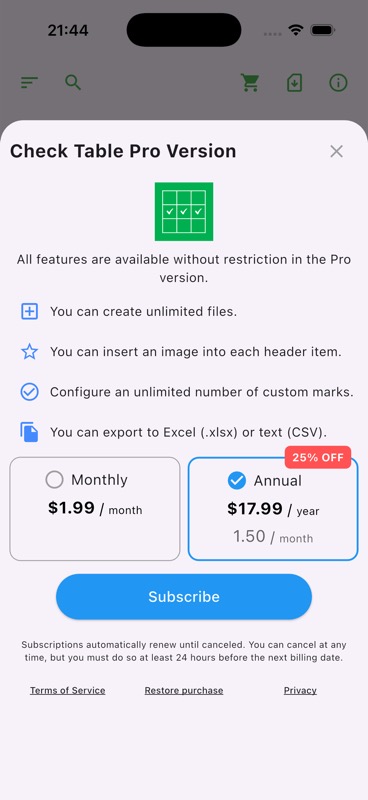
- Pilih ikon karanjang balanja dina daptar file.
- Pariksa pakét sareng hargana dina layar pameseran, teras pilih pakét anu badé dipésér.
Mulihkeun pameseran
- Upami mésér pakét di toko aplikasi, lebet nganggo akun toko anu dianggo nalika mésér pakét.
- Buka layar pameseran dina aplikasi, pilih „Mulihkeun pameseran“, teras pariksa hasilna.
Ngatur pameseran atanapi langganan
- Upami aya pilihan pikeun ngatur pameseran dina ménu inpormasi daptar file, buka pilihan éta.
- Anggo toko atanapi layanan tempat anjeun mésér pakét pikeun mariksa atanapi ngabatalkeun langganan.
Akun mayar
Ngaitkeun pameseran kana akun Google
- Lebet kana akun Google dina alat anu gaduh pameseran anu masih aktip.
- Upami pilihan pikeun ngaitkeun pameseran kana akun Google muncul dina ménu, pilih éta sareng konfirmasi akunna.
- Pikeun nganggo pakét mayar dina alat sanés anu dirojong, lebet nganggo akun Google anu parantos dikaitkeun.
Ngaganti akun Google
- Pariksa akun Google anu aktip dina ménu inpormasi daptar file.
- Upami aya pilihan pikeun kaluar tina akun, pilih éta, teras buka Google Drive sareng lebet nganggo akun anu badé dianggo.
Dina alat sanés, anggo akun anu dikaitkeun sareng pameseran atanapi file Drive anu badé diaksés.