ဖိုင်စာရင်း
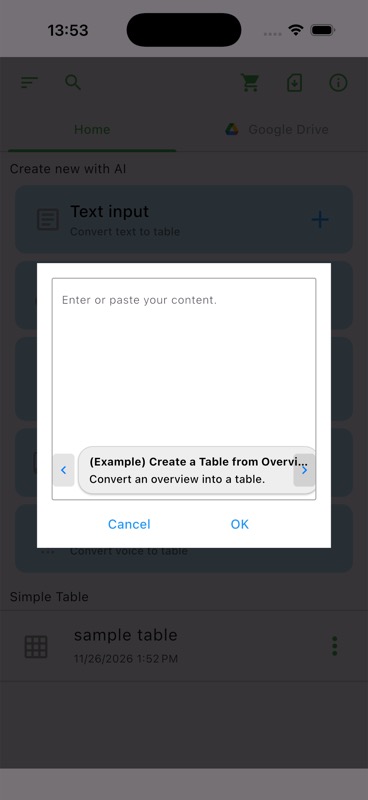
Create a table from text with AI
- In the file list, select Text input under Create new with AI.
- Describe the columns and information you need, such as “Create an inventory with columns for item, quantity, and storage location,” then select OK.
- Check that the generated headings and numbers match the information you provided.
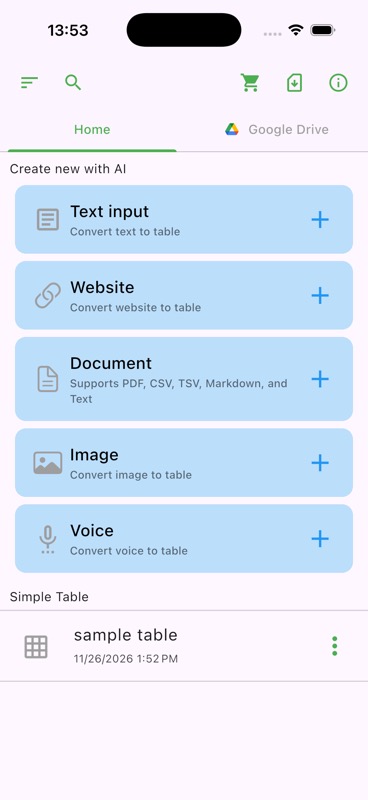
Create a table from a document, image, website, or voice input
- Under Create new with AI in the file list, choose Document, Image, Website, or Voice.
- Select the file or image, enter the page URL, or provide voice input. Compare the resulting table with the source material.
ဖိုင်များ၏ စီစဉ်မှုအစီအစဉ်ကို ပြောင်းလဲရန်
- ဖိုင်စာရင်း၏ ထိပ်ပိုင်းရှိ စီစဉ်မှု ထိန်းချုပ်ခလုတ်ကို အသုံးပြုပါ။ မျက်နှာပြင်သေးပါက စီစဉ်မှုမီနူးကို ဖွင့်ပါ။
- နောက်ဆုံးပြင်ဆင်သည့်ရက်စွဲ သို့မဟုတ် ဖိုင်အမည်အလိုက် စီစဉ်ရန် ရွေးချယ်ပါ။
Search for a file by name
- Open Home or Google Drive, depending on where the file is stored, and select the Search icon.
- Enter part of the name in Search by file name. Select Close to see the full list again.
ဖိုင်ပွားရန်
- ဖိုင်၏ အစက်သုံးစက်မီနူးကို ဖွင့်ပြီး ပွားရန်ကို ရွေးချယ်ပါ။
- မူရင်းဖိုင်ကို မပြောင်းလဲဘဲ တည်းဖြတ်ရန် စာရင်းထဲသို့ ထည့်ထားသည့် မိတ္တူကို ဖွင့်ပါ။
ဖိုင်ဖျက်ရန်
- ဖိုင်၏ အစက်သုံးစက်မီနူးကို ဖွင့်ပြီး ဖျက်ရန်ကို ရွေးချယ်ပါ။
- အတည်ပြုချက် တောင်းခံသည့် စာသားကို စစ်ဆေးပြီး OK ကို ရွေးချယ်ပါ။
သင်နှင့် မျှဝေထားသော ဖိုင်အတွက် မီနူးတွင် မျှဝေမှုကို ဖယ်ရှားရန် ရွေးချယ်စရာ ပါရှိနိုင်ပါသည်။
ဖိုင်အမည်ပြောင်းရန်
- ဖိုင်၏ အစက်သုံးစက် မီနူးကိုဖွင့်ပြီး အမည်ပြောင်းရန်ကို ရွေးပါ။
- အမည်အသစ်ကို ရိုက်ထည့်ပြီး အတည်ပြုပါ။
သင်နှင့် မျှဝေထားသော Google Drive ဖိုင်၏ အမည်ကို ပြောင်းရန် တည်းဖြတ်ခွင့် လိုအပ်ပါသည်။
Import an existing table into Simple Table AI
- Select Import in the file list and select OK to open the file picker.
- Select a CSV, TSV, TXT, or Simple Table (.simpletable) file.
Save an AI-generated file to Google Drive
- Choose Google Drive in the file list and sign in to your Google Account if prompted.
- With the Google Drive tab open, create a file using Create new with AI. To move a local file, select Move to Google Drive from its three-dot menu if the option is available.
အခြားစက်တစ်ခုတွင် ဖိုင်ကို ဖွင့်ရန် ၎င်းကို သိမ်းဆည်းရာတွင် အသုံးပြုခဲ့သည့် Google အကောင့်ကို ချိတ်ဆက်ပါ။
သင့်စက်နှင့် Google Drive အကြား ဖိုင်များ ရွှေ့ခြင်း
- စက်တွင် ထည့်သွင်းထားသော အက်ပ်၌ သင့် Google အကောင့်ကို ချိတ်ဆက်ပြီး ဖိုင်၏ အစက်သုံးစက် မီနူးကို ဖွင့်ပါ။
- ဖိုင်သိမ်းဆည်းထားသည့် နေရာပေါ်မူတည်၍ Google Drive သို့ ရွှေ့ရန် သို့မဟုတ် ပင်မစာမျက်နှာသို့ ရွှေ့ရန်ကို ရွေးပြီး အတည်ပြုပါ။
ဖိုင်များ တည်းဖြတ်ခြင်း
Revise a table with AI
- Tap the input field below the table and choose Edit.
- Enter a change such as “Add an Owner column on the right” and select Send. Review the updated cells or headings.
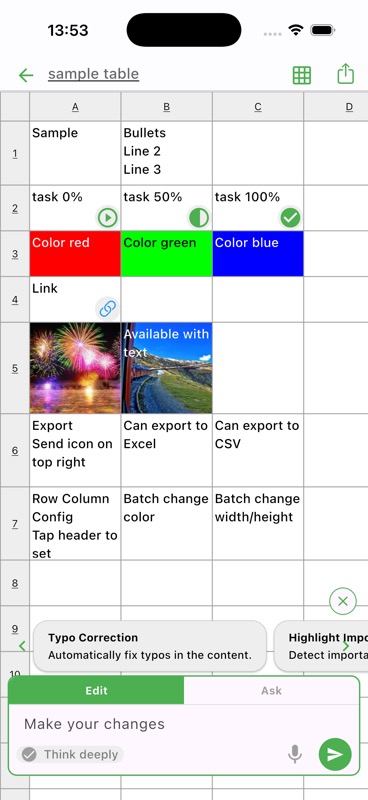
Ask AI a question about the table
- Tap the input field below the table and choose Ask.
- Send a question such as “Which items are running low?” and read the reply in the chat window.
ဆဲလ်များကို တည်းဖြတ်ပြီး အတန်းများ သို့မဟုတ် ကော်လံများ ထည့်ခြင်း
- ဆဲလ်တည်းဖြတ်မျက်နှာပြင်ကို ဖွင့်ရန် ပြောင်းလဲလိုသည့် ဆဲလ်ကို ရွေးပါ။
- အကြောင်းအရာကို ရိုက်ထည့်ပြီး အတည်ပြုပါက ဇယားကို အပ်ဒိတ်လုပ်ပါမည်။
- အတန်းများ သို့မဟုတ် ကော်လံများ ထည့်ရန် ဇယား၏ အောက်ဘက် သို့မဟုတ် ဘေးဘက်ရှိ + ကို နှိပ်ပါ။
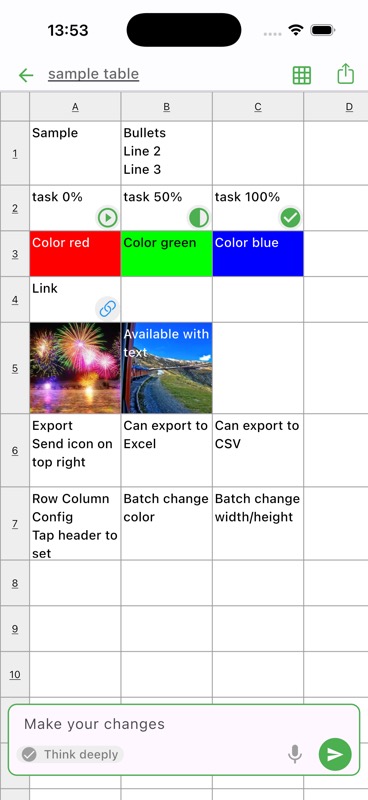
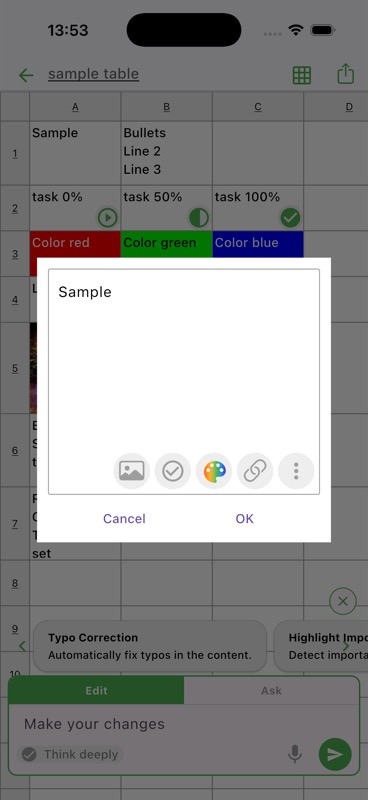
ဆဲလ်တစ်ခုသို့ ပုံထည့်ခြင်း
- ဆဲလ်တစ်ခုကိုဖွင့်၍ ပုံအိုင်ကွန်ကို ရွေးပြီး သင့်စက်မှ ပုံတစ်ပုံကို ရွေးပါ။
- ရှိပြီးသားပုံကို ဖယ်ရှားရန် တူညီသောအိုင်ကွန်ကို ထပ်ရွေးပါ။
ပုံများထည့်ခြင်းသည် အခပေးလုပ်ဆောင်ချက်ဖြစ်သည်။
ဇယားတစ်ခု ထုတ်ယူခြင်း
- ဇယားတည်းဖြတ်မျက်နှာပြင်ရှိ ထုတ်ယူရန်မီနူးကို ဖွင့်ပါ။
- ဇယား၏ အသွင်အပြင်ကို ထိန်းသိမ်းရန် ပုံ သို့မဟုတ် PDF ကို ရွေးပါ။ အခြားအက်ပ်တွင် ဇယားဒေတာကို အသုံးပြုရန် CSV သို့မဟုတ် Excel ကို ရွေးပါ၊ နောက်မှ ပြန်လည်တည်းဖြတ်ရန် အက်ပ်၏ ဖိုင်ဖော်မတ်ကို ရွေးပါ။
အသုံးပြုနိုင်သော ဖော်မတ်များသည် သင့်ပလက်ဖောင်းနှင့် အစီအစဉ်ပေါ် မူတည်ပါသည်။
ဝယ်ယူမှုများ
အခပေးအစီအစဉ် ဝယ်ယူရန်
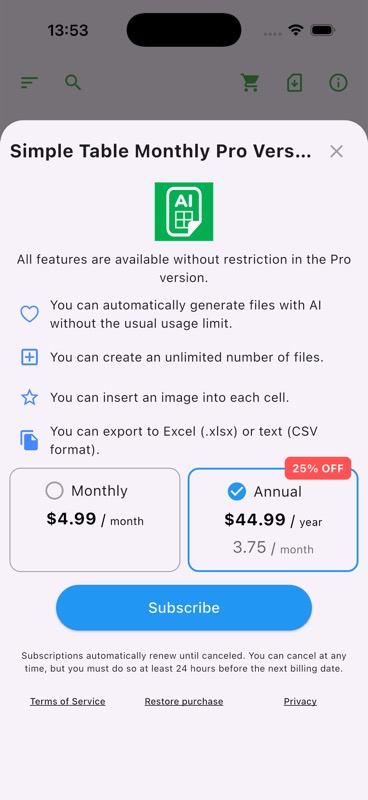
- ဖိုင်စာရင်းရှိ ဈေးဝယ်လှည်းအိုင်ကွန်ကို ရွေးချယ်ပါ။
- ဝယ်ယူမှုမျက်နှာပြင်တွင် အစီအစဉ်များနှင့် ဈေးနှုန်းများကို စစ်ဆေးပြီး ဝယ်ယူလိုသော အစီအစဉ်ကို ရွေးချယ်ပါ။
ဝယ်ယူမှုကို ပြန်လည်ရယူရန်
- အက်ပ်စတိုးမှ ဝယ်ယူထားပါက အစီအစဉ်ဝယ်ယူရာတွင် အသုံးပြုခဲ့သော စတိုးအကောင့်ဖြင့် ဝင်ရောက်ပါ။
- အက်ပ်အတွင်း ဝယ်ယူမှုမျက်နှာပြင်ကို ဖွင့်ပြီး «ဝယ်ယူမှုများ ပြန်လည်ရယူရန်» ကို ရွေးချယ်ကာ ရလဒ်ကို စစ်ဆေးပါ။
ဝယ်ယူမှု သို့မဟုတ် စာရင်းသွင်းမှုကို စီမံရန်
- ဖိုင်စာရင်း၏ အချက်အလက်မီနူးတွင် ဝယ်ယူမှုစီမံရန် ရွေးချယ်စရာရှိပါက ၎င်းကို ဖွင့်ပါ။
- သင့်စာရင်းသွင်းမှုကို စစ်ဆေးရန် သို့မဟုတ် ပယ်ဖျက်ရန် အစီအစဉ်ဝယ်ယူခဲ့သော စတိုး သို့မဟုတ် ဝန်ဆောင်မှုကို အသုံးပြုပါ။
အခပေးအကောင့်
သင့်ဝယ်ယူမှုကို Google အကောင့်နှင့် ချိတ်ဆက်ရန်
- အသက်ဝင်နေသော ဝယ်ယူမှုရှိသည့် စက်တွင် သင့် Google အကောင့်ဖြင့် ဝင်ရောက်ပါ။
- သင့်ဝယ်ယူမှုကို Google အကောင့်နှင့် ချိတ်ဆက်ရန် ရွေးချယ်စရာ မီနူးတွင် ပေါ်လာပါက ၎င်းကို ရွေးချယ်ပြီး အကောင့်ကို အတည်ပြုပါ။
- သင့်အခပေးအစီအစဉ်ကို ပံ့ပိုးပေးထားသော အခြားစက်တွင် အသုံးပြုရန် ချိတ်ဆက်ထားသည့် Google အကောင့်ဖြင့် ဝင်ရောက်ပါ။
Google အကောင့် ပြောင်းရန်
- ဖိုင်စာရင်း၏ အချက်အလက်မီနူးတွင် လက်ရှိအသုံးပြုနေသော Google အကောင့်ကို စစ်ဆေးပါ။
- အကောင့်မှ ထွက်ရန် ရွေးချယ်စရာရှိပါက ၎င်းကို ရွေးချယ်ပြီး Google Drive ကို ဖွင့်ကာ အသုံးပြုလိုသော အကောင့်ဖြင့် ဝင်ရောက်ပါ။
အခြားစက်တစ်ခုတွင် ဝယ်ယူမှု သို့မဟုတ် သင်ဝင်ရောက်အသုံးပြုလိုသော Drive ဖိုင်များနှင့် ချိတ်ဆက်ထားသည့် အကောင့်ကို အသုံးပြုပါ။