ဖိုင်စာရင်း
Create a flowchart
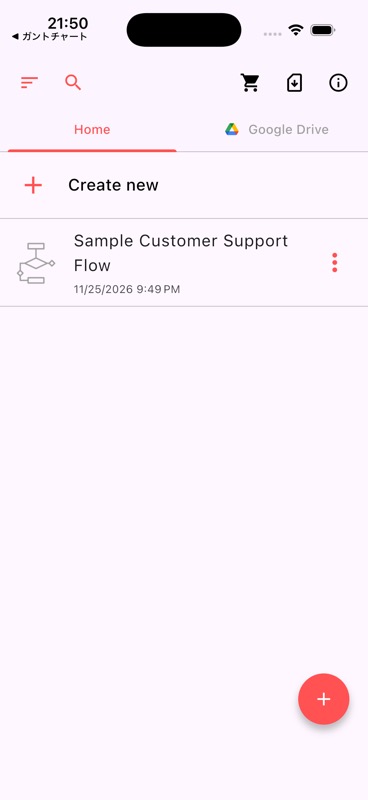
- Tap the + Create new row in the file list.
- Enter a file name and select OK to open the diagram editor.
ဖိုင်များ၏ စီစဉ်မှုအစီအစဉ်ကို ပြောင်းလဲရန်
- ဖိုင်စာရင်း၏ ထိပ်ပိုင်းရှိ စီစဉ်မှု ထိန်းချုပ်ခလုတ်ကို အသုံးပြုပါ။ မျက်နှာပြင်သေးပါက စီစဉ်မှုမီနူးကို ဖွင့်ပါ။
- နောက်ဆုံးပြင်ဆင်သည့်ရက်စွဲ သို့မဟုတ် ဖိုင်အမည်အလိုက် စီစဉ်ရန် ရွေးချယ်ပါ။
Search for a file by name
- Open Home or Google Drive, depending on where the file is stored, and select the Search icon.
- Enter part of the name in Search by file name. Select Close to see the full list again.
ဖိုင်ပွားရန်
- ဖိုင်၏ အစက်သုံးစက်မီနူးကို ဖွင့်ပြီး ပွားရန်ကို ရွေးချယ်ပါ။
- မူရင်းဖိုင်ကို မပြောင်းလဲဘဲ တည်းဖြတ်ရန် စာရင်းထဲသို့ ထည့်ထားသည့် မိတ္တူကို ဖွင့်ပါ။
ဖိုင်ဖျက်ရန်
- ဖိုင်၏ အစက်သုံးစက်မီနူးကို ဖွင့်ပြီး ဖျက်ရန်ကို ရွေးချယ်ပါ။
- အတည်ပြုချက် တောင်းခံသည့် စာသားကို စစ်ဆေးပြီး OK ကို ရွေးချယ်ပါ။
သင်နှင့် မျှဝေထားသော ဖိုင်အတွက် မီနူးတွင် မျှဝေမှုကို ဖယ်ရှားရန် ရွေးချယ်စရာ ပါရှိနိုင်ပါသည်။
ဖိုင်အမည်ပြောင်းရန်
- ဖိုင်၏ အစက်သုံးစက် မီနူးကိုဖွင့်ပြီး အမည်ပြောင်းရန်ကို ရွေးပါ။
- အမည်အသစ်ကို ရိုက်ထည့်ပြီး အတည်ပြုပါ။
သင်နှင့် မျှဝေထားသော Google Drive ဖိုင်၏ အမည်ကို ပြောင်းရန် တည်းဖြတ်ခွင့် လိုအပ်ပါသည်။
Import a flowchart
- Select Import in the file list, then select OK to open the file picker.
- Choose a Simple Flowchart file (.sflowchart).
Google Drive တွင် သိမ်းဆည်းခြင်း
- ဖိုင်စာရင်းတွင် Google Drive ကို ရွေးပြီး သင့် Google အကောင့်ကို ချိတ်ဆက်ရန် လမ်းညွှန်ချက်များအတိုင်း လုပ်ဆောင်ပါ။
- Google Drive စာရင်းမှ ဖိုင်အသစ်တစ်ခု ဖန်တီးပါ။ ထိုရွေးချယ်စရာ ရရှိနိုင်ပါက စက်တွင်းဖိုင်တစ်ခုကို ၎င်း၏ အစက်သုံးစက် မီနူးမှတစ်ဆင့် Google Drive သို့ ရွှေ့နိုင်ပါသည်။
အခြားစက်တစ်ခုတွင် ဖိုင်ကို ဖွင့်ရန် ၎င်းကို သိမ်းဆည်းရာတွင် အသုံးပြုခဲ့သည့် Google အကောင့်ကို ချိတ်ဆက်ပါ။
သင့်စက်နှင့် Google Drive အကြား ဖိုင်များ ရွှေ့ခြင်း
- စက်တွင် ထည့်သွင်းထားသော အက်ပ်၌ သင့် Google အကောင့်ကို ချိတ်ဆက်ပြီး ဖိုင်၏ အစက်သုံးစက် မီနူးကို ဖွင့်ပါ။
- ဖိုင်သိမ်းဆည်းထားသည့် နေရာပေါ်မူတည်၍ Google Drive သို့ ရွှေ့ရန် သို့မဟုတ် ပင်မစာမျက်နှာသို့ ရွှေ့ရန်ကို ရွေးပြီး အတည်ပြုပါ။
ဖိုင်များ တည်းဖြတ်ခြင်း
Add shapes and edit their text
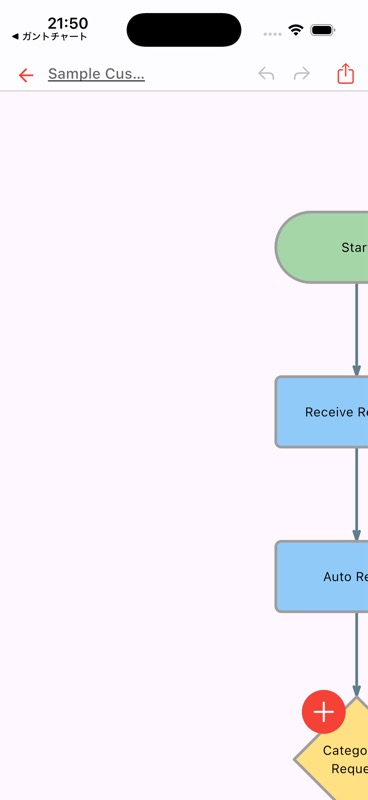
- Tap the red + button to add a shape. If a shape is already selected, the app also connects it to the new shape.
- Select the shape and tap the edit icon at the bottom to change its text.
- Use Change shape in the bottom toolbar to choose a shape for a process, decision, or other step.
Connect shapes with a line
- Tap the shape where the line should start.
- Tap Connection Line. When prompted, tap the destination shape.
- Select the new line to adjust its style or arrow.
Adjust a shape’s position or size
- Select a shape and choose Adjust position or Change size in the bottom toolbar.
- Use the controls that appear to adjust the shape, then confirm the change.
Export a flowchart
- Select the share icon in the top-right corner of the editor.
- Use Image (.png) or PDF to share a visual copy. Select Mermaid (.mermaid) to use the diagram with Mermaid, or SimpleFlowchart(.sflowchart) to reimport it into the app.
Export formats marked with a lock require Pro.
ဝယ်ယူမှုများ
အခပေးအစီအစဉ် ဝယ်ယူရန်
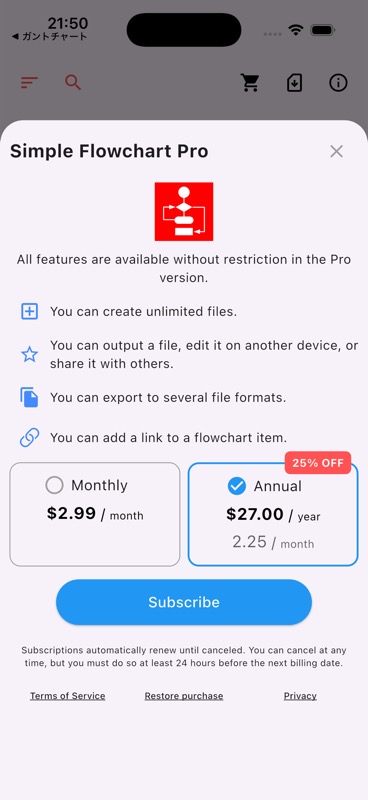
- ဖိုင်စာရင်းရှိ ဈေးဝယ်လှည်းအိုင်ကွန်ကို ရွေးချယ်ပါ။
- ဝယ်ယူမှုမျက်နှာပြင်တွင် အစီအစဉ်များနှင့် ဈေးနှုန်းများကို စစ်ဆေးပြီး ဝယ်ယူလိုသော အစီအစဉ်ကို ရွေးချယ်ပါ။
ဝယ်ယူမှုကို ပြန်လည်ရယူရန်
- အက်ပ်စတိုးမှ ဝယ်ယူထားပါက အစီအစဉ်ဝယ်ယူရာတွင် အသုံးပြုခဲ့သော စတိုးအကောင့်ဖြင့် ဝင်ရောက်ပါ။
- အက်ပ်အတွင်း ဝယ်ယူမှုမျက်နှာပြင်ကို ဖွင့်ပြီး «ဝယ်ယူမှုများ ပြန်လည်ရယူရန်» ကို ရွေးချယ်ကာ ရလဒ်ကို စစ်ဆေးပါ။
ဝယ်ယူမှု သို့မဟုတ် စာရင်းသွင်းမှုကို စီမံရန်
- ဖိုင်စာရင်း၏ အချက်အလက်မီနူးတွင် ဝယ်ယူမှုစီမံရန် ရွေးချယ်စရာရှိပါက ၎င်းကို ဖွင့်ပါ။
- သင့်စာရင်းသွင်းမှုကို စစ်ဆေးရန် သို့မဟုတ် ပယ်ဖျက်ရန် အစီအစဉ်ဝယ်ယူခဲ့သော စတိုး သို့မဟုတ် ဝန်ဆောင်မှုကို အသုံးပြုပါ။
အခပေးအကောင့်
သင့်ဝယ်ယူမှုကို Google အကောင့်နှင့် ချိတ်ဆက်ရန်
- အသက်ဝင်နေသော ဝယ်ယူမှုရှိသည့် စက်တွင် သင့် Google အကောင့်ဖြင့် ဝင်ရောက်ပါ။
- သင့်ဝယ်ယူမှုကို Google အကောင့်နှင့် ချိတ်ဆက်ရန် ရွေးချယ်စရာ မီနူးတွင် ပေါ်လာပါက ၎င်းကို ရွေးချယ်ပြီး အကောင့်ကို အတည်ပြုပါ။
- သင့်အခပေးအစီအစဉ်ကို ပံ့ပိုးပေးထားသော အခြားစက်တွင် အသုံးပြုရန် ချိတ်ဆက်ထားသည့် Google အကောင့်ဖြင့် ဝင်ရောက်ပါ။
Google အကောင့် ပြောင်းရန်
- ဖိုင်စာရင်း၏ အချက်အလက်မီနူးတွင် လက်ရှိအသုံးပြုနေသော Google အကောင့်ကို စစ်ဆေးပါ။
- အကောင့်မှ ထွက်ရန် ရွေးချယ်စရာရှိပါက ၎င်းကို ရွေးချယ်ပြီး Google Drive ကို ဖွင့်ကာ အသုံးပြုလိုသော အကောင့်ဖြင့် ဝင်ရောက်ပါ။
အခြားစက်တစ်ခုတွင် ဝယ်ယူမှု သို့မဟုတ် သင်ဝင်ရောက်အသုံးပြုလိုသော Drive ဖိုင်များနှင့် ချိတ်ဆက်ထားသည့် အကောင့်ကို အသုံးပြုပါ။