ဖိုင်စာရင်း
Create an HTML file
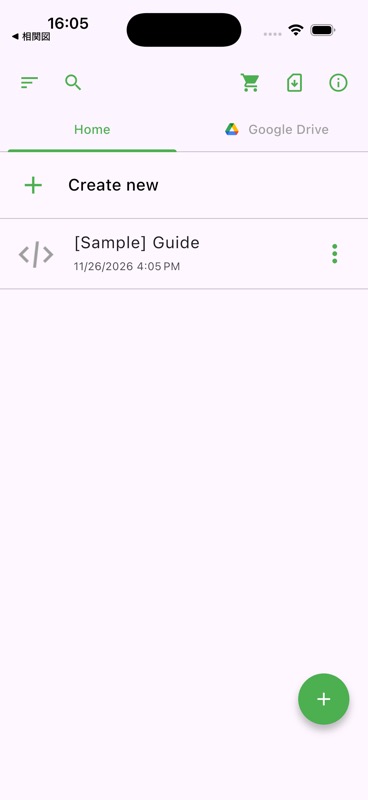
- Select + Create new in the file list.
- Enter a name for the page, then select OK to open the editor.
ဖိုင်များ၏ စီစဉ်မှုအစီအစဉ်ကို ပြောင်းလဲရန်
- ဖိုင်စာရင်း၏ ထိပ်ပိုင်းရှိ စီစဉ်မှု ထိန်းချုပ်ခလုတ်ကို အသုံးပြုပါ။ မျက်နှာပြင်သေးပါက စီစဉ်မှုမီနူးကို ဖွင့်ပါ။
- နောက်ဆုံးပြင်ဆင်သည့်ရက်စွဲ သို့မဟုတ် ဖိုင်အမည်အလိုက် စီစဉ်ရန် ရွေးချယ်ပါ။
Search for a file by name
- Open Home or Google Drive, depending on where the file is stored, and select the Search icon.
- Enter part of the name in Search by file name. Select Close to see the full list again.
ဖိုင်ပွားရန်
- ဖိုင်၏ အစက်သုံးစက်မီနူးကို ဖွင့်ပြီး ပွားရန်ကို ရွေးချယ်ပါ။
- မူရင်းဖိုင်ကို မပြောင်းလဲဘဲ တည်းဖြတ်ရန် စာရင်းထဲသို့ ထည့်ထားသည့် မိတ္တူကို ဖွင့်ပါ။
ဖိုင်ဖျက်ရန်
- ဖိုင်၏ အစက်သုံးစက်မီနူးကို ဖွင့်ပြီး ဖျက်ရန်ကို ရွေးချယ်ပါ။
- အတည်ပြုချက် တောင်းခံသည့် စာသားကို စစ်ဆေးပြီး OK ကို ရွေးချယ်ပါ။
သင်နှင့် မျှဝေထားသော ဖိုင်အတွက် မီနူးတွင် မျှဝေမှုကို ဖယ်ရှားရန် ရွေးချယ်စရာ ပါရှိနိုင်ပါသည်။
ဖိုင်အမည်ပြောင်းရန်
- ဖိုင်၏ အစက်သုံးစက် မီနူးကိုဖွင့်ပြီး အမည်ပြောင်းရန်ကို ရွေးပါ။
- အမည်အသစ်ကို ရိုက်ထည့်ပြီး အတည်ပြုပါ။
သင်နှင့် မျှဝေထားသော Google Drive ဖိုင်၏ အမည်ကို ပြောင်းရန် တည်းဖြတ်ခွင့် လိုအပ်ပါသည်။
Import an existing HTML file
- Select Import in the file list, then select OK to open the file picker.
- Choose an HTML file (.html or .htm) and open it from the list.
Google Drive တွင် သိမ်းဆည်းခြင်း
- ဖိုင်စာရင်းတွင် Google Drive ကို ရွေးပြီး သင့် Google အကောင့်ကို ချိတ်ဆက်ရန် လမ်းညွှန်ချက်များအတိုင်း လုပ်ဆောင်ပါ။
- Google Drive စာရင်းမှ ဖိုင်အသစ်တစ်ခု ဖန်တီးပါ။ ထိုရွေးချယ်စရာ ရရှိနိုင်ပါက စက်တွင်းဖိုင်တစ်ခုကို ၎င်း၏ အစက်သုံးစက် မီနူးမှတစ်ဆင့် Google Drive သို့ ရွှေ့နိုင်ပါသည်။
အခြားစက်တစ်ခုတွင် ဖိုင်ကို ဖွင့်ရန် ၎င်းကို သိမ်းဆည်းရာတွင် အသုံးပြုခဲ့သည့် Google အကောင့်ကို ချိတ်ဆက်ပါ။
သင့်စက်နှင့် Google Drive အကြား ဖိုင်များ ရွှေ့ခြင်း
- စက်တွင် ထည့်သွင်းထားသော အက်ပ်၌ သင့် Google အကောင့်ကို ချိတ်ဆက်ပြီး ဖိုင်၏ အစက်သုံးစက် မီနူးကို ဖွင့်ပါ။
- ဖိုင်သိမ်းဆည်းထားသည့် နေရာပေါ်မူတည်၍ Google Drive သို့ ရွှေ့ရန် သို့မဟုတ် ပင်မစာမျက်နှာသို့ ရွှေ့ရန်ကို ရွေးပြီး အတည်ပြုပါ။
ဖိုင်များ တည်းဖြတ်ခြင်း
Edit HTML and preview the page
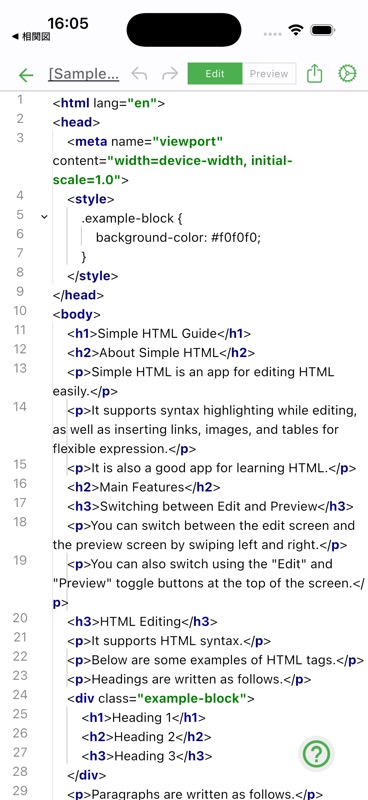
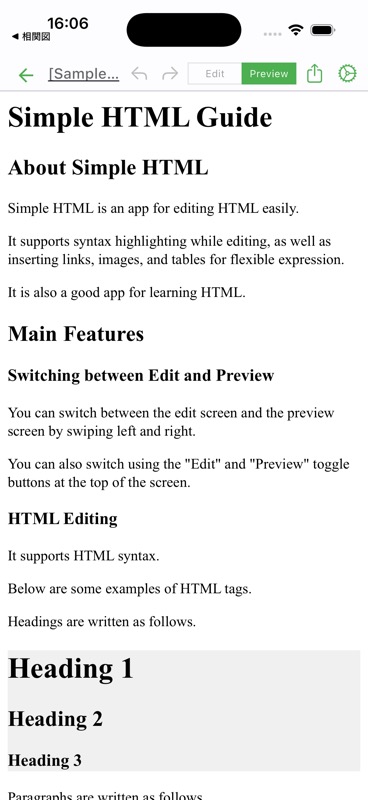
- Select Edit at the top and change the page text or markup. Try changing a heading or paragraph first.
- Switch to Preview to check the headings, links, and layout. Return to Edit to make more changes.
Find and replace text in HTML
- While in Edit, select the gear icon in the top-right corner and choose Search & Replace in Editor Settings.
- Enter the text to find and move to the previous or next match. Use the Replace icon to open the replacement field, enter the new text, and choose Replace or Replace All.
Format HTML and adjust how lines are displayed
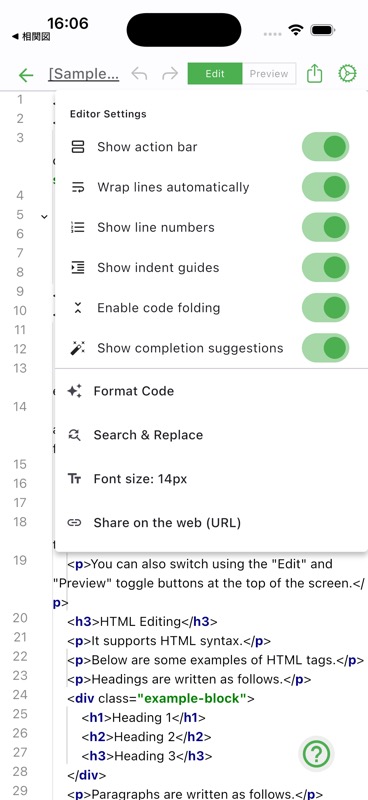
- Open the gear menu in the editor and select Format Code to tidy up indentation.
- Use the word wrap and line number settings to adjust how the code is displayed.
Share the HTML page by URL
- Open the gear menu in the top-right corner and choose Share on the web (URL).
- Copy the generated URL and send it to the recipient. The link shows the page as it was when the URL was created.
A shared URL cannot be revoked. Check what it contains before sending it.
Export a page as HTML, an image, or PDF
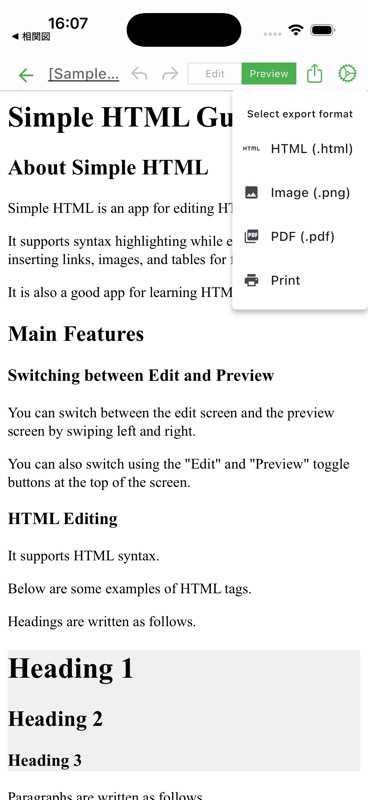
- Select the share icon at the top of the screen. Choose HTML (.html) to reopen the file in a browser or edit it later.
- On a phone, choose PNG or PDF to preserve the page’s appearance.
ဝယ်ယူမှုများ
အခပေးအစီအစဉ် ဝယ်ယူရန်
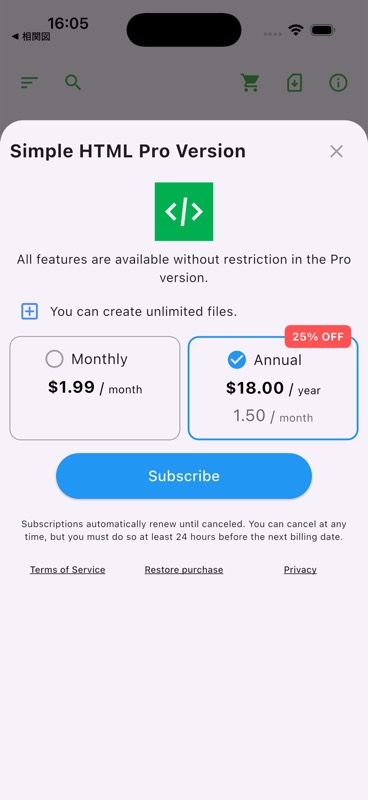
- ဖိုင်စာရင်းရှိ ဈေးဝယ်လှည်းအိုင်ကွန်ကို ရွေးချယ်ပါ။
- ဝယ်ယူမှုမျက်နှာပြင်တွင် အစီအစဉ်များနှင့် ဈေးနှုန်းများကို စစ်ဆေးပြီး ဝယ်ယူလိုသော အစီအစဉ်ကို ရွေးချယ်ပါ။
ဝယ်ယူမှုကို ပြန်လည်ရယူရန်
- အက်ပ်စတိုးမှ ဝယ်ယူထားပါက အစီအစဉ်ဝယ်ယူရာတွင် အသုံးပြုခဲ့သော စတိုးအကောင့်ဖြင့် ဝင်ရောက်ပါ။
- အက်ပ်အတွင်း ဝယ်ယူမှုမျက်နှာပြင်ကို ဖွင့်ပြီး «ဝယ်ယူမှုများ ပြန်လည်ရယူရန်» ကို ရွေးချယ်ကာ ရလဒ်ကို စစ်ဆေးပါ။
ဝယ်ယူမှု သို့မဟုတ် စာရင်းသွင်းမှုကို စီမံရန်
- ဖိုင်စာရင်း၏ အချက်အလက်မီနူးတွင် ဝယ်ယူမှုစီမံရန် ရွေးချယ်စရာရှိပါက ၎င်းကို ဖွင့်ပါ။
- သင့်စာရင်းသွင်းမှုကို စစ်ဆေးရန် သို့မဟုတ် ပယ်ဖျက်ရန် အစီအစဉ်ဝယ်ယူခဲ့သော စတိုး သို့မဟုတ် ဝန်ဆောင်မှုကို အသုံးပြုပါ။
အခပေးအကောင့်
သင့်ဝယ်ယူမှုကို Google အကောင့်နှင့် ချိတ်ဆက်ရန်
- အသက်ဝင်နေသော ဝယ်ယူမှုရှိသည့် စက်တွင် သင့် Google အကောင့်ဖြင့် ဝင်ရောက်ပါ။
- သင့်ဝယ်ယူမှုကို Google အကောင့်နှင့် ချိတ်ဆက်ရန် ရွေးချယ်စရာ မီနူးတွင် ပေါ်လာပါက ၎င်းကို ရွေးချယ်ပြီး အကောင့်ကို အတည်ပြုပါ။
- သင့်အခပေးအစီအစဉ်ကို ပံ့ပိုးပေးထားသော အခြားစက်တွင် အသုံးပြုရန် ချိတ်ဆက်ထားသည့် Google အကောင့်ဖြင့် ဝင်ရောက်ပါ။
Google အကောင့် ပြောင်းရန်
- ဖိုင်စာရင်း၏ အချက်အလက်မီနူးတွင် လက်ရှိအသုံးပြုနေသော Google အကောင့်ကို စစ်ဆေးပါ။
- အကောင့်မှ ထွက်ရန် ရွေးချယ်စရာရှိပါက ၎င်းကို ရွေးချယ်ပြီး Google Drive ကို ဖွင့်ကာ အသုံးပြုလိုသော အကောင့်ဖြင့် ဝင်ရောက်ပါ။
အခြားစက်တစ်ခုတွင် ဝယ်ယူမှု သို့မဟုတ် သင်ဝင်ရောက်အသုံးပြုလိုသော Drive ဖိုင်များနှင့် ချိတ်ဆက်ထားသည့် အကောင့်ကို အသုံးပြုပါ။