Index fasciculorum
Create a table from text with AI
- In the file list, select Text input under Create new with AI.
- Describe the columns and information you need, such as “Create an inventory with columns for item, quantity, and storage location,” then select OK.
- Check that the generated headings and numbers match the information you provided.
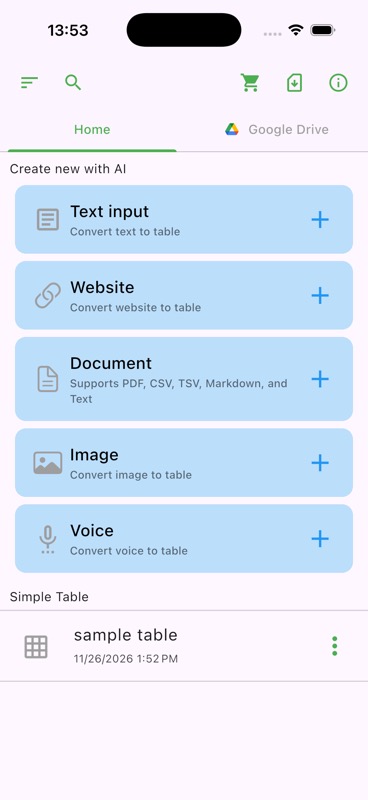
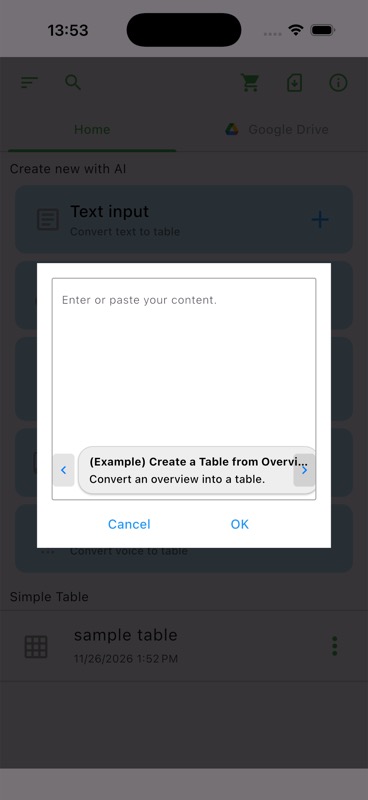
Create a table from a document, image, website, or voice input
- Under Create new with AI in the file list, choose Document, Image, Website, or Voice.
- Select the file or image, enter the page URL, or provide voice input. Compare the resulting table with the source material.
Ordinem fasciculorum mutare
- Instrumento ordinandi in summo indice fasciculorum utere. Si monitor parvus est, indicem ordinandi aperi.
- Elige utrum secundum diem mutationis an secundum nomen fasciculi ordines.
Search for a file by name
- Open Home or Google Drive, depending on where the file is stored, and select the Search icon.
- Enter part of the name in Search by file name. Select Close to see the full list again.
Fasciculum duplicare
- Indicem trium punctorum fasciculi aperi et «Duplicare» elige.
- Exemplar indici additum aperi ut illud recenseas, originali servato.
Fasciculum delere
- Indicem trium punctorum fasciculi aperi et «Delere» elige.
- Nuntium confirmationis inspice et «OK» elige.
Si fasciculus tecum communicatus est, index optionem communicationis tollendae praebere potest.
Nomen fasciculi mutare
- Aperi fasciculi indicem trium punctorum et elige «Nomen mutare».
- Novum nomen insere et confirma.
Ut nomen fasciculi Google Drive tecum communicati mutes, iure eum emendandi opus est.
Import an existing table into Simple Table AI
- Select Import in the file list and select OK to open the file picker.
- Select a CSV, TSV, TXT, or Simple Table (.simpletable) file.
Save an AI-generated file to Google Drive
- Choose Google Drive in the file list and sign in to your Google Account if prompted.
- With the Google Drive tab open, create a file using Create new with AI. To move a local file, select Move to Google Drive from its three-dot menu if the option is available.
Ut fasciculum in alio instrumento aperias, rationem Google qua ad eum servandum usus es conecta.
Fasciculos inter instrumentum tuum et Google Drive transferre
- In applicatione installata rationem tuam Google conecta et indicem trium punctorum fasciculi aperi.
- Pro loco ubi fasciculus servatus est, elige «In Google Drive transferre» vel «Ad domum transferre» et confirma.
Fasciculos recensere
Revise a table with AI
- Tap the input field below the table and choose Edit.
- Enter a change such as “Add an Owner column on the right” and select Send. Review the updated cells or headings.
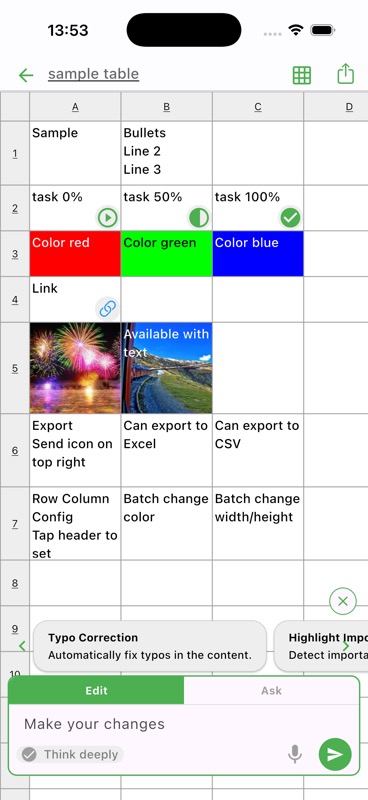
Ask AI a question about the table
- Tap the input field below the table and choose Ask.
- Send a question such as “Which items are running low?” and read the reply in the chat window.
Cellulas emendare et ordines vel columnas addere
- Cellulam quam mutare vis elige ut instrumentum eius emendandi aperiatur.
- Contenta insere et confirma ut tabula renovetur.
- Signo «+» in imo vel ad latus tabulae utere ut ordines vel columnas addas.
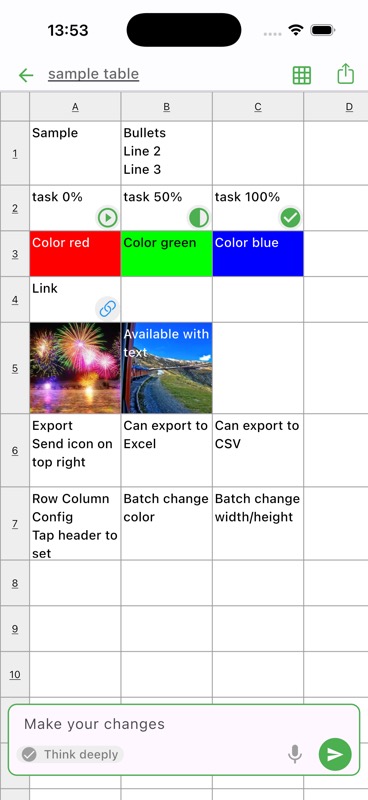
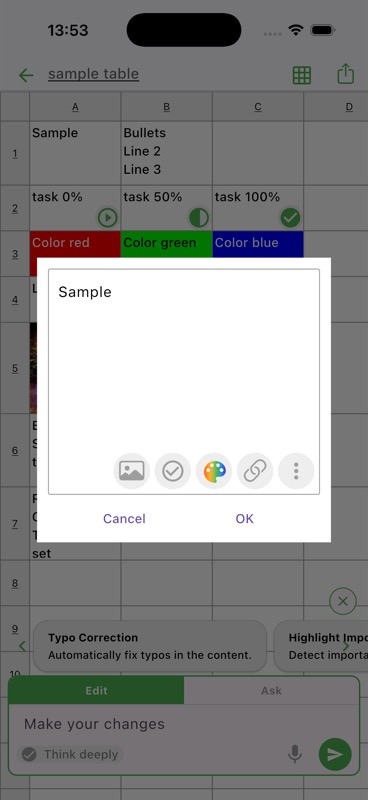
Imaginem cellae adde
- Aperi cellam, elige signum imaginis et imaginem e tuo instrumento elige.
- Ut imaginem iam additam removeas, idem signum iterum elige.
Imagines addere est functio mercede utenda.
Tabulam exporta
- Aperi menu exportationis in editore tabulae.
- Elige imaginem vel PDF ut speciem serves, CSV vel Excel ut data tabulae in alia applicatione adhibeas, aut formam propriam applicationis ut tabulam postea iterum edas.
Formae fasciculorum praesto positae a suggestu tuo et consilio pendent.
Emptiones
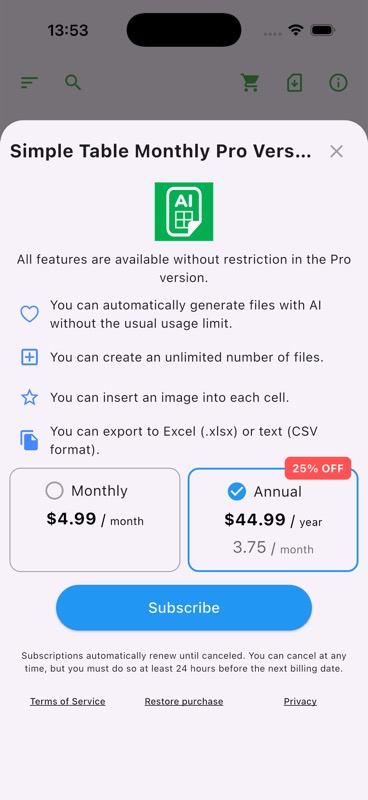
Consilium mercede emere
- In indice fasciculorum iconem corbis elige.
- In pagina emptionis consilia et pretia inspice, deinde consilium quod emere vis elige.
Emptionem restituere
- Si consilium in taberna applicationum emisti, ratione usoris eiusdem tabernae qua ad emendum usus es in adi.
- In applicatione paginam emptionis aperi, «Emptiones restituere» elige et exitum inspice.
Emptionem vel subscriptionem administrare
- Si in tabula informationum indicis fasciculorum optio administrandae emptionis adest, eam aperi.
- Taberna vel servitio quo consilium emisti utere ad subscriptionem inspiciendam vel rescindendam.
Ratio usoris mercede soluta
Emptionem cum ratione Google coniungere
- In instrumento in quo emptio tua adhuc valet, ratione tua Google in adi.
- Si optio emptionis cum ratione Google coniungendae in tabula apparet, eam elige et rationem confirma.
- Ut consilio mercede empto in alio instrumento quod sustinetur utaris, ratione Google coniuncta in adi.
Rationem Google mutare
- In tabula informationum indicis fasciculorum inspice quae ratio Google activa sit.
- Si optio exeundi adest, eam elige; deinde Google Drive aperi et ratione qua uti vis in adi.
In alio instrumento ratione utere quae cum emptione vel cum fasciculis Drive quos adire vis coniuncta est.