Index fasciculorum
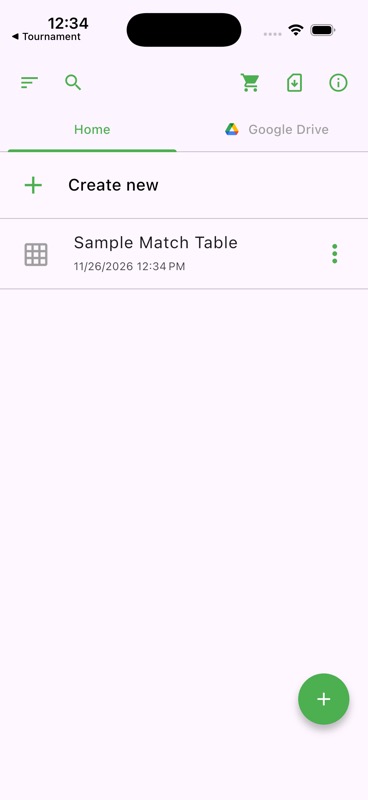
Create a match table
- Select the + Create new row in the file list.
- Enter a name for the match table and select OK.
Ordinem fasciculorum mutare
- Instrumento ordinandi in summo indice fasciculorum utere. Si monitor parvus est, indicem ordinandi aperi.
- Elige utrum secundum diem mutationis an secundum nomen fasciculi ordines.
Search for a file by name
- Open Home or Google Drive, depending on where the file is stored, and select the Search icon.
- Enter part of the name in Search by file name. Select Close to see the full list again.
Fasciculum duplicare
- Indicem trium punctorum fasciculi aperi et «Duplicare» elige.
- Exemplar indici additum aperi ut illud recenseas, originali servato.
Fasciculum delere
- Indicem trium punctorum fasciculi aperi et «Delere» elige.
- Nuntium confirmationis inspice et «OK» elige.
Si fasciculus tecum communicatus est, index optionem communicationis tollendae praebere potest.
Nomen fasciculi mutare
- Aperi fasciculi indicem trium punctorum et elige «Nomen mutare».
- Novum nomen insere et confirma.
Ut nomen fasciculi Google Drive tecum communicati mutes, iure eum emendandi opus est.
Import a match table
- Select Import in the file list and select OK to open the file picker.
- Choose a Simple MatchTable file (.matchtable).
In Google Drive servare
- In indice fasciculorum Google Drive elige et praecepta sequere ut rationem tuam Google conectas.
- Novum fasciculum ex indice Google Drive crea. Si optio praesto est, fasciculum in instrumento servatum etiam per eius indicem trium punctorum in Google Drive transferre potes.
Ut fasciculum in alio instrumento aperias, rationem Google qua ad eum servandum usus es conecta.
Fasciculos inter instrumentum tuum et Google Drive transferre
- In applicatione installata rationem tuam Google conecta et indicem trium punctorum fasciculi aperi.
- Pro loco ubi fasciculus servatus est, elige «In Google Drive transferre» vel «Ad domum transferre» et confirma.
Fasciculos recensere
Enter teams or players
- Tap the team name at the top of a column or at the start of a row. Enter a name and select OK.
- To add more participants, use + at the right or bottom edge of the table.
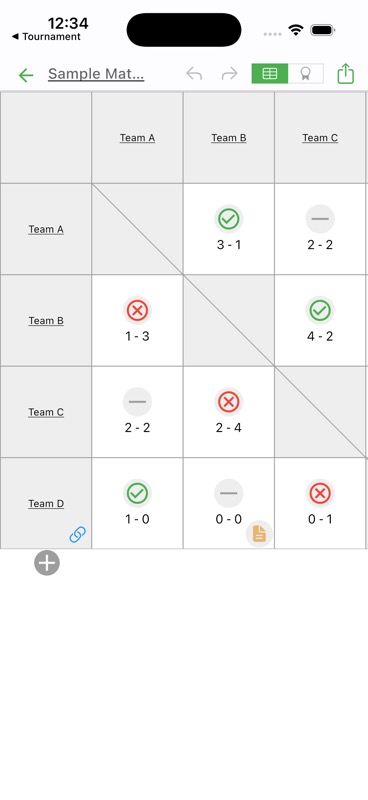
Record scores and match results
- Tap the cell where the two opponents’ row and column intersect.
- Enter both scores. Use Win Loss Settings to choose a win, loss, or draw as needed, then select OK.
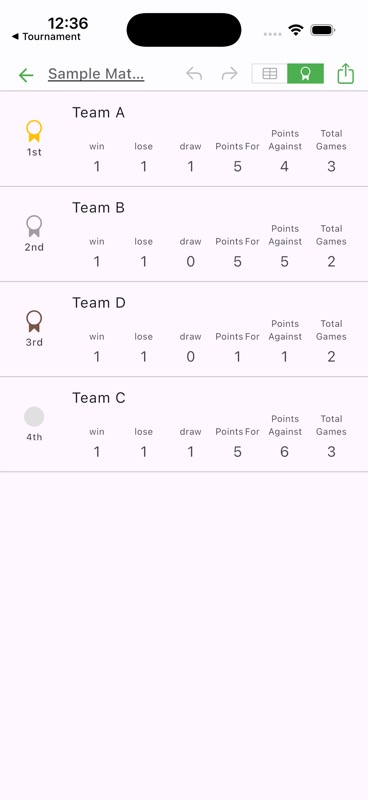
View team standings
- Select the medal icon at the top of the editor.
- Review the standings and each team’s wins, losses, draws, points scored, points conceded, and total matches. Select the table icon to the left of the medal to return to the match table.
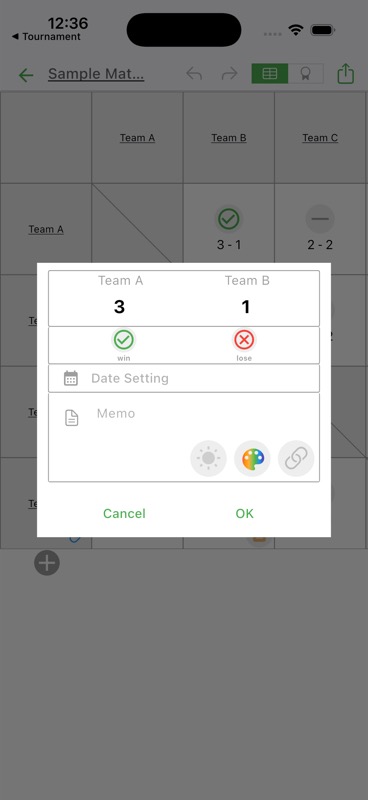
Record the date and a note for a match
- Open the match cell and select Date Setting to choose the date.
- Enter the venue or other details in the note field, then select OK.
Export a match table
- Select the share icon in the top-right corner of the editor.
- Choose CSV or Excel to analyze results in another app, or save the native .matchtable file to edit it again later.
Export formats marked with a lock require Pro.
Emptiones
Consilium mercede emere
- In indice fasciculorum iconem corbis elige.
- In pagina emptionis consilia et pretia inspice, deinde consilium quod emere vis elige.
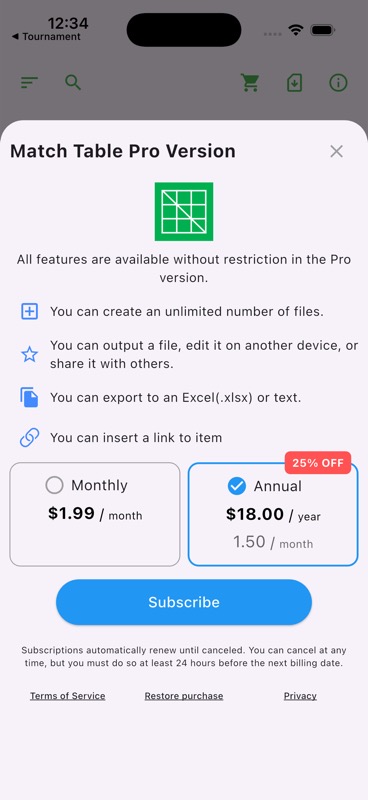
Emptionem restituere
- Si consilium in taberna applicationum emisti, ratione usoris eiusdem tabernae qua ad emendum usus es in adi.
- In applicatione paginam emptionis aperi, «Emptiones restituere» elige et exitum inspice.
Emptionem vel subscriptionem administrare
- Si in tabula informationum indicis fasciculorum optio administrandae emptionis adest, eam aperi.
- Taberna vel servitio quo consilium emisti utere ad subscriptionem inspiciendam vel rescindendam.
Ratio usoris mercede soluta
Emptionem cum ratione Google coniungere
- In instrumento in quo emptio tua adhuc valet, ratione tua Google in adi.
- Si optio emptionis cum ratione Google coniungendae in tabula apparet, eam elige et rationem confirma.
- Ut consilio mercede empto in alio instrumento quod sustinetur utaris, ratione Google coniuncta in adi.
Rationem Google mutare
- In tabula informationum indicis fasciculorum inspice quae ratio Google activa sit.
- Si optio exeundi adest, eam elige; deinde Google Drive aperi et ratione qua uti vis in adi.
In alio instrumento ratione utere quae cum emptione vel cum fasciculis Drive quos adire vis coniuncta est.