Fillista
Create a relationship map file
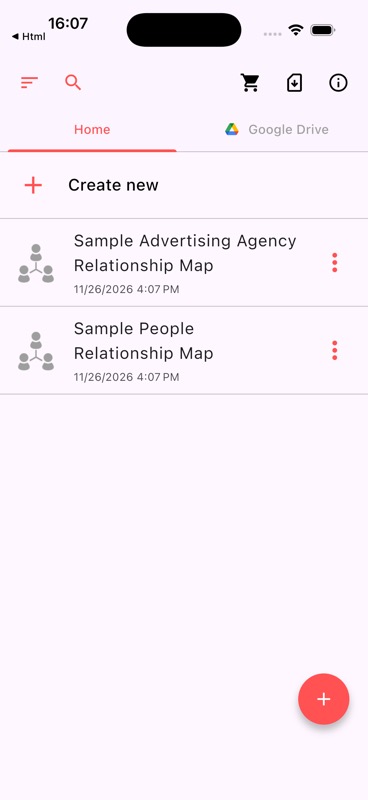
- Select + Create new in the file list.
- Enter a name, then select OK to open the relationship map editor.
Ändra filernas sorteringsordning
- Använd sorteringskontrollen högst upp i fillistan. På en liten skärm öppnar du sorteringsmenyn.
- Välj att sortera efter ändringsdatum eller filnamn.
Search for a file by name
- Open Home or Google Drive, depending on where the file is stored, and select the Search icon.
- Enter part of the name in Search by file name. Select Close to see the full list again.
Duplicera en fil
- Öppna filens trepunktsmeny och välj Duplicera.
- Öppna kopian som lagts till i listan för att redigera den utan att ändra originalet.
Ta bort en fil
- Öppna filens trepunktsmeny och välj Ta bort.
- Kontrollera bekräftelsemeddelandet och välj OK.
För en fil som delats med dig kan menyn erbjuda ett alternativ för att ta bort delningen.
Byt namn på en fil
- Öppna filens trepunktsmeny och välj Byt namn.
- Ange det nya namnet och bekräfta.
Du behöver redigeringsbehörighet för att byta namn på en Google Drive-fil som delats med dig.
Import a Simple Relationship Map file
- Select Import in the file list, then select OK to open the file picker.
- Choose a Simple Relationship Map (.srelationship) file. You can also import a JSON file containing data in the same format.
Spara på Google Drive
- Välj Google Drive i fillistan och följ anvisningarna för att ansluta ditt Google-konto.
- Skapa en ny fil från Google Drive-listan. Om alternativet är tillgängligt kan du även flytta en lokal fil till Google Drive via filens trepunktsmeny.
Anslut det Google-konto du använde för att spara filen om du vill öppna den på en annan enhet.
Flytta filer mellan din enhet och Google Drive
- Anslut ditt Google-konto i den installerade appen och öppna filens trepunktsmeny.
- Välj Flytta till Google Drive eller Flytta till Hem, beroende på var filen är sparad, och bekräfta.
Redigera filer
Add people or items
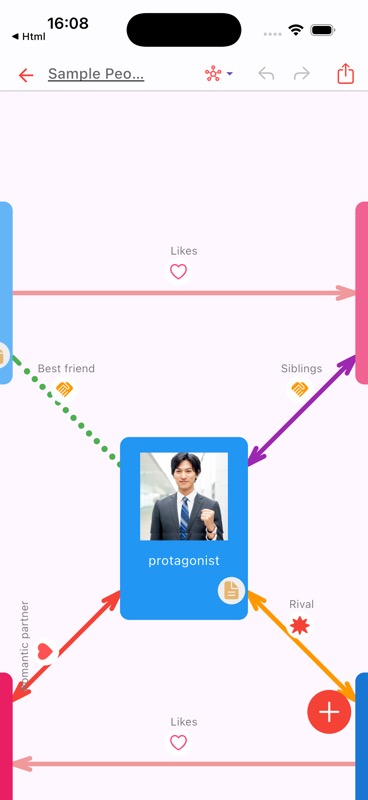
- Select + at the bottom of the editor to add an item. If another item is selected, the app also connects it to the new item.
- Tap the selected item again or select the pencil icon at the bottom, then enter a name or label.
Connect existing items with a line
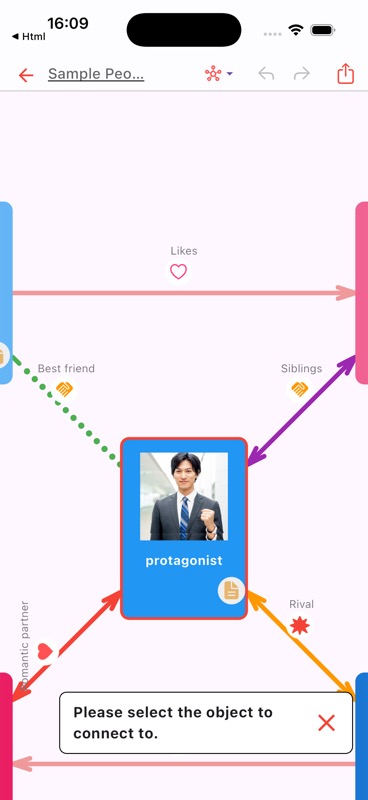
- Tap the item where the connection should start, then select Connection Line at the bottom of the screen.
- Tap the item you want to connect it to. To add a label, tap the new line to select it, then tap it again and enter a relationship such as “Coworkers” or “Assigns work.”
Change the arrow or line style
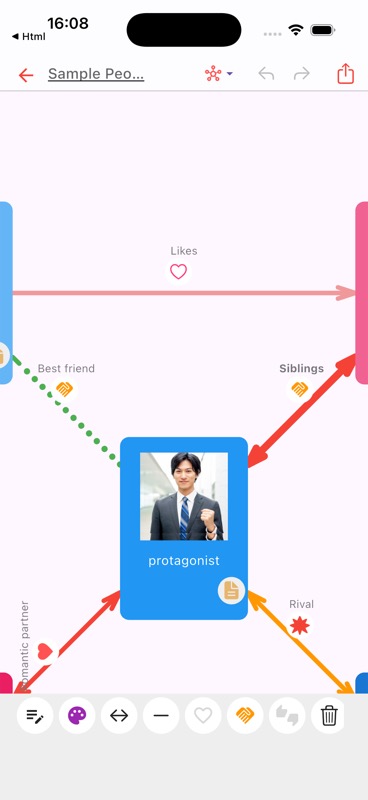
- Tap a connection line to select it, then use the arrow or line style button at the bottom.
- Each tap cycles through the available styles. Check the arrow direction and whether the line is solid or dashed.
Export a map as an image, Mermaid, or an app file
- Select the share icon in the top-right corner. Choose an image to send a copy of the map, or Mermaid (.mermaid) to use it in a Mermaid editor.
- Choose Simple Relationship Chart (.srelationship) if you want to import the map back into the app for editing.
Export formats marked with a lock require Pro.
Köp
Köp ett betalabonnemang
- Välj kundvagnsikonen i fillistan.
- Granska abonnemangen och priserna på köpskärmen och välj sedan det abonnemang du vill köpa.
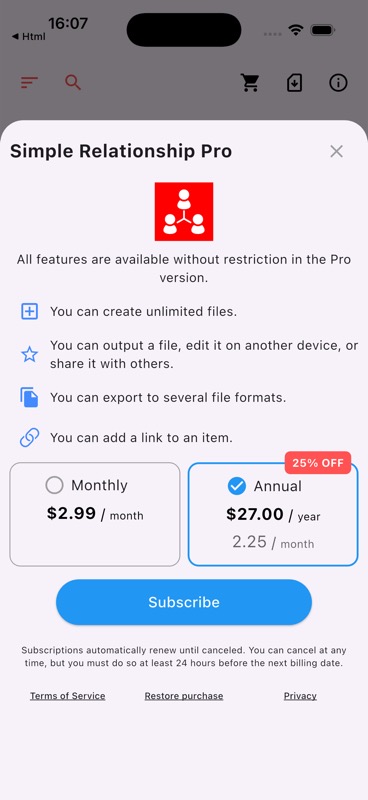
Återställ ett köp
- Om du köpte abonnemanget i en appbutik loggar du in med det butikskonto som du använde vid köpet.
- Öppna köpskärmen i appen, välj ”Återställ köp” och kontrollera resultatet.
Hantera ett köp eller en prenumeration
- Om informationsmenyn i fillistan innehåller ett alternativ för köphantering öppnar du det.
- Använd butiken eller tjänsten där du köpte abonnemanget för att granska eller säga upp din prenumeration.
Betalkonto
Koppla ditt köp till ett Google-konto
- Logga in på ditt Google-konto på den enhet där du har ett aktivt köp.
- Om alternativet för att koppla ditt köp till ett Google-konto visas i menyn väljer du det och bekräftar kontot.
- För att använda ditt betalabonnemang på en annan enhet som stöds loggar du in med det kopplade Google-kontot.
Byt Google-konto
- Kontrollera vilket Google-konto som är aktivt i informationsmenyn i fillistan.
- Om alternativet för utloggning är tillgängligt väljer du det, öppnar sedan Google Drive och loggar in med det konto du vill använda.
På en annan enhet använder du det konto som är kopplat till köpet eller de Drive-filer som du vill komma åt.