Fillista
Create an HTML file
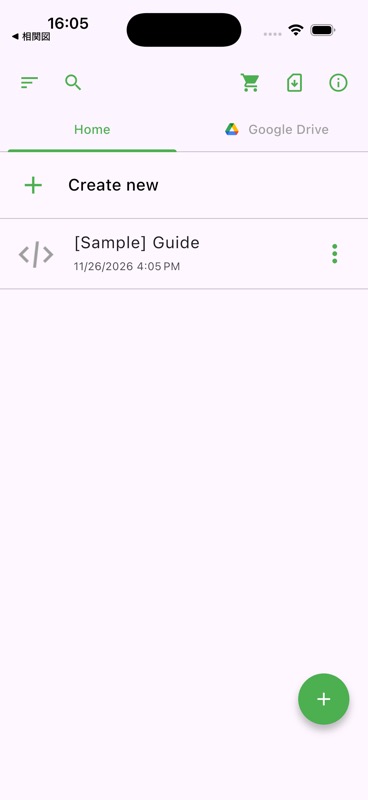
- Select + Create new in the file list.
- Enter a name for the page, then select OK to open the editor.
Ändra filernas sorteringsordning
- Använd sorteringskontrollen högst upp i fillistan. På en liten skärm öppnar du sorteringsmenyn.
- Välj att sortera efter ändringsdatum eller filnamn.
Search for a file by name
- Open Home or Google Drive, depending on where the file is stored, and select the Search icon.
- Enter part of the name in Search by file name. Select Close to see the full list again.
Duplicera en fil
- Öppna filens trepunktsmeny och välj Duplicera.
- Öppna kopian som lagts till i listan för att redigera den utan att ändra originalet.
Ta bort en fil
- Öppna filens trepunktsmeny och välj Ta bort.
- Kontrollera bekräftelsemeddelandet och välj OK.
För en fil som delats med dig kan menyn erbjuda ett alternativ för att ta bort delningen.
Byt namn på en fil
- Öppna filens trepunktsmeny och välj Byt namn.
- Ange det nya namnet och bekräfta.
Du behöver redigeringsbehörighet för att byta namn på en Google Drive-fil som delats med dig.
Import an existing HTML file
- Select Import in the file list, then select OK to open the file picker.
- Choose an HTML file (.html or .htm) and open it from the list.
Spara på Google Drive
- Välj Google Drive i fillistan och följ anvisningarna för att ansluta ditt Google-konto.
- Skapa en ny fil från Google Drive-listan. Om alternativet är tillgängligt kan du även flytta en lokal fil till Google Drive via filens trepunktsmeny.
Anslut det Google-konto du använde för att spara filen om du vill öppna den på en annan enhet.
Flytta filer mellan din enhet och Google Drive
- Anslut ditt Google-konto i den installerade appen och öppna filens trepunktsmeny.
- Välj Flytta till Google Drive eller Flytta till Hem, beroende på var filen är sparad, och bekräfta.
Redigera filer
Edit HTML and preview the page
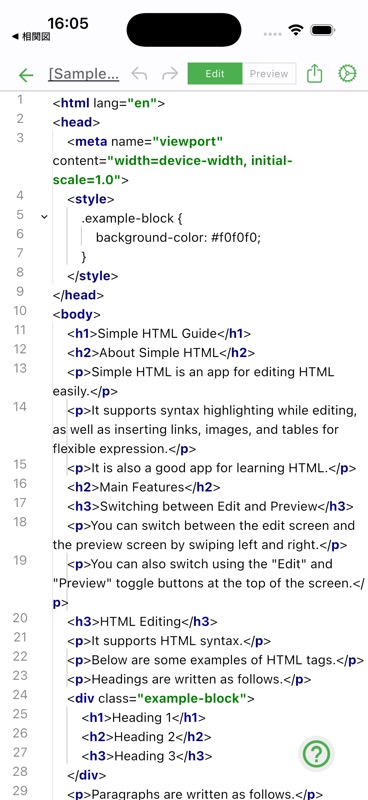
- Select Edit at the top and change the page text or markup. Try changing a heading or paragraph first.
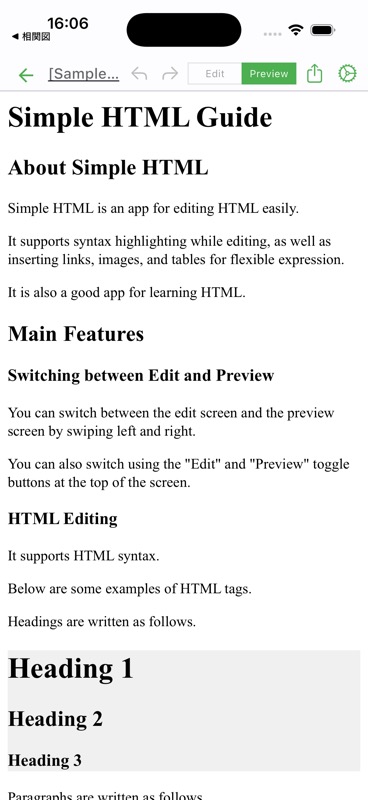
- Switch to Preview to check the headings, links, and layout. Return to Edit to make more changes.
Find and replace text in HTML
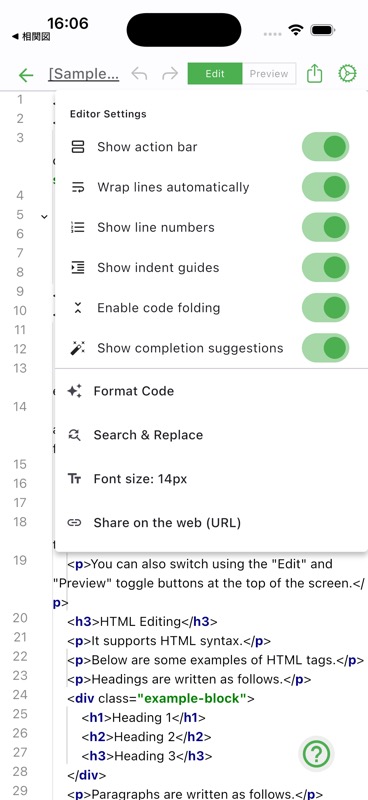
- While in Edit, select the gear icon in the top-right corner and choose Search & Replace in Editor Settings.
- Enter the text to find and move to the previous or next match. Use the Replace icon to open the replacement field, enter the new text, and choose Replace or Replace All.
Format HTML and adjust how lines are displayed
- Open the gear menu in the editor and select Format Code to tidy up indentation.
- Use the word wrap and line number settings to adjust how the code is displayed.
Share the HTML page by URL
- Open the gear menu in the top-right corner and choose Share on the web (URL).
- Copy the generated URL and send it to the recipient. The link shows the page as it was when the URL was created.
A shared URL cannot be revoked. Check what it contains before sending it.
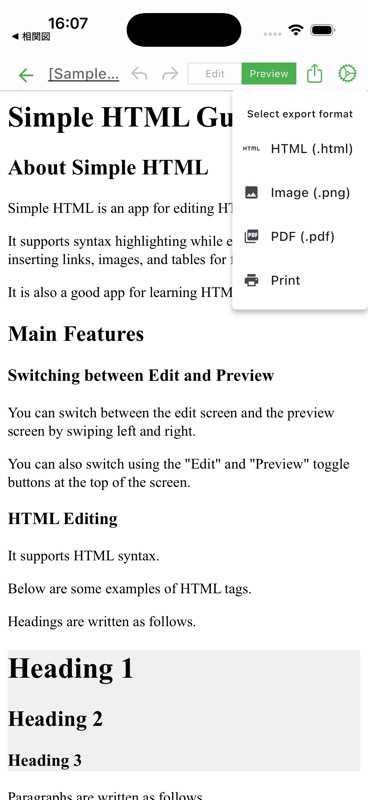
Export a page as HTML, an image, or PDF
- Select the share icon at the top of the screen. Choose HTML (.html) to reopen the file in a browser or edit it later.
- On a phone, choose PNG or PDF to preserve the page’s appearance.
Köp
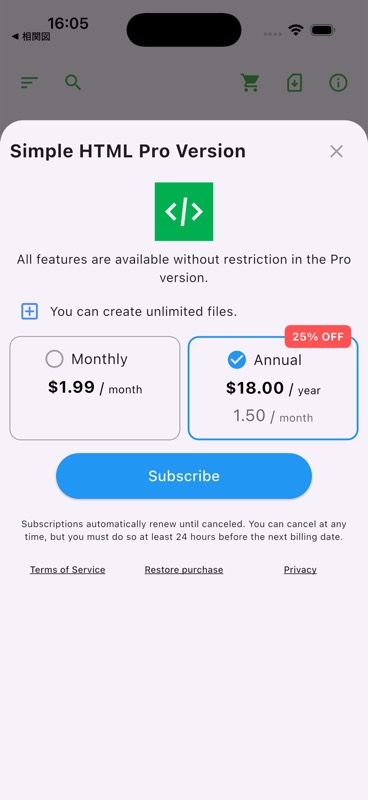
Köp ett betalabonnemang
- Välj kundvagnsikonen i fillistan.
- Granska abonnemangen och priserna på köpskärmen och välj sedan det abonnemang du vill köpa.
Återställ ett köp
- Om du köpte abonnemanget i en appbutik loggar du in med det butikskonto som du använde vid köpet.
- Öppna köpskärmen i appen, välj ”Återställ köp” och kontrollera resultatet.
Hantera ett köp eller en prenumeration
- Om informationsmenyn i fillistan innehåller ett alternativ för köphantering öppnar du det.
- Använd butiken eller tjänsten där du köpte abonnemanget för att granska eller säga upp din prenumeration.
Betalkonto
Koppla ditt köp till ett Google-konto
- Logga in på ditt Google-konto på den enhet där du har ett aktivt köp.
- Om alternativet för att koppla ditt köp till ett Google-konto visas i menyn väljer du det och bekräftar kontot.
- För att använda ditt betalabonnemang på en annan enhet som stöds loggar du in med det kopplade Google-kontot.
Byt Google-konto
- Kontrollera vilket Google-konto som är aktivt i informationsmenyn i fillistan.
- Om alternativet för utloggning är tillgängligt väljer du det, öppnar sedan Google Drive och loggar in med det konto du vill använda.
På en annan enhet använder du det konto som är kopplat till köpet eller de Drive-filer som du vill komma åt.