Tiedostoluettelo
Create an HTML file
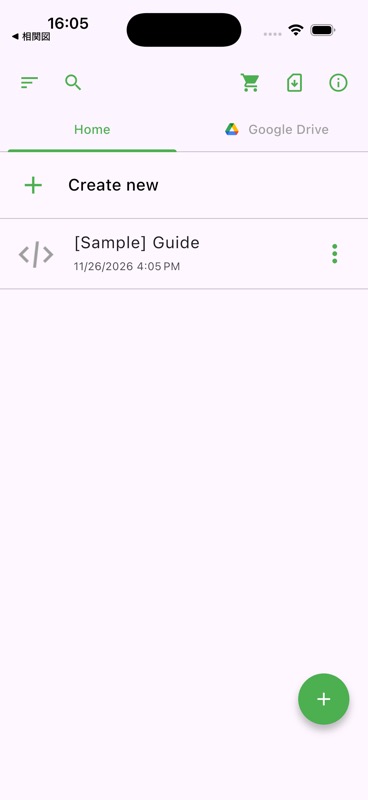
- Select + Create new in the file list.
- Enter a name for the page, then select OK to open the editor.
Muuta tiedostojen lajittelujärjestystä
- Käytä tiedostoluettelon yläosassa olevaa lajittelutoimintoa. Avaa pienellä näytöllä lajitteluvalikko.
- Valitse lajittelu muokkauspäivän tai tiedostonimen mukaan.
Search for a file by name
- Open Home or Google Drive, depending on where the file is stored, and select the Search icon.
- Enter part of the name in Search by file name. Select Close to see the full list again.
Monista tiedosto
- Avaa tiedoston kolmen pisteen valikko ja valitse Monista.
- Avaa luetteloon lisätty kopio, jotta voit muokata sitä alkuperäisen tiedoston säilyttäen.
Poista tiedosto
- Avaa tiedoston kolmen pisteen valikko ja valitse Poista.
- Tarkista vahvistuspyyntö ja valitse OK.
Jos tiedosto on jaettu kanssasi, valikossa saattaa olla vaihtoehto jakamisen poistamiseen.
Nimeä tiedosto uudelleen
- Avaa tiedoston kolmen pisteen valikko ja valitse Nimeä uudelleen.
- Anna uusi nimi ja vahvista.
Tarvitset muokkausoikeuden, jotta voit nimetä kanssasi jaetun Google Drive -tiedoston uudelleen.
Import an existing HTML file
- Select Import in the file list, then select OK to open the file picker.
- Choose an HTML file (.html or .htm) and open it from the list.
Tallenna Google Driveen
- Valitse tiedostoluettelosta Google Drive ja yhdistä Google-tilisi näytön ohjeiden mukaisesti.
- Luo uusi tiedosto Google Driven tiedostoluettelosta. Jos toiminto on käytettävissä, voit myös siirtää paikallisen tiedoston Google Driveen sen kolmen pisteen valikosta.
Jos haluat avata tiedoston toisella laitteella, yhdistä Google-tili, jota käytit sen tallentamiseen.
Siirrä tiedostoja laitteen ja Google Driven välillä
- Yhdistä Google-tilisi asennetussa sovelluksessa ja avaa tiedoston kolmen pisteen valikko.
- Valitse tiedoston tallennussijainnin mukaan Siirrä Google Driveen tai Siirrä kotiin ja vahvista.
Tiedostojen muokkaaminen
Edit HTML and preview the page
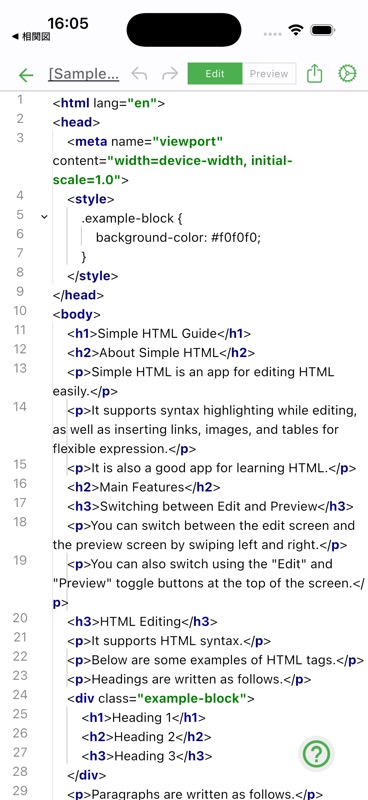
- Select Edit at the top and change the page text or markup. Try changing a heading or paragraph first.
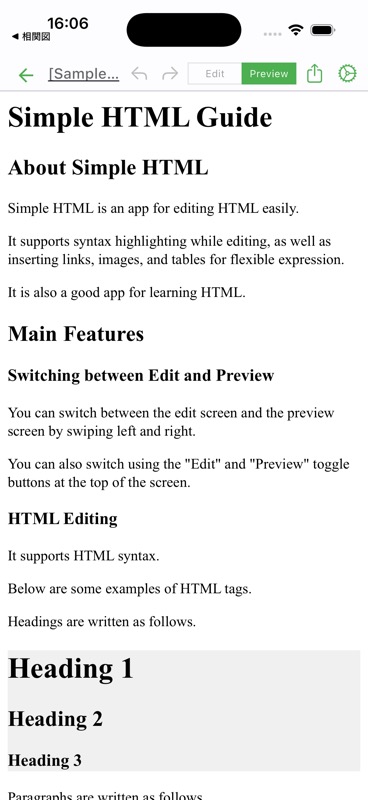
- Switch to Preview to check the headings, links, and layout. Return to Edit to make more changes.
Find and replace text in HTML
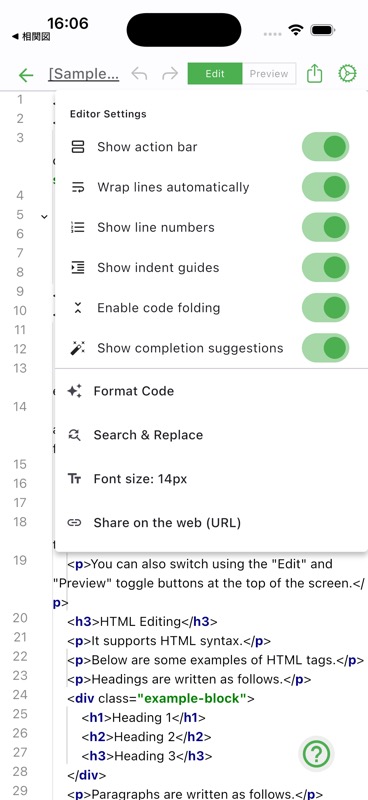
- While in Edit, select the gear icon in the top-right corner and choose Search & Replace in Editor Settings.
- Enter the text to find and move to the previous or next match. Use the Replace icon to open the replacement field, enter the new text, and choose Replace or Replace All.
Format HTML and adjust how lines are displayed
- Open the gear menu in the editor and select Format Code to tidy up indentation.
- Use the word wrap and line number settings to adjust how the code is displayed.
Share the HTML page by URL
- Open the gear menu in the top-right corner and choose Share on the web (URL).
- Copy the generated URL and send it to the recipient. The link shows the page as it was when the URL was created.
A shared URL cannot be revoked. Check what it contains before sending it.
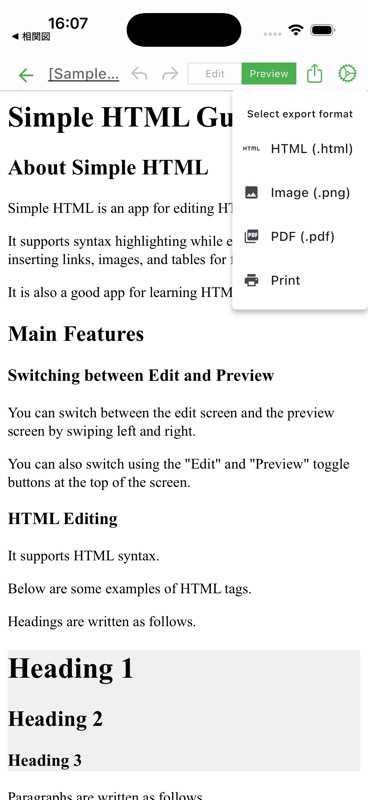
Export a page as HTML, an image, or PDF
- Select the share icon at the top of the screen. Choose HTML (.html) to reopen the file in a browser or edit it later.
- On a phone, choose PNG or PDF to preserve the page’s appearance.
Ostot
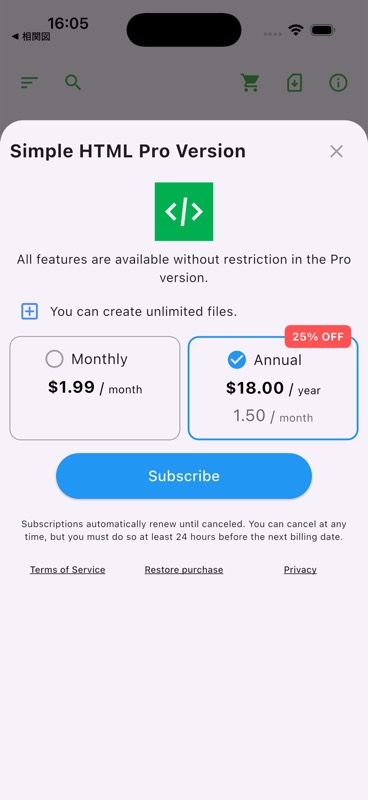
Osta maksullinen tilaus
- Valitse ostoskorikuvake tiedostoluettelossa.
- Tarkista ostosivulla näkyvät tilausvaihtoehdot ja hinnat ja valitse sitten tilaus, jonka haluat ostaa.
Palauta ostos
- Jos ostit tilauksen sovelluskaupasta, kirjaudu sisään samalla kaupan tilillä, jota käytit tilauksen ostamiseen.
- Avaa sovelluksen ostosivu, valitse Palauta ostokset ja tarkista tulos.
Hallinnoi ostosta tai tilausta
- Jos tiedostoluettelon tietovalikossa on ostosten hallintavaihtoehto, avaa se.
- Tarkista tilauksesi tai peruuta se kaupassa tai palvelussa, josta ostit tilauksen.
Maksullinen tili
Yhdistä ostoksesi Google-tiliin
- Kirjaudu Google-tilillesi laitteella, jolla sinulla on voimassa oleva ostos.
- Jos valikossa näkyy vaihtoehto yhdistää ostoksesi Google-tiliin, valitse se ja vahvista tili.
- Jos haluat käyttää maksullista tilaustasi toisella tuetulla laitteella, kirjaudu sisään yhdistetyllä Google-tilillä.
Vaihda Google-tiliä
- Tarkista tiedostoluettelon tietovalikosta, mikä Google-tili on käytössä.
- Jos uloskirjautumisvaihtoehto on käytettävissä, valitse se, avaa sitten Google Drive ja kirjaudu sisään tilillä, jota haluat käyttää.
Käytä toisella laitteella ostokseen tai niihin Drive-tiedostoihin liitettyä tiliä, joita haluat käyttää.