Lista datoteka
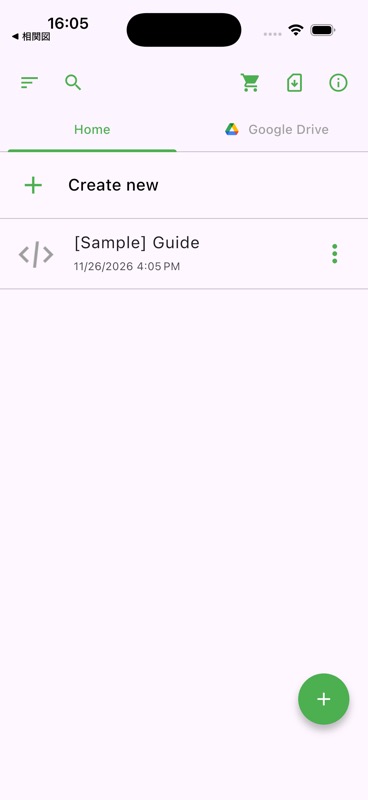
Create an HTML file
- Select + Create new in the file list.
- Enter a name for the page, then select OK to open the editor.
Promjena redoslijeda sortiranja datoteka
- Koristite kontrolu za sortiranje na vrhu liste datoteka. Na kompaktnom ekranu otvorite meni za sortiranje.
- Odaberite sortiranje po datumu izmjene ili nazivu datoteke.
Search for a file by name
- Open Home or Google Drive, depending on where the file is stored, and select the Search icon.
- Enter part of the name in Search by file name. Select Close to see the full list again.
Dupliciranje datoteke
- Otvorite meni datoteke s tri tačke i odaberite „Dupliciraj“.
- Otvorite kopiju dodanu na listu da biste je uređivali uz očuvanje originala.
Brisanje datoteke
- Otvorite meni datoteke s tri tačke i odaberite „Izbriši“.
- Provjerite poruku za potvrdu i odaberite „U redu“.
Za datoteku podijeljenu s vama meni može nuditi opciju za uklanjanje dijeljenja.
Preimenovanje datoteke
- Otvorite meni datoteke s tri tačke i odaberite „Preimenuj”.
- Unesite novi naziv i potvrdite.
Za preimenovanje datoteke na Google Driveu koja je podijeljena s vama potrebna vam je dozvola za uređivanje.
Import an existing HTML file
- Select Import in the file list, then select OK to open the file picker.
- Choose an HTML file (.html or .htm) and open it from the list.
Spremanje na Google Drive
- Odaberite Google Drive u listi datoteka i slijedite upute za povezivanje svog Google računa.
- Kreirajte novu datoteku iz liste na Google Driveu. Ako je opcija dostupna, lokalnu datoteku možete premjestiti na Google Drive i putem njenog menija s tri tačke.
Da biste otvorili datoteku na drugom uređaju, povežite Google račun koji ste koristili za njeno spremanje.
Premještanje datoteka između uređaja i Google Drivea
- U instaliranoj aplikaciji povežite svoj Google račun i otvorite meni datoteke s tri tačke.
- Zavisno od toga gdje je datoteka spremljena, odaberite „Premjesti na Google Drive” ili „Premjesti na početnu stranicu” i potvrdite.
Uređivanje datoteka
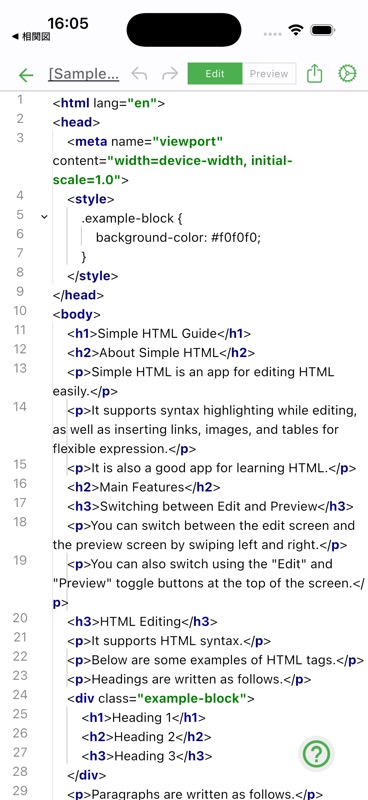
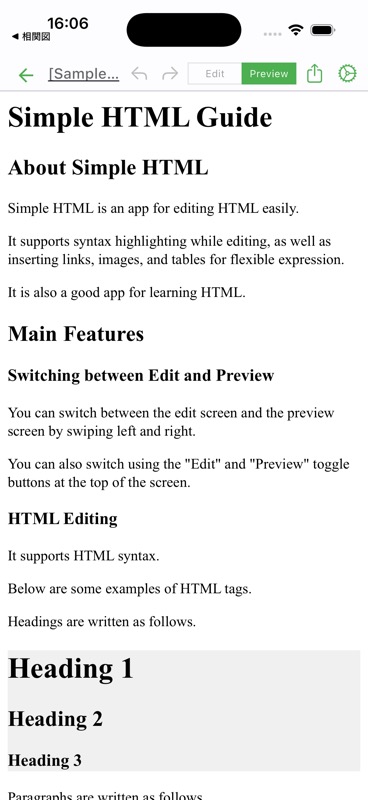
Edit HTML and preview the page
- Select Edit at the top and change the page text or markup. Try changing a heading or paragraph first.
- Switch to Preview to check the headings, links, and layout. Return to Edit to make more changes.
Find and replace text in HTML
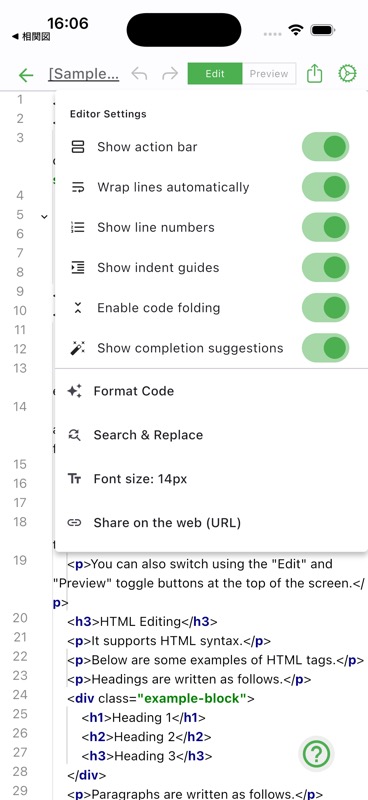
- While in Edit, select the gear icon in the top-right corner and choose Search & Replace in Editor Settings.
- Enter the text to find and move to the previous or next match. Use the Replace icon to open the replacement field, enter the new text, and choose Replace or Replace All.
Format HTML and adjust how lines are displayed
- Open the gear menu in the editor and select Format Code to tidy up indentation.
- Use the word wrap and line number settings to adjust how the code is displayed.
Share the HTML page by URL
- Open the gear menu in the top-right corner and choose Share on the web (URL).
- Copy the generated URL and send it to the recipient. The link shows the page as it was when the URL was created.
A shared URL cannot be revoked. Check what it contains before sending it.
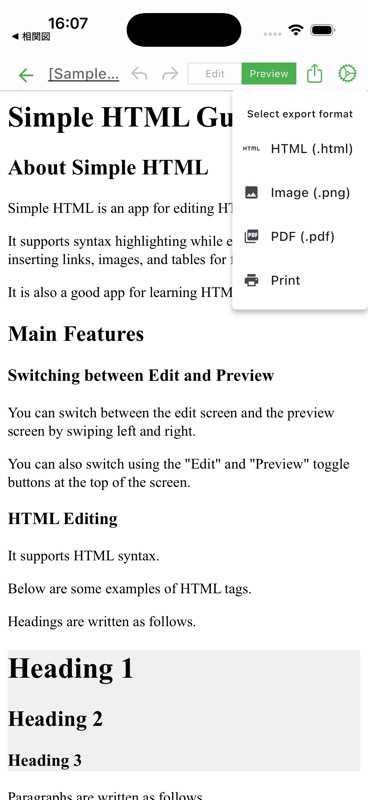
Export a page as HTML, an image, or PDF
- Select the share icon at the top of the screen. Choose HTML (.html) to reopen the file in a browser or edit it later.
- On a phone, choose PNG or PDF to preserve the page’s appearance.
Kupovine
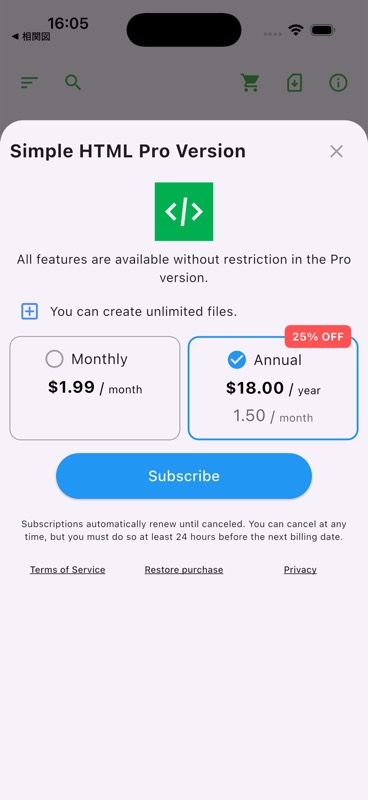
Kupovina plaćenog plana
- Odaberite ikonu korpe u listi datoteka.
- Pregledajte planove i cijene na ekranu za kupovinu, a zatim odaberite plan koji želite kupiti.
Obnavljanje kupovine
- Ako ste plan kupili u prodavnici aplikacija, prijavite se računom prodavnice koji ste koristili za kupovinu plana.
- Otvorite ekran za kupovinu u aplikaciji, odaberite „Obnovi kupovine“ i provjerite rezultat.
Upravljanje kupovinom ili pretplatom
- Ako informativni meni liste datoteka sadrži opciju za upravljanje kupovinama, otvorite je.
- Za pregled ili otkazivanje pretplate koristite prodavnicu ili uslugu putem koje ste kupili plan.
Plaćeni račun
Povezivanje kupovine s Google računom
- Prijavite se na svoj Google račun na uređaju na kojem imate aktivnu kupovinu.
- Ako se u meniju pojavi opcija za povezivanje kupovine s Google računom, odaberite je i potvrdite račun.
- Da biste koristili plaćeni plan na drugom podržanom uređaju, prijavite se povezanim Google računom.
Prebacivanje između Google računa
- U informativnom meniju liste datoteka provjerite koji je Google račun aktivan.
- Ako je dostupna opcija za odjavu, odaberite je, zatim otvorite Google Drive i prijavite se na račun koji želite koristiti.
Na drugom uređaju koristite račun povezan s kupovinom ili datotekama na Driveu kojima želite pristupiti.