قائمة الملفات
Create a flowchart
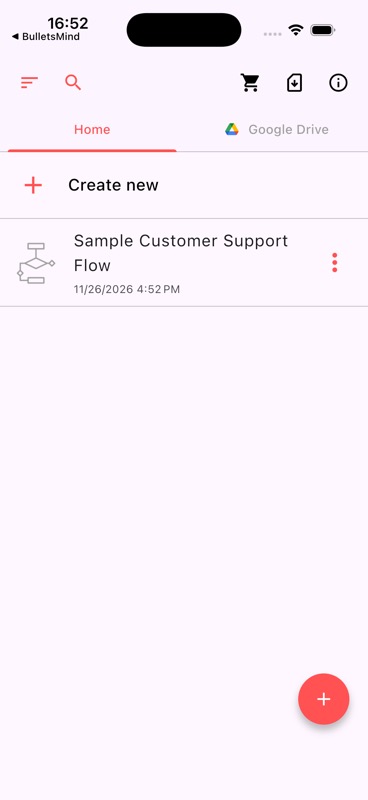
- Tap the + Create new row in the file list.
- Enter a file name and select OK to open the diagram editor.
تغيير ترتيب فرز الملفات
- استخدم أداة الفرز في أعلى قائمة الملفات. على شاشة صغيرة، افتح قائمة الفرز.
- اختر الفرز حسب تاريخ التعديل أو اسم الملف.
Search for a file by name
- Open Home or Google Drive, depending on where the file is stored, and select the Search icon.
- Enter part of the name in Search by file name. Select Close to see the full list again.
إنشاء نسخة من ملف
- افتح قائمة النقاط الثلاث الخاصة بالملف واختر «إنشاء نسخة».
- افتح النسخة المضافة إلى القائمة لتحريرها مع الاحتفاظ بالملف الأصلي.
حذف ملف
- افتح قائمة النقاط الثلاث الخاصة بالملف واختر «حذف».
- راجع رسالة التأكيد واختر «موافق».
بالنسبة إلى ملف تمت مشاركته معك، قد تتضمن القائمة خيارًا لإزالة المشاركة.
إعادة تسمية ملف
- افتح قائمة النقاط الثلاث الخاصة بالملف واختر «إعادة تسمية».
- أدخل الاسم الجديد وأكّد.
تحتاج إلى إذن التعديل لإعادة تسمية ملف Google Drive تمت مشاركته معك.
Import an existing flowchart into Simple Flowchart AI
- Select Import in the file list, then select OK to open the file picker.
- Choose a diagram in the app’s .sflowchart format and open it from the list.
الحفظ في Google Drive
- اختر Google Drive من قائمة الملفات واتبع التعليمات لربط حساب Google الخاص بك.
- أنشئ ملفًا جديدًا من قائمة Google Drive. إذا كان الخيار متاحًا، يمكنك أيضًا نقل ملف محلي إلى Google Drive من قائمة النقاط الثلاث الخاصة به.
لفتح الملف على جهاز آخر، اربط حساب Google الذي استخدمته لحفظه.
نقل الملفات بين جهازك وGoogle Drive
- في التطبيق المثبّت، اربط حساب Google الخاص بك وافتح قائمة النقاط الثلاث الخاصة بالملف.
- اختر «نقل إلى Google Drive» أو «نقل إلى الرئيسية»، حسب مكان حفظ الملف، ثم أكّد.
تحرير الملفات
Describe steps and decisions to create a flowchart with AI
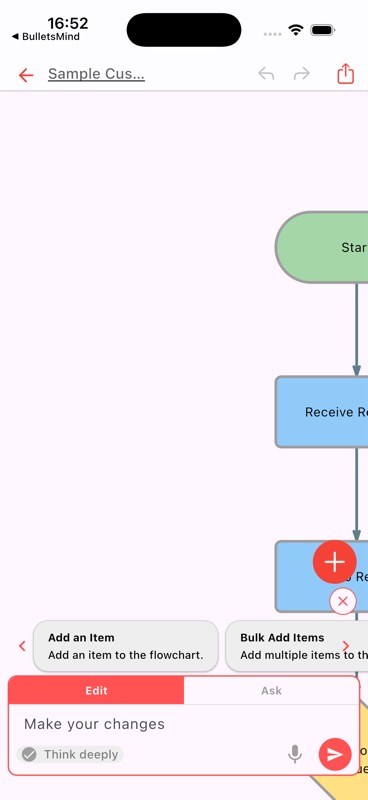
- Tap the input field at the bottom and choose Edit. If selecting a shape or line hides the input, tap an empty area of the diagram.
- Describe the steps and decisions, such as “Receive an inquiry and have the assigned person review it. Ask a follow-up question if information is missing. Otherwise, send a reply.” Then select Send.
- Review the result. To add a branch, use the same field or edit the shapes and lines directly.
Ask AI about the flowchart
- Tap the input field at the bottom of the editor and choose Ask.
- Send a question such as “According to this diagram, what happens when information is missing?” and read the reply in the chat window.
Add shapes and edit their text
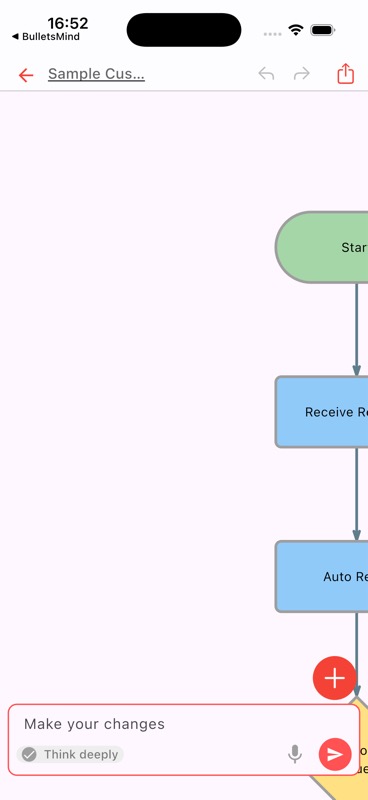
- Tap the red + button to add a shape. If a shape is already selected, the app also connects it to the new shape.
- Select the shape and tap the edit icon at the bottom to change its text.
- Use Change shape in the bottom toolbar to choose a shape for a process, decision, or other step.
Connect shapes with a line
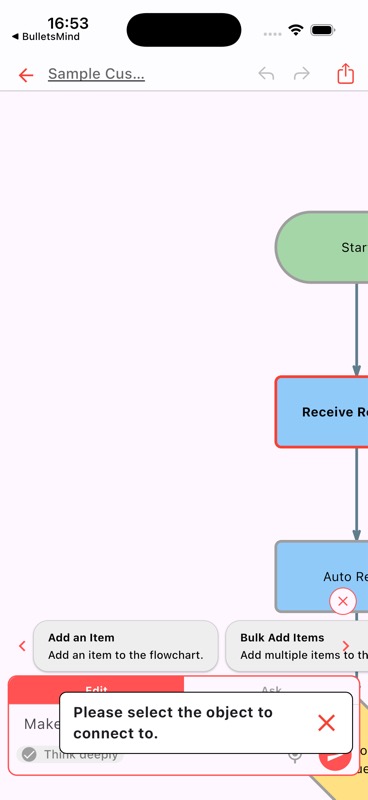
- Tap the shape where the line should start.
- Tap Connection Line. When prompted, tap the destination shape.
- Select the new line to adjust its style or arrow.
Adjust a shape’s position or size
- Select a shape and choose Adjust position or Change size in the bottom toolbar.
- Use the controls that appear to adjust the shape, then confirm the change.
Export a flowchart
- Select the share icon in the top-right corner of the editor.
- Use Image (.png) or PDF to share a visual copy. Select Mermaid (.mermaid) to use the diagram with Mermaid, or SimpleFlowchart(.sflowchart) to reimport it into the app.
Export formats marked with a lock require Pro.
المشتريات
شراء خطة مدفوعة
- حدد أيقونة عربة التسوق في قائمة الملفات.
- راجع الخطط والأسعار في شاشة الشراء، ثم اختر الخطة التي ترغب في شرائها.
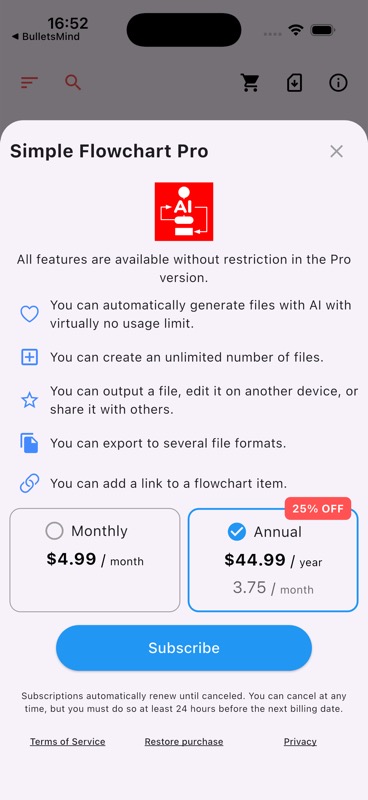
استعادة عملية شراء
- إذا اشتريت الخطة من متجر تطبيقات، فسجّل الدخول باستخدام حساب المتجر الذي استخدمته لشرائها.
- افتح شاشة الشراء في التطبيق، واختر «استعادة المشتريات»، ثم تحقق من النتيجة.
إدارة عملية شراء أو اشتراك
- إذا كانت قائمة المعلومات في قائمة الملفات تتضمن خيارًا لإدارة المشتريات، فافتحه.
- استخدم المتجر أو الخدمة التي اشتريت الخطة من خلالها لمراجعة اشتراكك أو إلغائه.
حساب مدفوع
ربط عملية الشراء بحساب Google
- سجّل الدخول إلى حساب Google الخاص بك على الجهاز الذي لديك عليه عملية شراء سارية.
- إذا ظهر في القائمة خيار ربط عملية الشراء بحساب Google، فحدده وأكّد الحساب.
- لاستخدام خطتك المدفوعة على جهاز آخر مدعوم، سجّل الدخول باستخدام حساب Google المرتبط.
التبديل بين حسابات Google
- تحقق من حساب Google النشط في قائمة المعلومات ضمن قائمة الملفات.
- إذا كان خيار تسجيل الخروج متاحًا، فحدده، ثم افتح Google Drive وسجّل الدخول إلى الحساب الذي تريد استخدامه.
على جهاز آخر، استخدم الحساب المرتبط بعملية الشراء أو بملفات Drive التي تريد الوصول إليها.