قائمة الملفات
Create a file for an ER diagram
- Select + Create new in the file list and enter a name.
- Select OK to open the editor.
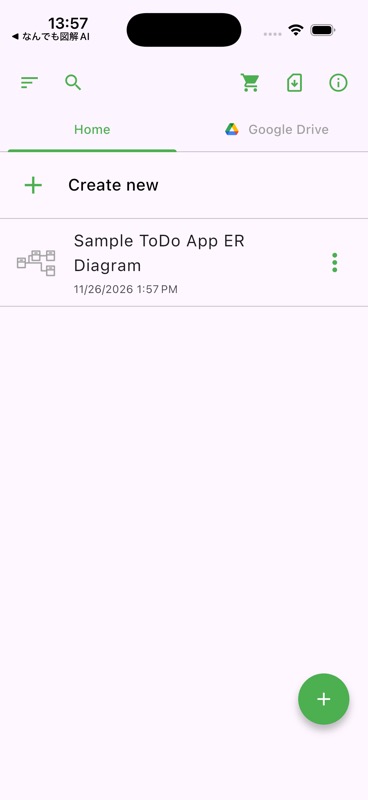
تغيير ترتيب فرز الملفات
- استخدم أداة الفرز في أعلى قائمة الملفات. على شاشة صغيرة، افتح قائمة الفرز.
- اختر الفرز حسب تاريخ التعديل أو اسم الملف.
Search for a file by name
- Open Home or Google Drive, depending on where the file is stored, and select the Search icon.
- Enter part of the name in Search by file name. Select Close to see the full list again.
إنشاء نسخة من ملف
- افتح قائمة النقاط الثلاث الخاصة بالملف واختر «إنشاء نسخة».
- افتح النسخة المضافة إلى القائمة لتحريرها مع الاحتفاظ بالملف الأصلي.
حذف ملف
- افتح قائمة النقاط الثلاث الخاصة بالملف واختر «حذف».
- راجع رسالة التأكيد واختر «موافق».
بالنسبة إلى ملف تمت مشاركته معك، قد تتضمن القائمة خيارًا لإزالة المشاركة.
إعادة تسمية ملف
- افتح قائمة النقاط الثلاث الخاصة بالملف واختر «إعادة تسمية».
- أدخل الاسم الجديد وأكّد.
تحتاج إلى إذن التعديل لإعادة تسمية ملف Google Drive تمت مشاركته معك.
Import a Mermaid diagram
- Select Import in the file list and select OK to open the file picker.
- Choose a Mermaid file (.mermaid or .mmd), then open it from the file list.
الحفظ في Google Drive
- اختر Google Drive من قائمة الملفات واتبع التعليمات لربط حساب Google الخاص بك.
- أنشئ ملفًا جديدًا من قائمة Google Drive. إذا كان الخيار متاحًا، يمكنك أيضًا نقل ملف محلي إلى Google Drive من قائمة النقاط الثلاث الخاصة به.
لفتح الملف على جهاز آخر، اربط حساب Google الذي استخدمته لحفظه.
نقل الملفات بين جهازك وGoogle Drive
- في التطبيق المثبّت، اربط حساب Google الخاص بك وافتح قائمة النقاط الثلاث الخاصة بالملف.
- اختر «نقل إلى Google Drive» أو «نقل إلى الرئيسية»، حسب مكان حفظ الملف، ثم أكّد.
تحرير الملفات
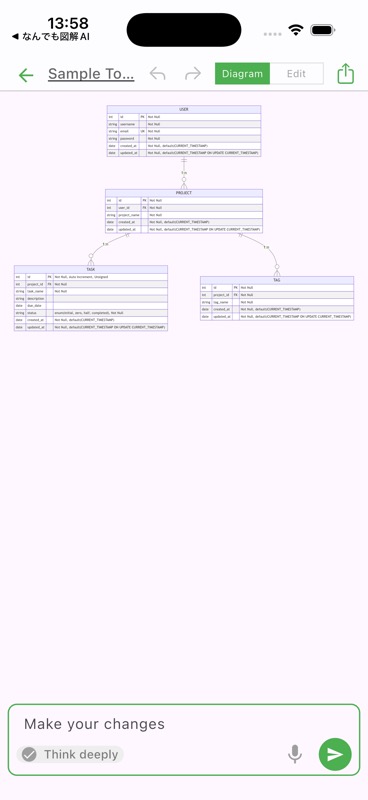
Describe tables and relationships to generate an ER diagram
- Choose Diagram at the top of the editor, tap the field at the bottom, and choose Edit.
- Send a request such as “Create Customer and Order tables. One customer can have many orders. Give each table an ID and have each order reference its customer.”
- Check the tables, keys, and relationships, such as one-to-many. Use the same field to request changes.
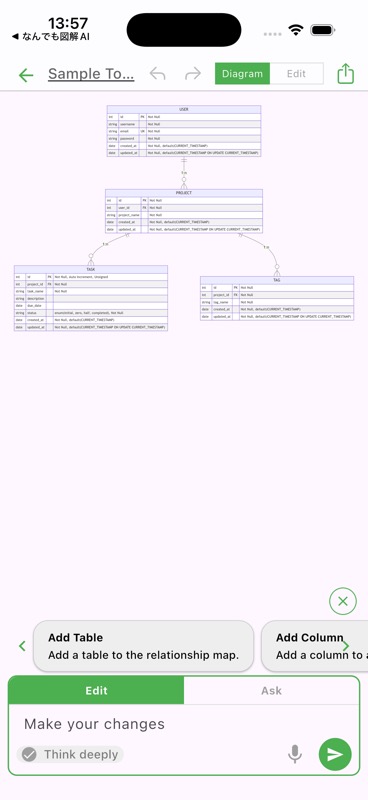
Ask AI a question about the diagram
- Choose Diagram, tap the input field at the bottom, then choose Ask.
- Send a question such as “Explain the relationships in this diagram” and read the reply in the chat window.
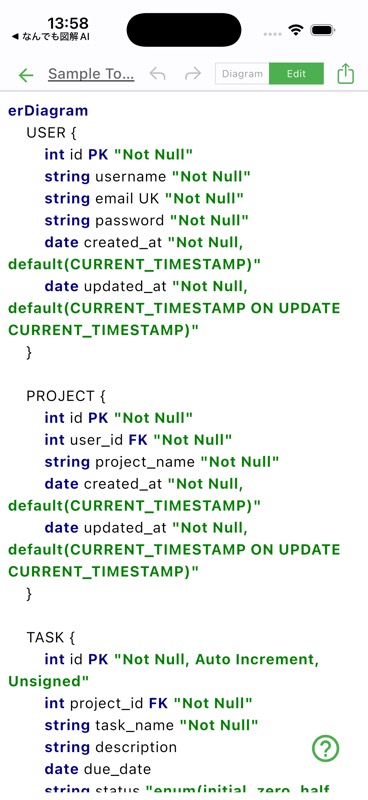
Edit attributes and relationships in Mermaid
- Choose Edit at the top of the editor to open the ER diagram’s Mermaid source.
- After adding attributes or changing a relationship, switch to Diagram to check the result.
مشاركة المحتوى عبر URL
- افتح قائمة التصدير في المحرر واختر خيار المشاركة عبر الويب.
- انسخ URL الذي تم إنشاؤه وأرسله إلى الأشخاص الذين تريد المشاركة معهم.
يتضمن URL المحتوى كما كان عند إنشاء الرابط. هناك حدود لنوع المحتوى الذي يمكنك مشاركته وكميته.
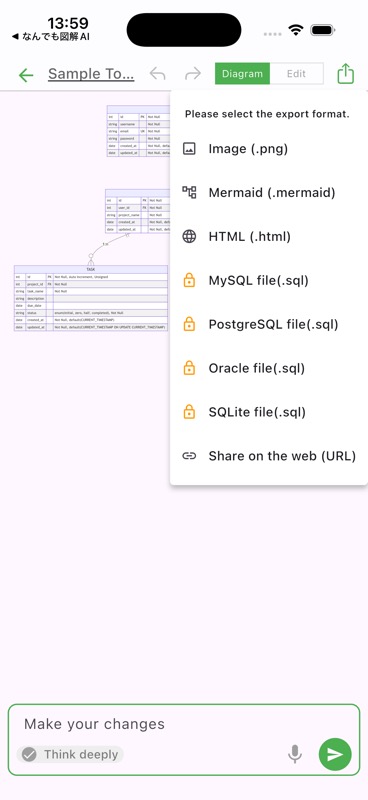
Export the diagram as an image, Mermaid, or HTML
- Select the share icon in the top-right corner of the editor.
- Choose an image to place the diagram in another document, Mermaid (.mermaid) to edit the source later, or HTML to open the file in a browser.
Export an ER diagram as a SQL file
- Select the share icon in the top-right corner of the editor.
- Choose the SQL export for your database: MySQL, PostgreSQL, Oracle, or SQLite.
- Before using the exported SQL, review the data types, primary keys, and foreign keys.
SQL export requires Pro.
المشتريات
شراء خطة مدفوعة
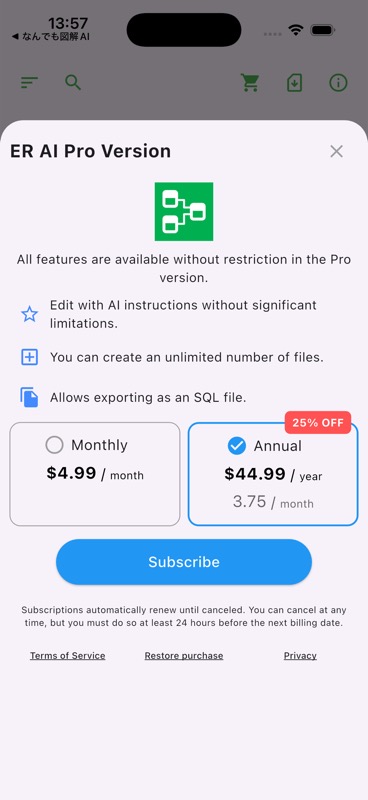
- حدد أيقونة عربة التسوق في قائمة الملفات.
- راجع الخطط والأسعار في شاشة الشراء، ثم اختر الخطة التي ترغب في شرائها.
استعادة عملية شراء
- إذا اشتريت الخطة من متجر تطبيقات، فسجّل الدخول باستخدام حساب المتجر الذي استخدمته لشرائها.
- افتح شاشة الشراء في التطبيق، واختر «استعادة المشتريات»، ثم تحقق من النتيجة.
إدارة عملية شراء أو اشتراك
- إذا كانت قائمة المعلومات في قائمة الملفات تتضمن خيارًا لإدارة المشتريات، فافتحه.
- استخدم المتجر أو الخدمة التي اشتريت الخطة من خلالها لمراجعة اشتراكك أو إلغائه.
حساب مدفوع
ربط عملية الشراء بحساب Google
- سجّل الدخول إلى حساب Google الخاص بك على الجهاز الذي لديك عليه عملية شراء سارية.
- إذا ظهر في القائمة خيار ربط عملية الشراء بحساب Google، فحدده وأكّد الحساب.
- لاستخدام خطتك المدفوعة على جهاز آخر مدعوم، سجّل الدخول باستخدام حساب Google المرتبط.
التبديل بين حسابات Google
- تحقق من حساب Google النشط في قائمة المعلومات ضمن قائمة الملفات.
- إذا كان خيار تسجيل الخروج متاحًا، فحدده، ثم افتح Google Drive وسجّل الدخول إلى الحساب الذي تريد استخدامه.
على جهاز آخر، استخدم الحساب المرتبط بعملية الشراء أو بملفات Drive التي تريد الوصول إليها.