Lis fichye
Create a timetable
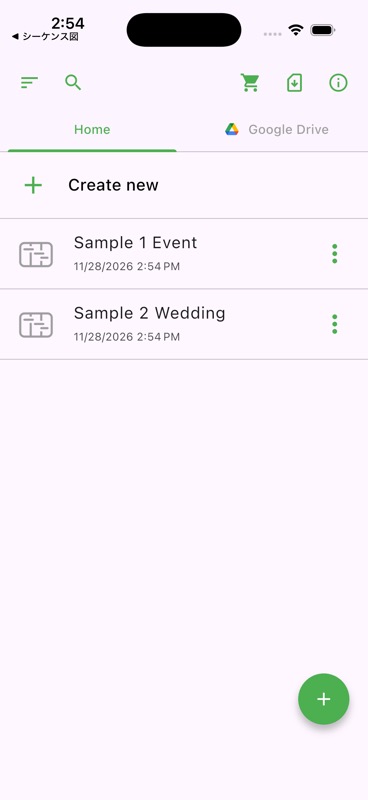
- Select + Create new in the file list.
- Enter a name for the event or schedule and select OK to open the editor.
Chanje lòd klasman fichye yo
- Sèvi ak kontwòl klasman ki anlè lis fichye yo. Sou yon ti ekran, ouvri meni klasman an.
- Chwazi klase fichye yo selon dat modifikasyon oswa non fichye a.
Search for a file by name
- Open Home or Google Drive, depending on where the file is stored, and select the Search icon.
- Enter part of the name in Search by file name. Select Close to see the full list again.
Kreye yon kopi fichye
- Ouvri meni twa pwen fichye a epi chwazi Fè yon kopi.
- Ouvri kopi ki te ajoute nan lis la pou modifye li pandan w ap konsève fichye orijinal la.
Efase yon fichye
- Ouvri meni twa pwen fichye a epi chwazi Efase.
- Tcheke mesaj konfimasyon an epi chwazi OK.
Pou yon fichye yo pataje avèk ou, meni an ka ofri yon opsyon pou retire pataj la.
Chanje non yon fichye
- Louvri meni twa pwen fichye a epi chwazi Chanje non.
- Antre nouvo non an epi konfime.
Ou bezwen pèmisyon pou modifye yon fichye Google Drive yo pataje avèk ou pou w ka chanje non li.
Import a timetable file
- Select Import in the file list, then select OK to open the file picker.
- Choose a timetable file (.timetable) and open it from the list.
Anrejistre sou Google Drive
- Chwazi Google Drive nan lis fichye yo epi suiv enstriksyon yo pou konekte kont Google ou.
- Kreye yon nouvo fichye nan lis Google Drive la. Si opsyon an disponib, ou ka deplase yon fichye lokal sou Google Drive tou nan meni twa pwen fichye a.
Pou ouvri fichye a sou yon lòt aparèy, konekte kont Google ou te itilize pou anrejistre li a.
Deplase fichye ant aparèy ou a ak Google Drive
- Nan aplikasyon ki enstale a, konekte kont Google ou epi louvri meni twa pwen fichye a.
- Selon kote fichye a anrejistre, chwazi Deplase sou Google Drive oswa Deplase nan Akèy epi konfime.
Modifikasyon fichye
Add schedule items and subitems
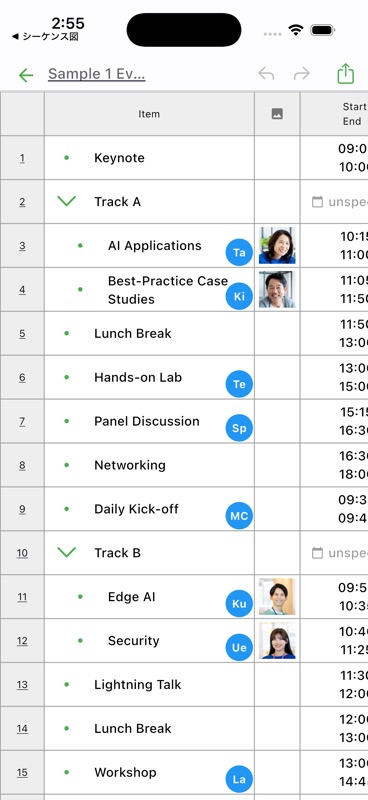
- Tap the number at the left of a row and choose Add Sibling Item or Add Child Item.
- Use a sibling item for another activity at the same level, or a child item for part of the activity, such as setup or cleanup.
Set an activity’s day, start time, and end time
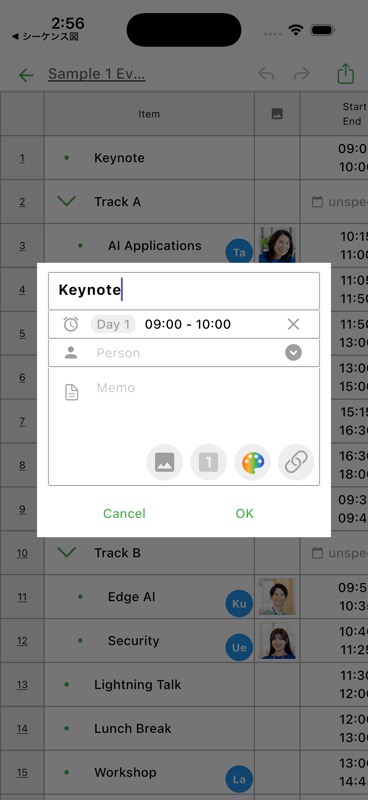
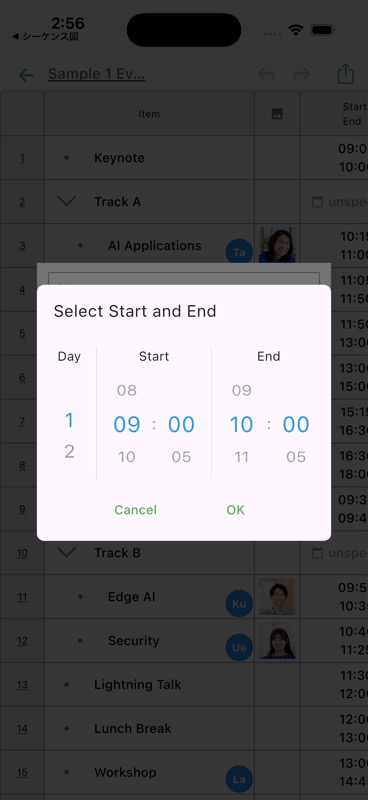
- Tap the activity name to open its editor, then tap Time Setting or the displayed time range.
- In Select Start and End, choose the day and both times. Select OK in the activity editor to apply the change.
Label the days in the timetable
- Tap the day heading above the timeline.
- In Edit Day Label, enter a name such as “Setup” or “Event day” to distinguish the days in a multi-day schedule.
Export a timetable as an image or PDF
- Select the share icon in the top-right corner and choose PNG or PDF to distribute a visual copy of the schedule.
- You can also export to Excel or choose Timetable (.timetable) to reimport it later.
Export formats marked with a lock require Pro.
Acha
Achte yon plan ki peye
- Chwazi ikòn panye acha a nan lis fichye yo.
- Gade plan yo ak pri yo sou ekran acha a, epi chwazi plan ou vle achte a.
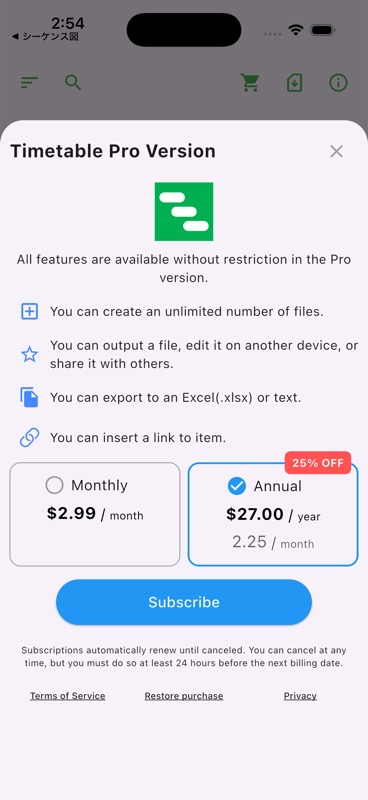
Retabli yon acha
- Si ou te achte plan an nan yon magazen aplikasyon, konekte ak kont magazen ou te itilize pou achte plan an.
- Louvri ekran acha a nan aplikasyon an, chwazi « Retabli acha yo » epi verifye rezilta a.
Jere yon acha oswa yon abònman
- Si meni enfòmasyon ki nan lis fichye yo gen yon opsyon pou jere acha yo, louvri li.
- Sèvi ak magazen oswa sèvis kote ou te achte plan an pou verifye oswa anile abònman ou.
Kont peye
Asosye acha ou ak yon kont Google
- Konekte ak kont Google ou sou aparèy kote ou gen yon acha ki aktif.
- Si opsyon pou asosye acha ou ak yon kont Google parèt nan meni an, chwazi li epi konfime kont lan.
- Pou itilize plan ki peye ou a sou yon lòt aparèy ki konpatib, konekte ak kont Google ki asosye a.
Chanje kont Google
- Nan meni enfòmasyon ki nan lis fichye yo, verifye ki kont Google ki aktif.
- Si opsyon pou dekonekte a disponib, chwazi li, epi ouvri Google Drive epi konekte ak kont ou vle itilize a.
Sou yon lòt aparèy, sèvi ak kont ki asosye ak acha a oswa ak fichye Drive ou vle jwenn aksè ladan yo.