Lis fichye
Create a table from text with AI
- In the file list, select Text input under Create new with AI.
- Describe the columns and information you need, such as “Create an inventory with columns for item, quantity, and storage location,” then select OK.
- Check that the generated headings and numbers match the information you provided.
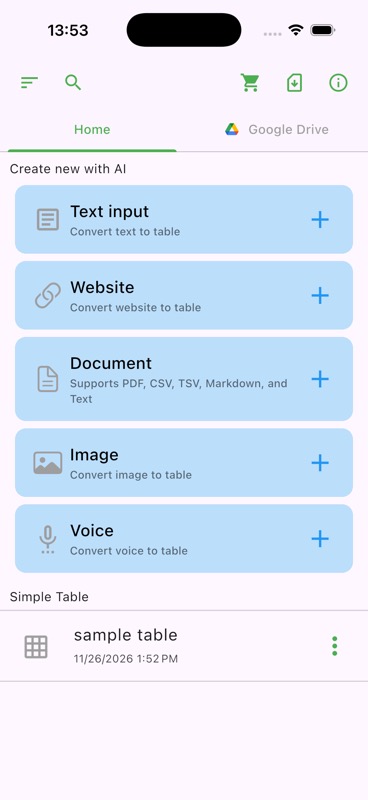
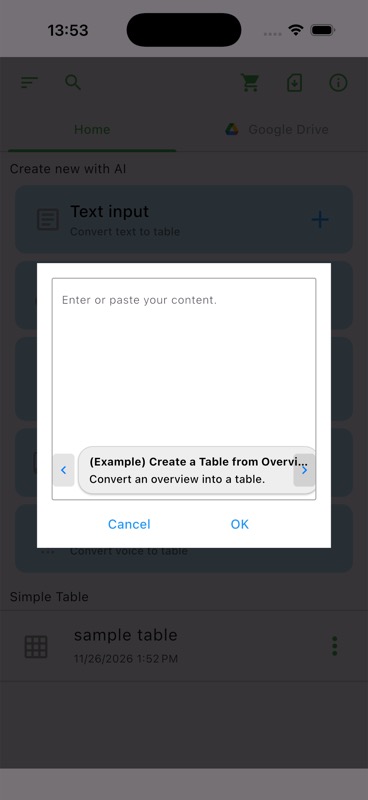
Create a table from a document, image, website, or voice input
- Under Create new with AI in the file list, choose Document, Image, Website, or Voice.
- Select the file or image, enter the page URL, or provide voice input. Compare the resulting table with the source material.
Chanje lòd klasman fichye yo
- Sèvi ak kontwòl klasman ki anlè lis fichye yo. Sou yon ti ekran, ouvri meni klasman an.
- Chwazi klase fichye yo selon dat modifikasyon oswa non fichye a.
Search for a file by name
- Open Home or Google Drive, depending on where the file is stored, and select the Search icon.
- Enter part of the name in Search by file name. Select Close to see the full list again.
Kreye yon kopi fichye
- Ouvri meni twa pwen fichye a epi chwazi Fè yon kopi.
- Ouvri kopi ki te ajoute nan lis la pou modifye li pandan w ap konsève fichye orijinal la.
Efase yon fichye
- Ouvri meni twa pwen fichye a epi chwazi Efase.
- Tcheke mesaj konfimasyon an epi chwazi OK.
Pou yon fichye yo pataje avèk ou, meni an ka ofri yon opsyon pou retire pataj la.
Chanje non yon fichye
- Louvri meni twa pwen fichye a epi chwazi Chanje non.
- Antre nouvo non an epi konfime.
Ou bezwen pèmisyon pou modifye yon fichye Google Drive yo pataje avèk ou pou w ka chanje non li.
Import an existing table into Simple Table AI
- Select Import in the file list and select OK to open the file picker.
- Select a CSV, TSV, TXT, or Simple Table (.simpletable) file.
Save an AI-generated file to Google Drive
- Choose Google Drive in the file list and sign in to your Google Account if prompted.
- With the Google Drive tab open, create a file using Create new with AI. To move a local file, select Move to Google Drive from its three-dot menu if the option is available.
Pou ouvri fichye a sou yon lòt aparèy, konekte kont Google ou te itilize pou anrejistre li a.
Deplase fichye ant aparèy ou a ak Google Drive
- Nan aplikasyon ki enstale a, konekte kont Google ou epi louvri meni twa pwen fichye a.
- Selon kote fichye a anrejistre, chwazi Deplase sou Google Drive oswa Deplase nan Akèy epi konfime.
Modifikasyon fichye
Revise a table with AI
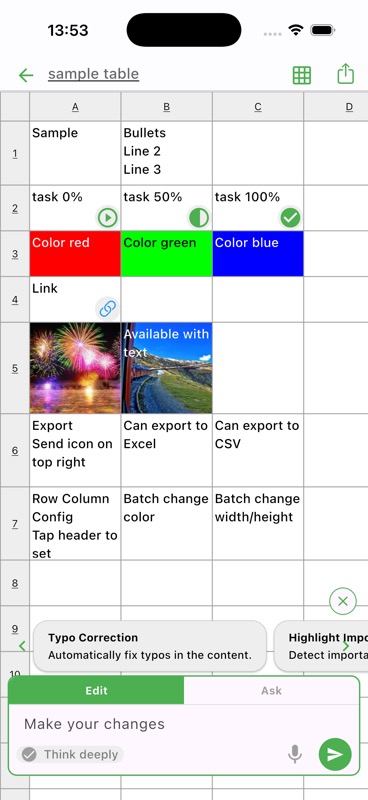
- Tap the input field below the table and choose Edit.
- Enter a change such as “Add an Owner column on the right” and select Send. Review the updated cells or headings.
Ask AI a question about the table
- Tap the input field below the table and choose Ask.
- Send a question such as “Which items are running low?” and read the reply in the chat window.
Modifye selil epi ajoute liy oswa kolòn
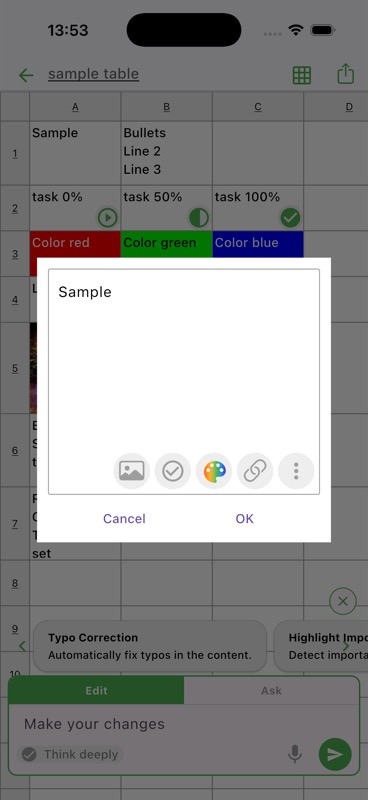
- Chwazi selil ou vle modifye a pou ouvri editè selil la.
- Antre kontni an epi konfime pou mete tablo a ajou.
- Sèvi ak siy + anba oswa sou kote tablo a pou ajoute liy oswa kolòn.
Ajoute yon imaj nan yon selil
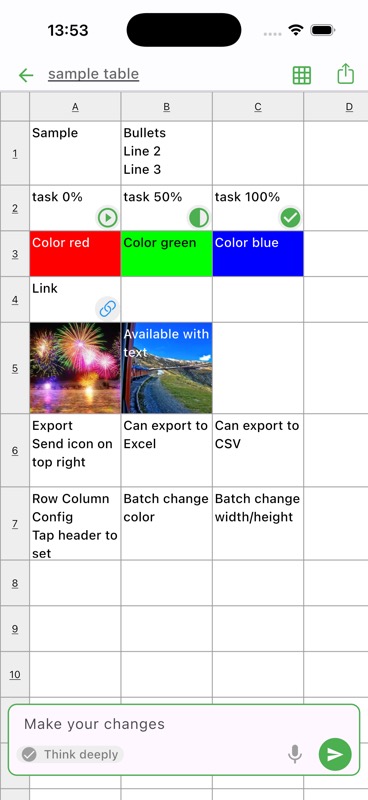
- Louvri yon selil, chwazi ikòn imaj la epi chwazi yon imaj sou aparèy ou a.
- Pou retire yon imaj ki deja la, chwazi menm ikòn nan ankò.
Ajoute imaj se yon fonksyon ki peye.
Ekspòte yon tablo
- Louvri meni ekspòtasyon an nan editè tablo a.
- Chwazi yon imaj oswa PDF pou konsève aparans lan, CSV oswa Excel pou sèvi ak done tablo a nan yon lòt aplikasyon, oswa fòma aplikasyon an pou modifye tablo a ankò pita.
Fòma ki disponib yo depann de platfòm ou ak plan ou.
Acha
Achte yon plan ki peye
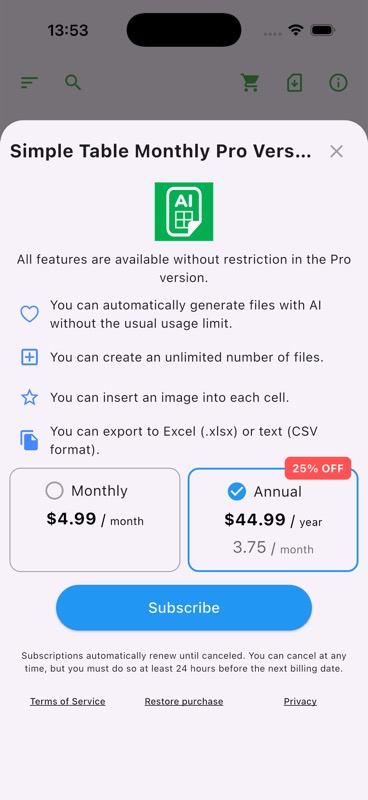
- Chwazi ikòn panye acha a nan lis fichye yo.
- Gade plan yo ak pri yo sou ekran acha a, epi chwazi plan ou vle achte a.
Retabli yon acha
- Si ou te achte plan an nan yon magazen aplikasyon, konekte ak kont magazen ou te itilize pou achte plan an.
- Louvri ekran acha a nan aplikasyon an, chwazi « Retabli acha yo » epi verifye rezilta a.
Jere yon acha oswa yon abònman
- Si meni enfòmasyon ki nan lis fichye yo gen yon opsyon pou jere acha yo, louvri li.
- Sèvi ak magazen oswa sèvis kote ou te achte plan an pou verifye oswa anile abònman ou.
Kont peye
Asosye acha ou ak yon kont Google
- Konekte ak kont Google ou sou aparèy kote ou gen yon acha ki aktif.
- Si opsyon pou asosye acha ou ak yon kont Google parèt nan meni an, chwazi li epi konfime kont lan.
- Pou itilize plan ki peye ou a sou yon lòt aparèy ki konpatib, konekte ak kont Google ki asosye a.
Chanje kont Google
- Nan meni enfòmasyon ki nan lis fichye yo, verifye ki kont Google ki aktif.
- Si opsyon pou dekonekte a disponib, chwazi li, epi ouvri Google Drive epi konekte ak kont ou vle itilize a.
Sou yon lòt aparèy, sèvi ak kont ki asosye ak acha a oswa ak fichye Drive ou vle jwenn aksè ladan yo.