Lisitry ny rakitra
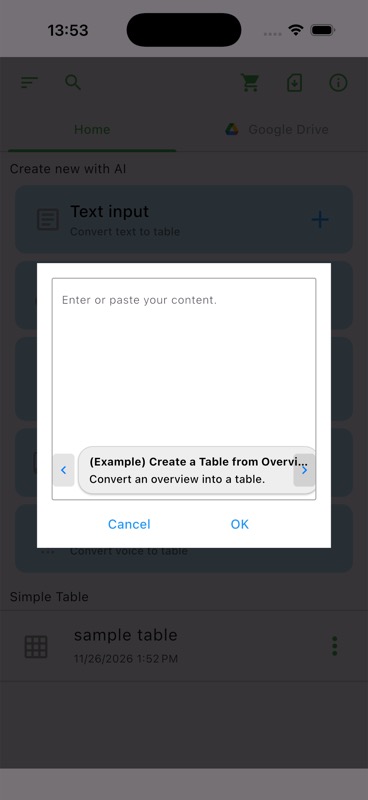
Create a table from text with AI
- In the file list, select Text input under Create new with AI.
- Describe the columns and information you need, such as “Create an inventory with columns for item, quantity, and storage location,” then select OK.
- Check that the generated headings and numbers match the information you provided.
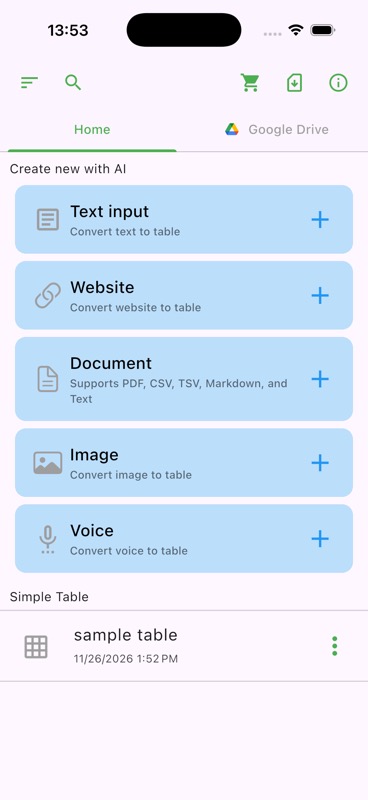
Create a table from a document, image, website, or voice input
- Under Create new with AI in the file list, choose Document, Image, Website, or Voice.
- Select the file or image, enter the page URL, or provide voice input. Compare the resulting table with the source material.
Hanova ny filaharan'ny rakitra
- Ampiasao ny safidy fandaharana eo an-tampon'ny lisitry ny rakitra. Raha kely ny efijery, sokafy ny menio fandaharana.
- Safidio ny fandaharana araka ny daty nanovana na ny anaran'ny rakitra.
Search for a file by name
- Open Home or Google Drive, depending on where the file is stored, and select the Search icon.
- Enter part of the name in Search by file name. Select Close to see the full list again.
Hanao dika mitovy amin'ny rakitra
- Sokafy ny menio misy teboka telo an'ilay rakitra ary safidio ny « Hanao dika mitovy ».
- Sokafy ilay dika mitovy nampidirina tao amin'ny lisitra mba hanovana azy nefa hitazonana ny rakitra voalohany.
Hamafa rakitra
- Sokafy ny menio misy teboka telo an'ilay rakitra ary safidio ny « Hamafa ».
- Jereo ny hafatra fangatahana fanamafisana ary safidio ny « OK ».
Raha rakitra nozaraina taminao ilay izy, dia mety hisy safidy hanafoanana ny fizarana ao amin'ny menio.
Hanova ny anaran'ny rakitra
- Sokafy ny menio misy teboka telo an'ilay rakitra ary fidio ny hoe Hanova anarana.
- Ampidiro ny anarana vaovao ary hamafiso.
Mila fahazoan-dalana hanova rakitra ianao raha te hanova ny anaran'ny rakitra Google Drive nozaraina taminao.
Import an existing table into Simple Table AI
- Select Import in the file list and select OK to open the file picker.
- Select a CSV, TSV, TXT, or Simple Table (.simpletable) file.
Save an AI-generated file to Google Drive
- Choose Google Drive in the file list and sign in to your Google Account if prompted.
- With the Google Drive tab open, create a file using Create new with AI. To move a local file, select Move to Google Drive from its three-dot menu if the option is available.
Mba hanokafana ilay rakitra amin'ny fitaovana hafa, ampifandraiso ny kaonty Google nampiasainao nitahirizana azy.
Hamindra rakitra eo amin'ny fitaovanao sy Google Drive
- Ao amin'ny fampiharana napetraka amin'ny fitaovanao, ampifandraiso ny kaontinao Google ary sokafy ny menio misy teboka telo an'ilay rakitra.
- Arakaraka ny toerana itahirizana ilay rakitra, fidio ny hoe Hamindra any amin'ny Google Drive na Hamindra any amin'ny Home, ary hamafiso.
Fanovana rakitra
Revise a table with AI
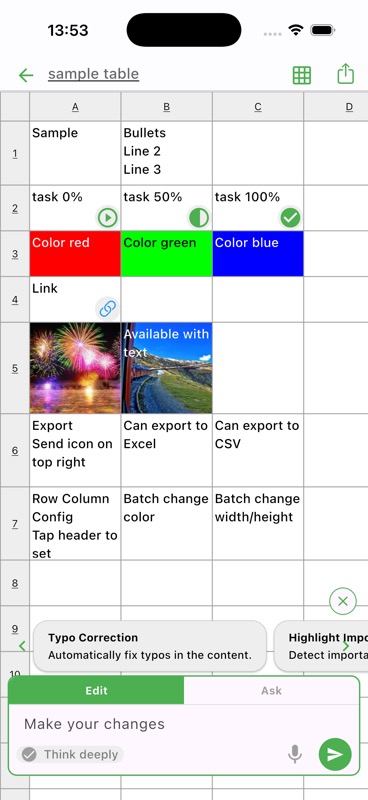
- Tap the input field below the table and choose Edit.
- Enter a change such as “Add an Owner column on the right” and select Send. Review the updated cells or headings.
Ask AI a question about the table
- Tap the input field below the table and choose Ask.
- Send a question such as “Which items are running low?” and read the reply in the chat window.
Hanova sela ary hanampy andalana na tsanganana
- Fidio ny sela tianao hovaina mba hanokafana ny mpanitsy sela.
- Ampidiro ny votoatiny ary hamafiso mba hanavaozana ny tabilao.
- Ampiasao ny marika + eo ambany na eo amin'ny sisin'ny tabilao mba hanampiana andalana na tsanganana.
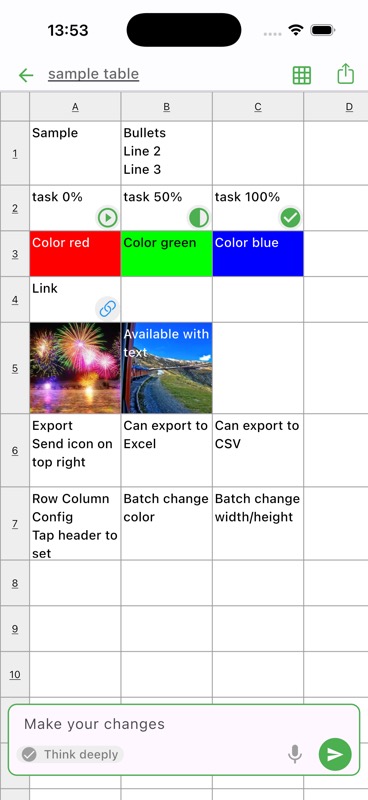
Hanampy sary ao amin'ny sela
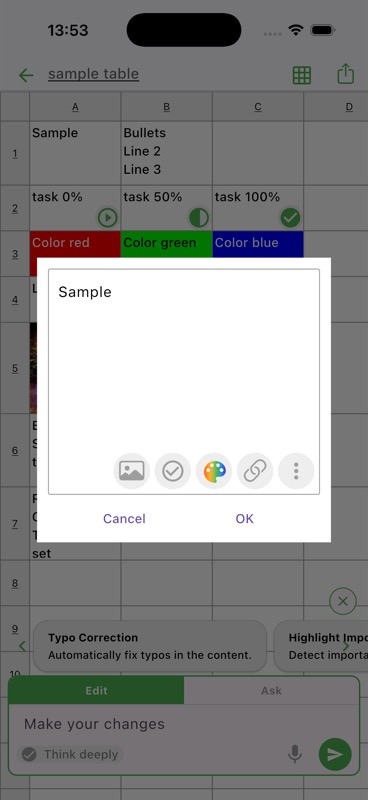
- Sokafy ny sela iray, fidio ny kisary sary ary mifidiana sary avy amin'ny fitaovanao.
- Raha hanala sary efa misy, fidio indray ilay kisary ihany.
Fampiasa andoavam-bola ny fanampiana sary.
Hanondrana tabilao
- Sokafy ny menio fanondranana ao amin'ny mpanonta tabilao.
- Mifidiana sary na PDF mba hitazonana ny endriny, CSV na Excel mba hampiasana ny angon'ny tabilao amin'ny rindranasa hafa, na ny endrika rakitry ny rindranasa mba hahafahana manova azy indray any aoriana.
Miankina amin'ny sehatra ampiasainao sy ny drafitrao ireo endrika rakitra misy.
Fividianana
Hividy drafitra misy sarany
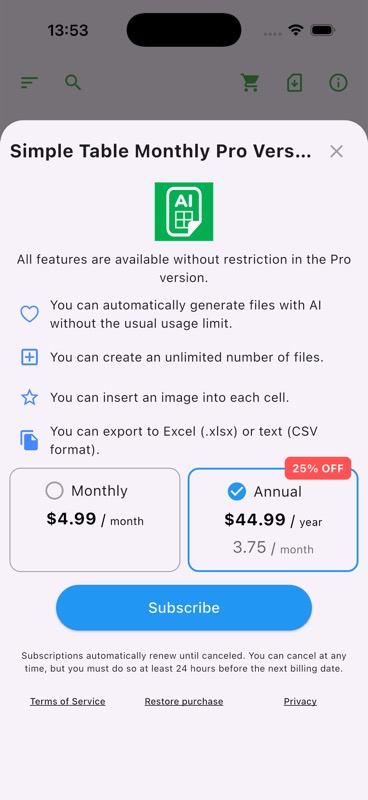
- Safidio ny kisary sarety fiantsenana ao amin'ny lisitry ny rakitra.
- Jereo ireo drafitra sy ny vidiny eo amin'ny efijery fividianana, dia safidio ny drafitra tianao hovidina.
Hamerina amin'ny laoniny ny fividianana
- Raha nividy tao amin'ny fivarotana rindranasa ianao, midira amin'ilay kaontin'ny fivarotana nampiasainao hividianana ilay drafitra.
- Sokafy ao amin'ny rindranasa ny efijery fividianana, safidio ny «Avereno amin'ny laoniny ny fividianana», ary jereo ny vokatra.
Hitantana ny fividianana na ny famandrihana
- Raha misy safidy fitantanana ny fividianana ao amin'ny menio fampahalalana amin'ny lisitry ny rakitra, sokafy izany.
- Ampiasao ilay fivarotana na tolotra nividiananao ny drafitra raha hijery na hanafoana ny famandrihanao.
Kaonty andoavam-bola
Hampifandray ny fividianana amin'ny kaonty Google
- Midira amin'ny kaontinao Google amin'ilay fitaovana misy fividianana mbola manan-kery.
- Raha miseho ao amin'ny menio ny safidy hampifandray ny fividianana amin'ny kaonty Google, safidio izany ary hamafiso ilay kaonty.
- Raha hampiasa ny drafitrao misy sarany amin'ny fitaovana hafa tohanana ianao, midira amin'ilay kaonty Google nampifandraisina.
Hifindra amin'ny kaonty Google hafa
- Jereo ao amin'ny menio fampahalalana amin'ny lisitry ny rakitra hoe iza amin'ireo kaonty Google no ampiasaina amin'izao fotoana izao.
- Raha misy safidy hivoahana amin'ny kaonty, safidio izany, dia sokafy ny Google Drive ary midira amin'ny kaonty tianao hampiasaina.
Amin'ny fitaovana hafa, ampiasao ny kaonty mifandray amin'ny fividianana na amin'ireo rakitra Drive tianao hidirana.