Lisitry ny rakitra
Create a check sheet
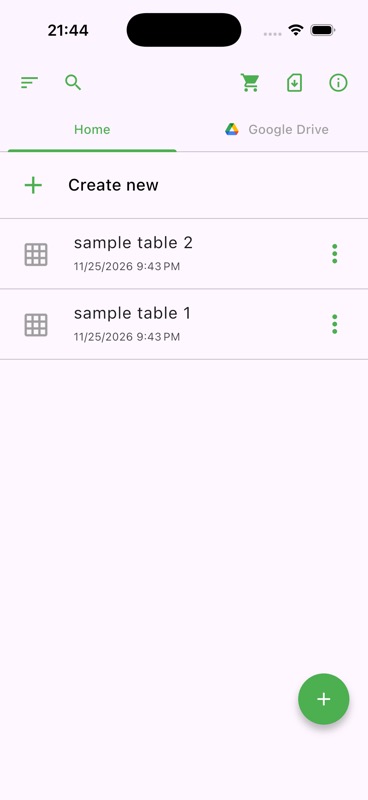
- Tap the + Create new row in the file list.
- Enter a name and select OK to open the editor.
Hanova ny filaharan'ny rakitra
- Ampiasao ny safidy fandaharana eo an-tampon'ny lisitry ny rakitra. Raha kely ny efijery, sokafy ny menio fandaharana.
- Safidio ny fandaharana araka ny daty nanovana na ny anaran'ny rakitra.
Search for a file by name
- Open Home or Google Drive, depending on where the file is stored, and select the Search icon.
- Enter part of the name in Search by file name. Select Close to see the full list again.
Hanao dika mitovy amin'ny rakitra
- Sokafy ny menio misy teboka telo an'ilay rakitra ary safidio ny « Hanao dika mitovy ».
- Sokafy ilay dika mitovy nampidirina tao amin'ny lisitra mba hanovana azy nefa hitazonana ny rakitra voalohany.
Hamafa rakitra
- Sokafy ny menio misy teboka telo an'ilay rakitra ary safidio ny « Hamafa ».
- Jereo ny hafatra fangatahana fanamafisana ary safidio ny « OK ».
Raha rakitra nozaraina taminao ilay izy, dia mety hisy safidy hanafoanana ny fizarana ao amin'ny menio.
Hanova ny anaran'ny rakitra
- Sokafy ny menio misy teboka telo an'ilay rakitra ary fidio ny hoe Hanova anarana.
- Ampidiro ny anarana vaovao ary hamafiso.
Mila fahazoan-dalana hanova rakitra ianao raha te hanova ny anaran'ny rakitra Google Drive nozaraina taminao.
Import a check sheet
- Select Import in the file list, then select OK to open the file picker.
- Choose a CheckTable file (.scsheet) or a comma-separated CSV file.
Hitahiry ao amin'ny Google Drive
- Fidio ny Google Drive ao amin'ny lisitry ny rakitra ary araho ny toromarika mba hampifandraisana ny kaontinao Google.
- Mamoròna rakitra vaovao ao amin'ny lisitry ny Google Drive. Raha misy io safidy io, azonao afindra ao amin'ny Google Drive koa ny rakitra voatahiry ao amin'ny fitaovanao amin'ny alalan'ny menio misy teboka telo an'ilay rakitra.
Mba hanokafana ilay rakitra amin'ny fitaovana hafa, ampifandraiso ny kaonty Google nampiasainao nitahirizana azy.
Hamindra rakitra eo amin'ny fitaovanao sy Google Drive
- Ao amin'ny fampiharana napetraka amin'ny fitaovanao, ampifandraiso ny kaontinao Google ary sokafy ny menio misy teboka telo an'ilay rakitra.
- Arakaraka ny toerana itahirizana ilay rakitra, fidio ny hoe Hamindra any amin'ny Google Drive na Hamindra any amin'ny Home, ary hamafiso.
Fanovana rakitra
Tick or clear a cell
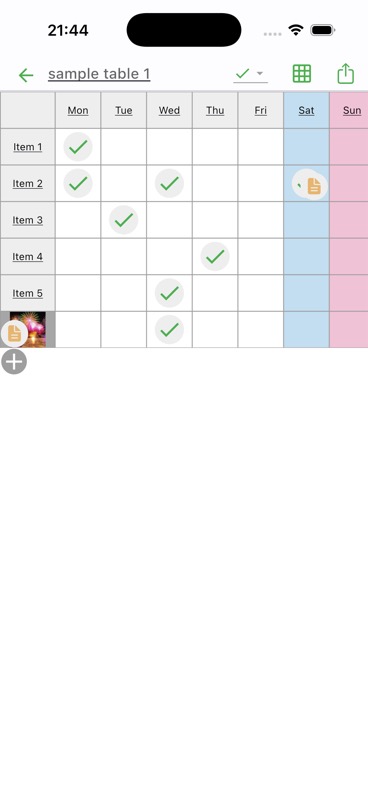
- Tap a cell to cycle through the marks configured for the sheet.
- Where right-click is available, open Change mark from the cell menu to pick a mark directly. Select Clear there to remove the mark.
Choose the marks used in the sheet
- Tap the marks and downward arrow at the top of the editor.
- Choose the set you want to use. Tap a cell to cycle through the selected marks.
Edit row and column labels
- Tap a row or column label.
- Change the label and select OK. Use + at the edge of the sheet to add a row or column.
Add a note, color, or link to a cell
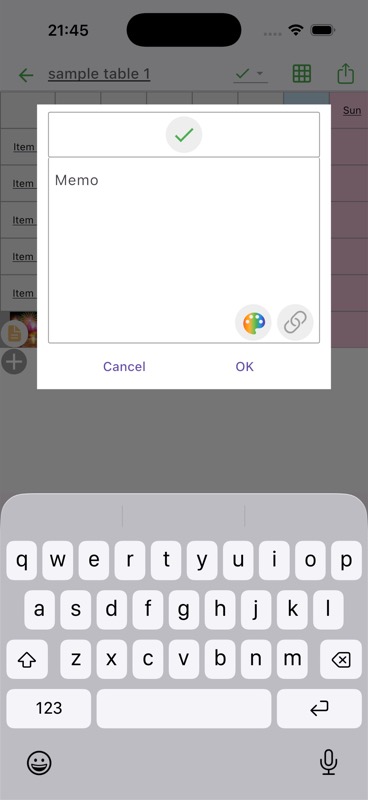
- Press and hold a cell to open the cell editor.
- Enter a note or select the color or link icon. Select OK to apply your changes.
Clear every check mark
- Open the table menu by selecting the grid icon at the top right of the editor.
- Select Clear all checks and then select OK in the confirmation.
This resets the marks while keeping the rows, columns, and cell content.
Export a check sheet
- Select the share icon in the top-right corner of the editor.
- Choose Image (.png) or PDF to preserve the appearance, or CSV or Excel for use in another app. To reimport the file later, select CheckTable (.scsheet).
Export formats marked with a lock require Pro.
Fividianana
Hividy drafitra misy sarany
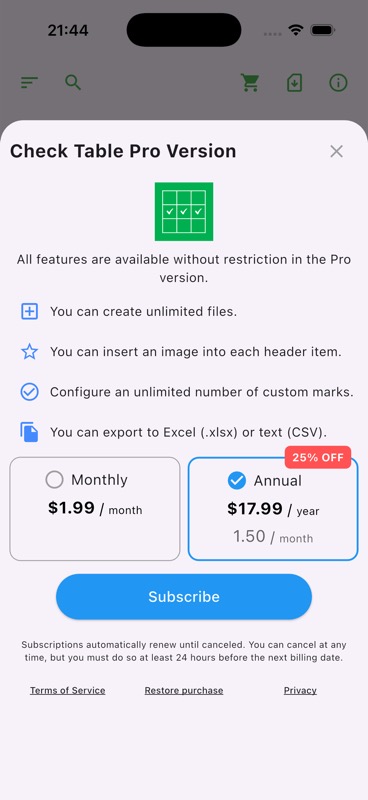
- Safidio ny kisary sarety fiantsenana ao amin'ny lisitry ny rakitra.
- Jereo ireo drafitra sy ny vidiny eo amin'ny efijery fividianana, dia safidio ny drafitra tianao hovidina.
Hamerina amin'ny laoniny ny fividianana
- Raha nividy tao amin'ny fivarotana rindranasa ianao, midira amin'ilay kaontin'ny fivarotana nampiasainao hividianana ilay drafitra.
- Sokafy ao amin'ny rindranasa ny efijery fividianana, safidio ny «Avereno amin'ny laoniny ny fividianana», ary jereo ny vokatra.
Hitantana ny fividianana na ny famandrihana
- Raha misy safidy fitantanana ny fividianana ao amin'ny menio fampahalalana amin'ny lisitry ny rakitra, sokafy izany.
- Ampiasao ilay fivarotana na tolotra nividiananao ny drafitra raha hijery na hanafoana ny famandrihanao.
Kaonty andoavam-bola
Hampifandray ny fividianana amin'ny kaonty Google
- Midira amin'ny kaontinao Google amin'ilay fitaovana misy fividianana mbola manan-kery.
- Raha miseho ao amin'ny menio ny safidy hampifandray ny fividianana amin'ny kaonty Google, safidio izany ary hamafiso ilay kaonty.
- Raha hampiasa ny drafitrao misy sarany amin'ny fitaovana hafa tohanana ianao, midira amin'ilay kaonty Google nampifandraisina.
Hifindra amin'ny kaonty Google hafa
- Jereo ao amin'ny menio fampahalalana amin'ny lisitry ny rakitra hoe iza amin'ireo kaonty Google no ampiasaina amin'izao fotoana izao.
- Raha misy safidy hivoahana amin'ny kaonty, safidio izany, dia sokafy ny Google Drive ary midira amin'ny kaonty tianao hampiasaina.
Amin'ny fitaovana hafa, ampiasao ny kaonty mifandray amin'ny fividianana na amin'ireo rakitra Drive tianao hidirana.