文件列表
Create a flowchart
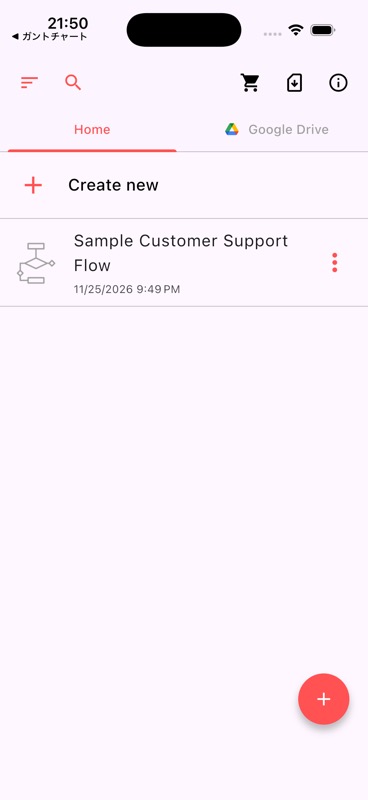
- Tap the + Create new row in the file list.
- Enter a file name and select OK to open the diagram editor.
更改文件排序方式
- 使用文件列表顶部的排序控件。在较小的屏幕上,打开排序菜单。
- 选择按修改日期或文件名排序。
Search for a file by name
- Open Home or Google Drive, depending on where the file is stored, and select the Search icon.
- Enter part of the name in Search by file name. Select Close to see the full list again.
创建文件副本
- 打开文件的三点菜单,选择“创建副本”。
- 打开列表中新增的副本,即可在保留原文件的同时进行编辑。
删除文件
- 打开文件的三点菜单,选择“删除”。
- 检查确认提示,然后选择“确定”。
对于他人与你共享的文件,菜单中可能会提供取消共享的选项。
重命名文件
- 打开文件的三点菜单,选择“重命名”。
- 输入新名称并确认。
您需要拥有编辑权限,才能重命名与您共享的 Google Drive 文件。
Import a flowchart
- Select Import in the file list, then select OK to open the file picker.
- Choose a Simple Flowchart file (.sflowchart).
保存到 Google Drive
- 在文件列表中选择 Google Drive,并按照提示关联您的 Google 账号。
- 在 Google Drive 列表中创建新文件。如果有此选项,也可以通过本地文件的三点菜单将其移动到 Google Drive。
要在其他设备上打开文件,请关联保存该文件时使用的 Google 账号。
在设备与 Google Drive 之间移动文件
- 在已安装的应用中关联您的 Google 账号,然后打开文件的三点菜单。
- 根据文件的保存位置,选择“移动到 Google Drive”或“移动到主页”,然后确认。
编辑文件
Add shapes and edit their text
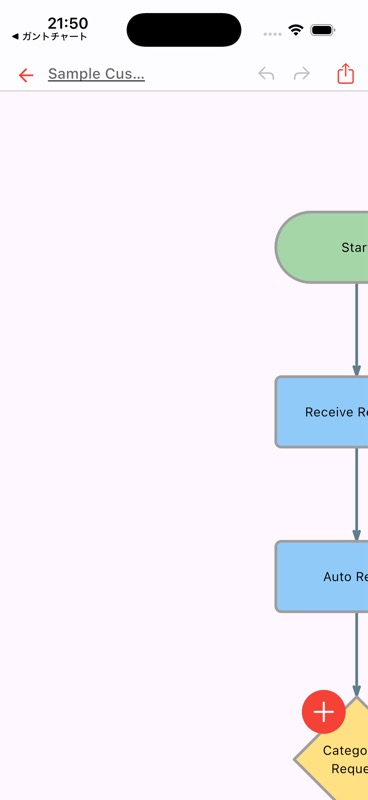
- Tap the red + button to add a shape. If a shape is already selected, the app also connects it to the new shape.
- Select the shape and tap the edit icon at the bottom to change its text.
- Use Change shape in the bottom toolbar to choose a shape for a process, decision, or other step.
Connect shapes with a line
- Tap the shape where the line should start.
- Tap Connection Line. When prompted, tap the destination shape.
- Select the new line to adjust its style or arrow.
Adjust a shape’s position or size
- Select a shape and choose Adjust position or Change size in the bottom toolbar.
- Use the controls that appear to adjust the shape, then confirm the change.
Export a flowchart
- Select the share icon in the top-right corner of the editor.
- Use Image (.png) or PDF to share a visual copy. Select Mermaid (.mermaid) to use the diagram with Mermaid, or SimpleFlowchart(.sflowchart) to reimport it into the app.
Export formats marked with a lock require Pro.
购买
购买付费套餐
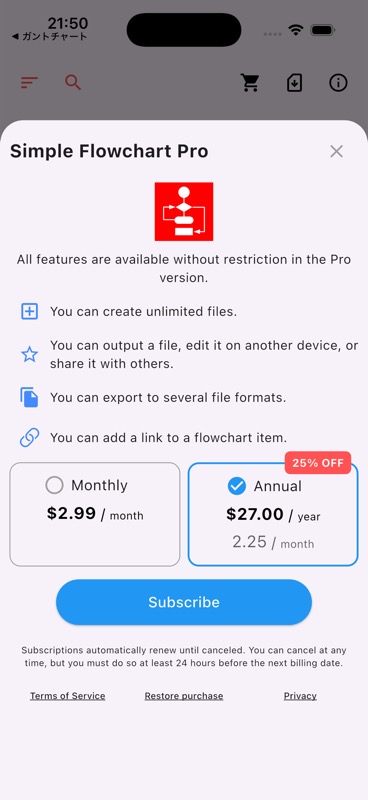
- 在文件列表中选择购物车图标。
- 在购买页面查看套餐及价格,然后选择要购买的套餐。
恢复购买
- 如果是通过应用商店购买的,请使用购买该套餐时所用的商店账号登录。
- 打开应用内的购买页面,选择“恢复购买”,然后查看结果。
管理购买或订阅
- 如果文件列表的信息菜单中提供购买管理选项,请打开该选项。
- 请通过购买套餐时使用的商店或服务查看或取消订阅。
付费账号
将购买记录关联到 Google 账号
- 在已购买且购买权益仍然有效的设备上登录你的 Google 账号。
- 如果菜单中显示将购买记录关联到 Google 账号的选项,请选择该选项并确认账号。
- 要在其他受支持的设备上使用付费套餐,请使用已关联的 Google 账号登录。
切换 Google 账号
- 在文件列表的信息菜单中查看当前使用的 Google 账号。
- 如果有退出登录选项,请选择该选项,然后打开 Google Drive 并登录要使用的账号。
在其他设备上,请使用与购买记录或要访问的 Drive 文件关联的账号。