File list
Create a flowchart
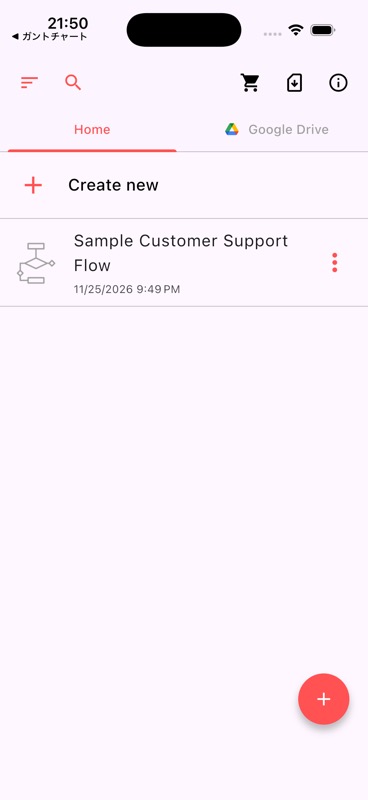
- Tap the + Create new row in the file list.
- Enter a file name and select OK to open the diagram editor.
Change the file sort order
- Use the sort control at the top of the file list. On a compact screen, open the Sort menu.
- Choose Sort by modification date or Sort by file name.
Search for a file by name
- Open Home or Google Drive, depending on where the file is stored, and select the Search icon.
- Enter part of the name in Search by file name. Select Close to see the full list again.
Duplicate a file
- Open the file’s three-dot menu and select Copy.
- Open the copy added to the list to edit it while keeping the original.
Delete a file
- Open the file’s three-dot menu and select Delete.
- Check the confirmation prompt and select OK.
For a file shared with you, the menu may show Remove access.
Rename a file
- Open the file’s three-dot menu and select Rename.
- Enter the new name and select OK.
You need editing access to rename a Google Drive file shared with you.
Import a flowchart
- Select Import in the file list, then select OK to open the file picker.
- Choose a Simple Flowchart file (.sflowchart).
Save to Google Drive
- Choose Google Drive in the file list and sign in to your Google Account if prompted. On mobile, select Sign in with Google.
- Select + Create new in the Google Drive list. To move a local file, select Move to Google Drive from its three-dot menu if the option is available.
To open the file on another device, connect the Google Account you used to save it.
Move files between your device and Google Drive
- In the installed app, connect your Google Account and open the file’s three-dot menu.
- Choose Move to Google Drive or Move to HOME, depending on where the file is saved, then select OK to confirm.
Editing files
Add shapes and edit their text
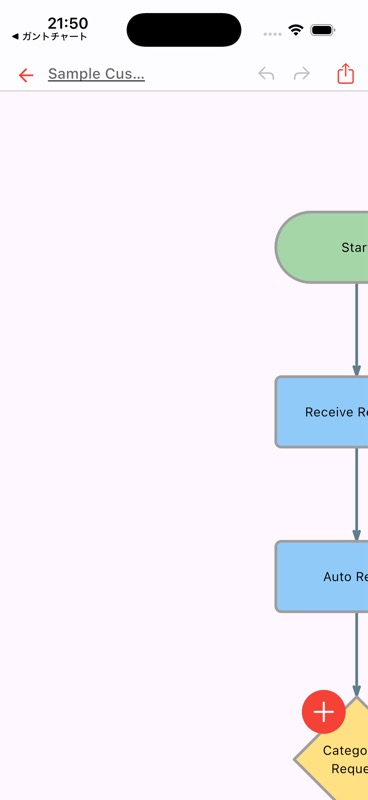
- Tap the red + button to add a shape. If a shape is already selected, the app also connects it to the new shape.
- Select the shape and tap the edit icon at the bottom to change its text.
- Use Change shape in the bottom toolbar to choose a shape for a process, decision, or other step.
Connect shapes with a line
- Tap the shape where the line should start.
- Tap Connection Line. When prompted, tap the destination shape.
- Select the new line to adjust its style or arrow.
Adjust a shape’s position or size
- Select a shape and choose Adjust position or Change size in the bottom toolbar.
- Use the controls that appear to adjust the shape, then confirm the change.
Export a flowchart
- Select the share icon in the top-right corner of the editor.
- Use Image (.png) or PDF to share a visual copy. Select Mermaid (.mermaid) to use the diagram with Mermaid, or SimpleFlowchart(.sflowchart) to reimport it into the app.
Export formats marked with a lock require Pro.
Purchases
Buy a paid plan
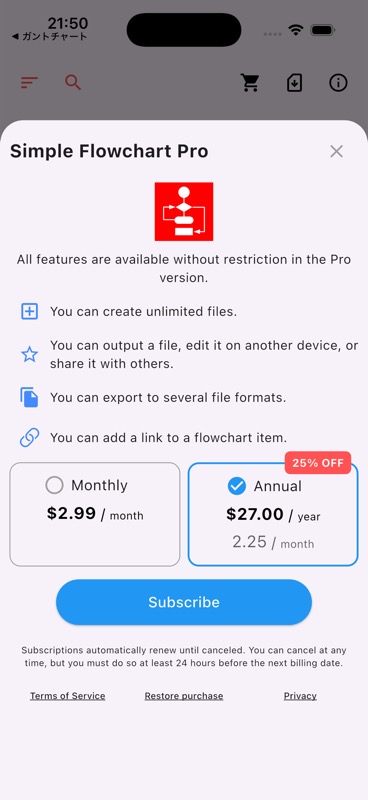
- Select the Purchase cart icon in the file list.
- Choose Monthly or Annual, review the plan and price, then select Subscribe.
Restore a purchase
- For an app store purchase, sign in with the store account you used to buy the plan.
- Open the purchase screen in the app, select Restore purchase, and check the result.
Manage a purchase or subscription
- If Manage subscription appears in the file list’s information menu, select it.
- Use the store or service where you purchased the plan to review or cancel your subscription.
Paid account
Link your purchase to a Google Account
- Sign in to your Google Account on the device where you have an active purchase.
- In the information menu, select Link purchase to Google account if it appears. Check the account and select Link.
- To use your paid plan on another supported device, sign in with the linked Google Account.
Switch Google Accounts
- Check which Google Account is active in the file list’s information menu.
- If Sign out of Google is available, select it, then open Google Drive and sign in to the account you want to use.
On another device, use the account associated with the purchase or the Drive files you want to access.