ഫയലുകളുടെ പട്ടിക
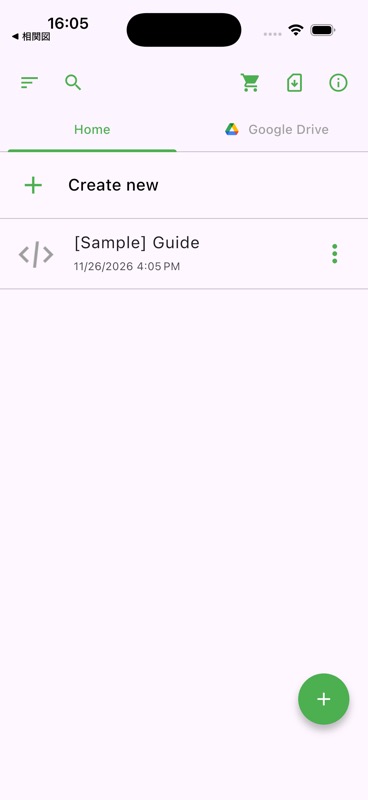
Create an HTML file
- Select + Create new in the file list.
- Enter a name for the page, then select OK to open the editor.
ഫയലുകളുടെ അടുക്കൽ ക്രമം മാറ്റുക
- ഫയൽ പട്ടികയുടെ മുകളിലുള്ള അടുക്കൽ നിയന്ത്രണം ഉപയോഗിക്കുക. ചെറിയ സ്ക്രീനിൽ അടുക്കൽ മെനു തുറക്കുക.
- മാറ്റം വരുത്തിയ തീയതി അല്ലെങ്കിൽ ഫയലിന്റെ പേര് അനുസരിച്ച് അടുക്കാൻ തിരഞ്ഞെടുക്കുക.
Search for a file by name
- Open Home or Google Drive, depending on where the file is stored, and select the Search icon.
- Enter part of the name in Search by file name. Select Close to see the full list again.
ഒരു ഫയലിന്റെ പകർപ്പ് സൃഷ്ടിക്കുക
- ഫയലിന്റെ മൂന്ന് കുത്തുകളുള്ള മെനു തുറന്ന് „പകർപ്പ് സൃഷ്ടിക്കുക“ തിരഞ്ഞെടുക്കുക.
- ഒറിജിനൽ ഫയൽ നിലനിർത്തിക്കൊണ്ട് എഡിറ്റ് ചെയ്യാൻ പട്ടികയിൽ ചേർത്ത പകർപ്പ് തുറക്കുക.
ഒരു ഫയൽ ഇല്ലാതാക്കുക
- ഫയലിന്റെ മൂന്ന് കുത്തുകളുള്ള മെനു തുറന്ന് „ഇല്ലാതാക്കുക“ തിരഞ്ഞെടുക്കുക.
- സ്ഥിരീകരണ സന്ദേശം പരിശോധിച്ച് „OK“ തിരഞ്ഞെടുക്കുക.
നിങ്ങളുമായി പങ്കിട്ട ഫയലിന്റെ മെനുവിൽ പങ്കിടൽ ഒഴിവാക്കാനുള്ള ഓപ്ഷൻ ഉണ്ടായേക്കാം.
ഒരു ഫയലിന്റെ പേര് മാറ്റുക
- ഫയലിന്റെ മൂന്ന് ഡോട്ടുകളുള്ള മെനു തുറന്ന് „പേരുമാറ്റുക“ തിരഞ്ഞെടുക്കുക.
- പുതിയ പേര് നൽകി സ്ഥിരീകരിക്കുക.
നിങ്ങളുമായി പങ്കിട്ട Google Drive ഫയലിന്റെ പേര് മാറ്റാൻ എഡിറ്റ് ചെയ്യാനുള്ള അനുമതി ആവശ്യമാണ്.
Import an existing HTML file
- Select Import in the file list, then select OK to open the file picker.
- Choose an HTML file (.html or .htm) and open it from the list.
Google Drive-ലേക്ക് സംരക്ഷിക്കുക
- ഫയൽ പട്ടികയിൽ Google Drive തിരഞ്ഞെടുത്ത് നിങ്ങളുടെ Google അക്കൗണ്ട് ബന്ധിപ്പിക്കുന്നതിനുള്ള നിർദ്ദേശങ്ങൾ പാലിക്കുക.
- Google Drive പട്ടികയിൽ നിന്ന് ഒരു പുതിയ ഫയൽ സൃഷ്ടിക്കുക. ഓപ്ഷൻ ലഭ്യമാണെങ്കിൽ, ഉപകരണത്തിൽ സൂക്ഷിച്ച ഫയലിന്റെ മൂന്ന് ഡോട്ടുകളുള്ള മെനുവിൽ നിന്ന് അത് Google Drive-ലേക്ക് നീക്കാനും കഴിയും.
മറ്റൊരു ഉപകരണത്തിൽ ഫയൽ തുറക്കാൻ, അത് സംരക്ഷിക്കാൻ ഉപയോഗിച്ച Google അക്കൗണ്ട് ബന്ധിപ്പിക്കുക.
നിങ്ങളുടെ ഉപകരണത്തിനും Google Drive-നും ഇടയിൽ ഫയലുകൾ നീക്കുക
- ഇൻസ്റ്റാൾ ചെയ്ത ആപ്പിൽ നിങ്ങളുടെ Google അക്കൗണ്ട് ബന്ധിപ്പിച്ച് ഫയലിന്റെ മൂന്ന് ഡോട്ടുകളുള്ള മെനു തുറക്കുക.
- ഫയൽ എവിടെയാണ് സംരക്ഷിച്ചിരിക്കുന്നതെന്നതനുസരിച്ച് „Google Drive-ലേക്ക് നീക്കുക“ അല്ലെങ്കിൽ „Home-ലേക്ക് നീക്കുക“ തിരഞ്ഞെടുത്ത് സ്ഥിരീകരിക്കുക.
ഫയലുകൾ എഡിറ്റ് ചെയ്യൽ
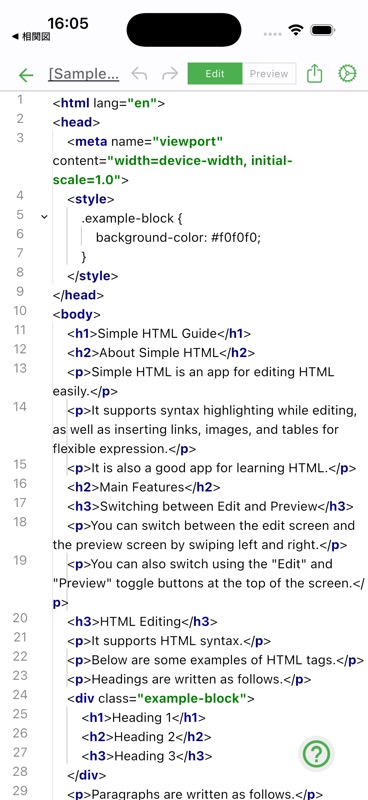
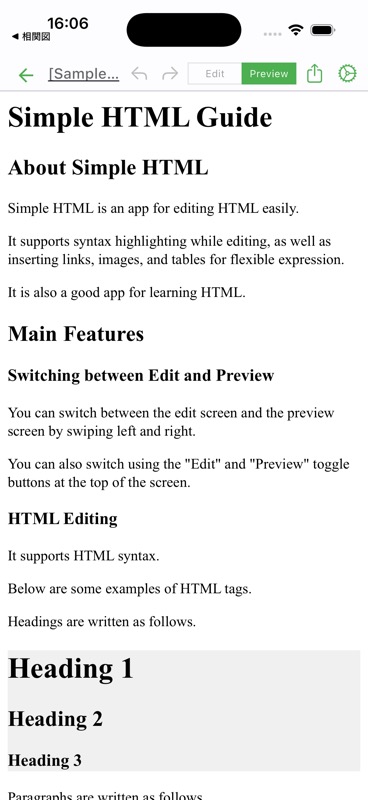
Edit HTML and preview the page
- Select Edit at the top and change the page text or markup. Try changing a heading or paragraph first.
- Switch to Preview to check the headings, links, and layout. Return to Edit to make more changes.
Find and replace text in HTML
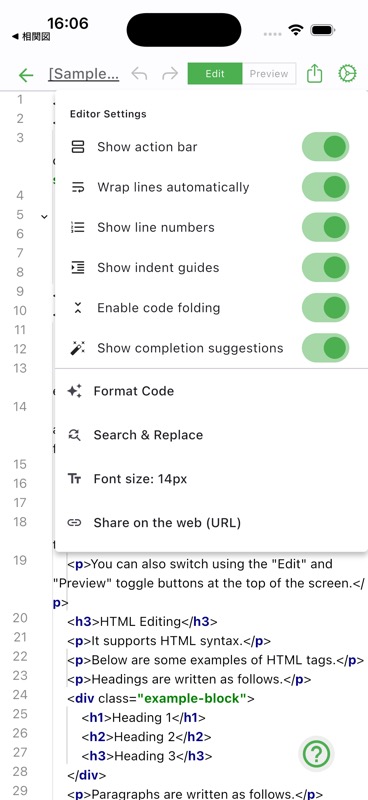
- While in Edit, select the gear icon in the top-right corner and choose Search & Replace in Editor Settings.
- Enter the text to find and move to the previous or next match. Use the Replace icon to open the replacement field, enter the new text, and choose Replace or Replace All.
Format HTML and adjust how lines are displayed
- Open the gear menu in the editor and select Format Code to tidy up indentation.
- Use the word wrap and line number settings to adjust how the code is displayed.
Share the HTML page by URL
- Open the gear menu in the top-right corner and choose Share on the web (URL).
- Copy the generated URL and send it to the recipient. The link shows the page as it was when the URL was created.
A shared URL cannot be revoked. Check what it contains before sending it.
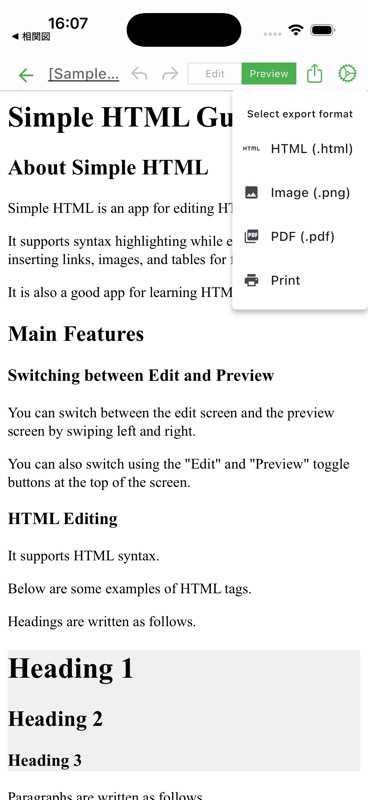
Export a page as HTML, an image, or PDF
- Select the share icon at the top of the screen. Choose HTML (.html) to reopen the file in a browser or edit it later.
- On a phone, choose PNG or PDF to preserve the page’s appearance.
വാങ്ങലുകൾ
പണമടച്ചുള്ള പ്ലാൻ വാങ്ങുക
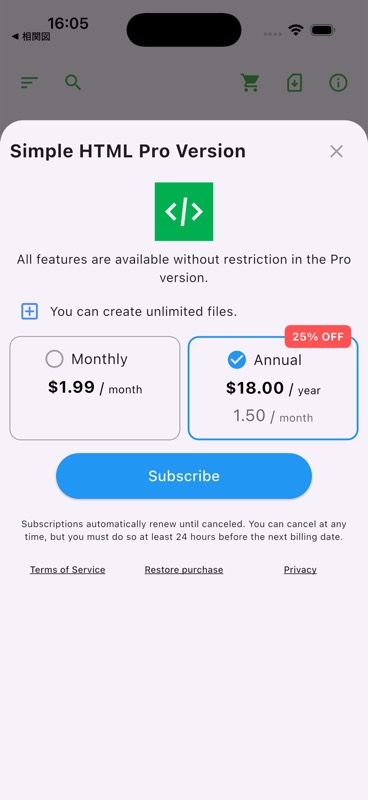
- ഫയൽ ലിസ്റ്റിലെ ഷോപ്പിംഗ് കാർട്ട് ഐക്കൺ തിരഞ്ഞെടുക്കുക.
- വാങ്ങൽ സ്ക്രീനിൽ കാണിക്കുന്ന പ്ലാനുകളും വിലകളും പരിശോധിച്ച ശേഷം വാങ്ങാൻ ആഗ്രഹിക്കുന്ന പ്ലാൻ തിരഞ്ഞെടുക്കുക.
വാങ്ങൽ പുനഃസ്ഥാപിക്കുക
- ആപ്പ് സ്റ്റോർ വഴി വാങ്ങിയതാണെങ്കിൽ, പ്ലാൻ വാങ്ങാൻ ഉപയോഗിച്ച സ്റ്റോർ അക്കൗണ്ട് ഉപയോഗിച്ച് സൈൻ ഇൻ ചെയ്യുക.
- ആപ്പിലെ വാങ്ങൽ സ്ക്രീൻ തുറന്ന് „വാങ്ങലുകൾ പുനഃസ്ഥാപിക്കുക“ എന്ന ഓപ്ഷൻ തിരഞ്ഞെടുത്ത് ഫലം പരിശോധിക്കുക.
വാങ്ങലോ സബ്സ്ക്രിപ്ഷനോ നിയന്ത്രിക്കുക
- ഫയൽ ലിസ്റ്റിലെ വിവര മെനുവിൽ വാങ്ങലുകൾ നിയന്ത്രിക്കാനുള്ള ഓപ്ഷൻ ലഭ്യമാണെങ്കിൽ അത് തുറക്കുക.
- സബ്സ്ക്രിപ്ഷൻ പരിശോധിക്കാനോ റദ്ദാക്കാനോ പ്ലാൻ വാങ്ങിയ സ്റ്റോറോ സേവനമോ ഉപയോഗിക്കുക.
പണമടച്ച അക്കൗണ്ട്
നിങ്ങളുടെ വാങ്ങൽ ഒരു Google അക്കൗണ്ടുമായി ബന്ധിപ്പിക്കുക
- സജീവമായ വാങ്ങൽ ഉള്ള ഉപകരണത്തിൽ നിങ്ങളുടെ Google അക്കൗണ്ടിലേക്ക് സൈൻ ഇൻ ചെയ്യുക.
- വാങ്ങൽ Google അക്കൗണ്ടുമായി ബന്ധിപ്പിക്കാനുള്ള ഓപ്ഷൻ മെനുവിൽ കാണുന്നുവെങ്കിൽ അത് തിരഞ്ഞെടുത്ത് അക്കൗണ്ട് സ്ഥിരീകരിക്കുക.
- പിന്തുണയുള്ള മറ്റൊരു ഉപകരണത്തിൽ പണമടച്ചുള്ള പ്ലാൻ ഉപയോഗിക്കാൻ, ബന്ധിപ്പിച്ച Google അക്കൗണ്ട് ഉപയോഗിച്ച് സൈൻ ഇൻ ചെയ്യുക.
Google അക്കൗണ്ടുകൾ മാറുക
- ഫയൽ ലിസ്റ്റിലെ വിവര മെനുവിൽ നിലവിൽ ഏത് Google അക്കൗണ്ടാണ് സജീവമെന്ന് പരിശോധിക്കുക.
- സൈൻ ഔട്ട് ചെയ്യാനുള്ള ഓപ്ഷൻ ലഭ്യമാണെങ്കിൽ അത് തിരഞ്ഞെടുക്കുക. തുടർന്ന് Google Drive തുറന്ന് ഉപയോഗിക്കാൻ ആഗ്രഹിക്കുന്ന അക്കൗണ്ടിലേക്ക് സൈൻ ഇൻ ചെയ്യുക.
മറ്റൊരു ഉപകരണത്തിൽ, വാങ്ങലുമായോ നിങ്ങൾക്ക് ആക്സസ് ചെയ്യേണ്ട Drive ഫയലുകളുമായോ ബന്ധിപ്പിച്ച അക്കൗണ്ട് ഉപയോഗിക്കുക.