파일 목록
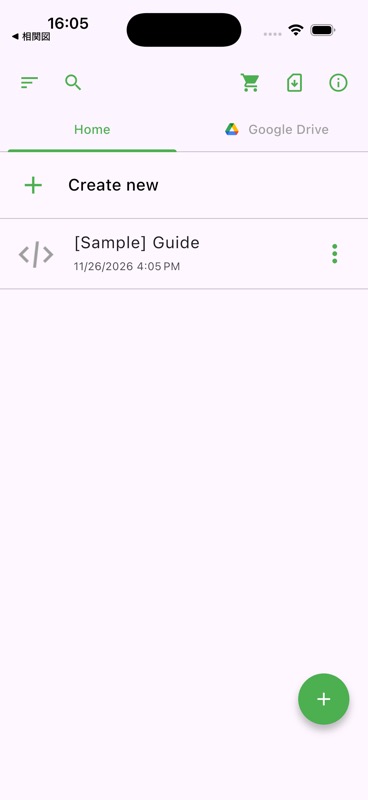
Create an HTML file
- Select + Create new in the file list.
- Enter a name for the page, then select OK to open the editor.
파일 정렬 순서 변경하기
- 파일 목록 상단의 정렬 기능을 사용하세요. 작은 화면에서는 정렬 메뉴를 여세요.
- 수정 날짜순 또는 파일 이름순으로 정렬하도록 선택하세요.
Search for a file by name
- Open Home or Google Drive, depending on where the file is stored, and select the Search icon.
- Enter part of the name in Search by file name. Select Close to see the full list again.
파일 복제하기
- 파일의 점 세 개 메뉴를 열고 ‘복제’를 선택하세요.
- 원본을 유지한 채 편집하려면 목록에 추가된 복제본을 여세요.
파일 삭제하기
- 파일의 점 세 개 메뉴를 열고 ‘삭제’를 선택하세요.
- 확인 메시지를 확인한 후 ‘확인’을 선택하세요.
다른 사람이 나와 공유한 파일의 경우, 메뉴에 공유를 해제하는 옵션이 표시될 수 있습니다.
파일 이름 변경하기
- 파일의 점 세 개 메뉴를 열고 ‘이름 변경’을 선택하세요.
- 새 이름을 입력하고 확인하세요.
나와 공유된 Google Drive 파일의 이름을 변경하려면 편집 권한이 필요합니다.
Import an existing HTML file
- Select Import in the file list, then select OK to open the file picker.
- Choose an HTML file (.html or .htm) and open it from the list.
Google Drive에 저장하기
- 파일 목록에서 Google Drive를 선택하고 안내에 따라 Google 계정을 연결하세요.
- Google Drive 목록에서 새 파일을 만드세요. 해당 옵션이 있는 경우, 로컬 파일의 점 세 개 메뉴에서 Google Drive로 이동할 수도 있습니다.
다른 기기에서 파일을 열려면 저장할 때 사용한 Google 계정을 연결하세요.
기기와 Google Drive 간에 파일 이동하기
- 기기에 설치된 앱에서 Google 계정을 연결하고 파일의 점 세 개 메뉴를 열어 주세요.
- 파일의 저장 위치에 따라 ‘Google Drive로 이동’ 또는 ‘Home으로 이동’을 선택하고 확인하세요.
파일 편집
Edit HTML and preview the page
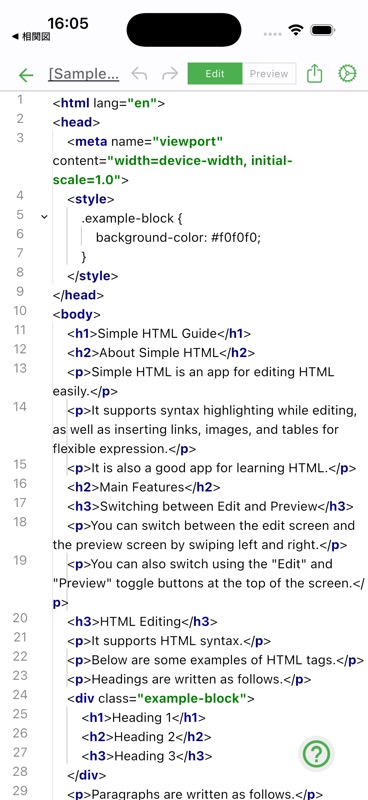
- Select Edit at the top and change the page text or markup. Try changing a heading or paragraph first.
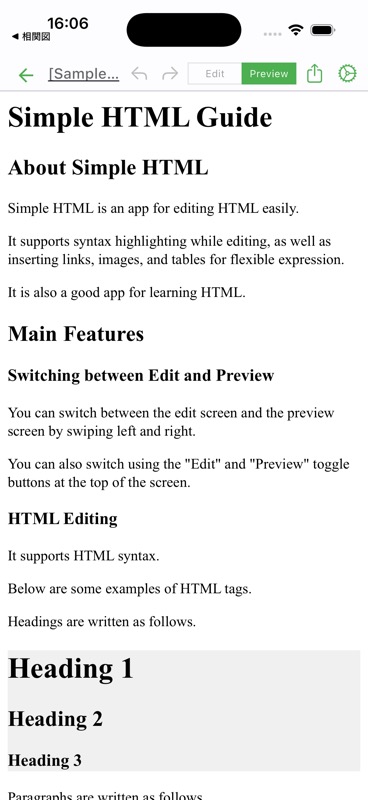
- Switch to Preview to check the headings, links, and layout. Return to Edit to make more changes.
Find and replace text in HTML
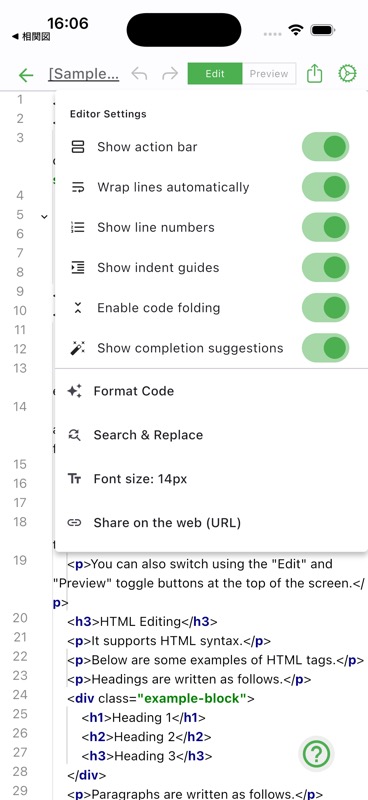
- While in Edit, select the gear icon in the top-right corner and choose Search & Replace in Editor Settings.
- Enter the text to find and move to the previous or next match. Use the Replace icon to open the replacement field, enter the new text, and choose Replace or Replace All.
Format HTML and adjust how lines are displayed
- Open the gear menu in the editor and select Format Code to tidy up indentation.
- Use the word wrap and line number settings to adjust how the code is displayed.
Share the HTML page by URL
- Open the gear menu in the top-right corner and choose Share on the web (URL).
- Copy the generated URL and send it to the recipient. The link shows the page as it was when the URL was created.
A shared URL cannot be revoked. Check what it contains before sending it.
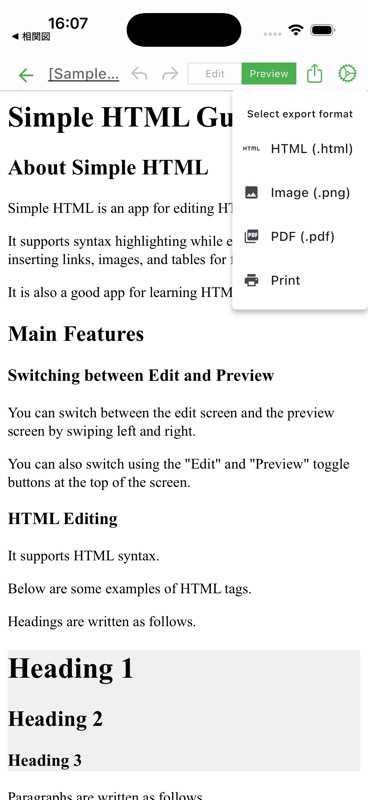
Export a page as HTML, an image, or PDF
- Select the share icon at the top of the screen. Choose HTML (.html) to reopen the file in a browser or edit it later.
- On a phone, choose PNG or PDF to preserve the page’s appearance.
구매
유료 요금제 구매하기
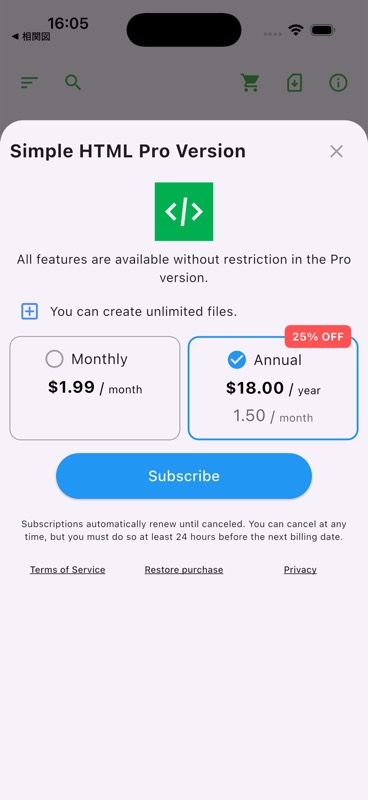
- 파일 목록에서 장바구니 아이콘을 선택합니다.
- 구매 화면에서 요금제와 가격을 확인한 후 구매할 요금제를 선택합니다.
구매 복원하기
- 앱 스토어에서 구매한 경우 요금제 구매에 사용한 스토어 계정으로 로그인합니다.
- 앱에서 구매 화면을 열고 ‘구매 복원’을 선택한 후 결과를 확인합니다.
구매 또는 구독 관리하기
- 파일 목록의 정보 메뉴에 구매 관리 옵션이 있으면 해당 옵션을 엽니다.
- 요금제를 구매한 스토어 또는 서비스에서 구독을 확인하거나 취소합니다.
유료 계정
구매 내역을 Google 계정에 연결하기
- 유효한 구매 내역이 있는 기기에서 Google 계정으로 로그인합니다.
- 메뉴에 구매 내역을 Google 계정에 연결하는 옵션이 표시되면 해당 옵션을 선택하고 계정을 확인합니다.
- 지원되는 다른 기기에서 유료 요금제를 사용하려면 연결된 Google 계정으로 로그인합니다.
Google 계정 전환하기
- 파일 목록의 정보 메뉴에서 현재 활성화된 Google 계정을 확인합니다.
- 로그아웃 옵션이 있으면 선택한 다음 Google Drive를 열고 사용하려는 계정으로 로그인합니다.
다른 기기에서는 구매 내역 또는 접근하려는 Drive 파일에 연결된 계정을 사용합니다.