Jerin fayiloli
Create an HTML file
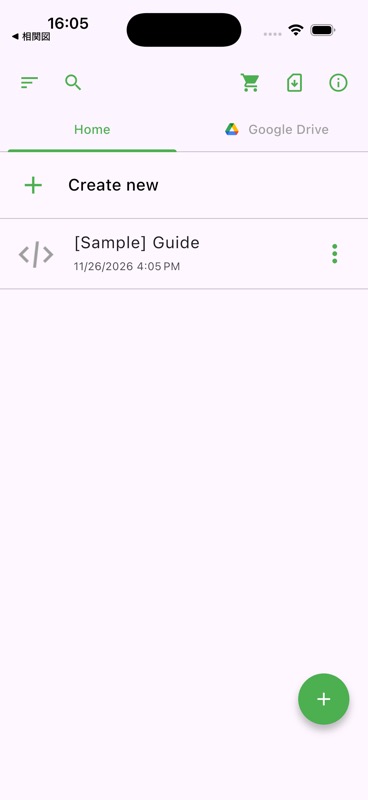
- Select + Create new in the file list.
- Enter a name for the page, then select OK to open the editor.
Canja tsarin jera fayiloli
- Yi amfani da zaɓin jera fayiloli a saman jerin fayiloli. A ƙaramin allo, buɗe menu na jera fayiloli.
- Zaɓi jera fayiloli bisa ranar da aka gyara su ko sunan fayil.
Search for a file by name
- Open Home or Google Drive, depending on where the file is stored, and select the Search icon.
- Enter part of the name in Search by file name. Select Close to see the full list again.
Kwafi fayil
- Buɗe menu mai ɗigo uku na fayil ɗin sannan ka zaɓi Kwafi.
- Buɗe kwafin da aka ƙara cikin jerin don gyara shi tare da kiyaye asalin fayil ɗin.
Share fayil
- Buɗe menu mai ɗigo uku na fayil ɗin sannan ka zaɓi Share.
- Duba saƙon tabbatarwa sannan ka zaɓi OK.
Idan an raba fayil da kai, menu na iya nuna zaɓin cire damar samun fayil ɗin ta hanyar rabawa.
Sake sanya wa fayil suna
- Buɗe menu na ɗigo uku na fayil ɗin sannan zaɓi Sake suna.
- Shigar da sabon suna sannan ka tabbatar.
Kana buƙatar izinin gyarawa don sake sunan fayil na Google Drive da aka raba da kai.
Import an existing HTML file
- Select Import in the file list, then select OK to open the file picker.
- Choose an HTML file (.html or .htm) and open it from the list.
Ajiye a Google Drive
- Zaɓi Google Drive a jerin fayiloli sannan ka bi umarnin don haɗa asusun Google ɗinka.
- Ƙirƙiri sabon fayil daga jerin Google Drive. Idan zaɓin yana samuwa, za ka iya matsar da fayil na cikin na'urarka zuwa Google Drive daga menu na ɗigo uku na fayil ɗin.
Don buɗe fayil ɗin a wata na'ura, haɗa asusun Google da ka yi amfani da shi wajen ajiye fayil ɗin.
Matsar da fayiloli tsakanin na'urarka da Google Drive
- A cikin manhajar da aka girka, haɗa asusun Google ɗinka sannan ka buɗe menu na ɗigo uku na fayil ɗin.
- Zaɓi Matsar zuwa Google Drive ko Matsar zuwa Gida, gwargwadon inda aka ajiye fayil ɗin, sannan ka tabbatar.
Gyaran fayiloli
Edit HTML and preview the page
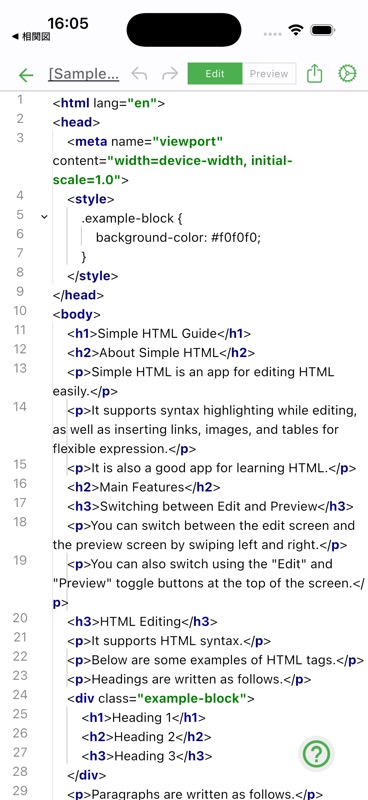
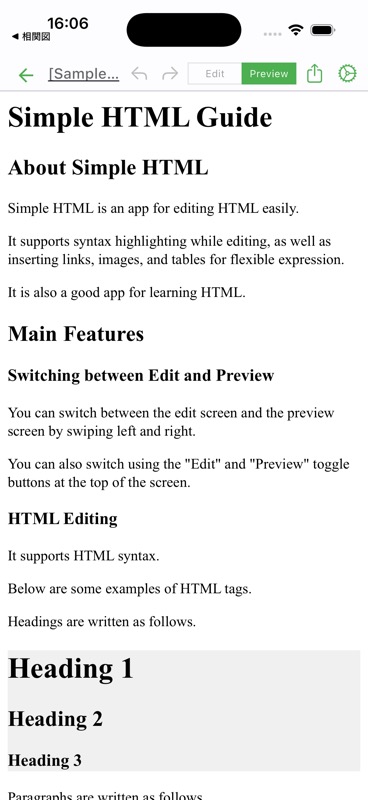
- Select Edit at the top and change the page text or markup. Try changing a heading or paragraph first.
- Switch to Preview to check the headings, links, and layout. Return to Edit to make more changes.
Find and replace text in HTML
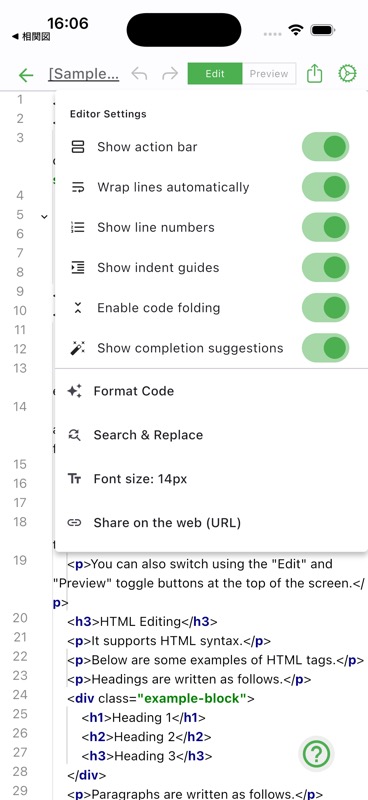
- While in Edit, select the gear icon in the top-right corner and choose Search & Replace in Editor Settings.
- Enter the text to find and move to the previous or next match. Use the Replace icon to open the replacement field, enter the new text, and choose Replace or Replace All.
Format HTML and adjust how lines are displayed
- Open the gear menu in the editor and select Format Code to tidy up indentation.
- Use the word wrap and line number settings to adjust how the code is displayed.
Share the HTML page by URL
- Open the gear menu in the top-right corner and choose Share on the web (URL).
- Copy the generated URL and send it to the recipient. The link shows the page as it was when the URL was created.
A shared URL cannot be revoked. Check what it contains before sending it.
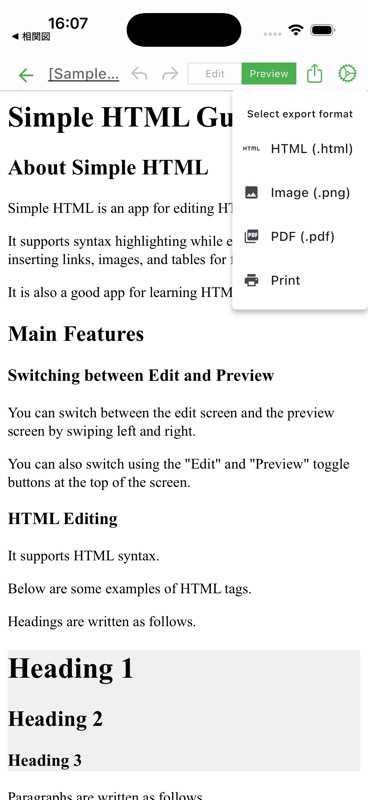
Export a page as HTML, an image, or PDF
- Select the share icon at the top of the screen. Choose HTML (.html) to reopen the file in a browser or edit it later.
- On a phone, choose PNG or PDF to preserve the page’s appearance.
Saye-saye
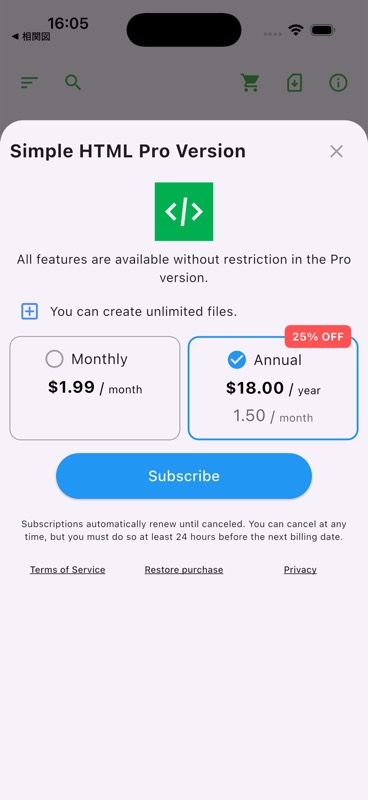
Sayi tsarin biyan kuɗi
- Zaɓi alamar keken sayayya a jerin fayiloli.
- Duba tsare-tsare da farashinsu a allon sayayya, sannan zaɓi tsarin da kake son saya.
Maido da sayayya
- Idan ka yi sayayya a shagon manhajoji, shiga da asusun shagon da ka yi amfani da shi wajen sayen tsarin.
- Buɗe allon sayayya a manhajar, zaɓi «Maido da sayayya» sannan ka duba sakamakon.
Sarrafa sayayya ko biyan kuɗin rajista
- Idan akwai zaɓin sarrafa sayayya a menu na bayanai na jerin fayiloli, buɗe shi.
- Yi amfani da shago ko sabis ɗin da ka sayi tsarin a ciki don duba ko soke biyan kuɗin rajistarka.
Asusun da ake biya
Haɗa sayayyarka da asusun Google
- Shiga asusun Google ɗinka a na’urar da kake da sayayya mai aiki a kanta.
- Idan zaɓin haɗa sayayyarka da asusun Google ya bayyana a menu, zaɓe shi sannan ka tabbatar da asusun.
- Don amfani da tsarin biyan kuɗinka a wata na’ura da ake tallafawa, shiga da asusun Google da aka haɗa.
Sauya asusun Google
- Duba asusun Google da yake aiki a menu na bayanai na jerin fayiloli.
- Idan akwai zaɓin fita daga asusu, zaɓe shi, sannan ka buɗe Google Drive ka shiga asusun da kake son amfani da shi.
A wata na’ura, yi amfani da asusun da ke da alaƙa da sayayyar ko fayilolin Drive da kake son samun dama gare su.