Jerin fayiloli
Create a shift sheet
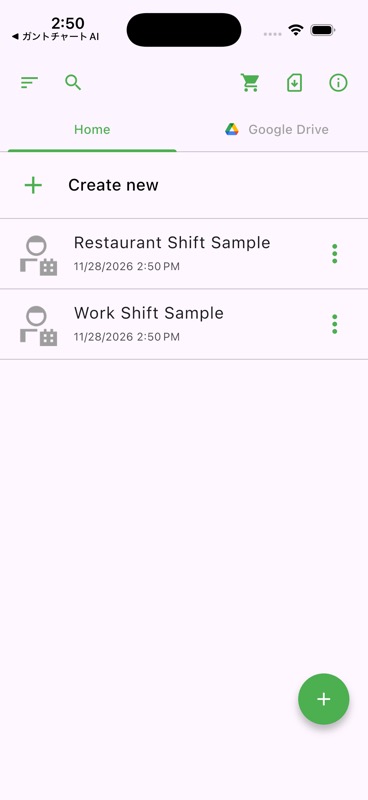
- Tap + Create new in the file list and enter a name, such as the store and month you want to schedule.
- Select OK to open the shift sheet.
Canja tsarin jera fayiloli
- Yi amfani da zaɓin jera fayiloli a saman jerin fayiloli. A ƙaramin allo, buɗe menu na jera fayiloli.
- Zaɓi jera fayiloli bisa ranar da aka gyara su ko sunan fayil.
Search for a file by name
- Open Home or Google Drive, depending on where the file is stored, and select the Search icon.
- Enter part of the name in Search by file name. Select Close to see the full list again.
Kwafi fayil
- Buɗe menu mai ɗigo uku na fayil ɗin sannan ka zaɓi Kwafi.
- Buɗe kwafin da aka ƙara cikin jerin don gyara shi tare da kiyaye asalin fayil ɗin.
Share fayil
- Buɗe menu mai ɗigo uku na fayil ɗin sannan ka zaɓi Share.
- Duba saƙon tabbatarwa sannan ka zaɓi OK.
Idan an raba fayil da kai, menu na iya nuna zaɓin cire damar samun fayil ɗin ta hanyar rabawa.
Sake sanya wa fayil suna
- Buɗe menu na ɗigo uku na fayil ɗin sannan zaɓi Sake suna.
- Shigar da sabon suna sannan ka tabbatar.
Kana buƙatar izinin gyarawa don sake sunan fayil na Google Drive da aka raba da kai.
Import a saved shift sheet
- Select Import in the file list, then select OK to open the file picker.
- Choose a shift sheet previously exported from this app and open it from the list.
The import prompt shows .sshift. The current version saves native shift sheet files with the .stournament extension.
Ajiye a Google Drive
- Zaɓi Google Drive a jerin fayiloli sannan ka bi umarnin don haɗa asusun Google ɗinka.
- Ƙirƙiri sabon fayil daga jerin Google Drive. Idan zaɓin yana samuwa, za ka iya matsar da fayil na cikin na'urarka zuwa Google Drive daga menu na ɗigo uku na fayil ɗin.
Don buɗe fayil ɗin a wata na'ura, haɗa asusun Google da ka yi amfani da shi wajen ajiye fayil ɗin.
Matsar da fayiloli tsakanin na'urarka da Google Drive
- A cikin manhajar da aka girka, haɗa asusun Google ɗinka sannan ka buɗe menu na ɗigo uku na fayil ɗin.
- Zaɓi Matsar zuwa Google Drive ko Matsar zuwa Gida, gwargwadon inda aka ajiye fayil ɗin, sannan ka tabbatar.
Gyaran fayiloli
Set the date range for a shift sheet
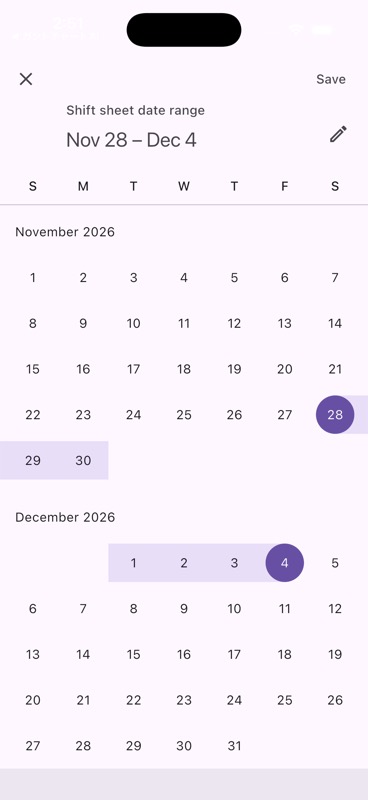
- Tap the date range with the calendar icon at the top of the editor.
- Pick the first and last days in the calendar and save. The sheet displays the selected range.
Add staff members
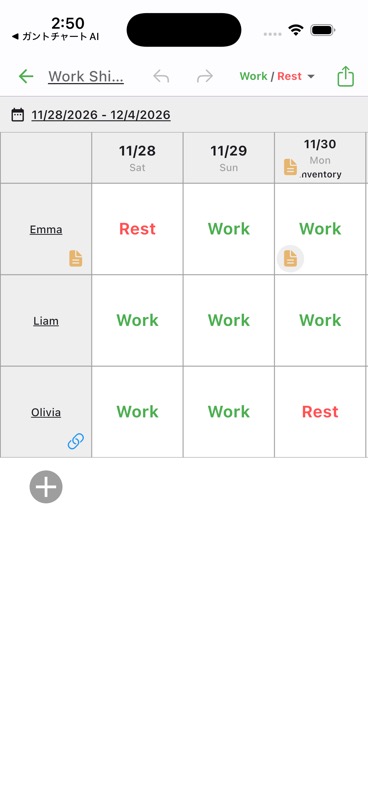
- Choose Add a new person in an empty sheet, or tap + at the end of the staff column in an existing sheet.
- Enter the staff member’s name and select OK. In an empty sheet, you can also import people from another file.
Choose a shift pattern
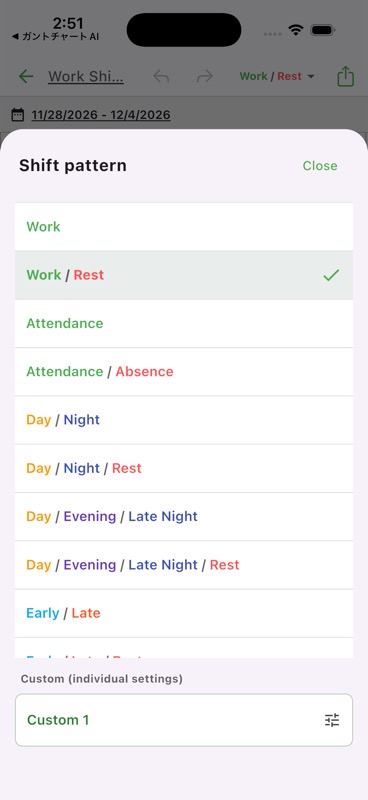
- Tap the current pattern name at the top of the editor to open Shift pattern.
- Choose a set that fits your team, such as work and days off, day and night shifts, or early and late shifts. Use Custom (individual settings) for your own names and colors.
Assign a shift to a person on a date
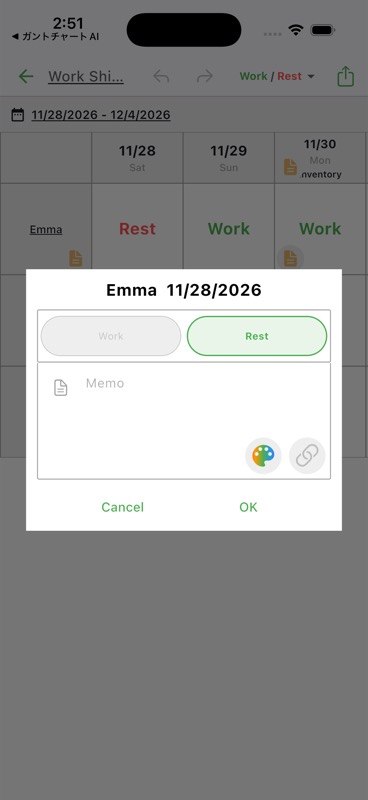
- Tap the cell where the person’s row and the date column meet. Each tap moves to the next option in the selected shift pattern.
- On a phone, press and hold a cell to open its details and edit a note or color.
Raba abun ciki ta URL
- Buɗe menu na fitarwa a editan sannan ka zaɓi zaɓin rabawa ta yanar gizo.
- Kwafi URL ɗin da aka samar sannan ka aika wa mutanen da kake son raba abun cikin da su.
URL ɗin yana ɗauke da abun ciki kamar yadda yake lokacin da aka ƙirƙiri mahaɗin. Akwai iyaka ga nau'i da adadin abun cikin da za ka iya rabawa.
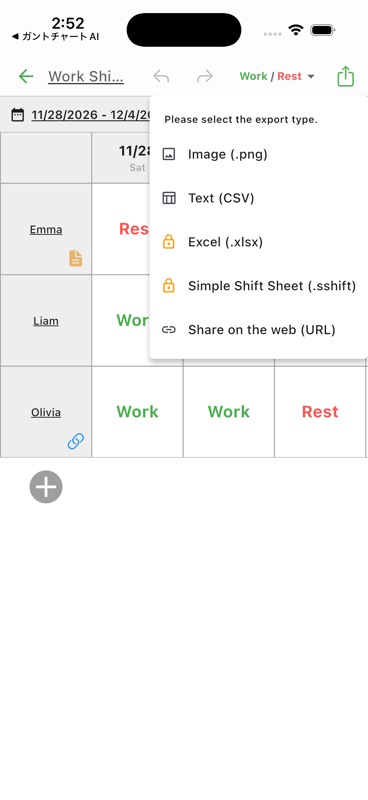
Export a shift sheet as an image, CSV, or Excel file
- Open the share menu at the top right. Choose an image to share the layout, or CSV or Excel to open the data in a spreadsheet.
- To reimport the sheet later, choose the menu item labeled Simple Shift Sheet (.sshift) and save the exported file.
The native file is currently saved with the .stournament extension. Export formats marked with a lock require Pro.
Saye-saye
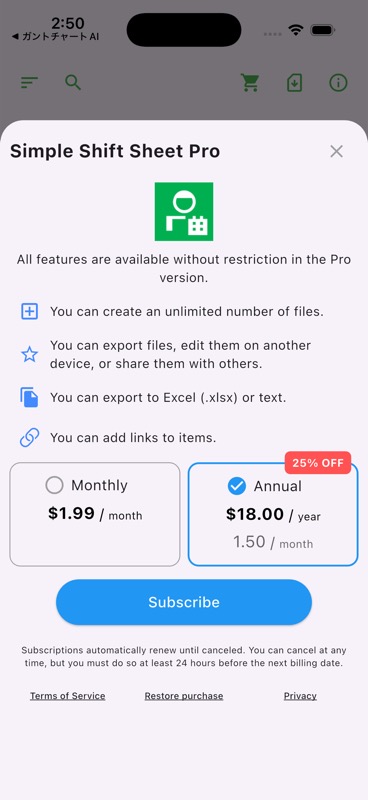
Sayi tsarin biyan kuɗi
- Zaɓi alamar keken sayayya a jerin fayiloli.
- Duba tsare-tsare da farashinsu a allon sayayya, sannan zaɓi tsarin da kake son saya.
Maido da sayayya
- Idan ka yi sayayya a shagon manhajoji, shiga da asusun shagon da ka yi amfani da shi wajen sayen tsarin.
- Buɗe allon sayayya a manhajar, zaɓi «Maido da sayayya» sannan ka duba sakamakon.
Sarrafa sayayya ko biyan kuɗin rajista
- Idan akwai zaɓin sarrafa sayayya a menu na bayanai na jerin fayiloli, buɗe shi.
- Yi amfani da shago ko sabis ɗin da ka sayi tsarin a ciki don duba ko soke biyan kuɗin rajistarka.
Asusun da ake biya
Haɗa sayayyarka da asusun Google
- Shiga asusun Google ɗinka a na’urar da kake da sayayya mai aiki a kanta.
- Idan zaɓin haɗa sayayyarka da asusun Google ya bayyana a menu, zaɓe shi sannan ka tabbatar da asusun.
- Don amfani da tsarin biyan kuɗinka a wata na’ura da ake tallafawa, shiga da asusun Google da aka haɗa.
Sauya asusun Google
- Duba asusun Google da yake aiki a menu na bayanai na jerin fayiloli.
- Idan akwai zaɓin fita daga asusu, zaɓe shi, sannan ka buɗe Google Drive ka shiga asusun da kake son amfani da shi.
A wata na’ura, yi amfani da asusun da ke da alaƙa da sayayyar ko fayilolin Drive da kake son samun dama gare su.