Fitxategien zerrenda
Create an HTML file
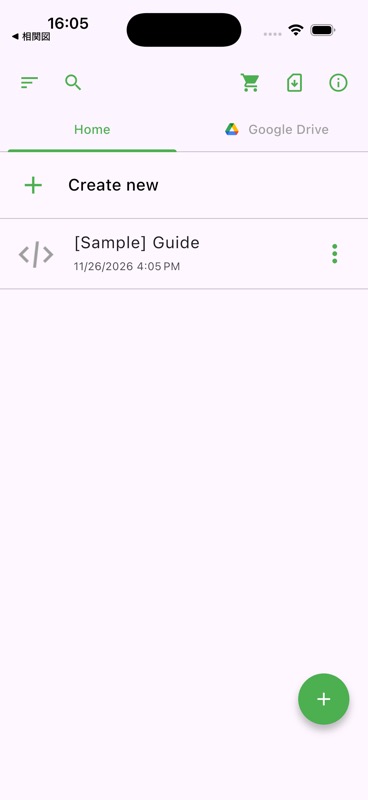
- Select + Create new in the file list.
- Enter a name for the page, then select OK to open the editor.
Fitxategien ordena aldatzea
- Erabili fitxategien zerrendaren goialdeko ordenatzeko kontrola. Pantaila txiki batean, ireki ordenatzeko menua.
- Aukeratu aldaketa-dataren edo fitxategi-izenaren arabera ordenatzea.
Search for a file by name
- Open Home or Google Drive, depending on where the file is stored, and select the Search icon.
- Enter part of the name in Search by file name. Select Close to see the full list again.
Fitxategi bat bikoiztea
- Ireki fitxategiaren hiru puntuko menua eta hautatu «Bikoiztu».
- Ireki zerrendara gehitutako kopia, jatorrizkoa gordeta editatzeko.
Fitxategi bat ezabatzea
- Ireki fitxategiaren hiru puntuko menua eta hautatu «Ezabatu».
- Egiaztatu berrespen-mezua eta hautatu «Ados».
Zurekin partekatutako fitxategi baten kasuan, menuak partekatzea kentzeko aukera eskain dezake.
Fitxategi baten izena aldatzea
- Ireki fitxategiaren hiru puntuko menua eta hautatu «Aldatu izena».
- Idatzi izen berria eta berretsi.
Zurekin partekatutako Google Driveko fitxategi bati izena aldatzeko, editatzeko baimena behar duzu.
Import an existing HTML file
- Select Import in the file list, then select OK to open the file picker.
- Choose an HTML file (.html or .htm) and open it from the list.
Gorde Google Driven
- Hautatu Google Drive fitxategien zerrendan eta jarraitu argibideei zure Google kontua lotzeko.
- Sortu fitxategi berri bat Google Driveko zerrendatik. Aukera erabilgarri badago, gailuko fitxategi bat Google Drivera eraman dezakezu haren hiru puntuko menutik.
Fitxategia beste gailu batean irekitzeko, lotu hura gordetzeko erabili zenuen Google kontua.
Eraman fitxategiak gailuaren eta Google Driveren artean
- Instalatutako aplikazioan, lotu zure Google kontua eta ireki fitxategiaren hiru puntuko menua.
- Fitxategia non gordeta dagoen kontuan hartuta, hautatu «Eraman Google Drivera» edo «Eraman hasierara» eta berretsi.
Fitxategiak editatzea
Edit HTML and preview the page
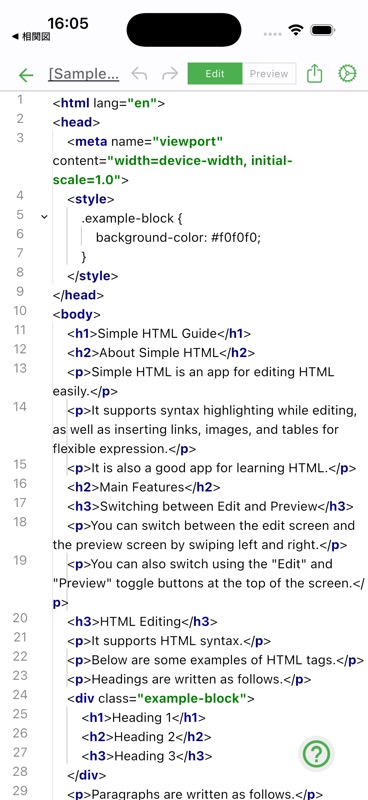
- Select Edit at the top and change the page text or markup. Try changing a heading or paragraph first.
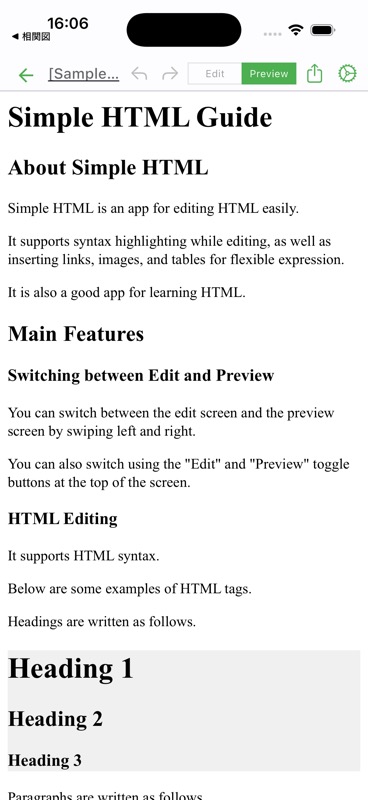
- Switch to Preview to check the headings, links, and layout. Return to Edit to make more changes.
Find and replace text in HTML
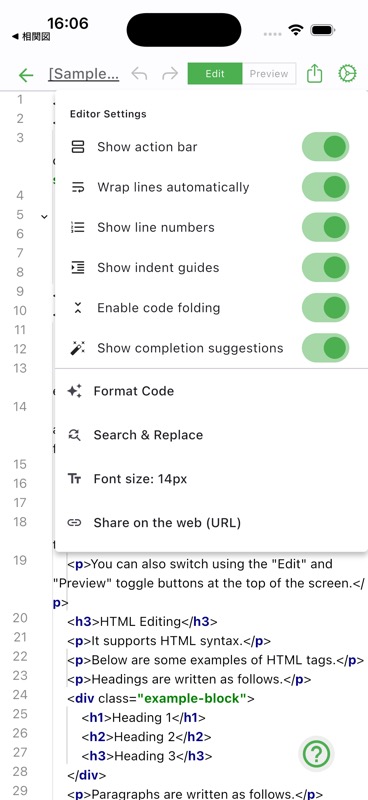
- While in Edit, select the gear icon in the top-right corner and choose Search & Replace in Editor Settings.
- Enter the text to find and move to the previous or next match. Use the Replace icon to open the replacement field, enter the new text, and choose Replace or Replace All.
Format HTML and adjust how lines are displayed
- Open the gear menu in the editor and select Format Code to tidy up indentation.
- Use the word wrap and line number settings to adjust how the code is displayed.
Share the HTML page by URL
- Open the gear menu in the top-right corner and choose Share on the web (URL).
- Copy the generated URL and send it to the recipient. The link shows the page as it was when the URL was created.
A shared URL cannot be revoked. Check what it contains before sending it.
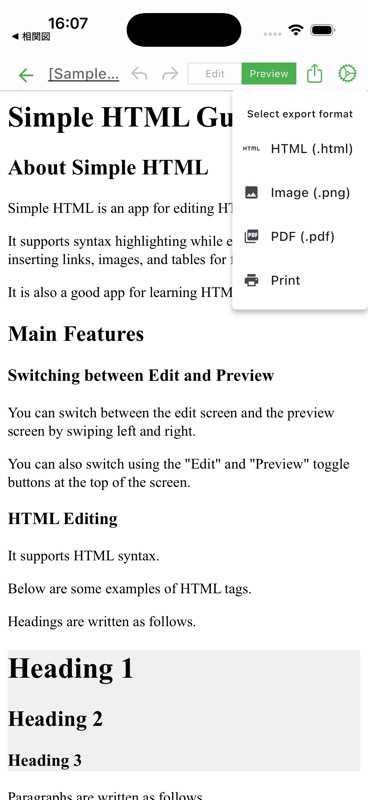
Export a page as HTML, an image, or PDF
- Select the share icon at the top of the screen. Choose HTML (.html) to reopen the file in a browser or edit it later.
- On a phone, choose PNG or PDF to preserve the page’s appearance.
Erosketak
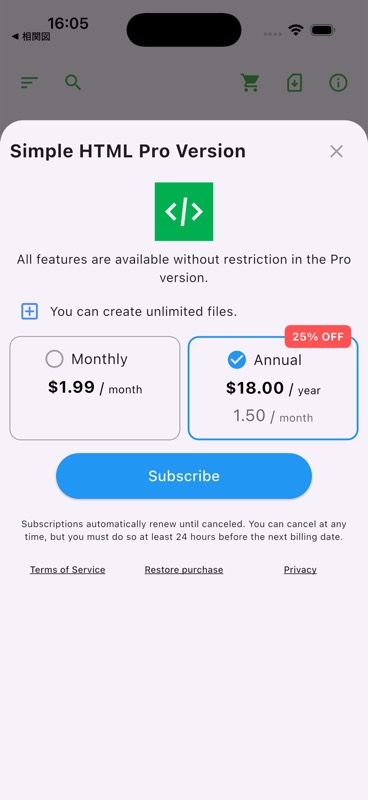
Ordainpeko plan bat erostea
- Hautatu erosketa-orgaren ikonoa fitxategien zerrendan.
- Berrikusi planak eta prezioak erosketa-pantailan, eta hautatu erosi nahi duzun plana.
Erosketa bat leheneratzea
- Aplikazio-denda batean egindako erosketa bada, hasi saioa plana erosteko erabili zenuen dendako kontuarekin.
- Ireki erosketa-pantaila aplikazioan, hautatu «Leheneratu erosketak» eta egiaztatu emaitza.
Erosketa edo harpidetza bat kudeatzea
- Fitxategien zerrendako informazio-menuak erosketak kudeatzeko aukera badu, ireki aukera hori.
- Erabili plana erosi zenuen denda edo zerbitzua harpidetza berrikusteko edo bertan behera uzteko.
Ordainpeko kontua
Erosketa Google kontu bati lotzea
- Hasi saioa zure Google kontuan erosketa aktiboa duzun gailuan.
- Erosketa Google kontu bati lotzeko aukera menuan agertzen bada, hautatu eta berretsi kontua.
- Ordainpeko plana beste gailu bateragarri batean erabiltzeko, hasi saioa lotutako Google kontuarekin.
Google kontuz aldatzea
- Egiaztatu zein Google kontu dagoen aktibo fitxategien zerrendako informazio-menuan.
- Saioa ixteko aukera erabilgarri badago, hautatu; ondoren, ireki Google Drive eta hasi saioa erabili nahi duzun kontuarekin.
Beste gailu batean, erabili erosketari edo atzitu nahi dituzun Drive-ko fitxategiei lotutako kontua.