Fitxategien zerrenda
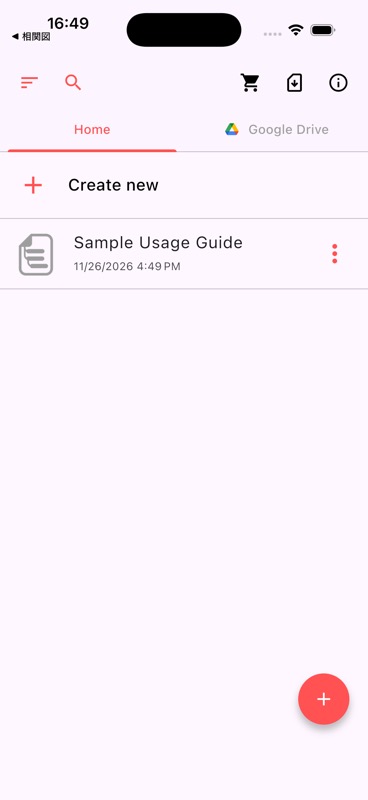
Create an outline file
- Select + Create new in the file list.
- Enter a name and select OK to open the outline editor.
Fitxategien ordena aldatzea
- Erabili fitxategien zerrendaren goialdeko ordenatzeko kontrola. Pantaila txiki batean, ireki ordenatzeko menua.
- Aukeratu aldaketa-dataren edo fitxategi-izenaren arabera ordenatzea.
Search for a file by name
- Open Home or Google Drive, depending on where the file is stored, and select the Search icon.
- Enter part of the name in Search by file name. Select Close to see the full list again.
Fitxategi bat bikoiztea
- Ireki fitxategiaren hiru puntuko menua eta hautatu «Bikoiztu».
- Ireki zerrendara gehitutako kopia, jatorrizkoa gordeta editatzeko.
Fitxategi bat ezabatzea
- Ireki fitxategiaren hiru puntuko menua eta hautatu «Ezabatu».
- Egiaztatu berrespen-mezua eta hautatu «Ados».
Zurekin partekatutako fitxategi baten kasuan, menuak partekatzea kentzeko aukera eskain dezake.
Fitxategi baten izena aldatzea
- Ireki fitxategiaren hiru puntuko menua eta hautatu «Aldatu izena».
- Idatzi izen berria eta berretsi.
Zurekin partekatutako Google Driveko fitxategi bati izena aldatzeko, editatzeko baimena behar duzu.
Import an outline file
- Select Import in the file list and select OK to open the file picker.
- Choose an outline file (.bmind). You can also import a JSON file containing data in the same format.
Gorde Google Driven
- Hautatu Google Drive fitxategien zerrendan eta jarraitu argibideei zure Google kontua lotzeko.
- Sortu fitxategi berri bat Google Driveko zerrendatik. Aukera erabilgarri badago, gailuko fitxategi bat Google Drivera eraman dezakezu haren hiru puntuko menutik.
Fitxategia beste gailu batean irekitzeko, lotu hura gordetzeko erabili zenuen Google kontua.
Eraman fitxategiak gailuaren eta Google Driveren artean
- Instalatutako aplikazioan, lotu zure Google kontua eta ireki fitxategiaren hiru puntuko menua.
- Fitxategia non gordeta dagoen kontuan hartuta, hautatu «Eraman Google Drivera» edo «Eraman hasierara» eta berretsi.
Fitxategiak editatzea
Add topics at the same level or one level below
- Tap a topic to select it. Use the add buttons at the bottom to insert a topic at the same level or add a child topic below it.
- Type the new topic’s text. To change an existing topic, select it and tap it again.
When the root topic is selected, you can add a child topic.
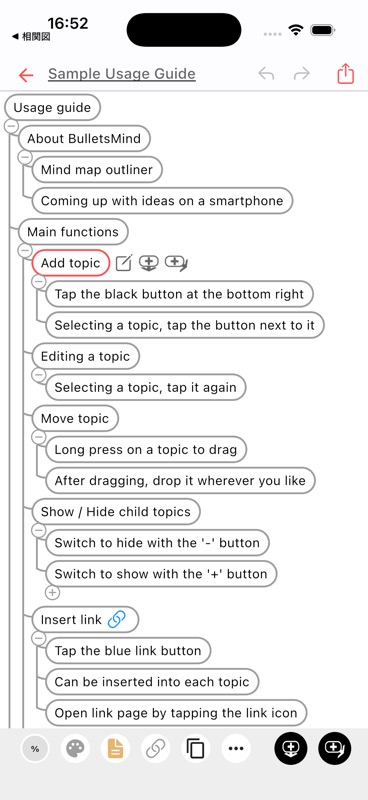
Collapse and expand child topics
- Tap the minus sign next to a topic with children to collapse that branch.
- Tap the plus sign to expand it again. Collapse detailed branches when you want an overview of the headings.
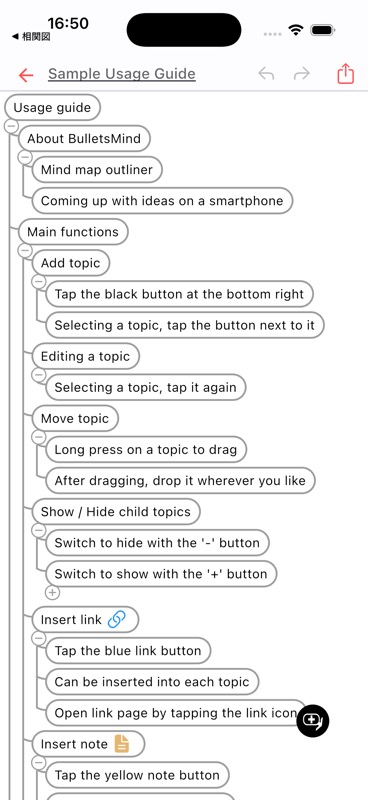
Reorder topics or move them to another level
- Press and hold the topic you want to move, then drag it.
- Check the drop position before releasing. You can reorder topics or move a topic under a different parent.
Add a note to a topic
- Select the topic and choose Note in the bottom toolbar. On a narrow screen it may be in the three-dot menu.
- Enter the details. You can view the note later using the note icon next to that topic.
Export a BulletsMind outline
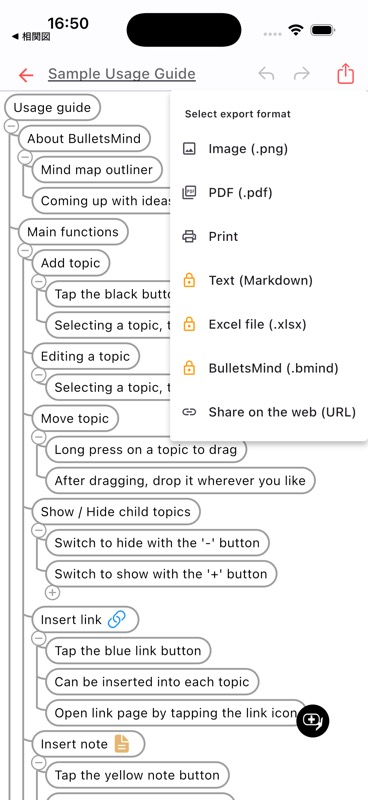
- Select the share icon in the top-right corner.
- Choose an image or PDF to preserve the appearance, Markdown to reuse the text, or Excel to open the data in a spreadsheet. Choose BulletsMind (.bmind) to reimport and edit the outline.
Export formats marked with a lock require Pro.
Erosketak
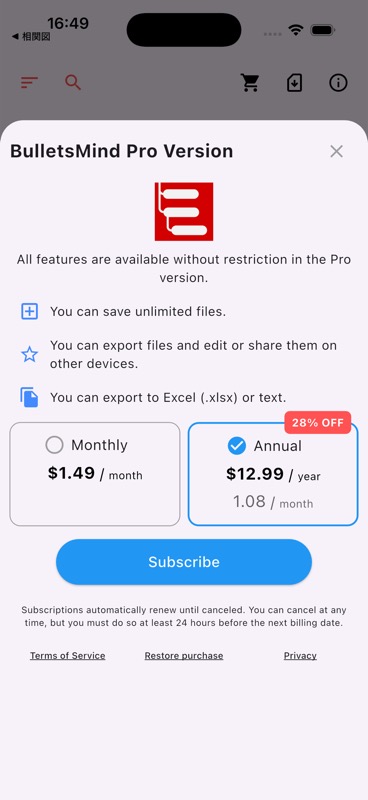
Ordainpeko plan bat erostea
- Hautatu erosketa-orgaren ikonoa fitxategien zerrendan.
- Berrikusi planak eta prezioak erosketa-pantailan, eta hautatu erosi nahi duzun plana.
Erosketa bat leheneratzea
- Aplikazio-denda batean egindako erosketa bada, hasi saioa plana erosteko erabili zenuen dendako kontuarekin.
- Ireki erosketa-pantaila aplikazioan, hautatu «Leheneratu erosketak» eta egiaztatu emaitza.
Erosketa edo harpidetza bat kudeatzea
- Fitxategien zerrendako informazio-menuak erosketak kudeatzeko aukera badu, ireki aukera hori.
- Erabili plana erosi zenuen denda edo zerbitzua harpidetza berrikusteko edo bertan behera uzteko.
Ordainpeko kontua
Erosketa Google kontu bati lotzea
- Hasi saioa zure Google kontuan erosketa aktiboa duzun gailuan.
- Erosketa Google kontu bati lotzeko aukera menuan agertzen bada, hautatu eta berretsi kontua.
- Ordainpeko plana beste gailu bateragarri batean erabiltzeko, hasi saioa lotutako Google kontuarekin.
Google kontuz aldatzea
- Egiaztatu zein Google kontu dagoen aktibo fitxategien zerrendako informazio-menuan.
- Saioa ixteko aukera erabilgarri badago, hautatu; ondoren, ireki Google Drive eta hasi saioa erabili nahi duzun kontuarekin.
Beste gailu batean, erabili erosketari edo atzitu nahi dituzun Drive-ko fitxategiei lotutako kontua.