Lenane la lifaele
Create a shift sheet
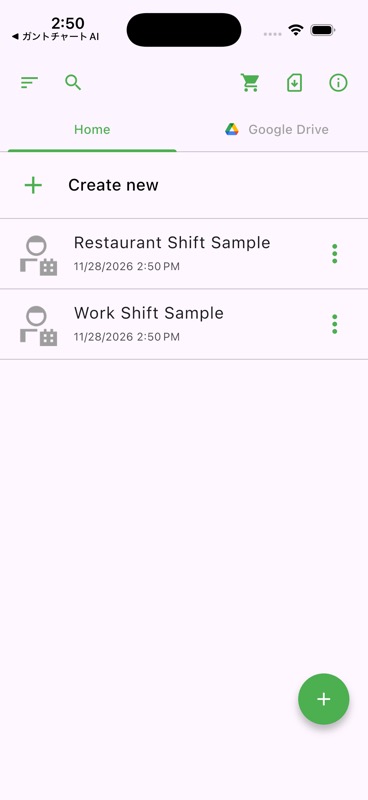
- Tap + Create new in the file list and enter a name, such as the store and month you want to schedule.
- Select OK to open the shift sheet.
Fetola tatellano ea lifaele
- Sebelisa taolo ea ho hlopha e kaholimo ho lenane la lifaele. Skrineng se senyenyane, bula menu ea ho hlopha.
- Khetha ho hlopha ka letsatsi la phetoho kapa lebitso la faele.
Search for a file by name
- Open Home or Google Drive, depending on where the file is stored, and select the Search icon.
- Enter part of the name in Search by file name. Select Close to see the full list again.
Etsa kopi ea faele
- Bula menu ea matheba a mararo ea faele 'me u khethe Etsa kopi.
- Bula kopi e kentsoeng lenaneng ho e hlophisa ha u ntse u boloka faele ea mantlha.
Hlakola faele
- Bula menu ea matheba a mararo ea faele 'me u khethe Hlakola.
- Hlahloba molaetsa oa netefatso 'me u khethe OK.
Bakeng sa faele e arolelanoeng le uena, menu e ka fana ka khetho ea ho tlosa ho arolelana.
Reha faele lebitso le lecha
- Bula menu ea matheba a mararo ea faele 'me u khethe Reha lebitso le lecha.
- Kenya lebitso le lecha 'me u netefatse.
U hloka tumello ea ho hlophisa hore u rehe faele ea Google Drive e arolelanoeng le uena lebitso le lecha.
Import a saved shift sheet
- Select Import in the file list, then select OK to open the file picker.
- Choose a shift sheet previously exported from this app and open it from the list.
The import prompt shows .sshift. The current version saves native shift sheet files with the .stournament extension.
Boloka ho Google Drive
- Khetha Google Drive lenaneng la lifaele 'me u latele litaelo ho hokela ak'haonte ea hao ea Google.
- Theha faele e ncha lenaneng la Google Drive. Haeba khetho eo e le teng, u ka boela ua fallisetsa faele e bolokiloeng sesebelisoeng ho Google Drive ka menu ea eona ea matheba a mararo.
Ho bula faele sesebelisoeng se seng, hokela ak'haonte ea Google eo u e sebelisitseng ho e boloka.
Fallisa lifaele pakeng tsa sesebelisoa sa hao le Google Drive
- Ho app e kentsoeng sesebelisoeng, hokela ak'haonte ea hao ea Google 'me u bule menu ea matheba a mararo ea faele.
- Khetha Fallisetsa ho Google Drive kapa Fallisetsa ho Lehae, ho latela hore na faele e bolokiloe hokae, 'me u netefatse.
Ho hlophisa lifaele
Set the date range for a shift sheet
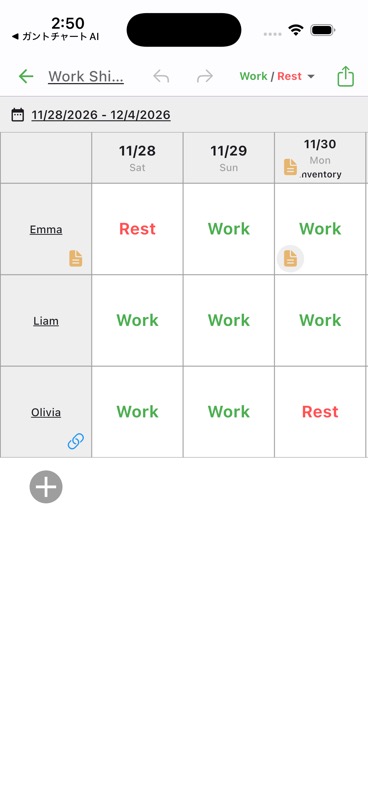
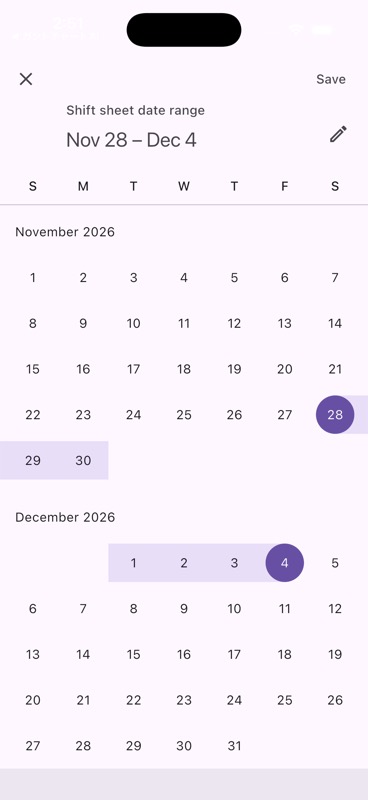
- Tap the date range with the calendar icon at the top of the editor.
- Pick the first and last days in the calendar and save. The sheet displays the selected range.
Add staff members
- Choose Add a new person in an empty sheet, or tap + at the end of the staff column in an existing sheet.
- Enter the staff member’s name and select OK. In an empty sheet, you can also import people from another file.
Choose a shift pattern
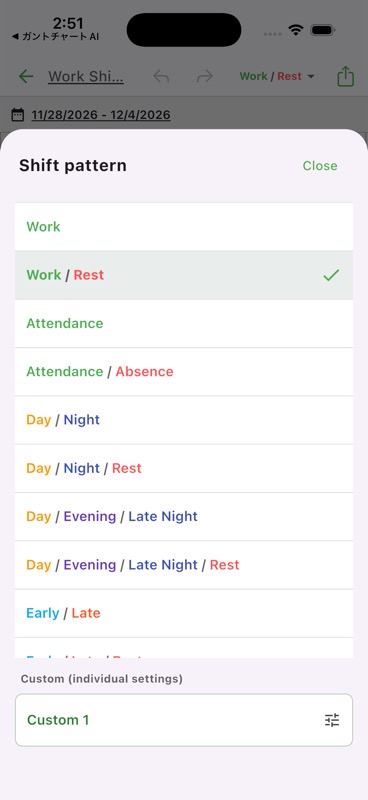
- Tap the current pattern name at the top of the editor to open Shift pattern.
- Choose a set that fits your team, such as work and days off, day and night shifts, or early and late shifts. Use Custom (individual settings) for your own names and colors.
Assign a shift to a person on a date
- Tap the cell where the person’s row and the date column meet. Each tap moves to the next option in the selected shift pattern.
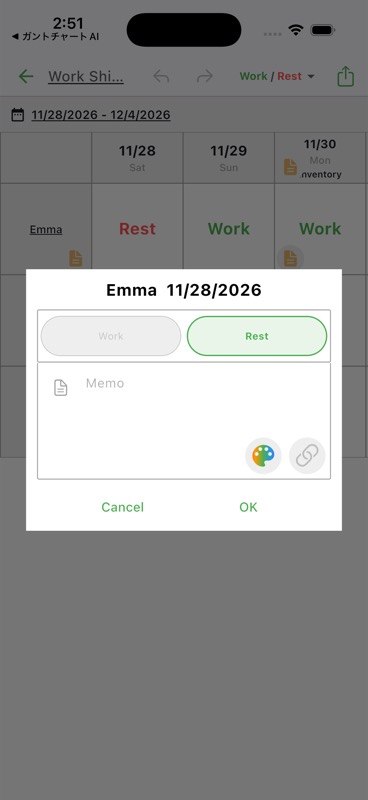
- On a phone, press and hold a cell to open its details and edit a note or color.
Arolelana litaba ka URL
- Bula lenane la likhetho la ho romela data kantle mohlophising ebe u khetha khetho ea ho arolelana ka webo.
- Kopitsa URL e hlahisitsoeng ebe u e romella batho bao u batlang ho arolelana litaba le bona.
URL e na le litaba kamoo li neng li le kateng nakong eo sehokelo se entsoeng ka eona. Mofuta le bongata ba litaba tseo u ka li arolelanang li lekanyelitsoe.
Export a shift sheet as an image, CSV, or Excel file
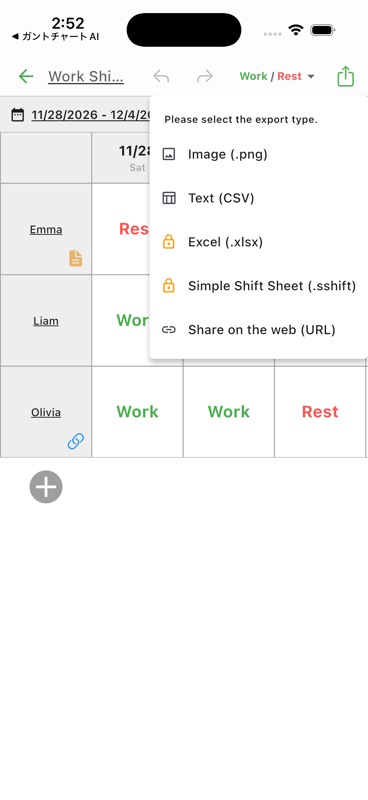
- Open the share menu at the top right. Choose an image to share the layout, or CSV or Excel to open the data in a spreadsheet.
- To reimport the sheet later, choose the menu item labeled Simple Shift Sheet (.sshift) and save the exported file.
The native file is currently saved with the .stournament extension. Export formats marked with a lock require Pro.
Litheko
Reka moralo o lefelloang
- Khetha letšoao la kariki ea ho reka lenaneng la lifaele.
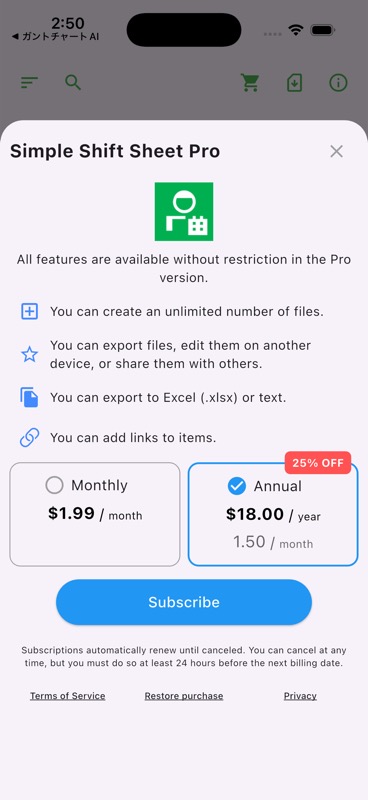
- Hlahloba meralo le litheko skrineng sa ho reka, ebe u khetha moralo oo u batlang ho o reka.
Khutlisetsa theko
- Haeba u rekile moralo lebenkeleng la liapp, kena ka ak'haonte ea lebenkele eo u e sebelisitseng ho reka moralo.
- Bula skrine sa ho reka ka har'a app, khetha „Khutlisetsa litheko“, ebe u hlahloba sephetho.
Laola theko kapa peeletso
- Haeba lenane la tlhahisoleseling lenaneng la lifaele le na le khetho ea ho laola litheko, e bule.
- Sebelisa lebenkele kapa tšebeletso eo u rekileng moralo ho eona ho hlahloba kapa ho hlakola peeletso ea hau.
Ak'haonte e lefelloang
Hokahanya theko ea hau le ak'haonte ea Google
- Kena ka ak'haonte ea hau ea Google sesebelisoeng seo u nang le theko e ntseng e sebetsa ho sona.
- Haeba khetho ea ho hokahanya theko ea hau le ak'haonte ea Google e hlaha lenaneng, e khethe 'me u netefatse ak'haonte.
- Ho sebelisa moralo oa hau o lefelloang sesebelisoeng se seng se tšehetsoeng, kena ka ak'haonte ea Google e hokahaneng le theko.
Fetola ak'haonte ea Google
- Hlahloba hore na ke ak'haonte efe ea Google e ntseng e sebelisoa lenaneng la tlhahisoleseling lenaneng la lifaele.
- Haeba khetho ea ho tsoa ak'haonteng e fumaneha, e khethe, ebe u bula Google Drive 'me u kena ka ak'haonte eo u batlang ho e sebelisa.
Sesebelisoeng se seng, sebelisa ak'haonte e amanang le theko kapa lifaele tsa Drive tseo u batlang ho li fumana.