Lenane la lifaele
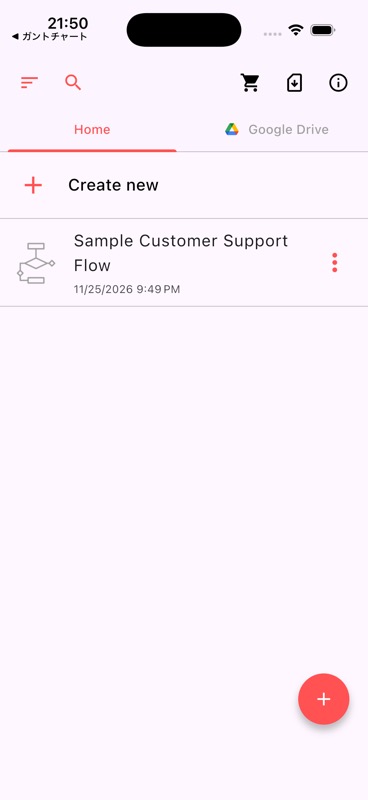
Create a flowchart
- Tap the + Create new row in the file list.
- Enter a file name and select OK to open the diagram editor.
Fetola tatellano ea lifaele
- Sebelisa taolo ea ho hlopha e kaholimo ho lenane la lifaele. Skrineng se senyenyane, bula menu ea ho hlopha.
- Khetha ho hlopha ka letsatsi la phetoho kapa lebitso la faele.
Search for a file by name
- Open Home or Google Drive, depending on where the file is stored, and select the Search icon.
- Enter part of the name in Search by file name. Select Close to see the full list again.
Etsa kopi ea faele
- Bula menu ea matheba a mararo ea faele 'me u khethe Etsa kopi.
- Bula kopi e kentsoeng lenaneng ho e hlophisa ha u ntse u boloka faele ea mantlha.
Hlakola faele
- Bula menu ea matheba a mararo ea faele 'me u khethe Hlakola.
- Hlahloba molaetsa oa netefatso 'me u khethe OK.
Bakeng sa faele e arolelanoeng le uena, menu e ka fana ka khetho ea ho tlosa ho arolelana.
Reha faele lebitso le lecha
- Bula menu ea matheba a mararo ea faele 'me u khethe Reha lebitso le lecha.
- Kenya lebitso le lecha 'me u netefatse.
U hloka tumello ea ho hlophisa hore u rehe faele ea Google Drive e arolelanoeng le uena lebitso le lecha.
Import a flowchart
- Select Import in the file list, then select OK to open the file picker.
- Choose a Simple Flowchart file (.sflowchart).
Boloka ho Google Drive
- Khetha Google Drive lenaneng la lifaele 'me u latele litaelo ho hokela ak'haonte ea hao ea Google.
- Theha faele e ncha lenaneng la Google Drive. Haeba khetho eo e le teng, u ka boela ua fallisetsa faele e bolokiloeng sesebelisoeng ho Google Drive ka menu ea eona ea matheba a mararo.
Ho bula faele sesebelisoeng se seng, hokela ak'haonte ea Google eo u e sebelisitseng ho e boloka.
Fallisa lifaele pakeng tsa sesebelisoa sa hao le Google Drive
- Ho app e kentsoeng sesebelisoeng, hokela ak'haonte ea hao ea Google 'me u bule menu ea matheba a mararo ea faele.
- Khetha Fallisetsa ho Google Drive kapa Fallisetsa ho Lehae, ho latela hore na faele e bolokiloe hokae, 'me u netefatse.
Ho hlophisa lifaele
Add shapes and edit their text
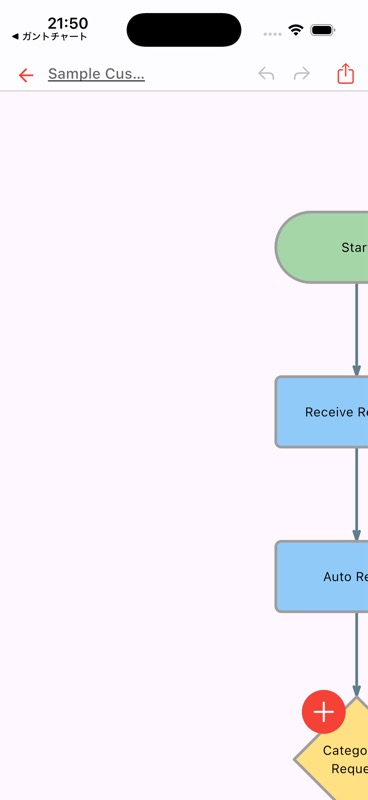
- Tap the red + button to add a shape. If a shape is already selected, the app also connects it to the new shape.
- Select the shape and tap the edit icon at the bottom to change its text.
- Use Change shape in the bottom toolbar to choose a shape for a process, decision, or other step.
Connect shapes with a line
- Tap the shape where the line should start.
- Tap Connection Line. When prompted, tap the destination shape.
- Select the new line to adjust its style or arrow.
Adjust a shape’s position or size
- Select a shape and choose Adjust position or Change size in the bottom toolbar.
- Use the controls that appear to adjust the shape, then confirm the change.
Export a flowchart
- Select the share icon in the top-right corner of the editor.
- Use Image (.png) or PDF to share a visual copy. Select Mermaid (.mermaid) to use the diagram with Mermaid, or SimpleFlowchart(.sflowchart) to reimport it into the app.
Export formats marked with a lock require Pro.
Litheko
Reka moralo o lefelloang
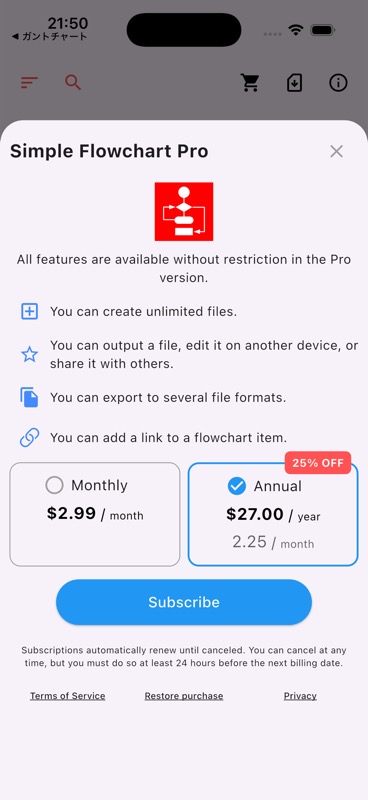
- Khetha letšoao la kariki ea ho reka lenaneng la lifaele.
- Hlahloba meralo le litheko skrineng sa ho reka, ebe u khetha moralo oo u batlang ho o reka.
Khutlisetsa theko
- Haeba u rekile moralo lebenkeleng la liapp, kena ka ak'haonte ea lebenkele eo u e sebelisitseng ho reka moralo.
- Bula skrine sa ho reka ka har'a app, khetha „Khutlisetsa litheko“, ebe u hlahloba sephetho.
Laola theko kapa peeletso
- Haeba lenane la tlhahisoleseling lenaneng la lifaele le na le khetho ea ho laola litheko, e bule.
- Sebelisa lebenkele kapa tšebeletso eo u rekileng moralo ho eona ho hlahloba kapa ho hlakola peeletso ea hau.
Ak'haonte e lefelloang
Hokahanya theko ea hau le ak'haonte ea Google
- Kena ka ak'haonte ea hau ea Google sesebelisoeng seo u nang le theko e ntseng e sebetsa ho sona.
- Haeba khetho ea ho hokahanya theko ea hau le ak'haonte ea Google e hlaha lenaneng, e khethe 'me u netefatse ak'haonte.
- Ho sebelisa moralo oa hau o lefelloang sesebelisoeng se seng se tšehetsoeng, kena ka ak'haonte ea Google e hokahaneng le theko.
Fetola ak'haonte ea Google
- Hlahloba hore na ke ak'haonte efe ea Google e ntseng e sebelisoa lenaneng la tlhahisoleseling lenaneng la lifaele.
- Haeba khetho ea ho tsoa ak'haonteng e fumaneha, e khethe, ebe u bula Google Drive 'me u kena ka ak'haonte eo u batlang ho e sebelisa.
Sesebelisoeng se seng, sebelisa ak'haonte e amanang le theko kapa lifaele tsa Drive tseo u batlang ho li fumana.