Liiska faylasha
Create a shift sheet
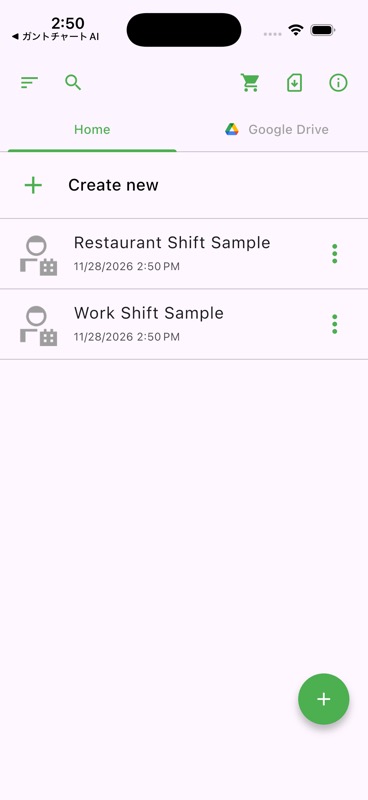
- Tap + Create new in the file list and enter a name, such as the store and month you want to schedule.
- Select OK to open the shift sheet.
Beddel kala horraynta faylasha
- Adeegso xakamaynta kala soocidda ee ku taal xagga sare ee liiska faylasha. Shaashad yar, fur menu-ga kala soocidda.
- Dooro inaad ku kala soocdo taariikhda wax ka beddelka ama magaca faylka.
Search for a file by name
- Open Home or Google Drive, depending on where the file is stored, and select the Search icon.
- Enter part of the name in Search by file name. Select Close to see the full list again.
Nuqul ka samee fayl
- Fur menu-ga saddexda dhibcood ee faylka oo dooro Nuqul ka samee.
- Fur nuqulka lagu daray liiska si aad wax uga beddesho adigoo ilaalinaya faylka asalka ah.
Tirtir fayl
- Fur menu-ga saddexda dhibcood ee faylka oo dooro Tirtir.
- Hubi farriinta xaqiijinta oo dooro OK.
Fayl lagula wadaagay, menu-gu waxa laga yaabaa inuu bixiyo ikhtiyaar lagu joojinayo wadaagista.
Dib u magacow fayl
- Fur liiska saddexda dhibcood ee faylka oo dooro Magac-beddel.
- Geli magaca cusub oo xaqiiji.
Waxaad u baahan tahay oggolaanshaha wax-ka-beddelka si aad u beddesho magaca fayl Google Drive ah oo lagula wadaagay.
Import a saved shift sheet
- Select Import in the file list, then select OK to open the file picker.
- Choose a shift sheet previously exported from this app and open it from the list.
The import prompt shows .sshift. The current version saves native shift sheet files with the .stournament extension.
Ku kaydi Google Drive
- Dooro Google Drive liiska faylasha oo raac tilmaamaha si aad ugu xirto akoonkaaga Google.
- Ka samee fayl cusub liiska Google Drive. Haddii ikhtiyaarku jiro, waxaad sidoo kale fayl ku jira qalabkaaga ugu wareejin kartaa Google Drive adigoo adeegsanaya liiskiisa saddexda dhibcood.
Si aad faylka ugu furto qalab kale, ku xir akoonkii Google ee aad ku kaydisay.
U kala wareeji faylasha qalabkaaga iyo Google Drive
- Abka rakiban dhexdiisa, ku xir akoonkaaga Google oo fur liiska saddexda dhibcood ee faylka.
- Dooro U wareeji Google Drive ama U wareeji HOME, iyadoo ku xiran meesha faylku ku kaydsan yahay, oo xaqiiji.
Wax ka beddelka faylasha
Set the date range for a shift sheet
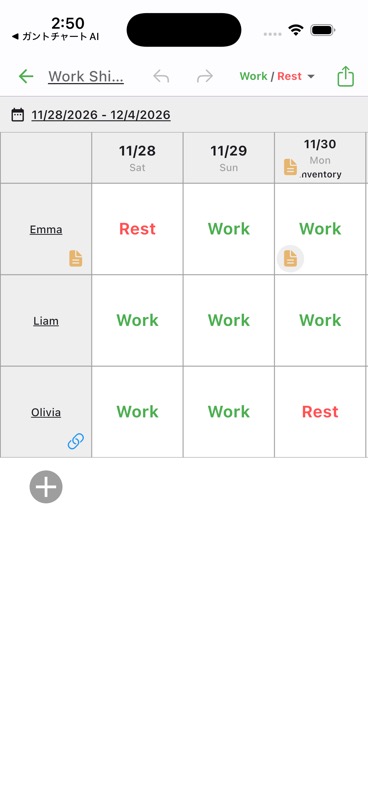
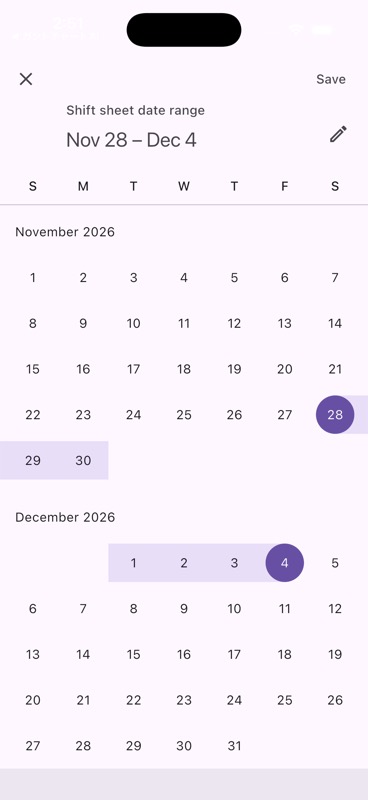
- Tap the date range with the calendar icon at the top of the editor.
- Pick the first and last days in the calendar and save. The sheet displays the selected range.
Add staff members
- Choose Add a new person in an empty sheet, or tap + at the end of the staff column in an existing sheet.
- Enter the staff member’s name and select OK. In an empty sheet, you can also import people from another file.
Choose a shift pattern
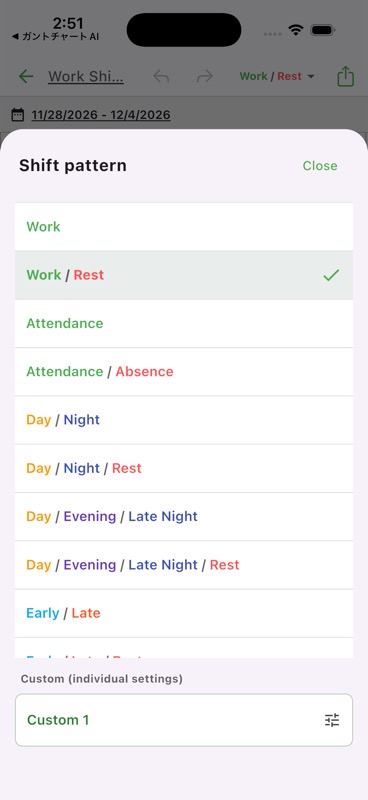
- Tap the current pattern name at the top of the editor to open Shift pattern.
- Choose a set that fits your team, such as work and days off, day and night shifts, or early and late shifts. Use Custom (individual settings) for your own names and colors.
Assign a shift to a person on a date
- Tap the cell where the person’s row and the date column meet. Each tap moves to the next option in the selected shift pattern.
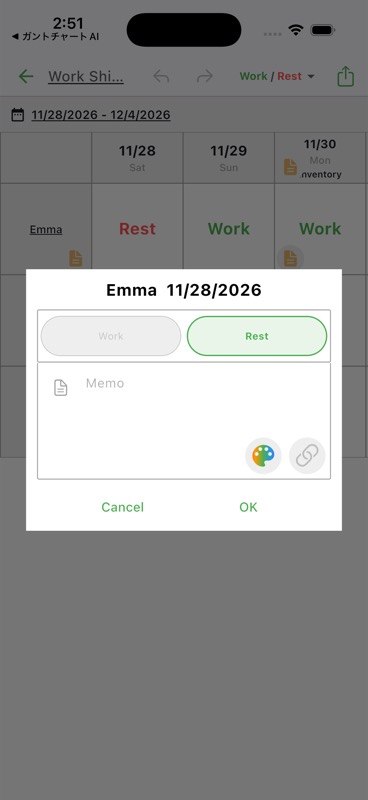
- On a phone, press and hold a cell to open its details and edit a note or color.
Ku wadaag nuxurka URL
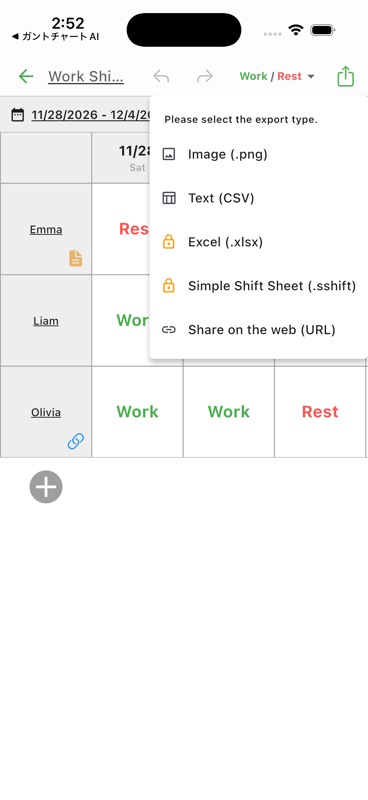
- Fur liiska dhoofinta ee tafatiraha oo dooro ikhtiyaarka wadaagista webka.
- Nuqul ka samee URL-ka la sameeyay oo u dir dadka aad rabto inaad la wadaagto.
URL-ku wuxuu ka kooban yahay nuxurkii jiray markii xiriiriyaha la sameeyay. Nooca iyo cadadka nuxurka aad wadaagi karto way xaddidan yihiin.
Export a shift sheet as an image, CSV, or Excel file
- Open the share menu at the top right. Choose an image to share the layout, or CSV or Excel to open the data in a spreadsheet.
- To reimport the sheet later, choose the menu item labeled Simple Shift Sheet (.sshift) and save the exported file.
The native file is currently saved with the .stournament extension. Export formats marked with a lock require Pro.
Iibsiyada
Iibso qorshe lacag leh
- Dooro astaanta gaadhiga wax iibsiga ee liiska faylasha.
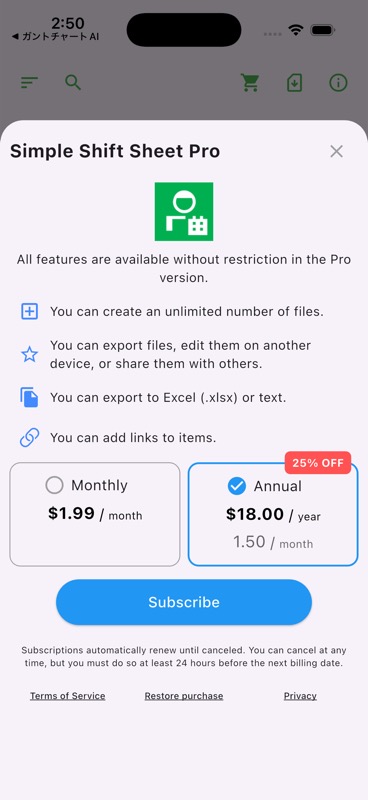
- Ka eeg qorshayaasha iyo qiimayaasha shaashadda wax iibsiga, dabadeed dooro qorshaha aad rabto inaad iibsato.
Soo celi iibsi
- Haddii aad wax ka iibsatay dukaanka abka, ku gal akoonka dukaanka aad qorshaha ku iibsatay.
- Fur shaashadda wax iibsiga ee abka, dooro “Soo celi iibsiyada”, oo hubi natiijada.
Maamul iibsi ama rukumo
- Haddii menu-ga macluumaadka ee liiska faylasha uu leeyahay ikhtiyaar lagu maamulo iibsiyada, fur ikhtiyaarkaas.
- Isticmaal dukaanka ama adeegga aad qorshaha ka iibsatay si aad u eegto ama u joojiso rukumadaada.
Akoon lacag lagu bixiyo
Ku xir iibsigaaga akoon Google
- Gal akoonkaaga Google adigoo isticmaalaya qalabka uu ka shaqaynayo iibsigaagu.
- Haddii ikhtiyaarka lagu xirayo iibsigaaga akoon Google uu ka muuqdo menu-ga, dooro oo xaqiiji akoonka.
- Si aad qorshahaaga lacagta leh ugu isticmaasho qalab kale oo la taageero, ku gal akoonka Google ee ku xiran.
Beddel akoonnada Google
- Ka hubi menu-ga macluumaadka ee liiska faylasha akoonka Google ee hadda shaqaynaya.
- Haddii ikhtiyaarka ka bixitaanka akoonka la heli karo, dooro, dabadeed fur Google Drive oo gal akoonka aad rabto inaad isticmaasho.
Qalab kale ku isticmaal akoonka ku xiran iibsiga ama faylasha Drive ee aad rabto inaad hesho.