Urutonde rwa dosiye
Create a shift sheet
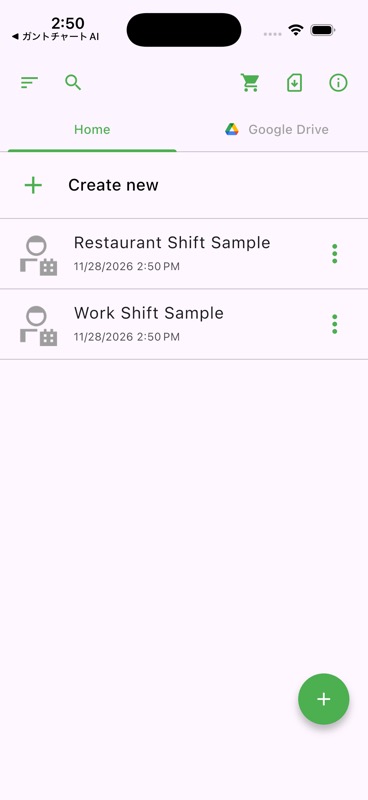
- Tap + Create new in the file list and enter a name, such as the store and month you want to schedule.
- Select OK to open the shift sheet.
Guhindura uburyo dosiye zikurikirana
- Koresha uburyo bwo gutondeka buri hejuru y'urutonde rwa dosiye. Kuri ekara nto, fungura meni yo gutondeka.
- Hitamo gutondeka ukurikije itariki dosiye yahinduriweho cyangwa izina ryayo.
Search for a file by name
- Open Home or Google Drive, depending on where the file is stored, and select the Search icon.
- Enter part of the name in Search by file name. Select Close to see the full list again.
Gukora kopi ya dosiye
- Fungura meni y'utudomo dutatu ya dosiye maze uhitemo Gukora kopi.
- Fungura kopi yongewe ku rutonde kugira ngo uyihindure, dosiye y'umwimerere igumeho.
Gusiba dosiye
- Fungura meni y'utudomo dutatu ya dosiye maze uhitemo Gusiba.
- Reba ubutumwa bwo kwemeza maze uhitemo OK.
Ku dosiye wasangijwe, meni ishobora kugaragaza uburyo bwo guhagarika gusangirwa iyo dosiye.
Guhindura izina rya dosiye
- Fungura menu y'utudomo dutatu ya dosiye, uhitemo Guhindura izina.
- Andika izina rishya maze wemeze.
Ukeneye uburenganzira bwo guhindura dosiye ya Google Drive wasangijwe kugira ngo uhindure izina ryayo.
Import a saved shift sheet
- Select Import in the file list, then select OK to open the file picker.
- Choose a shift sheet previously exported from this app and open it from the list.
The import prompt shows .sshift. The current version saves native shift sheet files with the .stournament extension.
Kubika muri Google Drive
- Hitamo Google Drive mu rutonde rwa dosiye maze ukurikize amabwiriza agaragara kugira ngo uhuze konti yawe ya Google.
- Kora dosiye nshya uhereye ku rutonde rwa Google Drive. Niba ubwo buryo buhari, ushobora no kwimurira dosiye ibitse ku gikoresho cyawe muri Google Drive ukoresheje menu yayo y'utudomo dutatu.
Kugira ngo ufungure dosiye ku kindi gikoresho, huza konti ya Google wakoresheje uyibika.
Kwimura dosiye hagati y'igikoresho cyawe na Google Drive
- Muri porogaramu washyize ku gikoresho cyawe, huza konti yawe ya Google maze ufungure menu y'utudomo dutatu ya dosiye.
- Ukurikije aho dosiye ibitse, hitamo «Kwimurira muri Google Drive» cyangwa «Kwimurira ku rupapuro rw'ibanze» maze wemeze.
Guhindura dosiye
Set the date range for a shift sheet
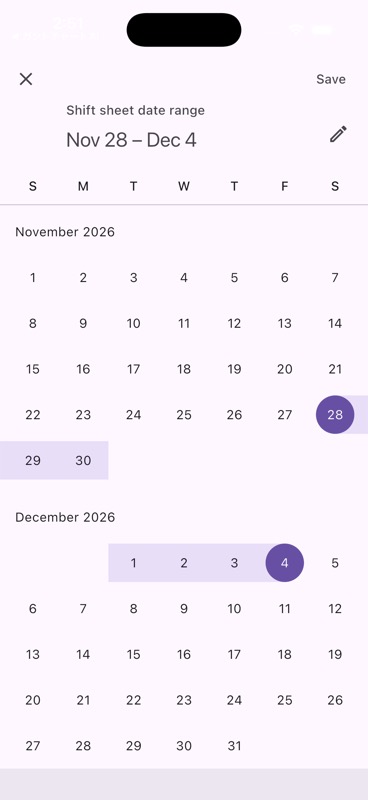
- Tap the date range with the calendar icon at the top of the editor.
- Pick the first and last days in the calendar and save. The sheet displays the selected range.
Add staff members
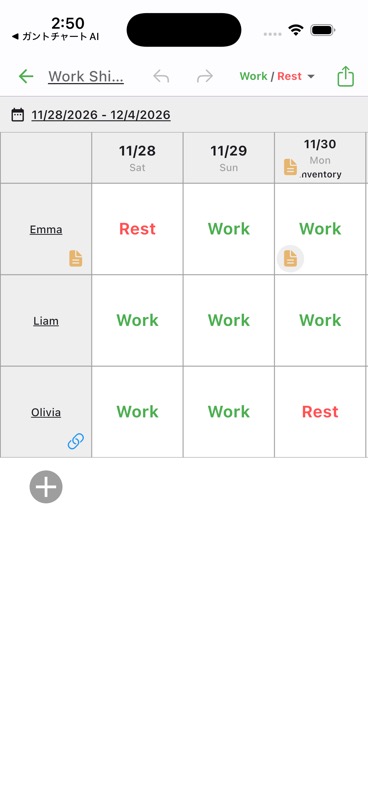
- Choose Add a new person in an empty sheet, or tap + at the end of the staff column in an existing sheet.
- Enter the staff member’s name and select OK. In an empty sheet, you can also import people from another file.
Choose a shift pattern
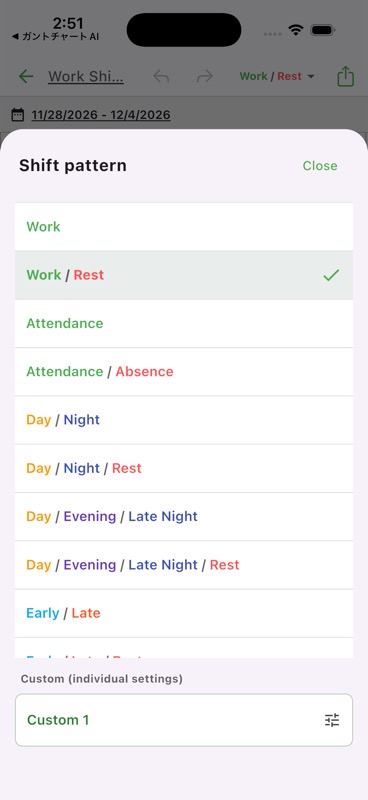
- Tap the current pattern name at the top of the editor to open Shift pattern.
- Choose a set that fits your team, such as work and days off, day and night shifts, or early and late shifts. Use Custom (individual settings) for your own names and colors.
Assign a shift to a person on a date
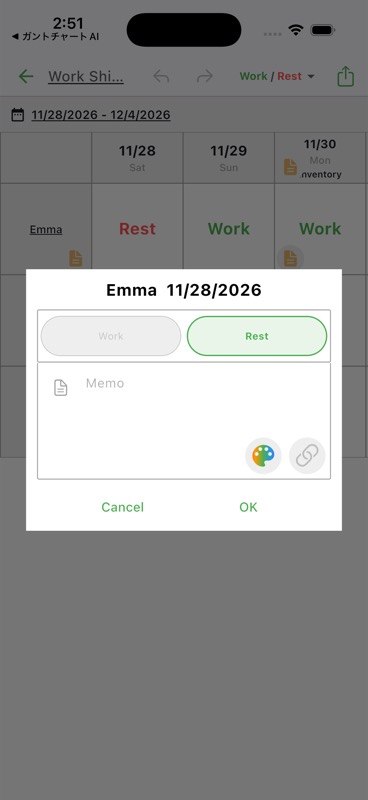
- Tap the cell where the person’s row and the date column meet. Each tap moves to the next option in the selected shift pattern.
- On a phone, press and hold a cell to open its details and edit a note or color.
Gusangiza ibikubiyemo ukoresheje URL
- Fungura menu yo kohereza hanze mu mwanditsi maze uhitemo uburyo bwo gusangiza ku rubuga.
- Koporora URL yakozwe maze uyohereze abantu ushaka gusangiza ibikubiyemo.
URL ikubiyemo ibyari birimo igihe ihuza ryakorwaga. Ubwoko n’ingano by’ibikubiyemo ushobora gusangiza bifite imipaka.
Export a shift sheet as an image, CSV, or Excel file
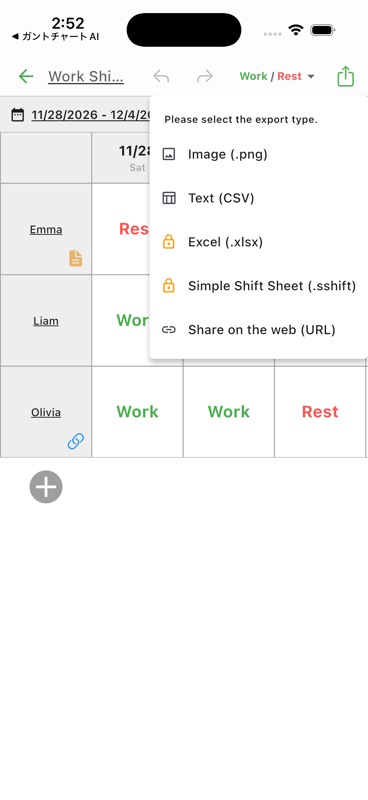
- Open the share menu at the top right. Choose an image to share the layout, or CSV or Excel to open the data in a spreadsheet.
- To reimport the sheet later, choose the menu item labeled Simple Shift Sheet (.sshift) and save the exported file.
The native file is currently saved with the .stournament extension. Export formats marked with a lock require Pro.
Ibyaguzwe
Kugura gahunda yishyurwa
- Hitamo agashushondanga k'agatebo k'ibicuruzwa ku rutonde rwa dosiye.
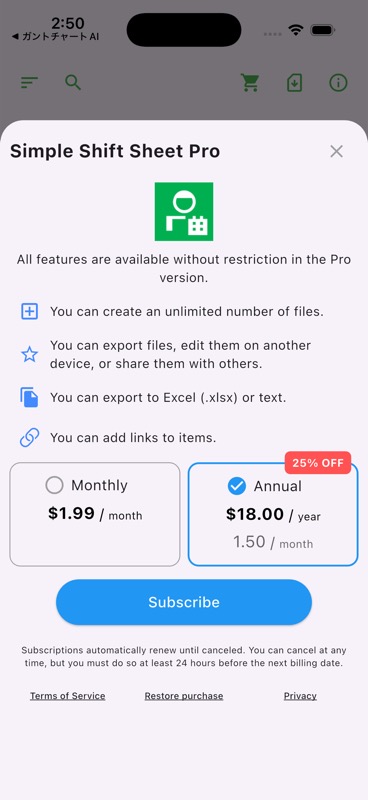
- Reba gahunda n'ibiciro byazo kuri ecran yo kugura, hanyuma uhitemo gahunda ushaka kugura.
Kugarura ibyaguzwe
- Niba waraguriye gahunda mu iduka rya porogaramu, injira muri konti y'iryo duka wakoresheje uyigura.
- Fungura ecran yo kugura muri porogaramu, uhitemo «Kugarura ibyaguzwe», hanyuma urebe igisubizo.
Gucunga ibyaguzwe cyangwa ifatabuguzi
- Niba menu y'amakuru yo ku rutonde rwa dosiye irimo uburyo bwo gucunga ibyaguzwe, fungura ubwo buryo.
- Koresha iduka cyangwa serivisi waguriyemo gahunda kugira ngo urebe amakuru y'ifatabuguzi ryawe cyangwa urihagarike.
Konti yishyurwa
Guhuza ibyo waguze na konti ya Google
- Injira muri konti yawe ya Google ku gikoresho ufiteho gahunda waguze ikiri gukora.
- Niba uburyo bwo guhuza ibyo waguze na konti ya Google bugaragara muri menu, buhitemo maze wemeze konti.
- Kugira ngo ukoreshe gahunda yawe yishyurwa ku kindi gikoresho gishyigikiwe, injira ukoresheje konti ya Google wahuje n'ibyo waguze.
Guhindura konti ya Google
- Reba konti ya Google ikoreshwa ubu muri menu y'amakuru yo ku rutonde rwa dosiye.
- Niba uburyo bwo gusohoka muri konti buboneka, buhitemo, hanyuma ufungure Google Drive maze winjire muri konti ushaka gukoresha.
Ku kindi gikoresho, koresha konti ihujwe n'ibyo waguze cyangwa na dosiye zo muri Drive ushaka kubona.