ਫ਼ਾਈਲਾਂ ਦੀ ਸੂਚੀ
Create a shift sheet
- Tap + Create new in the file list and enter a name, such as the store and month you want to schedule.
- Select OK to open the shift sheet.
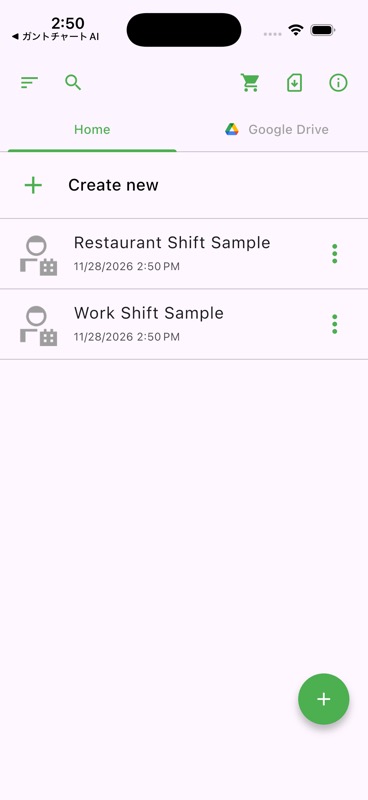
ਫ਼ਾਈਲਾਂ ਦਾ ਕ੍ਰਮ ਬਦਲੋ
- ਫ਼ਾਈਲਾਂ ਦੀ ਸੂਚੀ ਦੇ ਸਿਖਰ 'ਤੇ ਦਿੱਤੇ ਕ੍ਰਮਬੱਧ ਕਰਨ ਦੇ ਵਿਕਲਪ ਦੀ ਵਰਤੋਂ ਕਰੋ। ਛੋਟੀ ਸਕ੍ਰੀਨ 'ਤੇ ਕ੍ਰਮਬੱਧ ਕਰਨ ਵਾਲਾ ਮੀਨੂ ਖੋਲ੍ਹੋ।
- ਸੋਧ ਦੀ ਮਿਤੀ ਜਾਂ ਫ਼ਾਈਲ ਦੇ ਨਾਮ ਅਨੁਸਾਰ ਕ੍ਰਮਬੱਧ ਕਰਨਾ ਚੁਣੋ।
Search for a file by name
- Open Home or Google Drive, depending on where the file is stored, and select the Search icon.
- Enter part of the name in Search by file name. Select Close to see the full list again.
ਫ਼ਾਈਲ ਦੀ ਕਾਪੀ ਬਣਾਓ
- ਫ਼ਾਈਲ ਦਾ ਤਿੰਨ ਬਿੰਦੀਆਂ ਵਾਲਾ ਮੀਨੂ ਖੋਲ੍ਹੋ ਅਤੇ ‘ਕਾਪੀ ਬਣਾਓ’ ਚੁਣੋ।
- ਅਸਲ ਫ਼ਾਈਲ ਨੂੰ ਬਰਕਰਾਰ ਰੱਖਦਿਆਂ ਸੰਪਾਦਨ ਕਰਨ ਲਈ ਸੂਚੀ ਵਿੱਚ ਸ਼ਾਮਲ ਕੀਤੀ ਕਾਪੀ ਖੋਲ੍ਹੋ।
ਫ਼ਾਈਲ ਮਿਟਾਓ
- ਫ਼ਾਈਲ ਦਾ ਤਿੰਨ ਬਿੰਦੀਆਂ ਵਾਲਾ ਮੀਨੂ ਖੋਲ੍ਹੋ ਅਤੇ ‘ਮਿਟਾਓ’ ਚੁਣੋ।
- ਪੁਸ਼ਟੀ ਸੁਨੇਹੇ ਦੀ ਜਾਂਚ ਕਰੋ ਅਤੇ OK ਚੁਣੋ।
ਤੁਹਾਡੇ ਨਾਲ ਸਾਂਝੀ ਕੀਤੀ ਫ਼ਾਈਲ ਲਈ ਮੀਨੂ ਵਿੱਚ ਸਾਂਝ ਹਟਾਉਣ ਦਾ ਵਿਕਲਪ ਹੋ ਸਕਦਾ ਹੈ।
ਫ਼ਾਈਲ ਦਾ ਨਾਮ ਬਦਲੋ
- ਫਾਈਲ ਦਾ ਤਿੰਨ ਬਿੰਦੀਆਂ ਵਾਲਾ ਮੀਨੂ ਖੋਲ੍ਹੋ ਅਤੇ ਨਾਮ ਬਦਲਣ ਦਾ ਵਿਕਲਪ ਚੁਣੋ।
- ਨਵਾਂ ਨਾਮ ਦਰਜ ਕਰੋ ਅਤੇ ਪੁਸ਼ਟੀ ਕਰੋ।
ਤੁਹਾਡੇ ਨਾਲ ਸਾਂਝੀ ਕੀਤੀ Google Drive ਫਾਈਲ ਦਾ ਨਾਮ ਬਦਲਣ ਲਈ ਤੁਹਾਡੇ ਕੋਲ ਸੰਪਾਦਨ ਦੀ ਇਜਾਜ਼ਤ ਹੋਣੀ ਚਾਹੀਦੀ ਹੈ।
Import a saved shift sheet
- Select Import in the file list, then select OK to open the file picker.
- Choose a shift sheet previously exported from this app and open it from the list.
The import prompt shows .sshift. The current version saves native shift sheet files with the .stournament extension.
Google Drive ਵਿੱਚ ਸੇਵ ਕਰੋ
- ਫਾਈਲ ਸੂਚੀ ਵਿੱਚ Google Drive ਚੁਣੋ ਅਤੇ ਆਪਣਾ Google ਖਾਤਾ ਕਨੈਕਟ ਕਰਨ ਲਈ ਦਿਖਾਈਆਂ ਹਦਾਇਤਾਂ ਦੀ ਪਾਲਣਾ ਕਰੋ।
- Google Drive ਦੀ ਸੂਚੀ ਤੋਂ ਨਵੀਂ ਫਾਈਲ ਬਣਾਓ। ਜੇ ਵਿਕਲਪ ਉਪਲਬਧ ਹੋਵੇ, ਤਾਂ ਤੁਸੀਂ ਸਥਾਨਕ ਫਾਈਲ ਨੂੰ ਉਸ ਦੇ ਤਿੰਨ ਬਿੰਦੀਆਂ ਵਾਲੇ ਮੀਨੂ ਰਾਹੀਂ Google Drive ਵਿੱਚ ਵੀ ਭੇਜ ਸਕਦੇ ਹੋ।
ਕਿਸੇ ਹੋਰ ਡਿਵਾਈਸ ਉੱਤੇ ਫਾਈਲ ਖੋਲ੍ਹਣ ਲਈ ਉਹੀ Google ਖਾਤਾ ਕਨੈਕਟ ਕਰੋ ਜਿਸ ਨਾਲ ਤੁਸੀਂ ਇਸ ਨੂੰ ਸੇਵ ਕੀਤਾ ਸੀ।
ਆਪਣੇ ਡਿਵਾਈਸ ਅਤੇ Google Drive ਵਿਚਕਾਰ ਫਾਈਲਾਂ ਭੇਜੋ
- ਇੰਸਟਾਲ ਕੀਤੀ ਐਪ ਵਿੱਚ ਆਪਣਾ Google ਖਾਤਾ ਕਨੈਕਟ ਕਰੋ ਅਤੇ ਫਾਈਲ ਦਾ ਤਿੰਨ ਬਿੰਦੀਆਂ ਵਾਲਾ ਮੀਨੂ ਖੋਲ੍ਹੋ।
- ਫਾਈਲ ਕਿੱਥੇ ਸੇਵ ਹੈ, ਉਸ ਮੁਤਾਬਕ Google Drive ਵਿੱਚ ਭੇਜੋ ਜਾਂ Home ਵਿੱਚ ਭੇਜੋ ਚੁਣੋ ਅਤੇ ਪੁਸ਼ਟੀ ਕਰੋ।
ਫ਼ਾਈਲਾਂ ਦਾ ਸੰਪਾਦਨ
Set the date range for a shift sheet
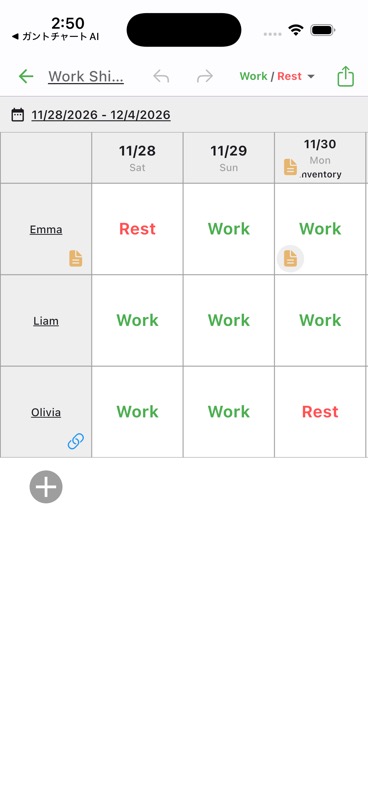
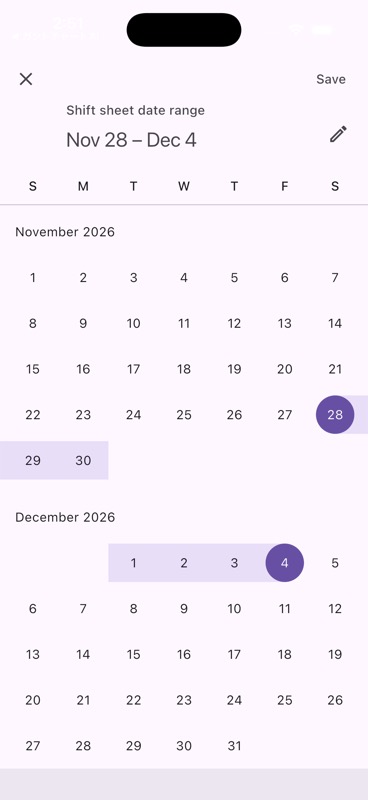
- Tap the date range with the calendar icon at the top of the editor.
- Pick the first and last days in the calendar and save. The sheet displays the selected range.
Add staff members
- Choose Add a new person in an empty sheet, or tap + at the end of the staff column in an existing sheet.
- Enter the staff member’s name and select OK. In an empty sheet, you can also import people from another file.
Choose a shift pattern
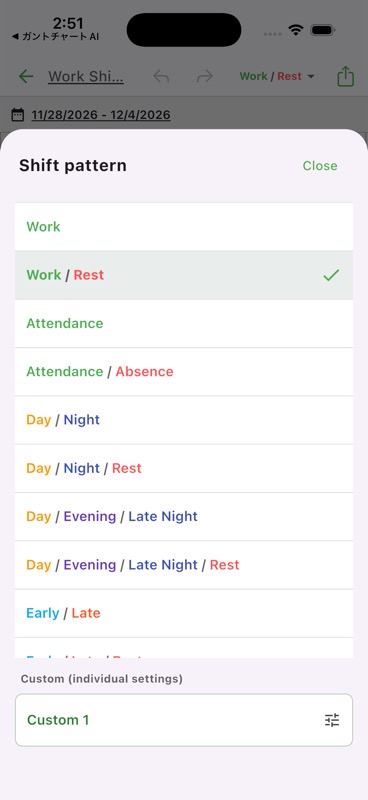
- Tap the current pattern name at the top of the editor to open Shift pattern.
- Choose a set that fits your team, such as work and days off, day and night shifts, or early and late shifts. Use Custom (individual settings) for your own names and colors.
Assign a shift to a person on a date
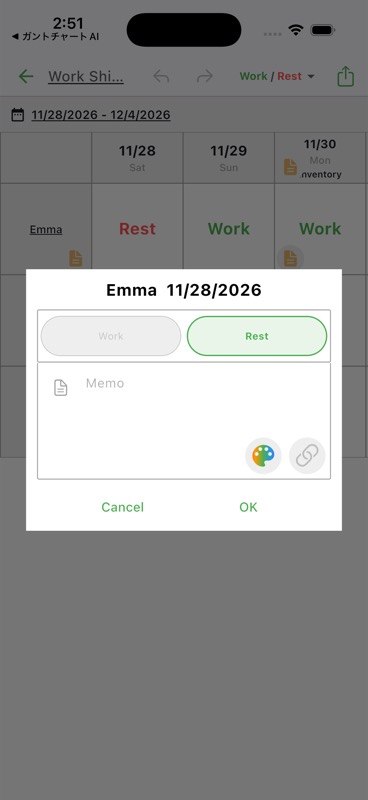
- Tap the cell where the person’s row and the date column meet. Each tap moves to the next option in the selected shift pattern.
- On a phone, press and hold a cell to open its details and edit a note or color.
URL ਰਾਹੀਂ ਸਮੱਗਰੀ ਸਾਂਝੀ ਕਰੋ
- ਸੰਪਾਦਕ ਵਿੱਚ ਐਕਸਪੋਰਟ ਮੀਨੂ ਖੋਲ੍ਹੋ ਅਤੇ ਵੈੱਬ ਸਾਂਝਾਕਰਨ ਦਾ ਵਿਕਲਪ ਚੁਣੋ।
- ਬਣਾਇਆ ਗਿਆ URL ਕਾਪੀ ਕਰੋ ਅਤੇ ਉਹਨਾਂ ਲੋਕਾਂ ਨੂੰ ਭੇਜੋ ਜਿਨ੍ਹਾਂ ਨਾਲ ਤੁਸੀਂ ਸਮੱਗਰੀ ਸਾਂਝੀ ਕਰਨਾ ਚਾਹੁੰਦੇ ਹੋ।
URL ਵਿੱਚ ਲਿੰਕ ਬਣਾਉਣ ਵੇਲੇ ਦੀ ਸਮੱਗਰੀ ਹੁੰਦੀ ਹੈ। ਸਾਂਝੀ ਕੀਤੀ ਜਾ ਸਕਣ ਵਾਲੀ ਸਮੱਗਰੀ ਦੀ ਕਿਸਮ ਅਤੇ ਮਾਤਰਾ ਸੀਮਤ ਹੈ।
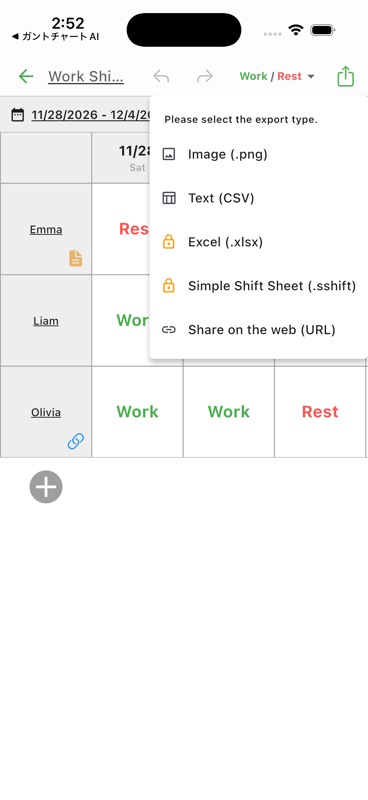
Export a shift sheet as an image, CSV, or Excel file
- Open the share menu at the top right. Choose an image to share the layout, or CSV or Excel to open the data in a spreadsheet.
- To reimport the sheet later, choose the menu item labeled Simple Shift Sheet (.sshift) and save the exported file.
The native file is currently saved with the .stournament extension. Export formats marked with a lock require Pro.
ਖ਼ਰੀਦਦਾਰੀਆਂ
ਭੁਗਤਾਨ ਵਾਲਾ ਪਲਾਨ ਖਰੀਦੋ
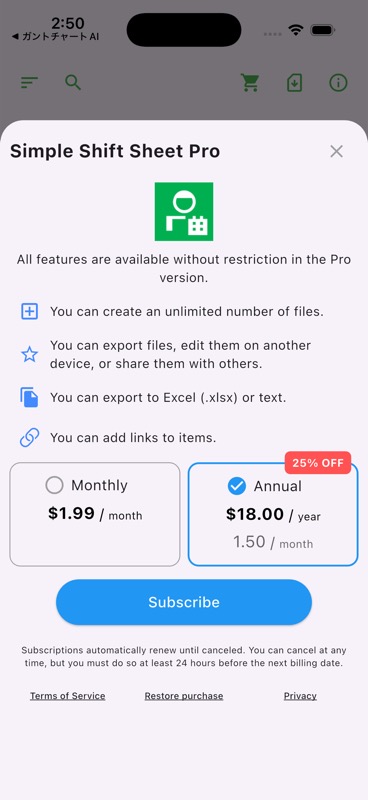
- ਫਾਈਲਾਂ ਦੀ ਸੂਚੀ ਵਿੱਚ ਖਰੀਦਦਾਰੀ ਕਾਰਟ ਦਾ ਆਈਕਨ ਚੁਣੋ।
- ਖਰੀਦ ਸਕ੍ਰੀਨ 'ਤੇ ਪਲਾਨਾਂ ਅਤੇ ਕੀਮਤਾਂ ਦੀ ਸਮੀਖਿਆ ਕਰੋ, ਫਿਰ ਉਹ ਪਲਾਨ ਚੁਣੋ ਜੋ ਤੁਸੀਂ ਖਰੀਦਣਾ ਚਾਹੁੰਦੇ ਹੋ।
ਖਰੀਦ ਬਹਾਲ ਕਰੋ
- ਜੇ ਤੁਸੀਂ ਐਪ ਸਟੋਰ ਤੋਂ ਖਰੀਦ ਕੀਤੀ ਹੈ, ਤਾਂ ਉਸੇ ਸਟੋਰ ਖਾਤੇ ਨਾਲ ਸਾਈਨ ਇਨ ਕਰੋ ਜਿਸ ਨਾਲ ਤੁਸੀਂ ਪਲਾਨ ਖਰੀਦਿਆ ਸੀ।
- ਐਪ ਵਿੱਚ ਖਰੀਦ ਸਕ੍ਰੀਨ ਖੋਲ੍ਹੋ, «ਖਰੀਦਾਂ ਬਹਾਲ ਕਰੋ» ਚੁਣੋ ਅਤੇ ਨਤੀਜਾ ਦੇਖੋ।
ਖਰੀਦ ਜਾਂ ਸਬਸਕ੍ਰਿਪਸ਼ਨ ਦਾ ਪ੍ਰਬੰਧਨ ਕਰੋ
- ਜੇ ਫਾਈਲਾਂ ਦੀ ਸੂਚੀ ਦੇ ਜਾਣਕਾਰੀ ਮੀਨੂ ਵਿੱਚ ਖਰੀਦ ਪ੍ਰਬੰਧਨ ਦਾ ਵਿਕਲਪ ਹੈ, ਤਾਂ ਉਸ ਨੂੰ ਖੋਲ੍ਹੋ।
- ਆਪਣੀ ਸਬਸਕ੍ਰਿਪਸ਼ਨ ਦੀ ਸਮੀਖਿਆ ਕਰਨ ਜਾਂ ਰੱਦ ਕਰਨ ਲਈ ਉਸ ਸਟੋਰ ਜਾਂ ਸੇਵਾ ਦੀ ਵਰਤੋਂ ਕਰੋ ਜਿੱਥੋਂ ਤੁਸੀਂ ਪਲਾਨ ਖਰੀਦਿਆ ਸੀ।
ਭੁਗਤਾਨ ਵਾਲਾ ਖਾਤਾ
ਆਪਣੀ ਖਰੀਦ ਨੂੰ Google ਖਾਤੇ ਨਾਲ ਲਿੰਕ ਕਰੋ
- ਜਿਸ ਡਿਵਾਈਸ 'ਤੇ ਤੁਹਾਡੀ ਖਰੀਦ ਸਰਗਰਮ ਹੈ, ਉਸ 'ਤੇ ਆਪਣੇ Google ਖਾਤੇ ਵਿੱਚ ਸਾਈਨ ਇਨ ਕਰੋ।
- ਜੇ ਮੀਨੂ ਵਿੱਚ ਆਪਣੀ ਖਰੀਦ ਨੂੰ Google ਖਾਤੇ ਨਾਲ ਲਿੰਕ ਕਰਨ ਦਾ ਵਿਕਲਪ ਦਿਖਾਈ ਦਿੰਦਾ ਹੈ, ਤਾਂ ਉਸ ਨੂੰ ਚੁਣੋ ਅਤੇ ਖਾਤੇ ਦੀ ਪੁਸ਼ਟੀ ਕਰੋ।
- ਕਿਸੇ ਹੋਰ ਸਮਰਥਿਤ ਡਿਵਾਈਸ 'ਤੇ ਆਪਣਾ ਭੁਗਤਾਨ ਵਾਲਾ ਪਲਾਨ ਵਰਤਣ ਲਈ ਲਿੰਕ ਕੀਤੇ Google ਖਾਤੇ ਨਾਲ ਸਾਈਨ ਇਨ ਕਰੋ।
Google ਖਾਤਾ ਬਦਲੋ
- ਫਾਈਲਾਂ ਦੀ ਸੂਚੀ ਦੇ ਜਾਣਕਾਰੀ ਮੀਨੂ ਵਿੱਚ ਦੇਖੋ ਕਿ ਕਿਹੜਾ Google ਖਾਤਾ ਸਰਗਰਮ ਹੈ।
- ਜੇ ਸਾਈਨ ਆਉਟ ਦਾ ਵਿਕਲਪ ਉਪਲਬਧ ਹੈ, ਤਾਂ ਉਸ ਨੂੰ ਚੁਣੋ, ਫਿਰ Google Drive ਖੋਲ੍ਹੋ ਅਤੇ ਉਸ ਖਾਤੇ ਵਿੱਚ ਸਾਈਨ ਇਨ ਕਰੋ ਜਿਸ ਦੀ ਤੁਸੀਂ ਵਰਤੋਂ ਕਰਨਾ ਚਾਹੁੰਦੇ ਹੋ।
ਕਿਸੇ ਹੋਰ ਡਿਵਾਈਸ 'ਤੇ ਉਸ ਖਾਤੇ ਦੀ ਵਰਤੋਂ ਕਰੋ ਜੋ ਖਰੀਦ ਜਾਂ ਉਹਨਾਂ Drive ਫਾਈਲਾਂ ਨਾਲ ਜੁੜਿਆ ਹੈ ਜਿਨ੍ਹਾਂ ਤੱਕ ਤੁਸੀਂ ਪਹੁੰਚ ਕਰਨਾ ਚਾਹੁੰਦੇ ਹੋ।