ਫ਼ਾਈਲਾਂ ਦੀ ਸੂਚੀ
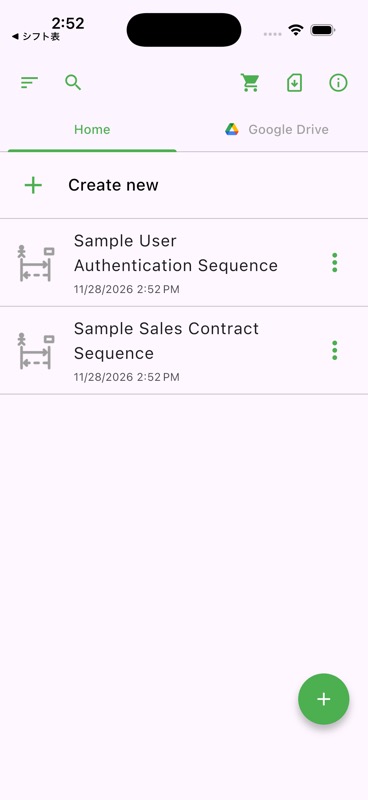
Create a sequence diagram file
- Select + Create new in the file list.
- Enter a name and select OK to open the sequence diagram editor.
ਫ਼ਾਈਲਾਂ ਦਾ ਕ੍ਰਮ ਬਦਲੋ
- ਫ਼ਾਈਲਾਂ ਦੀ ਸੂਚੀ ਦੇ ਸਿਖਰ 'ਤੇ ਦਿੱਤੇ ਕ੍ਰਮਬੱਧ ਕਰਨ ਦੇ ਵਿਕਲਪ ਦੀ ਵਰਤੋਂ ਕਰੋ। ਛੋਟੀ ਸਕ੍ਰੀਨ 'ਤੇ ਕ੍ਰਮਬੱਧ ਕਰਨ ਵਾਲਾ ਮੀਨੂ ਖੋਲ੍ਹੋ।
- ਸੋਧ ਦੀ ਮਿਤੀ ਜਾਂ ਫ਼ਾਈਲ ਦੇ ਨਾਮ ਅਨੁਸਾਰ ਕ੍ਰਮਬੱਧ ਕਰਨਾ ਚੁਣੋ।
Search for a file by name
- Open Home or Google Drive, depending on where the file is stored, and select the Search icon.
- Enter part of the name in Search by file name. Select Close to see the full list again.
ਫ਼ਾਈਲ ਦੀ ਕਾਪੀ ਬਣਾਓ
- ਫ਼ਾਈਲ ਦਾ ਤਿੰਨ ਬਿੰਦੀਆਂ ਵਾਲਾ ਮੀਨੂ ਖੋਲ੍ਹੋ ਅਤੇ ‘ਕਾਪੀ ਬਣਾਓ’ ਚੁਣੋ।
- ਅਸਲ ਫ਼ਾਈਲ ਨੂੰ ਬਰਕਰਾਰ ਰੱਖਦਿਆਂ ਸੰਪਾਦਨ ਕਰਨ ਲਈ ਸੂਚੀ ਵਿੱਚ ਸ਼ਾਮਲ ਕੀਤੀ ਕਾਪੀ ਖੋਲ੍ਹੋ।
ਫ਼ਾਈਲ ਮਿਟਾਓ
- ਫ਼ਾਈਲ ਦਾ ਤਿੰਨ ਬਿੰਦੀਆਂ ਵਾਲਾ ਮੀਨੂ ਖੋਲ੍ਹੋ ਅਤੇ ‘ਮਿਟਾਓ’ ਚੁਣੋ।
- ਪੁਸ਼ਟੀ ਸੁਨੇਹੇ ਦੀ ਜਾਂਚ ਕਰੋ ਅਤੇ OK ਚੁਣੋ।
ਤੁਹਾਡੇ ਨਾਲ ਸਾਂਝੀ ਕੀਤੀ ਫ਼ਾਈਲ ਲਈ ਮੀਨੂ ਵਿੱਚ ਸਾਂਝ ਹਟਾਉਣ ਦਾ ਵਿਕਲਪ ਹੋ ਸਕਦਾ ਹੈ।
ਫ਼ਾਈਲ ਦਾ ਨਾਮ ਬਦਲੋ
- ਫਾਈਲ ਦਾ ਤਿੰਨ ਬਿੰਦੀਆਂ ਵਾਲਾ ਮੀਨੂ ਖੋਲ੍ਹੋ ਅਤੇ ਨਾਮ ਬਦਲਣ ਦਾ ਵਿਕਲਪ ਚੁਣੋ।
- ਨਵਾਂ ਨਾਮ ਦਰਜ ਕਰੋ ਅਤੇ ਪੁਸ਼ਟੀ ਕਰੋ।
ਤੁਹਾਡੇ ਨਾਲ ਸਾਂਝੀ ਕੀਤੀ Google Drive ਫਾਈਲ ਦਾ ਨਾਮ ਬਦਲਣ ਲਈ ਤੁਹਾਡੇ ਕੋਲ ਸੰਪਾਦਨ ਦੀ ਇਜਾਜ਼ਤ ਹੋਣੀ ਚਾਹੀਦੀ ਹੈ।
Import a Mermaid diagram
- Select Import in the file list and select OK to open the file picker.
- Choose a Mermaid file (.mermaid or .mmd), then open it from the file list.
Google Drive ਵਿੱਚ ਸੇਵ ਕਰੋ
- ਫਾਈਲ ਸੂਚੀ ਵਿੱਚ Google Drive ਚੁਣੋ ਅਤੇ ਆਪਣਾ Google ਖਾਤਾ ਕਨੈਕਟ ਕਰਨ ਲਈ ਦਿਖਾਈਆਂ ਹਦਾਇਤਾਂ ਦੀ ਪਾਲਣਾ ਕਰੋ।
- Google Drive ਦੀ ਸੂਚੀ ਤੋਂ ਨਵੀਂ ਫਾਈਲ ਬਣਾਓ। ਜੇ ਵਿਕਲਪ ਉਪਲਬਧ ਹੋਵੇ, ਤਾਂ ਤੁਸੀਂ ਸਥਾਨਕ ਫਾਈਲ ਨੂੰ ਉਸ ਦੇ ਤਿੰਨ ਬਿੰਦੀਆਂ ਵਾਲੇ ਮੀਨੂ ਰਾਹੀਂ Google Drive ਵਿੱਚ ਵੀ ਭੇਜ ਸਕਦੇ ਹੋ।
ਕਿਸੇ ਹੋਰ ਡਿਵਾਈਸ ਉੱਤੇ ਫਾਈਲ ਖੋਲ੍ਹਣ ਲਈ ਉਹੀ Google ਖਾਤਾ ਕਨੈਕਟ ਕਰੋ ਜਿਸ ਨਾਲ ਤੁਸੀਂ ਇਸ ਨੂੰ ਸੇਵ ਕੀਤਾ ਸੀ।
ਆਪਣੇ ਡਿਵਾਈਸ ਅਤੇ Google Drive ਵਿਚਕਾਰ ਫਾਈਲਾਂ ਭੇਜੋ
- ਇੰਸਟਾਲ ਕੀਤੀ ਐਪ ਵਿੱਚ ਆਪਣਾ Google ਖਾਤਾ ਕਨੈਕਟ ਕਰੋ ਅਤੇ ਫਾਈਲ ਦਾ ਤਿੰਨ ਬਿੰਦੀਆਂ ਵਾਲਾ ਮੀਨੂ ਖੋਲ੍ਹੋ।
- ਫਾਈਲ ਕਿੱਥੇ ਸੇਵ ਹੈ, ਉਸ ਮੁਤਾਬਕ Google Drive ਵਿੱਚ ਭੇਜੋ ਜਾਂ Home ਵਿੱਚ ਭੇਜੋ ਚੁਣੋ ਅਤੇ ਪੁਸ਼ਟੀ ਕਰੋ।
ਫ਼ਾਈਲਾਂ ਦਾ ਸੰਪਾਦਨ
Describe participants and their messages to create a sequence diagram
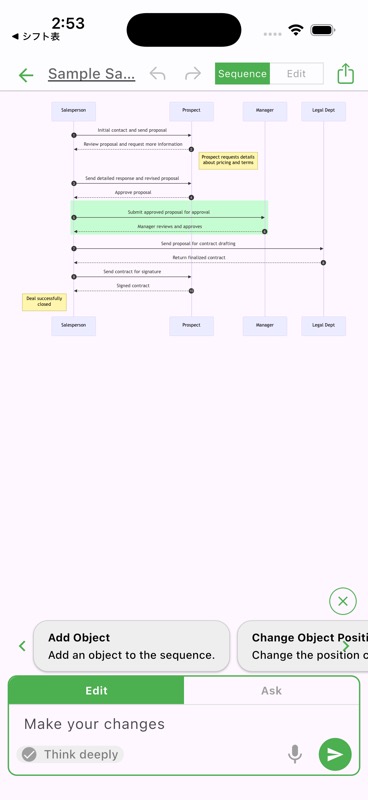
- Open Sequence at the top, tap the input field at the bottom, and choose Edit.
- Describe the participants and messages in order. For example, “The customer sends an order to the store. The store checks stock with the warehouse, then confirms the order to the customer.” Select Send.
- Review who sends each message and check the direction and order of the arrows.
Ask AI about the sequence diagram
- On Sequence, tap the input field at the bottom and choose Ask.
- Send a question such as “Who does the store contact after checking stock?” and read the reply in the chat window.
Edit participants and messages in Mermaid
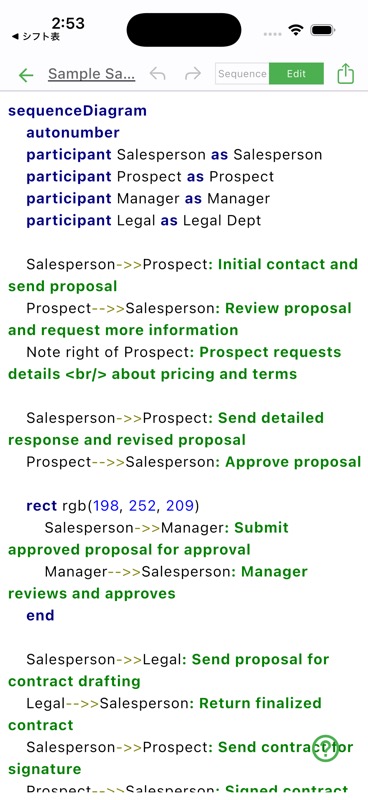
- Choose Edit at the top to open the Mermaid source.
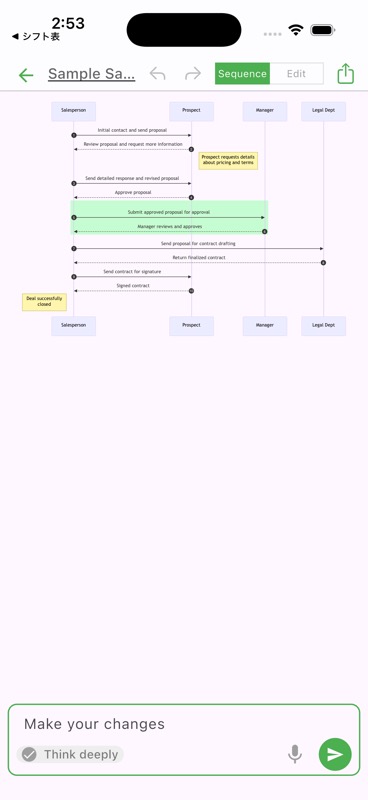
- Update participant names, message text, or message order. Switch back to Sequence to check the diagram.
Export the diagram as an image, Mermaid, or HTML
- Select the share icon in the top-right corner of the editor.
- Choose an image to place the diagram in another document, Mermaid (.mermaid) to edit the source later, or HTML to open the file in a browser.
ਖ਼ਰੀਦਦਾਰੀਆਂ
ਭੁਗਤਾਨ ਵਾਲਾ ਪਲਾਨ ਖਰੀਦੋ
- ਫਾਈਲਾਂ ਦੀ ਸੂਚੀ ਵਿੱਚ ਖਰੀਦਦਾਰੀ ਕਾਰਟ ਦਾ ਆਈਕਨ ਚੁਣੋ।
- ਖਰੀਦ ਸਕ੍ਰੀਨ 'ਤੇ ਪਲਾਨਾਂ ਅਤੇ ਕੀਮਤਾਂ ਦੀ ਸਮੀਖਿਆ ਕਰੋ, ਫਿਰ ਉਹ ਪਲਾਨ ਚੁਣੋ ਜੋ ਤੁਸੀਂ ਖਰੀਦਣਾ ਚਾਹੁੰਦੇ ਹੋ।
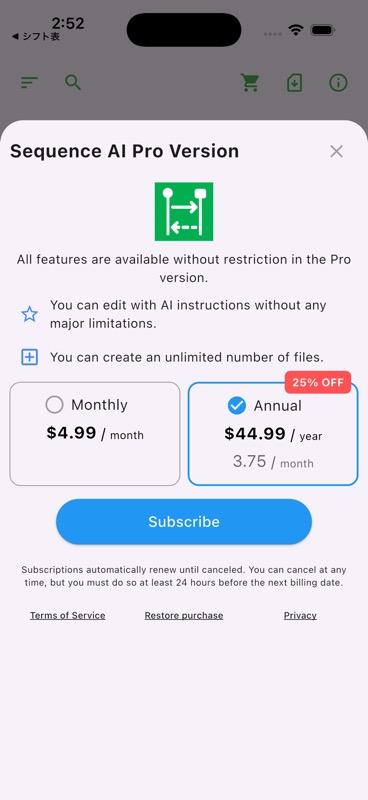
ਖਰੀਦ ਬਹਾਲ ਕਰੋ
- ਜੇ ਤੁਸੀਂ ਐਪ ਸਟੋਰ ਤੋਂ ਖਰੀਦ ਕੀਤੀ ਹੈ, ਤਾਂ ਉਸੇ ਸਟੋਰ ਖਾਤੇ ਨਾਲ ਸਾਈਨ ਇਨ ਕਰੋ ਜਿਸ ਨਾਲ ਤੁਸੀਂ ਪਲਾਨ ਖਰੀਦਿਆ ਸੀ।
- ਐਪ ਵਿੱਚ ਖਰੀਦ ਸਕ੍ਰੀਨ ਖੋਲ੍ਹੋ, «ਖਰੀਦਾਂ ਬਹਾਲ ਕਰੋ» ਚੁਣੋ ਅਤੇ ਨਤੀਜਾ ਦੇਖੋ।
ਖਰੀਦ ਜਾਂ ਸਬਸਕ੍ਰਿਪਸ਼ਨ ਦਾ ਪ੍ਰਬੰਧਨ ਕਰੋ
- ਜੇ ਫਾਈਲਾਂ ਦੀ ਸੂਚੀ ਦੇ ਜਾਣਕਾਰੀ ਮੀਨੂ ਵਿੱਚ ਖਰੀਦ ਪ੍ਰਬੰਧਨ ਦਾ ਵਿਕਲਪ ਹੈ, ਤਾਂ ਉਸ ਨੂੰ ਖੋਲ੍ਹੋ।
- ਆਪਣੀ ਸਬਸਕ੍ਰਿਪਸ਼ਨ ਦੀ ਸਮੀਖਿਆ ਕਰਨ ਜਾਂ ਰੱਦ ਕਰਨ ਲਈ ਉਸ ਸਟੋਰ ਜਾਂ ਸੇਵਾ ਦੀ ਵਰਤੋਂ ਕਰੋ ਜਿੱਥੋਂ ਤੁਸੀਂ ਪਲਾਨ ਖਰੀਦਿਆ ਸੀ।
ਭੁਗਤਾਨ ਵਾਲਾ ਖਾਤਾ
ਆਪਣੀ ਖਰੀਦ ਨੂੰ Google ਖਾਤੇ ਨਾਲ ਲਿੰਕ ਕਰੋ
- ਜਿਸ ਡਿਵਾਈਸ 'ਤੇ ਤੁਹਾਡੀ ਖਰੀਦ ਸਰਗਰਮ ਹੈ, ਉਸ 'ਤੇ ਆਪਣੇ Google ਖਾਤੇ ਵਿੱਚ ਸਾਈਨ ਇਨ ਕਰੋ।
- ਜੇ ਮੀਨੂ ਵਿੱਚ ਆਪਣੀ ਖਰੀਦ ਨੂੰ Google ਖਾਤੇ ਨਾਲ ਲਿੰਕ ਕਰਨ ਦਾ ਵਿਕਲਪ ਦਿਖਾਈ ਦਿੰਦਾ ਹੈ, ਤਾਂ ਉਸ ਨੂੰ ਚੁਣੋ ਅਤੇ ਖਾਤੇ ਦੀ ਪੁਸ਼ਟੀ ਕਰੋ।
- ਕਿਸੇ ਹੋਰ ਸਮਰਥਿਤ ਡਿਵਾਈਸ 'ਤੇ ਆਪਣਾ ਭੁਗਤਾਨ ਵਾਲਾ ਪਲਾਨ ਵਰਤਣ ਲਈ ਲਿੰਕ ਕੀਤੇ Google ਖਾਤੇ ਨਾਲ ਸਾਈਨ ਇਨ ਕਰੋ।
Google ਖਾਤਾ ਬਦਲੋ
- ਫਾਈਲਾਂ ਦੀ ਸੂਚੀ ਦੇ ਜਾਣਕਾਰੀ ਮੀਨੂ ਵਿੱਚ ਦੇਖੋ ਕਿ ਕਿਹੜਾ Google ਖਾਤਾ ਸਰਗਰਮ ਹੈ।
- ਜੇ ਸਾਈਨ ਆਉਟ ਦਾ ਵਿਕਲਪ ਉਪਲਬਧ ਹੈ, ਤਾਂ ਉਸ ਨੂੰ ਚੁਣੋ, ਫਿਰ Google Drive ਖੋਲ੍ਹੋ ਅਤੇ ਉਸ ਖਾਤੇ ਵਿੱਚ ਸਾਈਨ ਇਨ ਕਰੋ ਜਿਸ ਦੀ ਤੁਸੀਂ ਵਰਤੋਂ ਕਰਨਾ ਚਾਹੁੰਦੇ ਹੋ।
ਕਿਸੇ ਹੋਰ ਡਿਵਾਈਸ 'ਤੇ ਉਸ ਖਾਤੇ ਦੀ ਵਰਤੋਂ ਕਰੋ ਜੋ ਖਰੀਦ ਜਾਂ ਉਹਨਾਂ Drive ਫਾਈਲਾਂ ਨਾਲ ਜੁੜਿਆ ਹੈ ਜਿਨ੍ਹਾਂ ਤੱਕ ਤੁਸੀਂ ਪਹੁੰਚ ਕਰਨਾ ਚਾਹੁੰਦੇ ਹੋ।