Dhaptar berkas
Create a shift sheet
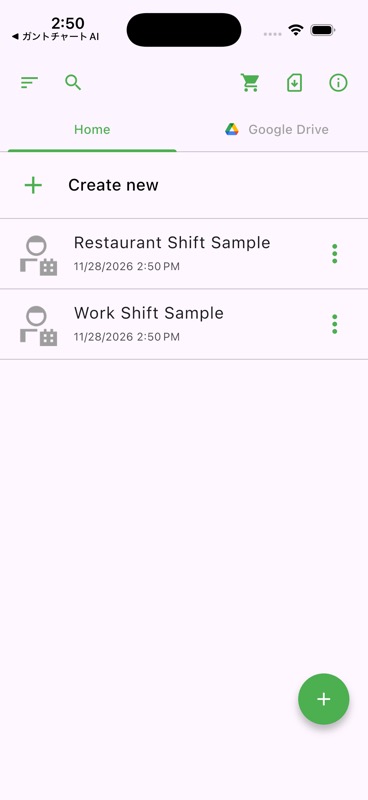
- Tap + Create new in the file list and enter a name, such as the store and month you want to schedule.
- Select OK to open the shift sheet.
Ngganti urutan berkas
- Gunakake kontrol pangurutan ing sisih ndhuwur dhaptar berkas. Ing layar cilik, bukak menu pangurutan.
- Pilih ngurutake adhedhasar tanggal pangowahan utawa jeneng berkas.
Search for a file by name
- Open Home or Google Drive, depending on where the file is stored, and select the Search icon.
- Enter part of the name in Search by file name. Select Close to see the full list again.
Nggandakake berkas
- Bukak menu telung titik ing berkas banjur pilih Gandakake.
- Bukak salinan sing ditambahake ing dhaptar kanggo nyunting tanpa ngowahi berkas asli.
Mbusak berkas
- Bukak menu telung titik ing berkas banjur pilih Busak.
- Priksa pesen konfirmasi banjur pilih OK.
Kanggo berkas sing dituduhake marang sampeyan, menu bisa uga nyedhiyakake pilihan kanggo mbatalake enggo bareng.
Ngganti jeneng berkas
- Bukak menu telung titik ing file banjur pilih Ganti jeneng.
- Lebokna jeneng anyar banjur konfirmasi.
Kanggo ngganti jeneng file Google Drive sing dienggo bareng karo sampeyan, sampeyan kudu duwe idin kanggo nyunting.
Import a saved shift sheet
- Select Import in the file list, then select OK to open the file picker.
- Choose a shift sheet previously exported from this app and open it from the list.
The import prompt shows .sshift. The current version saves native shift sheet files with the .stournament extension.
Nyimpen menyang Google Drive
- Pilih Google Drive ing dhaptar file banjur tindakna pituduh kanggo nyambungake Akun Google sampeyan.
- Gawe file anyar saka dhaptar Google Drive. Yen pilihan iki kasedhiya, sampeyan uga bisa mindhah file lokal menyang Google Drive liwat menu telung titik ing file kasebut.
Kanggo mbukak file ing piranti liyane, sambungna Akun Google sing digunakake kanggo nyimpen file kasebut.
Mindhah file antarane piranti lan Google Drive
- Ing aplikasi sing wis diinstal, sambungna Akun Google sampeyan banjur bukak menu telung titik ing file.
- Gumantung ing panggonan file disimpen, pilih Pindhah menyang Google Drive utawa Pindhah menyang Home, banjur konfirmasi.
Nyunting berkas
Set the date range for a shift sheet
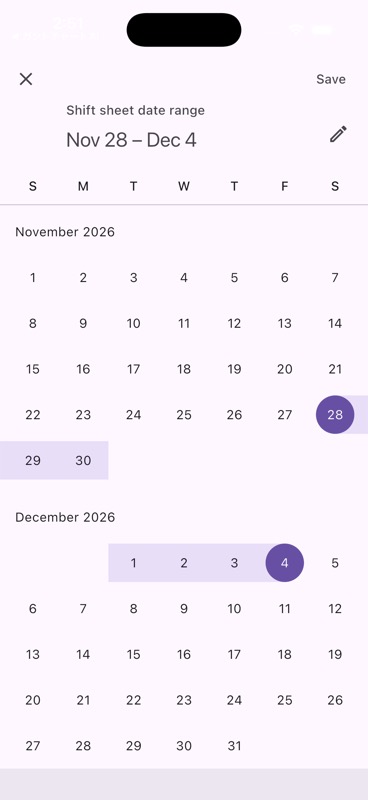
- Tap the date range with the calendar icon at the top of the editor.
- Pick the first and last days in the calendar and save. The sheet displays the selected range.
Add staff members
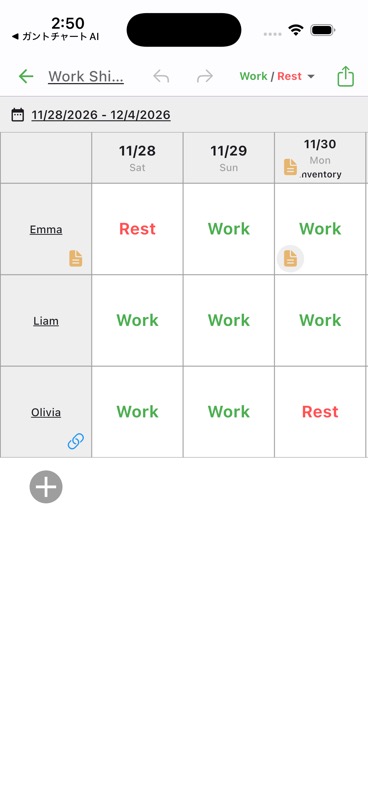
- Choose Add a new person in an empty sheet, or tap + at the end of the staff column in an existing sheet.
- Enter the staff member’s name and select OK. In an empty sheet, you can also import people from another file.
Choose a shift pattern
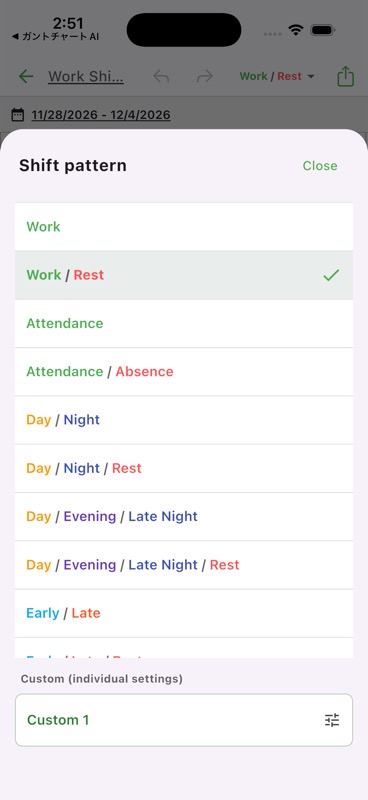
- Tap the current pattern name at the top of the editor to open Shift pattern.
- Choose a set that fits your team, such as work and days off, day and night shifts, or early and late shifts. Use Custom (individual settings) for your own names and colors.
Assign a shift to a person on a date
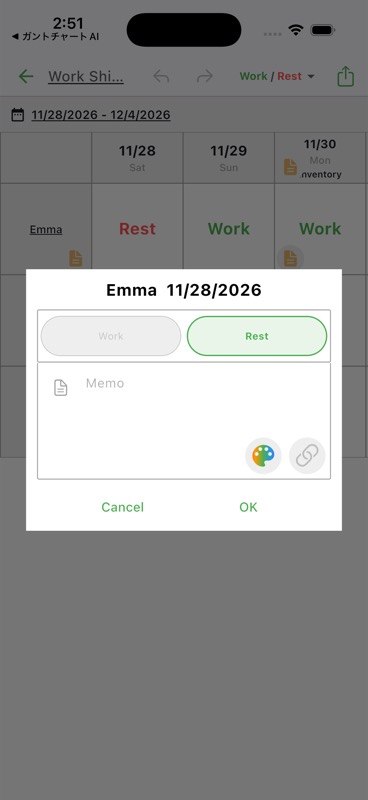
- Tap the cell where the person’s row and the date column meet. Each tap moves to the next option in the selected shift pattern.
- On a phone, press and hold a cell to open its details and edit a note or color.
Nuduhake isi liwat URL
- Bukak menu ekspor ing editor banjur pilih opsi nuduhake liwat web.
- Salin URL sing digawe banjur kirim menyang wong sing arep kokajak nuduhake isi kasebut.
URL ngemot isi kaya nalika pranala digawe. Jinis lan jumlah isi sing bisa kokuduhake ana watese.
Export a shift sheet as an image, CSV, or Excel file
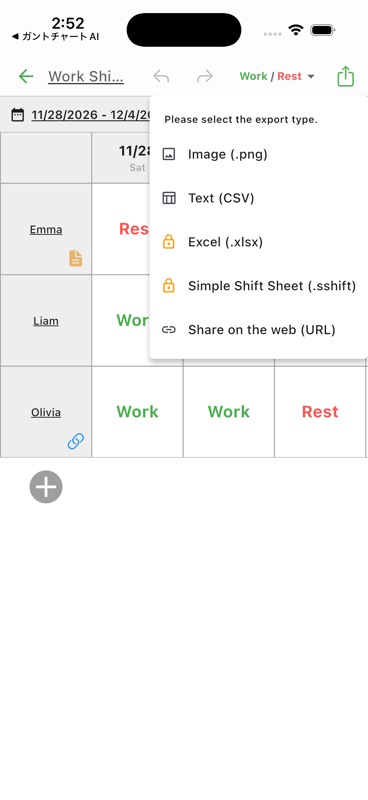
- Open the share menu at the top right. Choose an image to share the layout, or CSV or Excel to open the data in a spreadsheet.
- To reimport the sheet later, choose the menu item labeled Simple Shift Sheet (.sshift) and save the exported file.
The native file is currently saved with the .stournament extension. Export formats marked with a lock require Pro.
Tuku
Tuku paket berbayar
- Pilih lambang kranjang blanja ing dhaptar file.
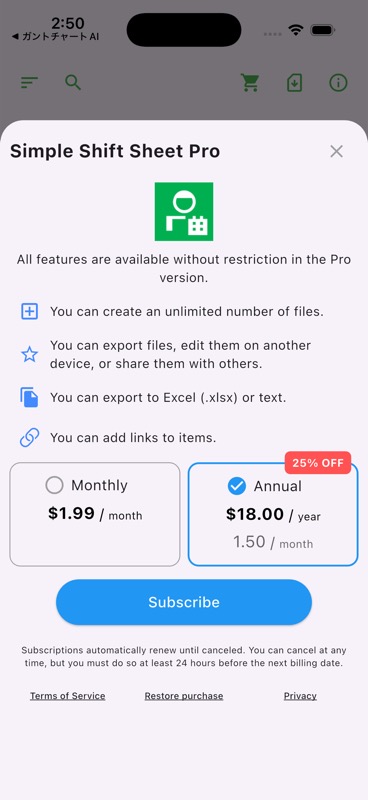
- Priksa paket lan rega ing layar tuku, banjur pilih paket sing arep sampeyan tuku.
Mulihake tuku
- Yen tuku liwat toko aplikasi, mlebu nganggo akun toko sing digunakake kanggo tuku paket kasebut.
- Bukak layar tuku ing aplikasi, pilih «Mulihake tuku», banjur priksa asile.
Ngatur tuku utawa langganan
- Yen menu informasi ing dhaptar file nyedhiyakake pilihan kanggo ngatur tuku, bukak pilihan kasebut.
- Gunakake toko utawa layanan sing sampeyan gunakake kanggo tuku paket kanggo mriksa utawa mbatalake langganan.
Akun berbayar
Nyambungake tuku menyang akun Google
- Mlebu menyang akun Google ing piranti sing duwe tuku aktif.
- Yen pilihan kanggo nyambungake tuku menyang akun Google katon ing menu, pilih pilihan kasebut lan konfirmasi akun kasebut.
- Kanggo nggunakake paket berbayar ing piranti liyane sing didhukung, mlebu nganggo akun Google sing wis disambungake.
Ngalih akun Google
- Priksa akun Google sing lagi aktif ing menu informasi dhaptar file.
- Yen ana pilihan kanggo metu saka akun, pilih pilihan kasebut, banjur bukak Google Drive lan mlebu nganggo akun sing arep sampeyan gunakake.
Ing piranti liyane, gunakake akun sing disambungake karo tuku utawa file Drive sing arep sampeyan akses.